How To Configure Remote Desktop To Hyper-V Guest Virtual Machines

<Update 6/7/2010 with feedback from Kelly Jones on network adapters />

Configuring Remote Desktop (RDP) from a host Hyper-V machine to a guest virtual machine can be tricky, so this post is dedicated to the issues and resolution steps I went through to allow RDP.  Cutting to the point, below are the things to look for followed by some explanation about my scenario if you care to read.  This is not an exhaustive list of what is required, just the items that were causing problems for my particular scenario.

Requirements

  1. Allow Remote Desktop Connections in guest OS.
  2. The network adapter type must allow communication with host machine (e.g. use an “Internal” or “External” virtual adapter.)
  3. If running Server 2008 R2 on guest, network discovery mode must be turned on.
  4. If running Server 2008 R2 on guest, the services supporting network discovery mode must be running:– DNS Client – Function Discovery Resource Publication

    – SSDP Discovery

    – UPnP Device Host

My Environment

A quick word about my environment.  I am running Windows Server 2008 R2 with Hyper V on my laptop and numerous guest VMs running Windows Server 2003 R2 or Windows Server 2008 R2.  I run a domain controller VM and then 1 or 2 SharePoint servers depending on my work needs.  I’ve found this setup to work well except when it comes to the display window for my VMs.

The Issue

Ever since I began running Hyper-V I haven’t been able to RDP to my guest VMs which means the resolution for my connection windows ha been limited to what the native Hyper-V connections allow.  During personal use I can put the resolution up to 1152 x 864, but during presentations I am usually limited to a measly 800 x 600.  That is until today when I decided to fully investigate why I couldn’t connect via RDP.

First a thank you to John Ross (@johnrossjr), Christina Wheeler (@cwheeler76) and Clayton Cobb (@warrtalon) for various suggestions while I was researching tonight.  As it turns out I had not 1, not 2, but 3 items preventing me from using RDP.  Let’s dig into the requirements above.

Allow RDP Connection

This item I had previously taken care of, but it bears repeating because by default Windows Server 2008 R2 does not allow RDP connections.  Change the setting from “Don’t allow…” to whichever “Allow connections…” setting suits your needs.  I chose the less secure option as this is just my dev laptop.
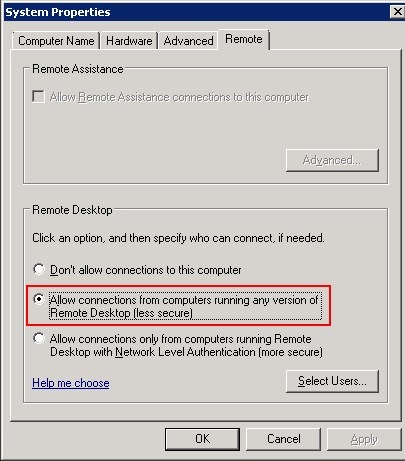
ConfigureRDPHyperVGuest8

Network Adapter Type

When I originally configured my VMs I configured each to use 2 network adapters: one using the physical ethernet adapter for internet use and a virtual private adapter for communication between the VMs.  The connection for the ethernet adapter is an “”External” adapter and (as my co-worker Kelly Jones pointed out in comments below) does allow connections between host and guest.  After he pointed this out though I realized that my ethernet adapter is not always reliably enabled (power cord not in disables NIC.)  As such I need a secondary adapter that will always be on to connect the host and guest.  The virtual private adapter I had allowed communication ONLY between the VMs and not to my host.  There is a third option “Internal” which allows communication between VMs as well as to the host.  After finding out this distinction I promptly created an Internal network adapter and assigned that to my VMs.
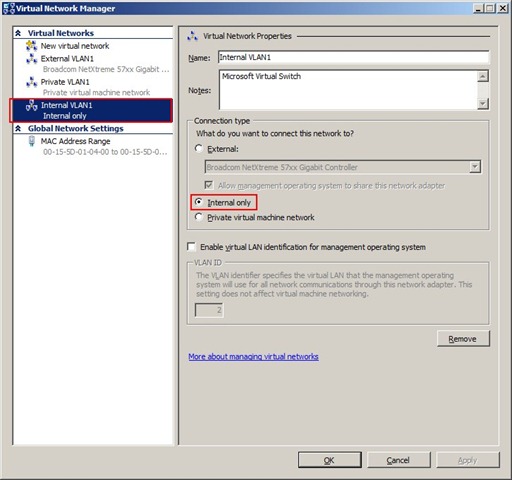
ConfigureRDPHyperVGuest1

Turn On Network Discovery

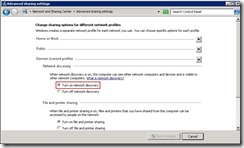
Seems like a pretty common sense thing, but in order to allow remote desktop connections the target computer must able to be found by the source computer (explained here.)  One of the settings that controls if a computer can be found on the network is aptly named Network Discovery.  By default Windows Server 2008 R2 turns Network Discovery off for security purposes.  To enable it open up the Network and Sharing Center.  Click “Change Advanced Sharing Settings” on the left.  On the following screen select “Turn on network discovery” for the currently used profile and click Save Settings.  You may notice though that your selection to turn on network discovery doesn’t save.  If this is the case then you most likely don’t have the supporting services running (as was my case.) ConfigureRDPHyperVGuest4
ConfigureRDPHyperVGuest5

Network Discovery Supporting Services

There are a total of 4 services (listed again below) that need to be running before you can turn on network discovery (explained here.)  The below images highlight these services.  In my guest VM I found that I had DNS Client already running while the other 3 were disabled.  I set them all to enabled and started the ones that were stopped.  After this change I returned to the Sharing settings screen and found that Network Discovery was turned on.  I’m not sure whether this was picking up my attempt to turn it on previously or if starting those services turned it on.  Either way the end result was a success.

– DNS Client

– Function Discovery Resource Publication

– SSDP Discovery

– UPnP Device Host

ConfigureRDPHyperVGuest2 ConfigureRDPHyperVGuest3

Before and After Results

The first image is the smaller square shaped viewing window used by the Hyper-V native connection.  The second is the full-screen RDP connection in all its widescreen glory.
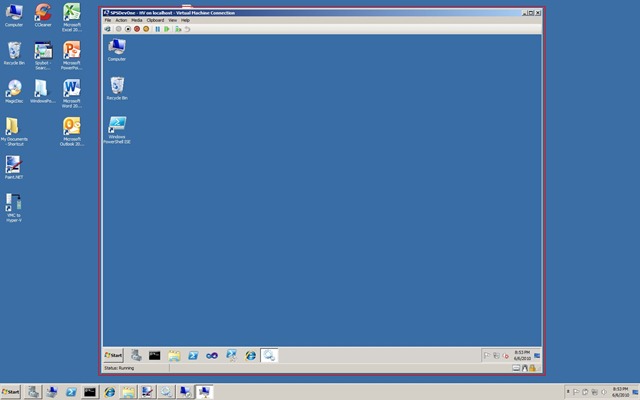
ConfigureRDPHyperVGuest6 ConfigureRDPHyperVGuest7

Conclusion

Over the past few months I’ve found Hyper-V to be very useful for virtualizing my development environments, but I’ve also had a steep learning curve to get various items configured just right.  Allowing RDP connections to guest VMs was one area that I hadn’t been able to get right for the longest time.  Now that I resolved these issues I hope that others can avoid the pitfalls that I ran into.  If you know of any other items I left off feel free to let me know.


-Frog Out


Links

Turning on Network Discovery

http://sqlblog.com/blogs/john_paul_cook/archive/2009/08/15/remote-desktop-connection-on-windows-server-2008-r2.aspx

Services required for Network Discovery
http://social.technet.microsoft.com/Forums/en-US/winservergen/thread/2e1fea01-3f2b-4c46-a631-a8db34ed4f84

Central Ohio Day of .Net 2010 Slides and Files

    This weekend I presented my “The Power of PowerShell + SharePoint 2007” session at the Central Ohio Day of .Net conference in Wilmington, OH.  This is the second year I’ve attended this conference, first time as a presenter.  For those unfamiliar Day of .Net conferences are a one-day conference on all things .NET organized by developers for developers.  These events are usually offered at no cost to anyone interested in .NET development.

    The attendees of my session had some great questions and I hope they all got something worthwhile out of it.  Below are my slides and demo scripts (some of which I didn’t have time to demo) along with my sample profiles.  If you have any questions, comments, or feedback feel free to leave comments here or send me an email at brian.jackett@gmail.com.


Slides and Files

SkyDrive link


Technology and Friends Interview Experience

    On a side note, any of you familiar with one of my Sogeti co-workers in Detroit David Giard may know that he hosts a web series called Technology and Friends.  After my session David tracked me down and asked to interview me about PowerShell.  I was happy to oblige so we sat down and taped some material.  I don’t know when that interview will be going live, but look for it on www.davidgiard.com.


Conclusion

    A big thanks goes out to all of the sponsors, speakers, and attendees for the Central Ohio Day of .Net conference.  Without all of them this conference couldn’t have been possible.  I had a great time at the conference and look forward to coming back next year whether that is as a speaker or attendee.

      -Frog Out

You Can’t Upload An Empty File To SharePoint 2007 Or SharePoint 2010

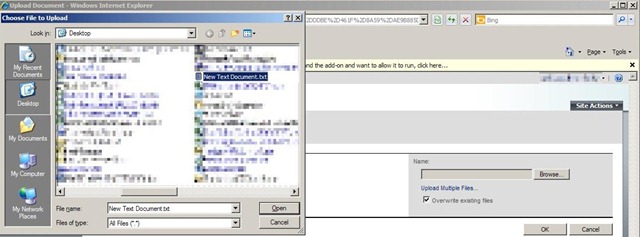
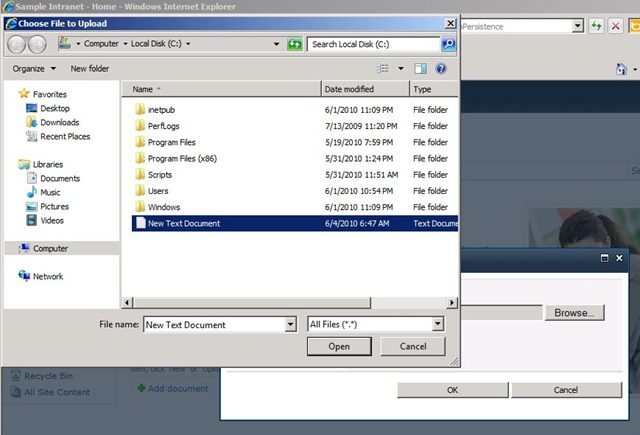
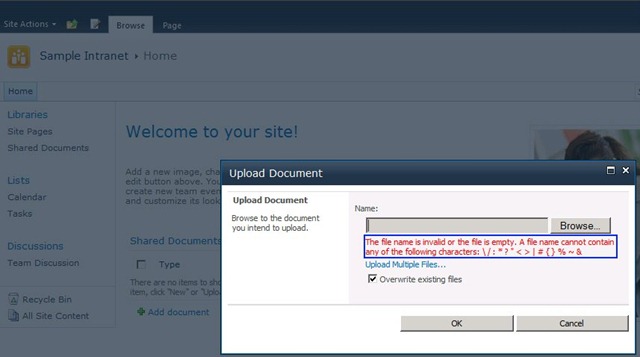
The title of this post is pretty self explanatory, but I thought it worth mentioning since I had never run across this rule until just recently.  A few weeks ago I was testing out a new workflow attached to a SharePoint 2007 document library.  I uploaded various file types to ensure all were handled properly.  One of the files I happened to test with was an empty .txt file to which I got the following error.

NoUploadBlankFile1 NoUploadBlankFile2 NoUploadBlankFile3     As you can see from the error message you aren’t allowed to upload a file that is empty.  Fast forward to this week when I was doing some research for my upcoming SharePoint 2010 beta exams.  I remembered that error I got a few weeks ago and decided to try out with SharePoint 2010 as well.  No surprises I got a similar error.

NoUploadBlankFile4 NoUploadBlankFile5

Conclusion

Next time you are uploading files to a SharePoint 2007 or 2010 document library, make sure the file is not empty.  Coincidentally when I tweeted about this issue a few friends replied that they had also found this error recently.  I don’t know the internal reasoning why this is prevented but I assume it has something to do with how the blob for the file is stored in the database.  I assume that this would still be the case even if you had Remote Blob Storage (RBS) configured for your farm, but don’t have access to such a farm to confirm.  If anyone reading this does have access and wants to confirm that would be appreciated, just leave a comment.


-Frog Out

Error Using 32 vs. 64 bit SharePoint 2007 DLLs with PowerShell

Next time you fire up PowerShell to work with the SharePoint API make sure you launch the proper bit version of PowerShell.  Last week I had an interesting error that led to this blog post.  Travel back in time a little bit with me to see where this 32 vs. 64 bit debate started.

History

Ever since the first pre-beta bits of Office 2010 landed in my lap I have been questioning whether it’s better to run 32 or 64 bit applications on a 64 bit host operating system.  In relation to Office 2010 I heard a number of arguments for 32 bit including this link from the Office 2010 Engineering team.  Given my typical usage scenarios 32 bit seemed the way to go since I wasn’t a “super RAM hungry” Excel user or the like.

The Problem

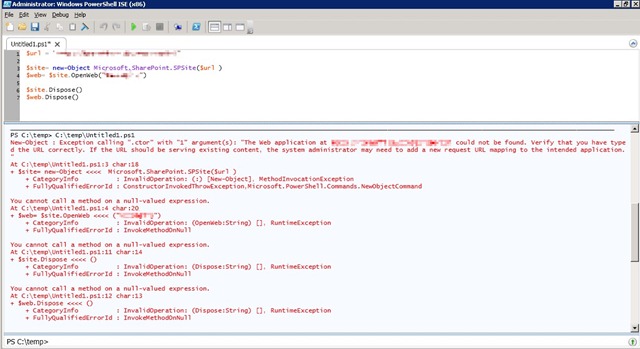
Since I had chosen 32 bit Office 2010, I tried to stick with 32 bit version of other programs that I run assuming the same benefits and rules applied to other applications.  This is where I was wrong.  Last week I was attempting to use 32 bit PowerShell ISE (Integrated Scripting Environment) on a 64 bit WSS 3.0 server.  When trying to reference the 64 bit SharePoint DLLs I got the following errors about not being able to find the web application.

PowerShellBitVersion1

I have run into these errors when I have hosts file issues or improper permissions to the farm / site collection but these were not the case.  After taking a quick spin around the interwebs I ran across the below forum post comment and another MSDN forum reply that explained the error.  Turns out that sometimes it’s not possible to run 32 bit applications against a 64 bit OS / farm / assembly / etc.

…the problem could also be because your SharePoint is 64-Bit but your app is running in 32-bit mode

I quickly exited 32 bit PowerShell ISE and ran the same code under 64 bit PowerShell ISE.  All errors were gone and the script ran successfully.


Conclusion

The rules of 32 vs. 64 bit interoperability do not always apply evenly across all applications and scenarios.  In my case I wasn’t able to run 32 bit PowerShell against 64 bit SharePoint DLLs.  I’m updating all of my links and shortcuts to use 64 bit PowerShell where appropriate.  I’m quite surprised it has taken me this long to run into this error, but sometimes blind luck is all that keeps you from running into errors.  Lesson learned and hopefully this can benefit you as well.  Happy SharePointing all!


-Frog Out


Links

http://blogs.technet.com/b/office2010/archive/2010/02/23/understanding-64-bit-office.aspx

http://social.msdn.microsoft.com/Forums/en-US/sharepointdevelopment/thread/a732cb83-c2ef-4133-b04e-86477b72bbe3/

http://stackoverflow.com/questions/266255/filenotfoundexception-with-the-spsite-constructor-whats-the-problem

SharePoint Saturday DC 2010 Slides, Demo Scripts, and Pictures

Wow! This past weekend I attended SharePoint Saturday Washington DC (SPSDC) which was quite an event to say the least.  For those unfamiliar, SharePoint Saturday is a community driven event where various speakers gather to present at a FREE conference on all topics related to SharePoint.  This made my fifth SharePoint Saturday attended and fourth I’ve spoken at.  SPSDC was a bit different than most SharePoint Saturdays mostly due to the scale of it.  We had almost 950 attendees, over 80 speakers presenting close to 90 sessions, and dozens of sponsors.  A big thanks goes out to the organizers of this event.  They put in a lot of hard work and time to pull this event off and should be very proud of the end result.

For SPSDC I presented “The Power of PowerShell + SharePoint 2007”.  I want to thank all of the attendees of my session for coming and asking some great questions.  Below you can find the slides and demo scripts for this session.  I also took some photos throughout the day (not as many as usual since so much going on) so check them out.  If you have any follow up questions feel free to drop me a line in the comments or the contact link at the top of the site.

Slides and Scripts

Click here for the demo scripts and slides posted on my SkyDrive.


VERY IMPORTANT NOTE: One thing I forgot to mention in my presentation.  In order to run code against the SharePoint API you need to load the Microsoft.SharePoint.dll assembly first.  Run the below command on the PowerShell console line to complete that:


[void][System.Reflection.Assembly]::LoadWithPartialName(“Microsoft.SharePoint”)


Photos

Facebook album

-or-

My album on Windows Live site (higher res shots).

-Frog Out

Stir Trek: Iron Man Edition Recap and Photos

Stir Trek Logo2     If you’ve noticed my blogging activity has reduced in frequency and technical content lately it’s primarily due to all of the conferences I’ve been attending, speaking at, or planning in the past few months.  This past Friday myself and six other dedicated individuals put on Stir Trek: Iron Man Edition as the culmination of a few months of hard work.  For those unfamiliar, Stir Trek is a web developer conference that was founded last year as an event to showcase content from Microsoft’s MIX conference and end the day with a private showing of the then just-released Star Trek movie.  This year’s conference expanded from 2 to 4 content tracks and upped the number of tickets from 350 to 600.  Even more amazing was the fact that we had 592 people show up day of the event for the lowest drop-off percentage of any conference I’ve been to before.

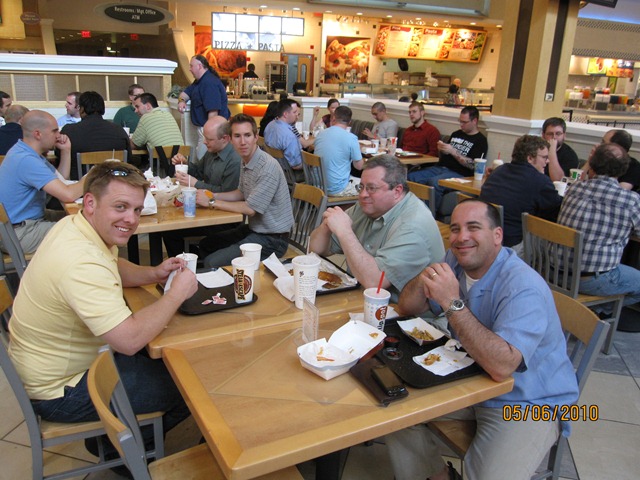
Nerd Dinner and Swag Bags

IMG_1279

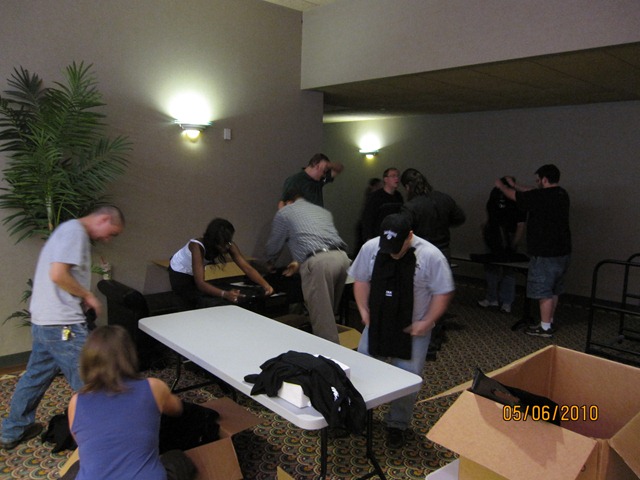
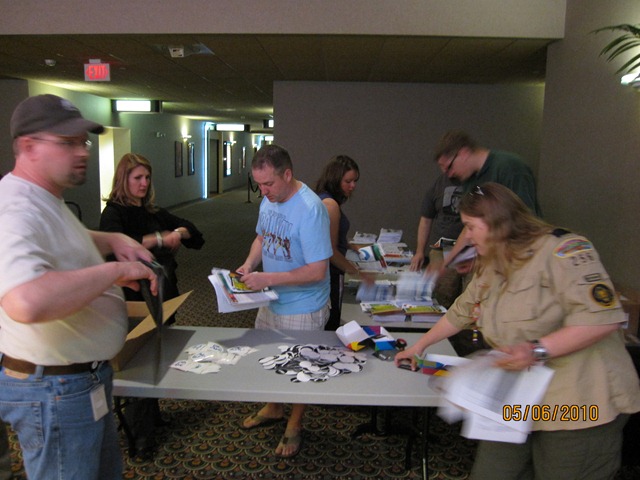
The night before Stir Trek: Iron Man Edition we hosted a nerd dinner at the Polaris Shopping mall food court with about 30 in attendance.  Nerd dinners are a great time to meet others passionate about technology and socialize before the whirlwind of the conference hits.  After the nerd dinner 20+ volunteers headed to the conference location and helped us stuff swag bags.  This in and of itself was a monumental task of putting together 600 swag bags with numerous leaflets, sponsor items, and t-shirts.  A big thanks goes out to all who assisted us that night so that we could finish in just under 2 hours instead of taking all night.  My sleep schedule also thanks you.

IMG_1282 IMG_1288 IMG_1291

Morning of Stir Trek

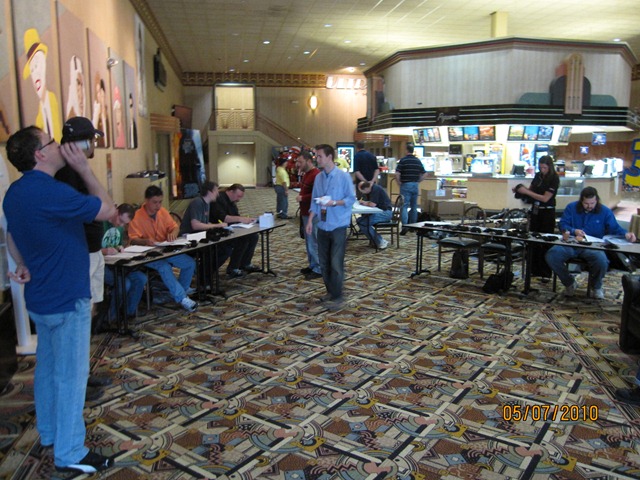
After getting a decent amount of sleep I arrived at Marcus Crosswoods theater at 6am to begin setting up for the day.  Myself and Jody Morgan were in charge of registration so we got tables set up, laid out swag bags, and organized our volunteer crew to assist with checking-in attendees.  Despite having 600+ people registration went fairly smoothly and got the day off to a great start.  I especially appreciated the 3+ cups of coffee from Crimson Cup, a local coffee shop.  For any of you that know me you’ll know that I rarely drink coffee except a few times a year when I really need the energy, so that says a lot about how good their coffee is.

IMG_1293

Conference Starts

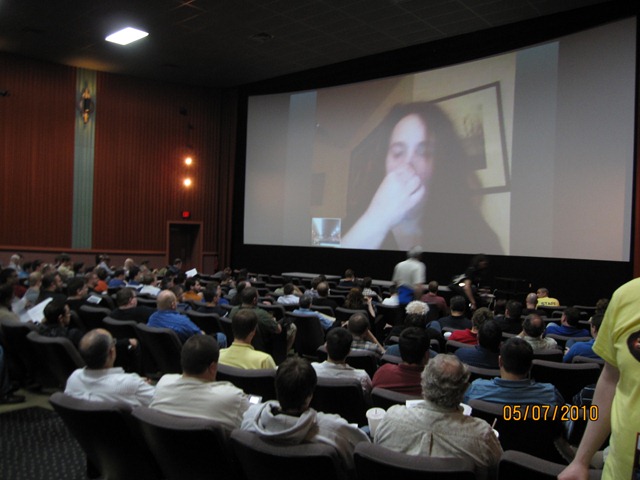
Once registration was completed the day kicked off with Molly Holzschlag keynoting.  Unfortunately Molly suffered from an ear infection and wasn’t able to fly so she had a virtual keynote and a session later in the day.  I was working behind the scenes on various tasks so I was only able to drop in very briefly on the keynote and rest of the morning sessions.  Throughout the day I tried to grab at least 1 or 2 pics of each presenter.  See my album below for the full set of pics.

IMG_1307     For lunch we ordered around 150 pizzas from Mellow Mushroom, a local pizza place (notice the theme of supporting local businesses.)  Early on we were concerned about Mellow Mushroom being able to supply that many pizzas and get them delivered (still hot) to the theater, but they did an excellent job day of the event.  I wish I had gotten some pictures of the old school VW van they delivered the pizza in, but I was just a bit busy running around trying to get theaters ready for lunch.  We had attendees from last year who specifically requested that we have Mellow Mushroom supply lunch this year and I’m glad everything worked out being able to use them again.

During the afternoon I was able to attend a few sessions and hear some great content from various speakers.  It was also nice to just sit down and get off my feet for a bit.  After the last sessions the day concluded with a raffle.  There were a few logistical and technical issues that hampered our ability to smoothly conduct the raffle.  To those of you that agree the raffle wasn’t the smoothest experience I would like to say that the Stir Trek planning committee has already begun meeting to discuss ways of improving the conference for next year.  We are also accepting feedback (both positive and negative) at the following link: click here.  If you don’t wish to use the Joind In site you can also email me directly and I’ll be sure to pass along the feedback.


Iron Man 2 Movie

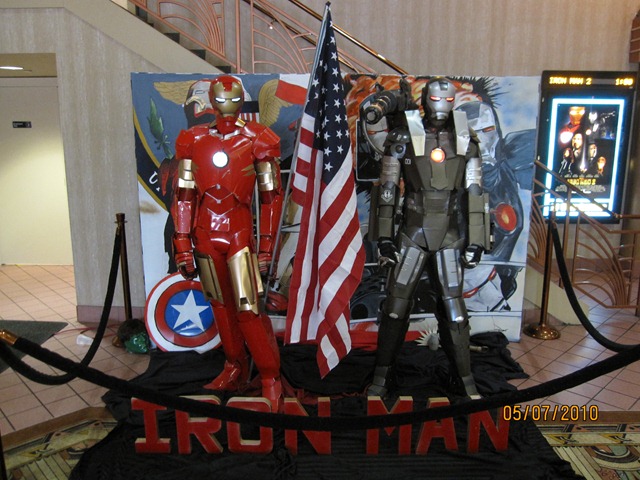
Last but not least, what Stir Trek event would be complete without the feature movie.  This year’s movie was Iron Man 2.  The theater had some really cool props and promotions (see pic below) for the movie.  I really enjoyed Iron Man 2, but I would recommend brushing up on the Iron Man comics and Marvel’s plans for future movies to understand some of the plot elements that come up.  Also make sure you stay through to the end of the movie credits to see a sneak peak of something special, that’s all I’ll say. IMG_1309

Conclusion

Again a big thanks goes out to all of the speakers, sponsors, attendees, movie theater staff, volunteers, and everyone else involved in making this event great.  Also big thanks to my fellow Stir Trek planning committee members: Jeff Blankenburg, Matt Casto, Carey Payette, Jody Morgan, Rick Kierner, and Sarah Dutkiewitcz.  I am grateful for everything I learned while helping plan this event and look forward to being involved again next year.  For those interested we are currently targeting Thor as our movie theme for 2011 and then The Avengers for 2012.  These are tentative based on release dates that could shift as we get closer, but for now look solid.


Photos

Pics on Facebook (includes tagging)

Stir Trek: Iron Man Edition photos on Facebook

Pics on Live site (higher res)


-Frog Out