In this post I’ll show how to enable auto-mount for encrypted volumes with the Western Digital MyCloud EX2 Ultra NAS. This is a very specific scenario but documenting it for myself and sharing with others as I saw misleading information on forum posts.
Context
A few months ago, I ran into issues with the volume on my Western Digital MyCloud EX2 NAS. After a long series of terminal commands and troubleshooting, I was able to re-enable encryption on my 2 drives, but it caused the auto-mount setting to be disabled. As a result, anytime my NAS rebooted (scheduled or after an update) I had to manually re-mount the encrypted volume.
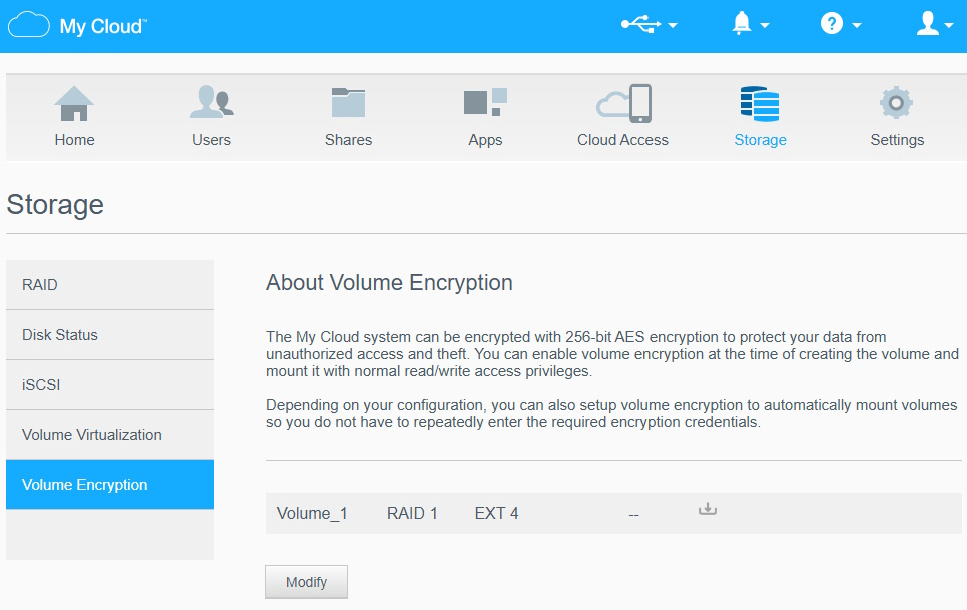
I looked online for where to update the auto-mount setting in the admin portal. On the Storage –> Volume Encryption tab, I clicked “Modify” but I ran into the same issue other users reported: “Error – Please select one item”.
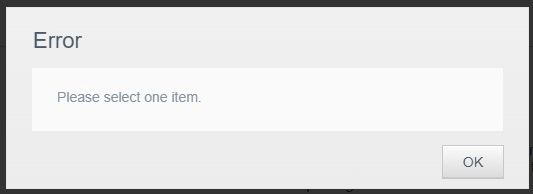
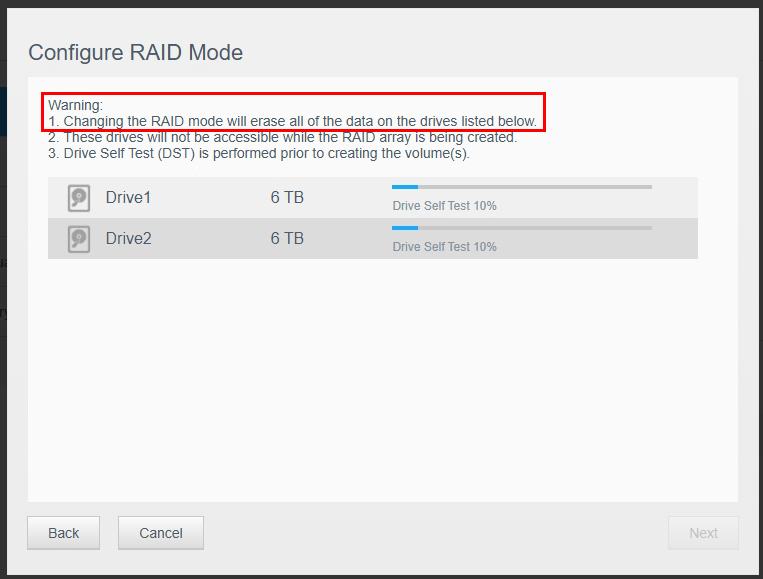
The guidance in a WD support forum (7 yrs old now, possibly updates make this no longer correct) was that you need to re-configure RAID mode for the drives. Doing so will erase all of the data on the drives (see warning below).
Solution
It turns out the solution is much easier and doesn’t require erasing all of the data on your drives. Back on the Volume Encryption tab, click the row of the volume (you’ll see a blue border for selection) before clicking Modify.
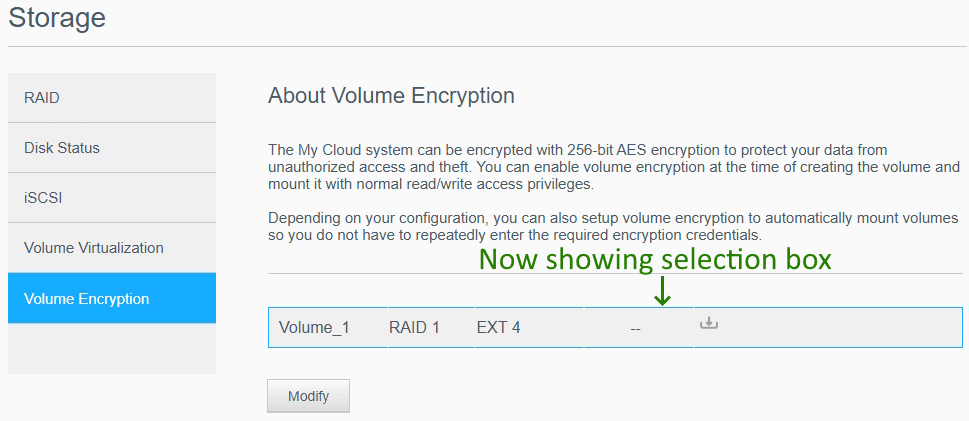
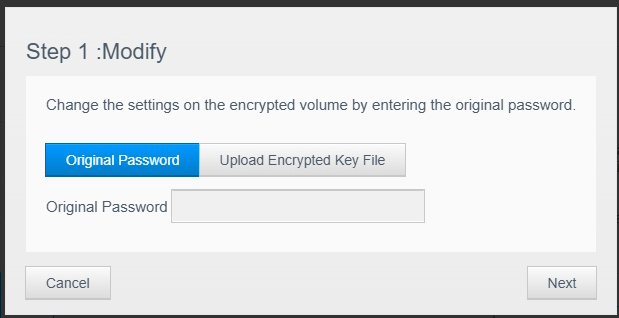
Then enter your password or select the encrypted key file.
Finally, you will see the option to select “Auto Mount” and click Apply.
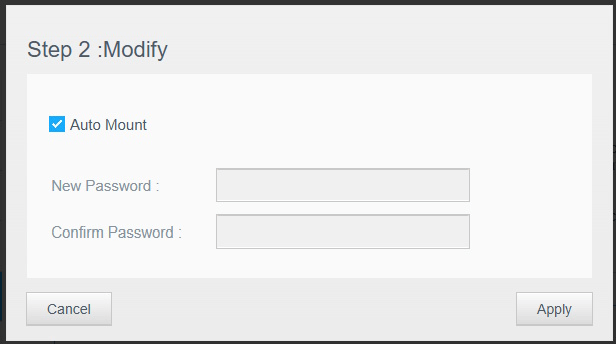
Now you should be all configured for auto-mounting the encrypted volume. Hopefully this information will help others that got stuck at the same incorrect guidance I originally ran into. Thankfully this information is available in another support article, but my original searches did not find this information, so linking to it from here.
Steps to Encrypting a RAID Volume on My Cloud (see the “Enable Auto Mount” section)
https://support-en.wd.com/app/answers/detailweb/a_id/6865
As a final tip, remember The Computer Backup Rule of Three. From Scott’s blog (and many other sites if you look online):
- 3 copies of anything you care about – Two isn’t enough if it’s important.
- 2 different formats – Example: Dropbox+DVDs or Hard Drive+Memory Stick or CD+Crash Plan, or more
- 1 off-site backup – If the house burns down, how will you get your memories back?
-Frog Out

