A big thank you to everyone that attended my PowerShell for Your SharePoint Toolbelt at Dogfood Con this year. We packed quite a few demos into the 60 minute session. My slides and demo scripts are below.
Demo PowerShell Scripts
Slide Deck
-Frog Out
A big thank you to everyone that attended my PowerShell for Your SharePoint Toolbelt at Dogfood Con this year. We packed quite a few demos into the 60 minute session. My slides and demo scripts are below.
Demo PowerShell Scripts
Slide Deck
-Frog Out
In a few weeks I’ll be speaking at SharePoint Saturday Cincinnati as well as Dog Food Con. I’ve spoken at both conferences in the past and am excited to be accepted to speak at both again. If you are in the Ohio area and can attend I highly recommend registering. Here are the abstracts for both sessions and hope to see you in my session if you can join.
When: Oct 7-8, 2015
Title: PowerShell for Your SharePoint Tool Belt
Abstract: PowerShell is becoming the command line interface for all Microsoft server products including SharePoint. If you haven’t started using PowerShell you will want to add it to your set of tools in your tool belt. In this demo heavy session we will show tips and tricks for using the PowerShell console and ISE, traverse through all sites in a farm, create reports, and create a secure remote connection with whitelisted commands through constrained endpoints. We will also cover some of the more intermediate to advanced techniques available within PowerShell that will improve your work efficiency. This session is targeted to administrators and developers and assumes a basic familiarity with PowerShell.
SharePoint Saturday Cincinnati
When: Oct 10, 2015
Title: Running Your Dev / Test VMs in Azure for Cheap
Abstract: With an MSDN subscription you can run your dev / test SharePoint environment in Azure IaaS for less than the cost of a cup of coffee each day. In this session we will overview the basics of Azure IaaS (Infrastructure as a Service), the pieces you will use to be successful deploying SharePoint in Azure (including the new Azure Resource Manager templates), and how to use resources as efficiently as possible to reduce your costs and boost your farm performance. This session is targeted to SharePoint developers and administrators. Prior knowledge of Azure is helpful but not a requirement.
In this post I will cover a few tips for getting started with using ProcMon (Process Monitor in the Sysinternals Suite) for troubleshooting long running processes. Note that I am not an expert in ProcMon by a long shot, so this is more of a selfish post to remind myself of some key settings to be sure to configure.
Side note. You can run the Sysinternals tools from the web at Sysinternals Live without needing to download the tools to your local machine. This is useful if your customer / organization doesn’t allow installing / running 3rd party tools or has concerns about running them directly on a machine.
Background
Skip down to the Tips section if you don’t want to read the back story.
At least once a month I have a customer scenario where two or more applications are not playing nice with each other. A .Net website and anti-virus software, SharePoint and server backup software, etc. Usually the problem involves one piece of software placing a write-lock or exclusive hold on a file / registry entry while the other software expects the same. In such a scenario we need to monitor a file / registry entry from a fresh start (restart application pool, process, etc.) until the file / registry access error happens which could be hours or days. Since we are monitoring for such a long time we want to make sure that ProcMon only captures the data that we need as well as be mindful of memory / disk space usage.
1) Start ProcMon with no tracing
If you start up ProcMon by double clicking the executable ProcMon will start capturing data immediately. Instead launch it from the command line with the /noconnect parameter.
c:sysinternals> procmon /noconnect
2) Specify a backing file
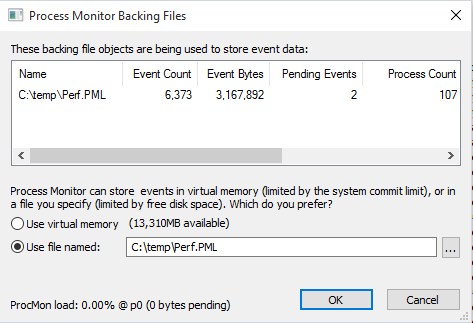
By default ProcMon will store event data in virtual memory. Since we could capturing hours or days worth of data it might be preferred to store that to a disk with lots of free space (multiple GBs or more depending on expected duration and number of events).
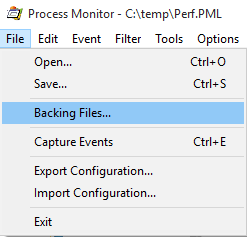
Navigate to File –> Backing Files… for these settings.
Change the radio button from “Use virtual memory” to “Use file named:” and then specify the filename you would like to use as a backing file. .PML is the default extension used so I followed that convention.
3) Apply filters
By default all processes accessing any files and / or registry locations will be monitored. Instead we want to filter events based on our criteria. The most common scenarios that I run into (in order that I see them) are 1) filtering for location when we don’t know the process that is locking it or 2) filtering for a specific process when we know the process but not the location that is being locked.
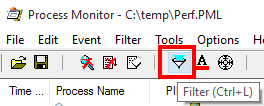
Click on the filter icon in the top menu or click Filter –> Filter… to access these settings.
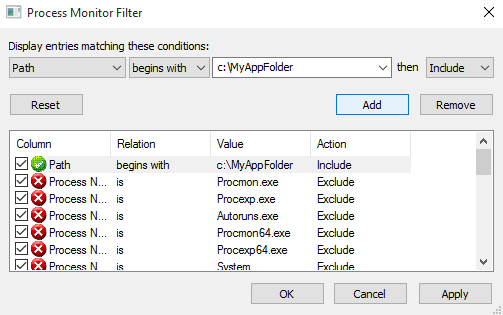
In the example below we filter for any path that begins with “c:MyAppFolder”. By doing this we include any subfolders of our application folder.
4) Drop filtered events
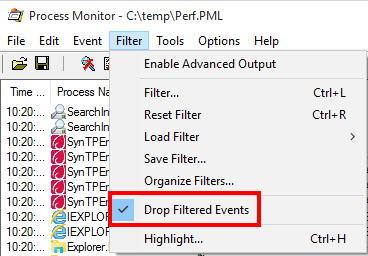
By default ProcMon will capture all events whether they are filtered or not. To save on memory (or file space if you use a backing file) you can drop filtered events. There is a chance that if you created your filter incorrectly you may miss the events needed for troubleshooting but by keeping your filter broad enough that shouldn’t be an issue.
Click on Filter and select the Drop Filtered Events menu item. If there is a check mark next to the menu item then you have correctly configured ProcMon to drop filtered events.
Conclusion
In this post I walked through a few quick tips for configuring ProcMon when you need to troubleshoot a long running process. Hopefully these tips will help you avoid out of memory issues or having to parse through hundreds of thousands of events.
Special thanks to my peer and teammate Ken Kilty for providing the research and background info for this blog post.
-Frog Out

<Update 2016/09/13>
Please see the following Microsoft support article for resolving this issue.
SharePoint 2013 or Project Server 2013 Setup error if the .NET Framework 4.6 is installed
https://support.microsoft.com/en-us/kb/3087184
</Update>
<Update 2015/7/28 2:30pm> I received clarification that the SharePoint product group does support installing .Net 4.6 onto an existing SharePoint 2013 farm server. It is the installer for SharePoint 2013 that will fail to detect .Net 4.5 if .Net 4.6 is already installed and thus throw an error. A future update should correct this scenario with the installer.
On a related note I was able to successfully uninstall .Net 4.6 from a server (remove the KB as mentioned at bottom of this post) and then install SharePoint 2013.
</Update>
Quick publish on this item and I’ll update once I have more details. One of my customers is exploring Visual Studio 2015 / .Net 4.6 which was just released a week or two ago. During some testing I found out that (as of July 28 2015 when this is published) you cannot install SharePoint 2013 binaries onto a server that has .Net 4.6 (or Visual Studio 2015 which includes .Net 4.6) installed. I received the below error message.
Since .Net 4.6 is an in-place upgrade of .Net 4/4.5/4.5.1/4.5.2 SharePoint has an issue with finding .Net 4.5.x after applying 4.6. I am testing out removing the associated KB for .Net 4.6 to see if this is reversible should you accidentally deploy this to a dev / test farm. I’m also testing if you can install .Net 4.6 / Visual Studio 2015 onto an existing SharePoint 2013 farm.
Removing associated KB…
Download .Net framework
https://msdn.microsoft.com/en-us/library/5a4x27ek(v=vs.110).aspx
Hopefully this helps someone before they run into issues with their farm. Feel free to leave a comment if you find out any additional details or workarounds.
-Frog Out
This was the first year of the Microsoft Ignite conference which merged a number of previous conferences including TechEd, SharePoint Conference, Project Conference, and more. With over 23,000 attendees, a new venue, and numerous Microsoft senior leadership and product group in attendance (including CEO Satya Nadella himself) this was definitely a huge event. Rather than re-capping the event itself I wanted to take a minute to mention a few items that I heard / saw at the conference. I am still downloading and viewing a number of sessions that I couldn’t attend (same time as another session or room was at capacity) but these are highlights that I wanted to share with others.
Recap
What’s New for IT Professionals in SharePoint Server 2016 (session recording with announcement)
Configuring SharePoint 2013 for the Forefront Identity Manager 2010 R2 Service Pack 1 Portal (install overview)
Microsoft Project Siena: Build Apps and Create New Mobile Solutions (session recording with demos)
Microsoft Project Siena (Beta) (product site)
Implementing Next Generation SharePoint Hybrid Search with the Cloud Search Service Application (session recording)
Nano Server (session recording)
Nano Server: The Future of Windows Server Starts Now (session recording)
Remotely Managing Nano Server (session recording)
Windows PowerShell Unplugged with Jeffrey Snover (session recording)
On a side note I also wanted to mention one of the obvious but not always talked about benefits of going to a conference like this in-person. During the week I was able to introduce myself to a number of presenters that I had previously not met. Some were MVPs, fellow Premier Field Engineers (PFEs), product group members, and more. The connections you make can last for years and provide an invaluable network for sharing information and getting assistance when you are in need. I even got a PowerShell sticker directly from Jeffrey Snover himself (another personal highlight).
Conclusion
This is just a short list of some of the sessions that I attended along with highlights or key points that I wanted to share. If I find anything else significant from the recordings I am going back to watch I’ll update this post. For now though go check out the recordings above or the hundreds of other ones that are up on Channel 9. I encourage you to attend next year when Ignite 2016 will be in Chicago again May 9-13.
-Frog Out
This is my fourth year presenting at the SharePoint Cincy conference. As usual the crew that organizes has put on a great conference and the attendees were very engaged. Below are my slides and demo scripts for my “Running Your Dev / Test VMs in Azure for Cheap” session. Thanks for all who attended and hope that you got something useful out of it.
Demo PowerShell Scripts
Slide Deck
-Frog Out