PowerShell Script to Enumerate SharePoint 2010 or 2013 Permissions and Active Directory Group Membership

   In this post I will present a script to enumerate SharePoint 2010 or 2013 permissions across the entire farm down to the site (SPWeb) level.  As a bonus this script also recursively expands the membership of any Active Directory (AD) group including nested groups which you wouldn’t be able to find through the SharePoint UI.


History

    Back in 2009 (over 4 years ago now) I published one my most read blog posts about enumerating SharePoint 2007 permissions.  I finally got around to updating that script to remove deprecated APIs, supporting the SharePoint 2010 commandlets, and fixing a few bugs.  There are 2 things that script did that I had to remove due to major architectural or procedural changes in the script.

  1. Indenting the XML output
  2. Ability to search for a specific user

   I plan to add back the ability to search for a specific user but wanted to get this version published first.  As for indenting the XML that could be added but would take some effort.  If there is user demand for it (let me know in the comments or email me using the contact button at top of blog) I’ll move it up in priorities.

   As a side note you may also notice that I’m not using the Active Directory commandlets.  This was a conscious decision since not all environments have them available.  Instead I’m relying on the older [ADSI] type accelerator and APIs.  It does add a significant amount of code to the script but it is necessary for compatibility.  Hopefully in a few years if I need to update again I can remove that legacy code.


Solution

   Below is the script to enumerate SharePoint 2010 and 2013 permissions down to site level.  You can also download it from my SkyDrive account or my posting on the TechNet Script Center Repository.

SkyDrive

TechNet Script Center Repository

http://gallery.technet.microsoft.com/scriptcenter/Enumerate-SharePoint-2010-35976bdb

########################################################### 
#DisplaySPWebApp8.ps1 
# 
#Author: Brian T. Jackett 
#Last Modified Date: 2013-07-01 
# 
#Traverse the entire web app site by site to display 
# hierarchy and users with permissions to site. 
########################################################### 

function Expand-ADGroupMembership 
{ 
    Param 
    ( 
        [Parameter(Mandatory=$true, 
                   Position=0)] 
        [string] 
        $ADGroupName, 
        [Parameter(Position=1)] 
        [string] 
        $RoleBinding 
    ) 
    Process 
    { 
        $roleBindingText = “” 
        if(-not [string]::IsNullOrEmpty($RoleBinding)) 
        { 
            $roleBindingText = ” RoleBindings=`”$roleBindings`”” 
        } 
        Write-Output “<ADGroup Name=`”$($ADGroupName)`”$roleBindingText>” 
        $domain = $ADGroupName.substring(0, $ADGroupName.IndexOf(“”) + 1) 
        $groupName = $ADGroupName.Remove(0, $ADGroupName.IndexOf(“”) + 1) 
                            
        #BEGIN – CODE ADAPTED FROM SCRIPT CENTER SAMPLE CODE REPOSITORY 
        #http://www.microsoft.com/technet/scriptcenter/scripts/powershell/search/users/srch106.mspx 
        #GET AD GROUP FROM DIRECTORY SERVICES SEARCH 
        $strFilter = “(&(objectCategory=Group)(name=”+($groupName)+“))” 
        $objDomain = New-Object System.DirectoryServices.DirectoryEntry 
        $objSearcher = New-Object System.DirectoryServices.DirectorySearcher 
        $objSearcher.SearchRoot = $objDomain 
        $objSearcher.Filter = $strFilter 
        # specify properties to be returned 
        $colProplist = (“name”,“member”,“objectclass”) 
        foreach ($i in $colPropList) 
        { 
            $catcher = $objSearcher.PropertiesToLoad.Add($i) 
        } 
        $colResults = $objSearcher.FindAll() 
        #END – CODE ADAPTED FROM SCRIPT CENTER SAMPLE CODE REPOSITORY 
        foreach ($objResult in $colResults) 
        { 
            if($objResult.Properties[“Member”] -ne $null) 
            { 
                foreach ($member in $objResult.Properties[“Member”]) 
                { 
                    $indMember = [adsi] “LDAP://$member” 
                    $fullMemberName = $domain + ($indMember.Name) 
                    
                    #if($indMember[“objectclass”] 
                        # if child AD group continue down chain 
                        if(($indMember | Select-Object -ExpandProperty objectclass) -contains “group”) 
                        { 
                            Expand-ADGroupMembership -ADGroupName $fullMemberName 
                        } 
                        elseif(($indMember | Select-Object -ExpandProperty objectclass) -contains “user”) 
                        { 
                            Write-Output “<ADUser>$fullMemberName</ADUser>” 
                        } 
                } 
            } 
        } 
        
        Write-Output “</ADGroup>” 
    } 
} #end Expand-ADGroupMembership 
# main portion of script 
if((Get-PSSnapin -Name microsoft.sharepoint.powershell) -eq $null) 
{ 
    Add-PSSnapin Microsoft.SharePoint.PowerShell 
} 
$farm = Get-SPFarm 
Write-Output “<Farm Guid=`”$($farm.Id)`”>” 
$webApps = Get-SPWebApplication 
foreach($webApp in $webApps) 
{ 
    Write-Output “<WebApplication URL=`”$($webApp.URL)`” Name=`”$($webApp.Name)`”>” 
    foreach($site in $webApp.Sites) 
    { 
        Write-Output “<SiteCollection URL=`”$($site.URL)`”>” 
        
        foreach($web in $site.AllWebs) 
        { 
            Write-Output “<Site URL=`”$($web.URL)`”>” 
            # if site inherits permissions from parent then stop processing 
            if($web.HasUniqueRoleAssignments -eq $false) 
            { 
                Write-Output “<!– Inherits role assignments from parent –>” 
            } 
            # else site has unique permissions 
            else 
            { 
                foreach($assignment in $web.RoleAssignments) 
                { 
                    if(-not [string]::IsNullOrEmpty($assignment.Member.Xml)) 
                    { 
                        $roleBindings = ($assignment.RoleDefinitionBindings | Select-Object -ExpandProperty name) -join “,” 
                        # check if assignment is SharePoint Group 
                        if($assignment.Member.XML.StartsWith(‘<Group’) -eq “True”) 
                        { 
                            Write-Output “<SPGroup Name=`”$($assignment.Member.Name)`” RoleBindings=`”$roleBindings`”>” 
                            foreach($SPGroupMember in $assignment.Member.Users) 
                            { 
                                # if SharePoint group member is an AD Group 
                                if($SPGroupMember.IsDomainGroup) 
                                { 
                                    Expand-ADGroupMembership -ADGroupName $SPGroupMember.Name 
                                } 
                                # else SharePoint group member is an AD User 
                                else 
                                { 
                                    # remove claim portion of user login 
                                    #Write-Output “<ADUser>$($SPGroupMember.UserLogin.Remove(0,$SPGroupMember.UserLogin.IndexOf(“|”) + 1))</ADUser>” 
                                    Write-Output “<ADUser>$($SPGroupMember.UserLogin)</ADUser>” 
                                } 
                            } 
                            Write-Output “</SPGroup>” 
                        } 
                        # else an indivdually listed AD group or user 
                        else 
                        { 
                            if($assignment.Member.IsDomainGroup) 
                            { 
                                Expand-ADGroupMembership -ADGroupName $assignment.Member.Name -RoleBinding $roleBindings 
                            } 
                            else 
                            { 
                                # remove claim portion of user login 
                                #Write-Output “<ADUser>$($assignment.Member.UserLogin.Remove(0,$assignment.Member.UserLogin.IndexOf(“|”) + 1))</ADUser>” 
                                
                                Write-Output “<ADUser RoleBindings=`”$roleBindings`”>$($assignment.Member.UserLogin)</ADUser>” 
                            } 
                        } 
                    } 
                } 
            } 
            Write-Output “</Site>” 
            $web.Dispose() 
        } 
        Write-Output “</SiteCollection>” 
        $site.Dispose() 
    } 
    Write-Output “</WebApplication>” 
} 
Write-Output “</Farm>” 

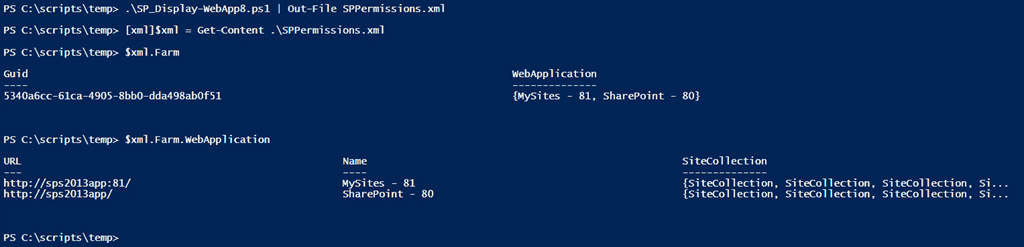
   The output from the script can be sent to an XML which you can then explore using the [XML] type accelerator.  This lets you explore the XML structure however you see fit.  See the screenshot below for an example.
SP20102013Permissions1


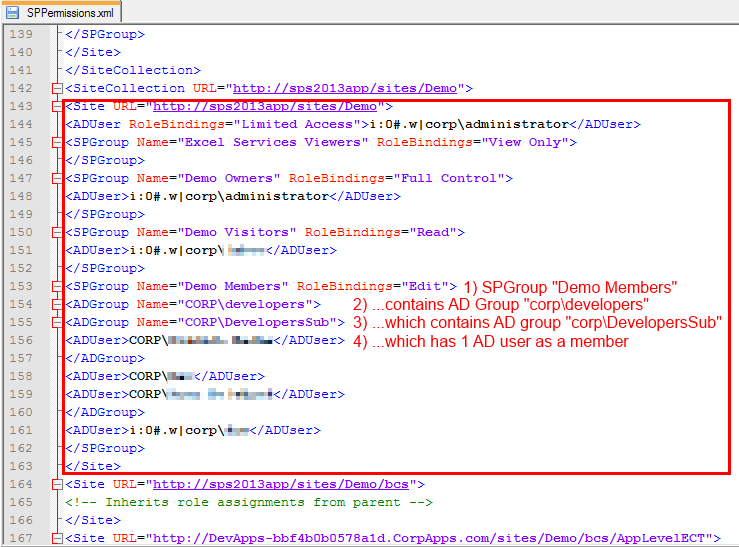
   If you do view the XML output through a text editor (Notepad++ for me) notice the format.  Below we see a SharePoint site that has a SharePoint group Demo Members with Edit permissions assigned.  Demo Members has an AD group corpdevelopers as a member.  corpdevelopers has a child AD group called corpDevelopersSub with 1 AD user in that sub group.  As you can see the script recursively expands the AD hierarchy.
SP20102013Permissions2


Conclusion

   It took me 4 years to finally update this script but I‘m happy to get this published.  I was able to fix a number of errors and smooth out some rough edges.  I plan to develop this into a more full fledged tool over the next year with more features and flexibility (copy permissions, search for individual user or group, optional enumerate lists / items, etc.).  If you have any feedback, feature requests, or issues running it please let me know.  Enjoy the script!


      -Frog Out

PowerShell Script to Determine Number of Files in SharePoint 2010 or 2013 Document Libraries

   Recently my fellow SharePoint PFE and teammate Jim Matson (@jamesmatson3) was looking for a way to display the number of documents inside each document library on a SharePoint 2010 / 2013 farm.  Below is the script that we came up with.


Problem

   It is not too difficult to find all of the document libraries and their item count in a given SharePoint 2010 or 2013 site collection, web application, or farm.  What can be difficult is finding all of that along with the full URL of the site that contains the list and exporting in one object..


Solution

   I used a trick I learned from my previous post on getting Exchange Online mailbox size in GB to use the add-member commandlet to add metadata to a variable or object.  By gathering the site URL and then adding it to a variable of the document library title and item count I had the information Jim needed.  At the end simply output this to a CSV file and then use as needed.  Feel free to download the script from my SkyDrive public folder link below.

Note: I am not testing to see if the output folder exists.  Handle that as you wish if you use this script.


Add-PSSnapin Microsoft.SharePoint.PowerShell 

Start-SPAssignment -Global 
$OutputFile = “C:tempDocCount.csv” 
$results = @() 
$webApps = Get-SPWebApplication 
foreach($webApp in $webApps) 
{ 
    foreach($siteColl in $webApp.Sites) 
    { 
        foreach($web in $siteColl.AllWebs) 
        { 
            $webUrl = $web.url 
            $docLibs = $web.Lists | Where-Object {$_.baseType -eq “DocumentLibrary”} 
            $docLibs | Add-Member -MemberType ScriptProperty -Name WebUrl -Value {$webUrl} 
            $results += ($docLibs | Select-Object -Property WebUrl, Title, ItemCount) 
        } 
    } 
} 
$results | Export-Csv -Path $OutputFile -NoTypeInformation 
  
Stop-SPAssignment -Global

   Here is an example screenshot of the output from the script.

NumberDocsInSPDocLib1


Conclusion

   This script was fairly easy to come up with.  I was happy to be able to combine some previous knowledge learned from another script along with traversing all sites in a farm.  Hopefully if you have need of this script (or something similar) you will find this helpful.


      -Frog Out

I Finished My First 5k Run

   This post is a bit more personal than most.  Two weekends ago my fiancé and I (along with two friends) completed our first 5k run.  To many people this may not sound like a big deal, but to me it was a very significant event.  Below is the story why.


History

   When I was a junior in high school I started to have pain in my right hip when I ran or was on my feet for extended periods of time.  At the time I was in track doing shot put and discus which are very demanding on your leg joints and muscles.  When the pain didn’t go away for days and was uncomfortable just walking or sitting I decided to get it looked at by a doctor.  The doctor took a number of X-rays and performed various mobility tests.  Upon reviewing the X-rays it was clear what the problem was.  My right hip joint was not properly formed.  Specifically the socket portion of the “ball and socket” connection was under-formed and thus the ball portion slipped around causing inflammation.  To the best of my memory he called it hip dysplasia.

   This is a somewhat common issue with newborn babies where the hip joints aren’t properly aligned or the ball remains out of the socket.  In most cases some quick tests and manual adjustments pop the hip back into place.  Apparently this wasn’t the case for me.  At the time the doctor told me that I would need a hip replacement by the time I was 40-45, but to continue exercising and avoid any activities that caused pain.  For me that meant no more running or climbing large amounts of stairs.


Run Training

   Fast forward to a few years ago, I read an article discussing different running styles.  One that stood out to me was toe running.  Instead of landing on the heel (and absorbing all the shock with your bones) you focus on running on the ball or toes of your feet (and thus absorb the shock in your muscles).  For a year I started to walk on the balls of my feet rather than the traditional heel to toe stride.  I noticed a decrease in my hip pain as well as increased calf muscle strength.  I then tried running on my toes and found it to be much easier than expected.

   I joined my fiancé’s gym at the beginning of this year intending to lift weights and do some minimal cardio.  I started out with running half a mile and worked my way up to 2 miles.  In Feb I found out the gym was holding a 5k run / walk for charity.  I thought this would be a great opportunity to see if I could run the full race and not have hip pain.  Sarah and I trained over the next few months increasing our distance and lowering our pace per mile.


The Race

   On April 27th, 2013 Sarah and I ran our 5K.  I finished with a time of 32:59 (just under 33 mins 🙂 ) and Sarah finished at 34:56.  I’m very proud of both of our times and for completing.  The icing on the cake was that I had very minimal hip pain after the race (and even the days following the race).  The below picture was taken just before our race.

WP_20130427_002


Conclusion

   When my doctor told me that I wouldn’t be able to do many things that I enjoyed when I was younger it was discouraging.  Thankfully through changing the way that I walk, run, and get around I’ve found ways to cope with my hip issue.  I may still have to have an early hip replacement, but the fact that I could complete a 5K (with Sarah’s help and motivation) was a big boost to my confidence that I won’t let that keep me down.  Now to find the next race and continue on!


      -Frog Out

Speaking at SharePoint Cincy 2013

SP-speaker-image

   I will be speaking at SharePoint Cincy 2013 on Friday Apr 19th.  This will be my 2nd time speaking at SharePoint Cincy.  I always enjoy getting to speak at local conferences as it is a great chance to connect with customers, meet new and old friends, and give back in a more intimate venue.  I’ll be presenting one topic which I have delivered a similar presentation internally to Microsoft but this is slightly altered and for public consumption.  Registration is still open.  If you attend feel free to stop by and say hi.  I’ll be bringing a copy of my previous book to sign and give away.

Title: Integrating SharePoint with Office Web Apps (WAC) Server

Audience and Level: IT Pro / Architect, Intermediate

Abstract: WAC? WOPI? These are some of the new acronyms for Office Web Apps (WAC) Server 2013. This session will highlight what has changed since the 2010 version, what is new for the 2013 version, and how to administrate WAC. We will also cover considerations for capacity planning, installation, high availability, and common pitfalls when deploying WAC. This session will include demos of how to configure WAC server with SharePoint 2013 and how to enable user license enforcement for editing documents through WAC. Attendees need not have prior experience with Office Web Apps but should have an introductory knowledge of SharePoint 2013 administration.


      -Frog Out

PowerShell Script to Remove SharePoint 2010 or 2013 List Duplicates

<Updated 2013-05-11>

   Recently Derek, a fellow Premier Field Engineer (PFE), had a customer request on how to remove duplicates from a SharePoint 2010 list.  I have written some PowerShell scripts that remove list items, but never to check for duplicates.  My main concern for this was performance as looping through a list searching for duplicates could be an expensive operation.


Problem

   As it turns out the customer had a list with more than 85,000 items and many of the list items were duplicates.  The original solution the custom attempted took 5 hours to run and threw out of memory exception most times it was run.  My assumptions on the resource intensive list queries and looping were correct.


Solution

   I first wrote my own version of a looping structure to iterate over the items and remove duplicates while trying to be as efficient with memory and CPU usage as possible.  After about 10 minutes of scripting I wasn’t making good progress so I decided to switch up my approach.

   A quick Bing search pulled up the following article on checking for duplicates items in a SharePoint list.  The key piece of info from that article was not to loop through the items one at a time, but instead to convert the list into a DataTable using the method SPListItemCollection.GetDataTable() and then group the items on the column to compare for duplicates.  In this case the Title column was used for grouping.  With a little trickery I was then able to find the IDs of the duplicate items to then be used to delete the individual duplicate items.

   Two added added bonuses are included in the below script.  The first is that the script writes out the progress of the deletion process using Write-Progress.  The second is that the commented portion at the bottom will generate list items with random single letter titles to test out the duplicate deletions.

<Update 2013-05-11>

   Thank you to reader Santosh for pointing out an error in the script I published.  I had mistakenly published a version that included an invalid reference.  On line 10 in the foreach block (%) the call to $list.DeleteByItemID() will fail because that method doesn’t exist on that object.  I’ve updated the downloadable script and below sample to the original I used for $list.GetItemById($_.ID).Delete().  Santosh also got it to work by calling $list.Items.DeleteItemById().  I prefer not to call the Items member on an SPList object because of the performance impact which you can read about in my previous post.

</Update 2013-05-11>

Add-PSSnapin microsoft.sharepoint.powershell 
$web = Get-SPWeb -Identity “<URL of Site>” 
$list = $web.Lists[“DuplicatesList”] 

$AllDuplicates = $list.Items.GetDataTable() | Group-Object title | where {$_.count -gt 1} 
$count = 1 
$max = $AllDuplicates.Count 
foreach($duplicate in $AllDuplicates) 
{ 
$duplicate.group | Select-Object -Skip 1 | % {$list.GetItemById($_.ID).Delete()} 
Write-Progress -PercentComplete ($count / $max * 100) -Activity “$count duplicates removed” -Status “In Progress” 
$count++ 
} 

   Be sure to modify the site URL and list name to work in your environment.  In my example the list is named DuplicatesList and must already exist.


Conclusion

   With my current solution I was able to remove 75,000 duplicates in a list with a single column (Title) in roughly 45 minutes.  Derek made some tweaks and was able to remove 45,000 duplicates in about 3.5 hours on a list with dozens of columns.  It appears that a list with additional columns takes longer to process.  If I had additional time I would investigate the SPList.GetDataTable() method which allows passing in a query to only retrieve specific columns (i.e. the column we are using to determine duplicates).  I believe this might speed up the process but don’t know for sure.

   As it stands I was very happy with the solution I came up even if it did take a long time to run.  The important part was that it didn’t throw out of memory exceptions while running and did have increased performance vs. the customer’s original solution.  Thanks to Derek for collaborating on this item with me.  It really is great to work with other PFEs who are passionate about helping customers solve real problems in their environments.  I hope this script and / or post helps someone else in their environment.


      -Frog Out


Links

Check for duplicate items in Sharepoint lists with Powershell

http://jespermchristensen.wordpress.com/2008/09/22/check-for-duplicate-items-in-sharepoint-lists-with-powershell/


SPListItemCollection.GetDataTable() method

http://msdn.microsoft.com/en-us/library/microsoft.sharepoint.splistitemcollection.getdatatable.aspx


SPList.GetDataTable() method

http://msdn.microsoft.com/en-us/library/microsoft.sharepoint.splist.getdatatable(v=office.14).aspx