PowerShell Script to Create a Large SharePoint List with Random Data

<Updated 2013-02-06>

   Recently a fellow SQL PFE Lisa Gardner asked me for a PowerShell script that would create a SharePoint list with numerous (100+) columns.  She was doing some research for an upcoming internal presentation on SharePoint databases for SQL database administrators and wanted samples of really nasty SQL queries that are generated when querying a large SharePoint list.  The script that I came up with is below in the Solution section.

<Update 2013-02-06>

Lisa posted her findings on the SQL query generated from the script I provided.  You can read about it on her blog post here.

</Update>

   Before I get to my script though I did want to call out sample scripts that two other fellow SharePoint PFEs have created that are helpful for working with SharePoint lists.  Kirk Evans wrote a post on creating a SharePoint list with multiple folders and subfolders.  Josh Gavant has written a custom module with commandlets that return SPList objects along with column metadata.  Feel free to take a look at these for additional insight in working with SharePoint lists and items.


Problem

   Create a SharePoint 2010 (or 2013) custom list that has a configurable number of columns with various datatypes.  Also populate these columns with random sample data.


Solution

   The only assumption for this script is that you already have a SharePoint site to work with and have modified the variables at the header to suit your needs.  If you do not have a site created there is a New-SPWeb commandlet call that you can uncomment early in the script to create a site if needed.  The list, columns, and sample data will be generated by the script.  Be sure to fill in the URL of the “big list” site to be used.


Note: When working with SharePoint lists it is important to be aware of SharePoint column limits and what is known as SQL row wrapping.  Read the information on the following TechNet article for more information about these: http://technet.microsoft.com/en-us/library/cc262787(v=office.14).aspx#Column


   Here is the script that I came up with.  You can also download the script from my SkyDrive folder.

########################## 
# Date: Feb 5, 2013 
# Author: Brian T. Jackett 
########################## 

# set number of columns to create for various data types 
# column limits courtesy of http://technet.microsoft.com/en-us/library/cc262787(v=office.14).aspx#Column 
$IntColumnsToCreate = 30               # max of 96 
$BoolColumnsToCreate = 30              # max of 96 
$ChoiceColumnsToCreate = 0             # max of 276 
$SingleLineTextColumnsToCreate = 70    # max of 276 
$MultiLineTextColumnsToCreate = 42     # max of 192 
$DateTimeColumnsToCreate = 10          # max of 48 
$CurrencyColumnsToCreate = 40          # max of 72 
$LookupColumnsToCreate = 20            # max of 96 
# set number of items to create 
$ItemsToCreate = 10 
# URL of site that will contain big list 
$BigListSiteURL = “<set a value for this>” 
if((Get-PSSnapin “Microsoft.SharePoint.PowerShell”) -eq $null) 
{ 
    Add-PSSnapin Microsoft.SharePoint.PowerShell 
} 
Start-SPAssignment -Global 
# uncomment the New-SPWeb command to create a new site if necessary 
#New-SPWeb -Url http://sps2013app/sites/demo/BigList -Template “STS#0” 
# get reference to the “big list” site 
$web = Get-SPWeb -Identity $BigListSiteURL 
# if creating lookup columns and lookup list does not exist then create it 
if($LookupColumnsToCreate -gt 0 -and $web.Lists[“MyLookupList”] -ne $null) 
{ 
    $web.Lists[“MyLookupList”].Delete() 
} 
# if big list exists delete it 
if($web.Lists[“MyBigList”] -ne $null) 
{ 
    $web.Lists[“MyBigList”].Delete() 
} 
# if creating lookup columns create list and get reference to list 
if($LookupColumnsToCreate -gt 0) 
{ 
    $web.Lists.Add(“MyLookupList”, “My Lookup List”, [microsoft.sharepoint.splisttemplatetype]::GenericList) 
    $lookuplist = $web.Lists[“MyLookupList”] 
    $lookupItem = $lookuplist.Items.Add() 
    $lookupItem[“Title”] = “The one lookup item to rule them all” 
    $lookupItem.Update() 
} 
# create list and get reference to list 
$web.Lists.Add(“MyBigList”, “My Big List”, [microsoft.sharepoint.splisttemplatetype]::GenericList) 
$list = $web.Lists[“MyBigList”] 
# add integer columns 
for($count = 1; $count -le $IntColumnsToCreate; $count++) 
{$list.Fields.Add(“Int$count”, [microsoft.sharepoint.SPFieldType]::Integer, $false)} 
# add boolean columns 
for($count = 1; $count -le $BoolColumnsToCreate; $count++) 
{$list.Fields.Add(“Bool$count”, [microsoft.sharepoint.SPFieldType]::Boolean, $false)} 
# add choice columns 
for($count = 1; $count -le $ChoiceColumnsToCreate; $count++) 
{$list.Fields.Add(“Choice$count”, [microsoft.sharepoint.SPFieldType]::Choice, $false)} 
# add single line text columns 
for($count = 1; $count -le $SingleLineTextColumnsToCreate; $count++) 
{$list.Fields.Add(“SingleLineText$count”, [microsoft.sharepoint.SPFieldType]::Text, $false)} 
# add multi line text columns 
for($count = 1; $count -le $MultiLineTextColumnsToCreate; $count++) 
{$list.Fields.Add(“MultiLineText$count”, [microsoft.sharepoint.SPFieldType]::Note, $false)} 
# add date time columns 
for($count = 1; $count -le $DateTimeColumnsToCreate; $count++) 
{$list.Fields.Add(“DateTime$count”, [microsoft.sharepoint.SPFieldType]::DateTime, $false)} 
# add currency columns 
for($count = 1; $count -le $CurrencyColumnsToCreate; $count++) 
{$list.Fields.Add(“Currency$count”, [microsoft.sharepoint.SPFieldType]::Currency, $false)} 
# add lookup columns 
for($count = 1; $count -le $LookupColumnsToCreate; $count++) 
{$list.Fields.AddLookup(“Lookup$count”, $lookuplist.ID, $false)} 
# populate list with items 
foreach($x in 1..$ItemsToCreate) 
{ 
    $item = $list.AddItem() 
    $item[“Title”] = [char](97 + (Get-Random -Maximum 25)) 
    # assign values integer columns 
    for($count = 1; $count -le $IntColumnsToCreate; $count++) 
    {$item[“Int$count”] = Get-Random -Minimum -100000 -Maximum 100000} 
    # assign values boolean columns 
    for($count = 1; $count -le $BoolColumnsToCreate; $count++) 
    {$item[“Bool$count”] = [bool](Get-Random -Minimum 0 -Maximum 2)} 
    # assign values choice columns 
    # not implemented 
    # assign values single line text columns 
    for($count = 1; $count -le $SingleLineTextColumnsToCreate; $count++) 
    {$item[“SingleLineText$count”] = “lorem ipsum “ * (Get-Random -Minimum 1 -Maximum 8)} 
    # assign values multi line text columns 
    for($count = 1; $count -le $MultiLineTextColumnsToCreate; $count++) 
    {$item[“MultiLineText$count”] = “lorem ipsum “ * (Get-Random -Minimum 1 -Maximum 200)} 
    # assign values date time columns 
    for($count = 1; $count -le $DateTimeColumnsToCreate; $count++) 
    {$item[“DateTime$count”] = (Get-Date).AddDays((Get-Random -Minimum -1000 -Maximum 1000))} 
    # assign values currency columns 
    for($count = 1; $count -le $CurrencyColumnsToCreate; $count++) 
    {$item[“Currency$count”] = [system.decimal](Get-Random -Minimum -10000 -Maximum 10000)} 
    # assign values lookup columns 
    # not implemented 
    
    $item.Update() 
} 
Stop-SPAssignment -Global 

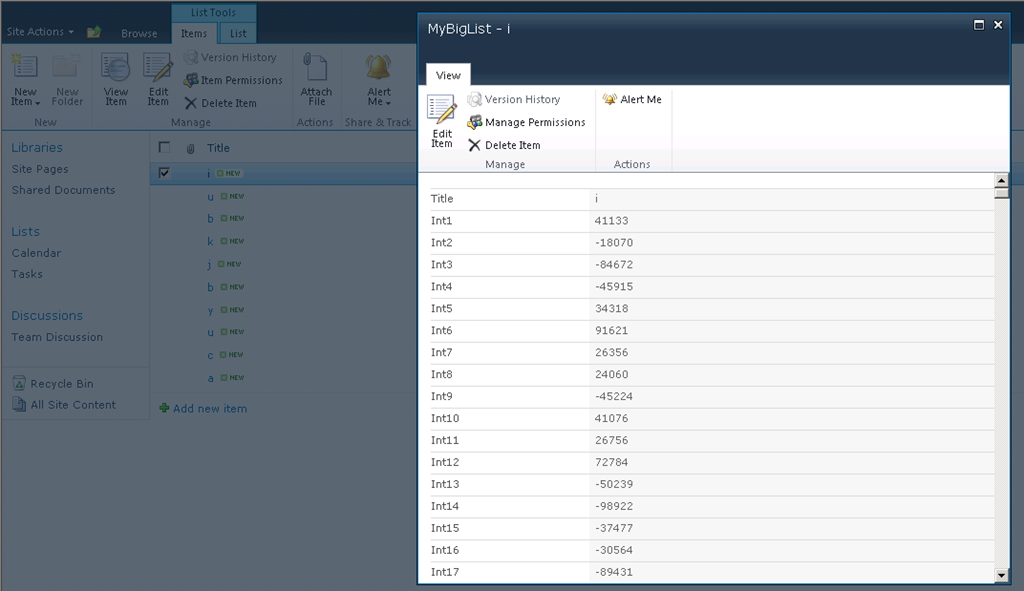
   Here is a screenshot of the list that this script creates.
CreateGiantSPList1


Conclusion

   Lisa was very happy with the results of this script and I learned a bit about generating SharePoint columns and random data.  This script is not very polished but it gets the job done.  If you have a need to generate a lot of SharePoint list columns or random data hopefully this script will be helpful.  If you have any feedback on it feel free to leave a comment or email me.


      -Frog Out
Goals for 2013

   Another new year, another set of goals.  Over the past few years I have set goals (2010, 2011, 2012) and done retrospectives at the end of the year (2010, 2011, 2012).  This year already has a number of big changes in the pipeline but I’m trying to introduce a few other changes with the goals I am setting.


Professional

  • Work local more – If you’ve been reading my blog the past year and a half you’ve probably heard me write that my new role as Premier Field Engineer with Microsoft has me traveling quite a bit (as evidenced by me hitting platinum status on Delta and Marriott last year).  There are some changes at work which have me traveling less but I’m still away from home at least a few weeks a month.  I am working towards doing more local and remote (from home) work.  With my upcoming wedding I would like to be home more as spending time with friends and family is an important part of my life.
  • Mentor / Mentee – Over the past 5-10 years I have had a few official and unofficial mentors whether through work, social groups, or otherwise.  I currently have two mentors through work.  I would like to build upon those relationships and also look for opportunities of becoming a mentor (not necessarily through work) for someone else.  The latter may not happen this year but I would like to start laying the foundation for that.
  • Blogging – I plan to continue blogging as I have been for the past almost 4 years now.  I intend to blog at least 20 posts throughout the year.

Personal

  • Get married – This Oct my fiancé Sarah and I will be tying the knot.  I’m very happy and excited to be getting married as it opens a completely new chapter of our lives together.
  • Stay Fit – Yes I included this last year and if you read my last retrospective I did lose 10+ pounds last year.  With the upcoming wedding in Oct Sarah and I both have goals to lose a little more for this year.  For me I am aiming to lose another 13 pounds by Oct and 15 total by the end of year.  I’m planning to join a gym and have already bought a FitBit to track steps / sleep patterns / weight.  I’m also continuing to eat healthier (most times) and practice portion control.
  • Read Books – Purchasing a Kindle over a year ago got me reading more frequently.  Now with my Surface RT I’m able to read easily on a device I travel with all the time.  Win-win situation.  This year I plan to read at least 5 books for the year.  I was very happy to find my local library lends e-books and I’ve already started with Daemon by Daniel Suarez which is hard to put down.  I’m also planning to track my books and post those as recommendations later similar to others (Todd Klindt’s book recommendations).


Conclusion

   I like the idea of managing things in groups of threes (which I picked up from 30 Days of Results) hence 3 personal and 3 work goals for the year.  There are a few smaller goals I have that are targeted for shorter term timeframes as well.  This year is looking to be another good year and I’m eager to tackle the challenges and opportunities that come.

   On a side note, when I first started posting my goals in 2010 I called out a close friend Sean McDonough to also post his goals online.  As it turns out this year Sean did finally post his goals and join the bandwagon.  Thanks for carrying on the torch Sean.  Since Sean posted his I’m going to call out a few of my coworkers in hopes they will also post their goals for the year: Josh Gavant and Ashley McGlone.


      -Frog Out

Goals for 2012 Retrospective

   Now in my third year of an annual tradition I have set goals (2010, 2011, 2012) and gone through retrospectives (2010, 2011).  So here goes a recap on the year that was 2012 and how I stacked up against my goals.

Year in Review

   Similar to 2011, 2012 was a big year for me.  In 2012 I proposed to my now fiancé Sarah (pictures), I completed my first year with Microsoft as a Premier Field Engineer, my middle brother got married, my oldest brother and his wife had a baby, Sarah’s sister and husband found out they were pregnant, my mom had a total hip surgery, I wrote two chapters for a new book (more details about this once it is closer to publishing), and I helped out with various conferences and projects.  As you may have noticed a number of these items are family related which has been a bigger focus for me this past year.

Professional Goals

  • Blog – I set a goal to blog twice a month but did not meet that goal.  I only had 18 blog posts throughout 2012 but they were fairly well spaced out through the months.  It has been more difficult to keep up with blogging given my travel schedule with work, increased family commitment, book writing I was involved with, and other factors.  I still plan to continue blogging as long as I have content / ideas to write about.
  • Speaking – I had a goal of speaking at 3 user groups and / or conferences in 2012.  I spoke at 4 events in 2012 (PowerShell Saturday Columbus, SharePoint Cincy, SharePoint Saturday Twin Cities, and SPTechCon Boston).  As intended I reduced the number of events I would speak at compared to 2011.  Due to frequently traveling for work it is difficult to spend a weekend or part of a week away when my time at home with friends and family is already limited.  Going forward my speaking commitments will greatly depend on family commitments and travel schedules.
  • Open Source – I intended to work on two separate open source projects.  I did not complete any additional work on SavePSToSP for a variety of reasons but mostly because my time was better spent on other projects and goals.  I have worked on the SharePoint diagnostics project with my coworker Eric Harlan but have not gotten to publishing the project or blogging on it.  This may see the light of day in 2013 but we shall see.
  • Volunteering – I assisted with planning Stir Trek again in 2012 as well as a new conference PowerShell Saturday which we held the first ever in Columbus.  I’ve also been involved in the local Buckeye SharePoint User Group (BuckeyeSPUG).

Personal Goals

  • Stay Fit – My goal for 2012 was to lose 15 pounds.  I ended up losing a total of 16 pounds by November but with the holiday food fests ended the year 11 pounds lighter than I started the year.  With our upcoming wedding this year Sarah and I have continued goals to lose a few more pounds.
  • Read Books – I set out to read at least 2 books.  With the Song of Ice and Fire (Game of Thrones series for you TV-only folks) I read the first 4 books.  Additionally I read a couple marriage prep books.  I wish I had kept a list of when I read certain books as they are a blur looking back now.  I like what Todd Klindt did and post the books he read throughout the year.  I may do the same for next year.


Conclusion

   Overall I met (or came close to) many of my goals for 2012.  Aside from these goals I also set a midyear goal for improving my personal productivity which I blogged about.  So far I have seen an increase in my personal productivity mainly by how many things I have cut out of my life that are / were unnecessary.

   Despite reading some articles about not setting goals I still find the process very worthwhile and will continue into 2013.  I even found a series called 30 Days of Getting Results which very much builds on the idea of setting 3 attainable goals for the day / week / month / year and then doing a retrospective at the end of the respective time period.  I have not fully adopted this system but have incorporated a number of the concepts into my daily life.

   I hope 2012 was good to you (as it was to me) and you are refreshed coming into 2013 ready to tackle new challenges and continue growing.


      -Frog Out

Accessing Host Machine Files From Hyper-V Guest Virtual Machine

   Similar to a previous post I wrote on How To Configure Remote Desktop to Hyper-V Guest Virtual Machine I commonly get questions for “how do I access Hyper-V host machine files from inside a guest virtual machine?”  The solution I use is a combination of software and configuration but there are many other options as well.

Problem

   When connecting to a Hyper-V guest virtual machine you cannot easily transfer files into or out of the virtual machine.

Solution

   For almost all of my remote desktop needs I use a program called mRemote (Multi Remote).  The original mRemote developer has joined a new company and folded mRemote into a new product but you can still download a stable build of mRemote from CNET here.  There is also a forked version called mRemoteNG (Multi Remote Next Generation) that I have not tried out personally.

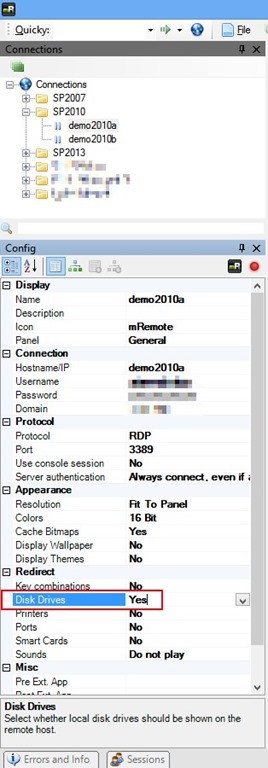
   One of the nice features of mRemote is that you can configure an RDP connection to map local host drives so that they are available inside the RDP session.  By RDP’ing to a virtual machine with the host drives mapped you now have access to transfer files into or out of the virtual machine.  Open mRemote and configure your RDP session as normal.  Under the Redirect heading change the Disk Drives setting to Yes as in the screenshot below.

AccessHyperVHostFilesInGuest1

   As an added bonus mRemote also allows you to store credentials to use for an RDP connection.  I find this very helpful to avoid having to retype credentials every time I bring up a virtual machine, especially with how many fake demo domains I deal with in various virtual machine farms I build out.

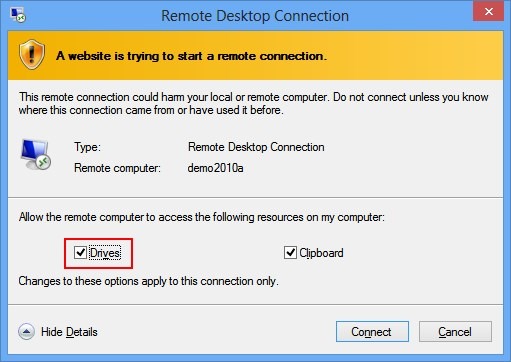
   When you connect to this RDP session you may be prompted to allow the remote desktop connection to access local resources (I do on Windows 8 at least, I didn’t previously on Windows 7).  Make sure to allow the Drives resources to be accessed.  If anyone knows a way around this prompt I would be interested to hear as I have not found any yet.

AccessHyperVHostFilesInGuest2

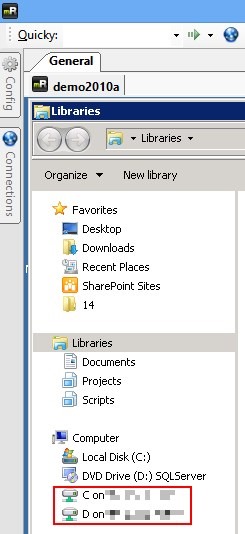
   After connecting to the virtual machine you now have access to the host machine drives.  See the example below.

AccessHyperVHostFilesInGuest3


Conclusion

   As I stated earlier there are a number of ways you can solve the issue of not being able to access host machine files inside a Hyper-V guest virtual machine.  My solution is a combination of RDP session with the mRemote application and configuring the RDP connection to map local host drives into the RDP session.  If you have other solutions or tips feel free to leave them in the comments below.


      -Frog Out


Links

How To Configure Remote Desktop to Hyper-V Guest Virtual Machine

https://briantjackett.com/archive/2010/06/06/how-to-configure-remote-desktop-to-hyper-v-guest-virtual-machines.aspx


mRemote download from CNET

http://download.cnet.com/mRemote/3000-2648_4-10793919.html


mRemoteNG project

http://www.mremoteng.org/

Productivity Tips

   A few months ago during my first end of year review at Microsoft I was doing an assessment of my year.  One of my personal goals to come out of this reflection was to improve my personal productivity.  While I hear many people say “I wish I had more hours in the day so that I could get more done” I feel like that is the wrong approach.  There is an inherent assumption that you are being productive with your time that you already have and thus more time would allow you to be as productive given more time.

   Instead of wishing I could add more hours to the day I’ve begun adopting a number of processes or behavior changes in my personal life to make better use of my time with the goal of improving productivity.  The areas of focus are as follows:

  1. Focus
  2. Processes
  3. Tools
  4. Personal health
  5. Email

Note: A number of these topics have spawned from reading Scott Hanselman’s blog posts on productivity, reading of David Allen’s book Getting Things Done, and discussions with friends and coworkers who had great insights into this topic.


Focus

Pre-reading / viewing:

Overcome your work addiction

Millennials paralyzed by choice

Its Not What You Read Its What You Ignore (Scott Hanselman video)

   I highly recommend Scott Hanselman’s video above and this post before continuing with this article.  It is well worth the 40+ mins price of admission for the video and couple minutes for article.  One key takeaway for me was listing out my activities in an average week and realizing which ones held little or no value to me.  We all have a finite amount of time to work each day.  Do you know how much time and effort you spend on various aspects of your life (family, friends, religion, work, personal happiness, etc.)?  Do your actions and commitments reflect your priorities?

   The biggest time consumers with little value for me were time spent on social media services (Twitter and Facebook), playing an MMO video game, and watching TV.  I still check up on Facebook, Twitter, Microsoft internal chat forums, and other services to keep contact with others but I’ve reduced that time significantly.  As for TV I’ve cut the cord and no longer subscribe to cable TV.  Instead I use Netflix, RedBox, and over the air channels but again with reduced time consumption.  With the time I’ve freed up I’m back to working out 2-3 times a week and reading 4 nights a week (both of which I had been neglecting previously).  I’ll mention a few tools for helping measure your time in the Tools section.


Processes

   Do not multi-task.  I’ll say it again.  Do not multi-task.  There is no such thing as multi tasking.  The human brain is optimized to work on one thing at a time.  When you are “multi-tasking” you are really doing 2 or more things at less than 100%, usually by a wide margin.  I take pride in my work and when I’m doing something less than 100% the results typically degrade rapidly.

   Now there are some ways of bending the rules of physics for this one.  There is the notion of getting a double amount of work done in the same timeframe.  Some examples would be listening to podcasts / watching a movie while working out, using a treadmill as your work desk, or reading while in the bathroom.

   Personally I’ve found good results in combining one task that does not require focus (making dinner, playing certain video games, working out) and one task that does (watching a movie, listening to podcasts).  I believe this is related to me being a visual and kinesthetic (using my hands or actually doing it) learner.  I’m terrible with auditory learning.  My fiance and I joke that sometimes we talk and talk to each other but never really hear each other.


Goals / Tasks

   Goals can give us direction in life and a sense of accomplishment when we complete them.  Goals can also overwhelm us and give us a sense of failure when we don’t complete them.  I propose that you shift your perspective and not dwell on all of the things that you haven’t gotten done, but focus instead on regularly setting measureable goals that are within reason of accomplishing.

   At the end of each time frame have a retrospective to review your progress.  Do not feel guilty about what you did not accomplish.  Feel proud of what you did accomplish and readjust your goals for the next time frame to more attainable goals.  Here is a sample schedule I’ve seen proposed by some.  I have not consistently set goals for each timeframe, but I do typically set 3 small goals a day (this blog post is #2 for today).

  • Each day set 3 small goals
  • Each week set 3 medium goals
  • Each month set 1 large goal
  • Each year set 2 very large goals


Tools

   Tools are an extension of our human body.  They help us extend beyond what we can physically and mentally do.  Below are some tools I use almost daily or have found useful as of late.

Disclaimer: I am not getting endorsed to promote any of these products.  I just happen to like them and find them useful.

Instapaper – Save internet links for reading later.  There are many tools like this but I’ve found this to be a great one.  There is even a “read it later” JavaScript button you can add to your browser so when you navigate to a site it will then add this to your list.

Stacks for Instapaper – A Windows Phone 7 app for reading my Instapaper articles on the go.  It does require a subscription to Instapaper (nominal $3 every three months) but is easily worth the cost.  Alternatively you can set up your Kindle to sync with Instapaper easily but I haven’t done so.

News.me – News.me is a web service that will aggregate the top stories from your Facebook or Twitter stream and then send you a daily email.  I used to use a service that got bought by Twitter a few months ago, but I’ve honestly forgotten the name of that company.  I now use a combination of News.me and Instapaper to read news stories on my time schedule instead of constantly checking Twitter all day long.

SlapDash Podcast – Apps for Windows Phone and  Windows 8 (possibly other platforms) to sync podcast viewing / listening across multiple devices.  Now that I have my Surface RT device (which I love) this is making my consumption easier to manage.

Feed Reader – Simple Windows 8 app for quickly catching up on my RSS feeds.  I used to have hundreds of unread items all the time.  Now I’m down to 20-50 regularly and it is much easier and faster to consume on my Surface RT.  There is also a free version (which I use) and I can’t see much different between the free and paid versions currently.

Rescue Time – Have you ever wondered how much time you’ve spent on websites vs. email vs. “doing work”?  This service tracks your computer actions and then lets you report on them.  This can help you quantitatively identify areas where your actions are not in line with your priorities.

PowerShell – Windows automation tool.  It is now built into every client and server OS.  This tool has saved me days (and I mean the full 24 hrs worth) of time and effort in the past year alone.  If you haven’t started learning PowerShell and are administrating any Windows OS or server product you need to start learning PowerShell today.

Various blogging tools – I wrote a post a couple years ago called How I Blog about my blogging process and tools used.  Almost all of it still applies today.


Personal Health

   Some of these may be common sense or debatable, but I’ve found them to help prioritize my daily activities.

  • Get plenty of sleep on a regular basis.  Sacrificing sleep too many nights a week negatively impacts your cognition, attitude, and overall health.
  • Exercise at least three days.  Exercise could be lifting weights, taking the stairs up multiple flights of stairs, walking for 20 mins, or a number of other “non-traditional” activities.  I find that regular exercise helps with sleep and improves my overall attitude.
  • Eat a well balanced diet.  Too much sugar, caffeine, junk food, etc. are not good for your body.  This is not a matter of losing weight but taking care of your body and helping you perform at your peak potential.


Email

   Email can be one of the biggest time consumers (i.e. waster) if you aren’t careful.

  • Time box your email usage.  Set a meeting invite for yourself if necessary to limit how much time you spend checking email.
  • Use rules to prioritize your email.  Email from external customers, my manager, or include me directly on the To line go into my inbox.  Everything else goes a level down and I have 30+ rules to further sort it, mostly distribution lists.
  • Use keyboard shortcuts (when available).  I use Outlook for my primary email and am constantly hitting Alt + S to send, Ctrl + 1 for my inbox, Ctrl + 2 for my calendar, Space / Tab / Shift + Tab to mark items as read, and a number of other useful commands.  Learn them and you’ll see your speed getting through emails increase.
  • Keep emails short.  No one Few people like reading through long emails.  The first line should state exactly why you are sending the email followed by a 3-4 lines to support it.  Anything longer might be better suited as a phone call or in person discussion.


Conclusion

   In this post I walked through various tips and tricks I’ve found for improving personal productivity.  It is a mix of re-focusing on the things that matter, using tools to assist in your efforts, and cutting out actions that are not aligned with your priorities.  I originally had a whole section on keyboard shortcuts, but with my recent purchase of the Surface RT I’m finding that touch gestures have replaced numerous keyboard commands that I used to need.  I see a big future in touch enabled devices.  Hopefully some of these tips help you out.  If you have any tools, tips, or ideas you would like to share feel free to add in the comments section.


      -Frog Out


Links

Scott Hanselman Productivity posts

http://www.hanselman.com/blog/CategoryView.aspx?category=Productivity

Overcome your work addiction

http://blogs.hbr.org/hbsfaculty/2012/05/overcome-your-work-addiction.html?awid=5512355740280659420-3271


Millennials paralyzed by choice

http://priyaparker.com/blog/millennials-paralyzed-by-choice


Its Not What You Read Its What You Ignore (video)

http://www.hanselman.com/blog/ItsNotWhatYouReadItsWhatYouIgnoreVideoOfScottHanselmansPersonalProductivityTips.aspx


Cutting the cord – Jeff Blankenburg

http://www.jeffblankenburg.com/2011/04/06/cutting-the-cord/


Building a sitting standing desk – Eric Harlan

http://www.ericharlan.com/Everything_Else/building-a-sitting-standing-desk-a229.html


Instapaper

http://www.instapaper.com/u


Stacks for Instapaper

http://www.stacksforinstapaper.com/


Slapdash Podcast

Windows Phone –

 http://www.windowsphone.com/en-us/store/app/slapdash-podcasts/90e8b121-080b-e011-9264-00237de2db9e

Windows 8 –

http://apps.microsoft.com/webpdp/en-us/app/slapdash-podcasts/0c62e66a-f2e4-4403-af88-3430a821741e/m/ROW


Feed Reader

http://apps.microsoft.com/webpdp/en-us/app/feed-reader/d03199c9-8e08-469a-bda1-7963099840cc/m/ROW


Surface RT

http://surface.microsoftstore.com/store/msstore/Content/pbpage.Surface?ESICaching=off


Rescue Time

http://www.rescuetime.com/


PowerShell Script Center

http://technet.microsoft.com/en-us/scriptcenter/bb410849.aspx

What I’m Up To: November 2012

   This is a short personal post to let any regular readers know what I’m up to (and why I’ll be in reduced blogging mode for a bit).

  • Writing 2 chapters for a SharePoint 2013 book (more to announce closer to publish date)
  • Doing research, proof of concepts, and testing for above said writing
  • Developing a SharePoint PowerShell diagnostic script to clean up issues found by the Health Analyzer
  • Prepping for teaching SharePoint 2013 content to customers

   There are some other community and personal commitments taking up my time (in addition to normal work responsibilities).  Since the number of hours in a day is limited to 24 hours I’m making a late addition to my goals for 2012 for the year of learning and adopting more personal productivity practices.  Before the end of this year I’ll be posting a couple that I’ve already adopted that are working well for me.  Scott Hanselman posted a great video recently that sparked me down this path.  I highly recommend you watch.


“It’s not what you read it’s what you ignore” video – Scott Hanselman

http://www.hanselman.com/blog/ItsNotWhatYouReadItsWhatYouIgnoreVideoOfScottHanselmansPersonalProductivityTips.aspx


      -Frog Out