Introduction to Calling Microsoft Graph from a C# .Net Core Application

This post is a part of The Second Annual C# Advent.

Microsoft Graph is the unified API for any developers working with data inside Office 365, Azure Active Directory (Azure AD), Windows 10, and more.  In this post we’ll cover a quick introduction and share resources from 30 Days of Microsoft Graph blog series to show how to authenticate and to make calls against Microsoft Graph with C# and .Net Core (v2.1 as of the time of writing.)  Each of the referenced articles aims to take 5-15 mins to get you up to speed as quickly as possible while also providing hands-on exercises.  If you’d like to skip the background reading and start from scratch building a .Net Core console application that calls Microsoft Graph read through the README for the base-console-app within dotnetcore-console-sample.

<Update 2019-10-07>Thanks to reader John Guilbert for pointing out that the sample code using MSAL .Net 2.x has deprecated certain APIs.  I’ve updated the sample code to reflect MSAL .Net 4.x.</Update>

Microsoft Graph overview

Microsoft Graph offers developers (and IT pros / admins) the ability to access data and insights in a number of services within Microsoft 365 services.  This includes:

  • Azure AD
  • Office 365 services
    • SharePoint
    • OneDrive
    • Outlook/Exchange
    • Microsoft Teams
    • OneNote
    • Planner
    • Excel
  • Enterprise Mobility and Security services
    • Identity Manager
    • Intune
    • Advanced Threat Analytics
    • Advanced Threat Protection
  • Windows 10 services
    • Activities
    • Devices
  • Education

By providing a unified endpoint for accessing all of these services Microsoft Graph removes a number of barriers including:

  • Discovering the service-specific endpoint URL
  • Authenticating to each endpoint separately
  • Managing different permission models
  • Working with incompatible data formats
  • …and more

All requests made to Microsoft Graph are sent as REST calls to https://graph.microsoft.com and leverage a common authentication model based on Azure AD and OAuth permissions along with a consent framework for users or admins.  The quickest way to see Microsoft Graph requests in action is to navigate to the Microsoft Graph explorer (https://aka.ms/ge, ge = Graph Explorer.)  For more information on using Graph Explorer please read Day 3 – Graph Explorer from the 30 Days of Microsoft Graph series.  Additionally you can make requests against Microsoft Graph using API development tools such as Postman.  Please read Day 13 – Postman to make Microsoft Graph requests for more information on using PostMan with Microsoft Graph.


Getting started sample

Seeing requests and their responses in a browser or tool is useful, but making requests in code or scripts is the more common scenario for usage.  In the examples below we will cover C# and .Net Core as .Net Core is available cross-platform, can be built in Visual Studio Code (also cross-platform), and offers many hosting options (console app, web app, serverless functions, and more.)

Authentication

All requests to Microsoft Graph require an authenticated context, either delegated or app-only.  Delegated is a union of the logged-in user’s context along with the application’s context.  App-only (as the name implies) is only the application’s context without any user involvement.  Please read Day 8 – Authentication roadmap and access tokens and Day 9 – Azure AD applications  on V2 endpoint for more information about creating an Azure AD application and getting an authenticated context.  On a similar note, you are highly encouraged to leverage Microsoft Authentication Library (MSAL) for creating your authentication context as this is the forward-focused version as opposed to the older Active Directory Authentication Library (ADAL).

Microsoft Graph SDK

While it is entirely possible to call the Microsoft Graph with an HttpClient (or similar) object, the Azure AD Identity and Microsoft Graph product groups recommend leveraging the Microsoft Graph SDK (Microsoft.Graph on Nuget.)  This SDK provides a number of benefits including:

  • Strongly typed entities and Microsoft Graph responses
  • Fluent API syntax
  • …and more

In future releases Microsoft Graph SDK will also provide abstractions for authentication prerequisites, automatic handling of retry logic or error handling, and more.

Sample solution

As mentioned at the beginning of this post if you’d like to build a working application from scratch (or clone the repo and configure the necessary settings) you can find the base-console-app within dotnetcore-console-sample.  Extracting the bare essential lines of code from this sample results in the following for authenticating to Microsoft Graph.

Note: If you do not see the below Gist please refer to code at this location: CS-Graph_Prepare_GraphServiceClient.cs


var clientId = "<AzureADAppClientId>";
var clientSecret = "<AzureADAppClientSecret>";
var redirectUri = "<AzureADAppRedirectUri>";
var authority = "https://login.microsoftonline.com/<AzureADAppTenantId>/v2.0&quot;;
var cca = ConfidentialClientApplicationBuilder.Create(clientId)
.WithAuthority(authority)
.WithRedirectUri(redirectUri)
.WithClientSecret(clientSecret)
.Build();
// use the default permissions assigned from within the Azure AD app registration portal
List<string> scopes = new List<string>();
scopes.Add("https://graph.microsoft.com/.default&quot;);
var authenticationProvider = new MsalAuthenticationProvider(cca, scopes.ToArray());
GraphServiceClient graphClient = new GraphServiceClient(authenticationProvider);

The following class implements the IAuthenticationProvider interface used for retrieving and then adding an Azure AD access token to subsequent requests to Microsoft Graph.  An out of the box implementation of this class will be provided at a later date within the Graph SDK.

Note: If you do not see the below Gist please refer to code at this location: CS-Graph_Class_MsalAuthenticationProvider.cs


public class MsalAuthenticationProvider : IAuthenticationProvider
{
private IConfidentialClientApplication _clientApplication;
private string[] _scopes;
public MsalAuthenticationProvider(IConfidentialClientApplication clientApplication, string[] scopes) {
_clientApplication = clientApplication;
_scopes = scopes;
}
public async Task AuthenticateRequestAsync(HttpRequestMessage request)
{
var token = await GetTokenAsync();
request.Headers.Authorization = new AuthenticationHeaderValue("bearer", token);
}
public async Task<string> GetTokenAsync()
{
AuthenticationResult authResult = null;
authResult = await _clientApplication.AcquireTokenForClient(_scopes).ExecuteAsync();
return authResult.AccessToken;
}
}

Finally make a sample request to get a list of users within the Azure AD domain by calling Microsoft Graph.

Note: If you do not see the below Gist please refer to code at this location: CS-Graph_Request_Users_GraphServiceClient.cs


var graphResult = graphClient.Users.Request().GetAsync().Result;
Console.WriteLine(graphResult[0].DisplayName);

Conclusion

In this blog post we covered a quick introduction of Microsoft Graph and linked to additional resource within the 30 Days of Microsoft Graph blog series for additional background reading.  We also covered a barebones implementation of calling Microsoft Graph in a C# .Net Core console application.  Full instructions can be found on the base-console-app within dotnetcore-console-sample.  Thank you for reading along and please open an issue on GitHub repo if you run into any issues with the sample project.  Enjoy the rest of The Second Annual C# Advent.


-Frog Out
30 Days of Microsoft Graph Blog Series

Last week myself and a virtual team of Microsoft and community contributors started a month long blog series called 30 Days of Microsoft Graph on the Microsoft Graph blog.  You can read more about it on the announcement post which is being updated daily with links to each of the posts throughout November.  Please see the below options for following along:

If you have any feedback or suggestions on the blog series please reach out to me or the rest of the team.  We look forward to hearing from you.


-Frog Out

How To Edit Microsoft Documentation on GitHub

Recently I’ve been reading a lot of Microsoft official documentation, much of which has moved to hosting on GitHub.  If you didn’t know this move to GitHub also opens up the opportunity for anyone from the community to propose updates to the documentation through the GitHub pull request process.  This post will walk through the steps to make an edit of the documentation and submit a pull request.  Note this is not the only process to accomplish this but one that I’ve used with success recently.

Background

Additional resources for background on creating pull requests.

Creating a pull request
https://help.github.com/articles/creating-a-pull-request/

About pull requests
https://help.github.com/articles/about-pull-requests/


GitHub Pull Request Process

First ensure that you have a GitHub account (free or paid) that you can login to GItHub.com.

Signing up for a new GitHub account

https://help.github.com/articles/signing-up-for-a-new-github-account/

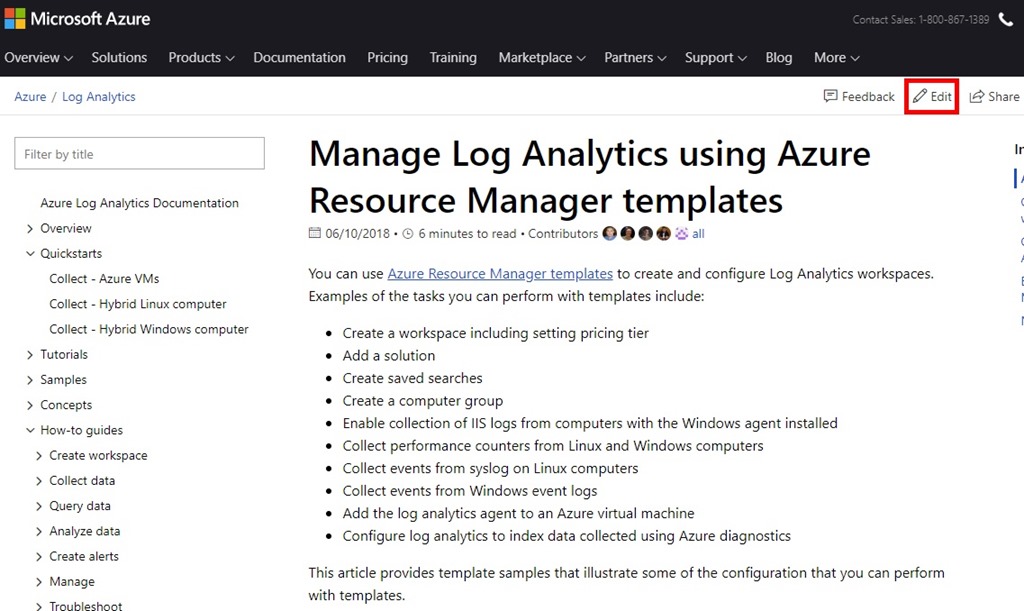
Next navigate to the documentation page you want to update (usually on the docs.microsoft.com domain).  Click the “Edit” button in upper right corner.

MSDocOnGitHub1

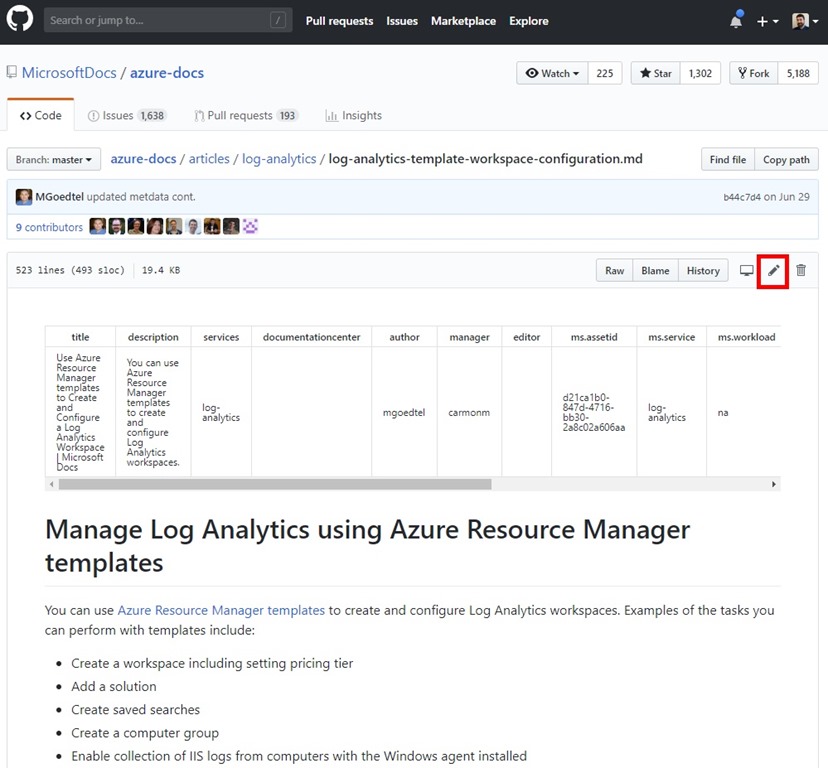
This will redirect you over to the underlying GitHub page where that file is sourced from.  Click the “pencil” icon to edit the file in question.

MSDocOnGitHub2

Make edits to the file as needed.

MSDocOnGitHub3

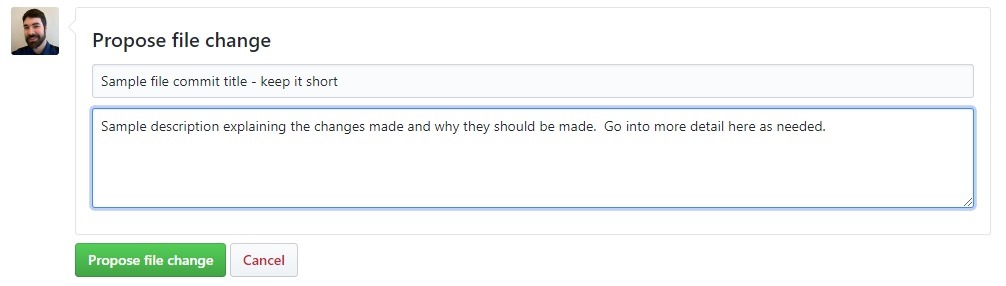
At the bottom of the page fill out a title and description for the file commit being proposed.  Click “Propose file change”.

MSDocOnGitHub4

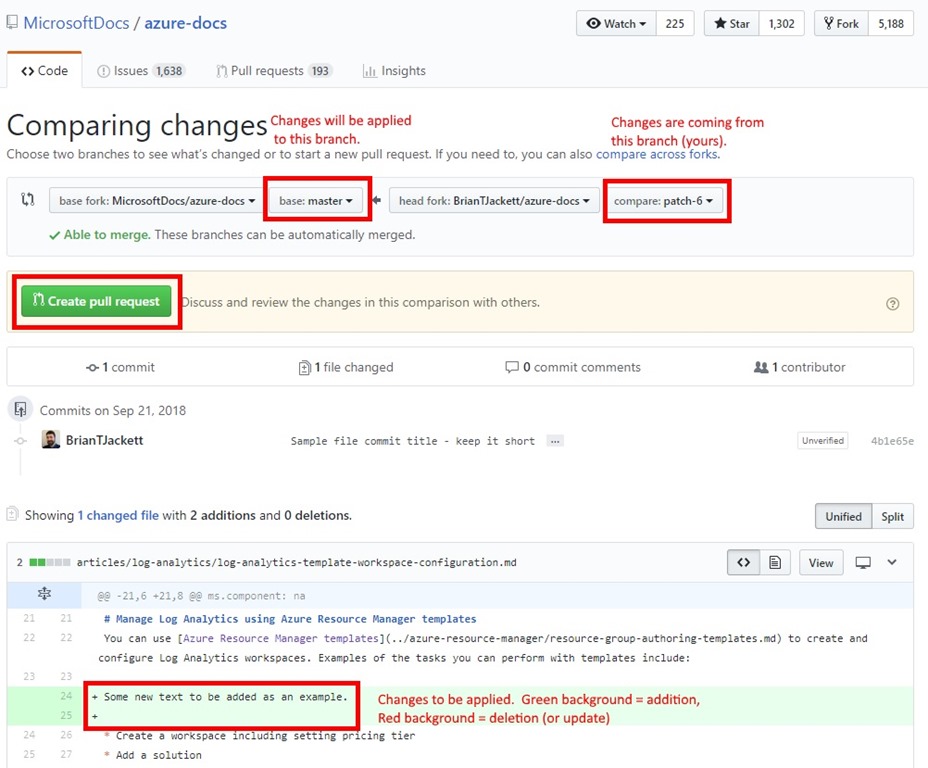
You’ll see a summary of the commit being proposed with additions or deletions to the file at bottom.  Up top you can see which branch changes are coming from (yours) on the right and the branch to submit them to on the left (usually “master”).  Click “Create pull request” when ready.

MSDocOnGitHub5

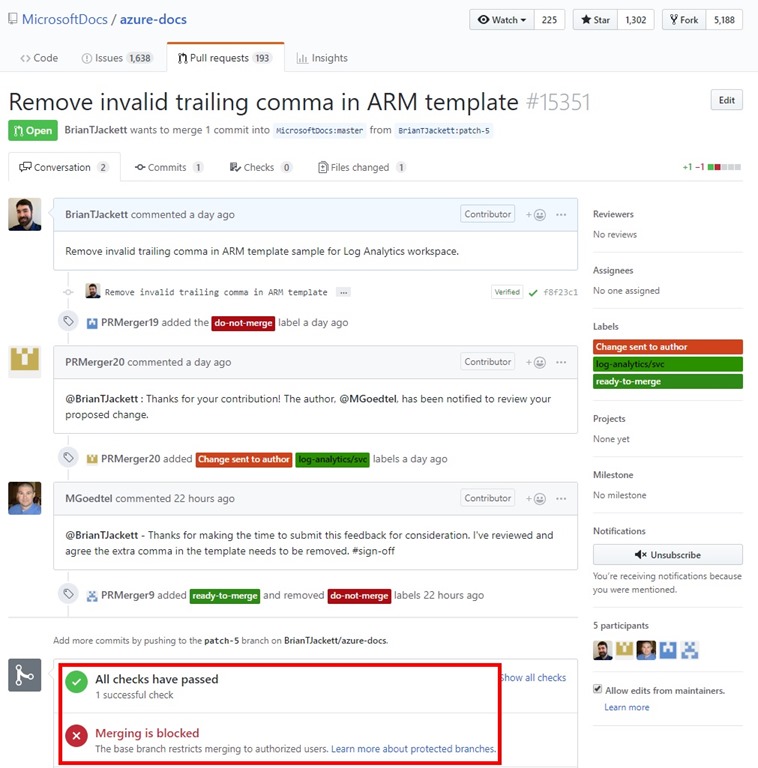
You’ll be presented with a last page (not shown here) for the pull request prior to submitting.  Once submitted you should see the active pull request page with details about the checks being run and any comments from the approvers.  Here is an example of one that I submitted a few days ago.  Notice the “All check have passed” at bottom where a number of background checks run before the approvers even see the pull request.

MSDocOnGitHub6


Additional Resources

Microsoft Docs contributor guide overview
https://docs.microsoft.com/en-us/contribute

If you are editing a large number of files or want to work on them locally I would recommend installing the Docs Authoring Pack extension in Visual Studio Code.

Docs Authoring Pack for VS Code
https://docs.microsoft.com/en-us/contribute/how-to-write-docs-auth-pack


Conclusion

Hopefully after reading through this process you feel capable of making edits to official Microsoft documentation on GitHub and submitting pull requests.  Happy editing and share your knowledge with the world.

-Frog Out

Azure Functions Calling Azure AD Application with Certificate Authentication

Calling the Microsoft Graph, SharePoint Online, or other resource via an Azure AD Application is a fairly straightforward process when you use client ID + secret for the authentication mechanism.  You can think of the client ID and secret as a username and password for authentication.  Note that anyone who has that client ID + secret can log in as that Azure AD App and perform the actions that it has been granted.  In an enterprise or secure environment certificate authentication is a more secure authentication option as it requires physically having the certificate which will only be deployed in a private fashion.  In this post I’ll walk through how to deploy and leverage the necessary components to accomplish this.  This example is part of a larger Azure Functions sample that I plan to release at a later date but the snippets below could be adapted for other hosting platforms.


Components Needed

  • Certificate (self-signed or generated from a PKI-type infrastructure)
  • Azure AD Application (using V1 in this example) with Microsoft Graph OAuth permissions
  • Azure Function


Solution Overview

  1. Create certificate (self-signed in this example)
  2. Create Azure function
  3. Create Azure AD application registration
  4. Add certificate metadata to Azure AD application
  5. Deploy certificate to Azure Function certificate store
  6. Authenticate to Azure AD application using certificate


1) Create Certificate

If you are on Windows 8+ there is a PowerShell commandlet to create self-signed certificates easily.  If not you’ll need to leverage MakeCert.exe or another certificate generating mechanism (ex. New-SelfSignedCertificateEx, documentation).  Here is a sample of the PowerShell option.


# process for Windows 8+ type OS
$ssc = New-SelfSignedCertificate -CertStoreLocation $CertificateStoreLocation -Provider $ProviderName `
    -Subject "$CertificateSubject" -KeyDescription "$CertificateDescription" `
    -NotBefore (Get-Date).AddDays(-1) -NotAfter (Get-Date).AddYears($CertificateNotAfterYears) `
    -DnsName $CertificateDNSName -KeyExportPolicy Exportable

# Export cert to PFX - uploaded to Azure App Service
Export-PfxCertificate -cert cert:\CurrentUser\My\$($ssc.Thumbprint) -FilePath $certificatePFXPath -Password $CertificatePassword -Force

# Export certificate - imported into the Service Principal
Export-Certificate -Cert cert:\CurrentUser\My\$($ssc.Thumbprint) -FilePath $certificateCRTPath -Force


2) Create Azure Function

You can create an Azure Function from the Azure Portal (reference), Azure CLI (reference), or through tools / extensions built into Visual Studio 2017 (reference) / Visual Studio Code.


3-4) Create Azure AD Application and Add Certificate to Azure AD Application

Here is a sample for creating an Azure AD application using Azure PowerShell.  In this example the certificate is added (-KeyCredentials) to the Azure AD application at time of creation, but it could also be added after the fact through the Azure Portal or PowerShell as well.


# prepare certificate for usage with creating AAD app
$KeyStorageFlags = [System.Security.Cryptography.X509Certificates.X509KeyStorageFlags]::Exportable, `
    [System.Security.Cryptography.X509Certificates.X509KeyStorageFlags]::MachineKeySet, `
    [System.Security.Cryptography.X509Certificates.X509KeyStorageFlags]::PersistKeySet
$certFile = Get-ChildItem -Path $CertificatePFXPath
$x509 = New-Object System.Security.Cryptography.X509Certificates.X509Certificate2
$x509.Import($certFile.FullName, $CertificatePassword, $KeyStorageFlags)
$certValueRaw = $x509.GetRawCertData()

$validFrom = $x509.NotBefore
$validTo = $x509.NotAfter
$keyId = [guid]::NewGuid()

$keyCredential = New-Object -TypeName "Microsoft.Open.AzureAD.Model.KeyCredential"
$keyCredential.StartDate = $validFrom
$keyCredential.EndDate= $validTo
$keyCredential.KeyId = $keyId
$keyCredential.Type = "AsymmetricX509Cert"
$keyCredential.Usage = "Verify"
$keyCredential.Value = $certValueRaw

$aadApp = New-AzureADApplication -DisplayName $AADAppName -Homepage $HomePage -ReplyUrls $ReplyUrls `
    -IdentifierUris $IdentifierUri -KeyCredentials $keyCredential


5) Deploy certificate to Azure Function

While there is a native way to upload a certificate to an Azure App Service via the Azure CLI and the Azure Portal there is not a direct way via PowerShell.  I was able to mimic an option with PowerShell by adding an SSL binding with a certificate and then immediately removing the SSL binding while not deleting the certificate (“-DeleteCertificate $false”).  Below are examples for both options.

Note: In both examples below the password will be entered as cleartext instead of using a SecureString or other encrypted mechanism. This could pose a security risk but I haven’t found an alternative as of yet.

PowerShell

$BSTR = [System.Runtime.InteropServices.Marshal]::SecureStringToBSTR($certificatePassword)
$ClearTextPassword = [System.Runtime.InteropServices.Marshal]::PtrToStringAuto($BSTR)

New-AzureRmWebAppSSLBinding -ResourceGroupName $resourceGroupName -WebAppName $webAppName -Name $webAppDNSName -CertificateFilePath (Get-ChildItem .\$certificatePFXPath) -CertificatePassword $ClearTextPassword
Remove-AzureRmWebAppSSLBinding -ResourceGroupName $resourceGroupName -WebAppName $webAppName -Name $webAppDNSName -DeleteCertificate $false -Confirm:$false -Force


Azure CLI

az webapp config ssl upload --certificate-file "(certPath)" --certificate-password "(certPassword)" --name "(certName)" --resource-group "(resourceGroup)"

6) Authenticate to Azure AD application using certificate

The Azure Function code can authenticate to the Azure AD application using the certificate that was deployed in step 5.  Below is a sample of the code used to retrieve the certificate.  Since Azure Functions can be run locally or in Azure this will work locally if the certificate has been deployed to the certificate store or in Azure when deployed to the App Service.


public static X509Certificate2 GetCertificate(string thumbprint)
{
X509Store store = new X509Store(StoreName.My, StoreLocation.CurrentUser);
try
{
    store.Open(OpenFlags.ReadOnly);

    var col = store.Certificates.Find(X509FindType.FindByThumbprint, thumbprint, false);
    if (col == null || col.Count == 0)
    {
        return null;
    }
    return col[0];
}
finally
{
    store.Close();
}
}


Below is a sample of using the certificate to authenticate to SharePoint Online, but this could easily point to a different resource such as Microsoft Graph, Exchange Online, etc.

var url = Environment.GetEnvironmentVariable("tenantRootUrl");
var thumbprint = Environment.GetEnvironmentVariable("certificateThumbprint");
var resourceUri = Environment.GetEnvironmentVariable("resourceUri");
var authorityUri = Environment.GetEnvironmentVariable("authorityUri");
var clientId = Environment.GetEnvironmentVariable("clientId");
var ac = new AuthenticationContext(authorityUri, false);
var cert = GetCertificate(thumbprint);  //this is the utility method called out above
ClientAssertionCertificate cac = new ClientAssertionCertificate(clientId, cert);
var authResult = ac.AcquireTokenAsync(resourceUri, cac).Result;

#next section makes calls to SharePoint Online but could easily be to another resource
using (ClientContext cc = new ClientContext(url))
{
    cc.ExecutingWebRequest += (s, e) =>
    {
        e.WebRequestExecutor.RequestHeaders["Authorization"] = "Bearer " + authResult.AccessToken;
    };

    #make calls through the client context object
    #…
}


Conclusion

This process is part of a much larger solution used to make authenticated calls to an Azure AD application from an Azure Function.  I am working on publishing that solution as a sample for others to reference.  I am hopeful that I’ll have something available within a month.  For the time being feel free to reference the above steps and code snippets for use in your own project.  Feel free to contact me or leave a comment if you have questions or feedback.


-Frog Out