PowerShell Script To Find Instances Of Running SharePoint Workflow

This is a quick blog post for a fun PowerShell script I got to write today.  My client asked me to make a listing of all instances of a particular workflow currently running on one of our SharePoint farms.  Since we have dozens of SharePoint lists spread out across numerous sub-sites on this farm I decided to tackle the request with PowerShell.

Here is a quick overview of what the scrip accomplishes.  First I get a reference to the site collection in question.  Next I get the workflow template from the name of the workflow I’m checking for.  Next I search all webs within the site collection and all lists within each web.  I filter the lists for any workflow associations with a BaseId matching my workflow template Id while also having at least 1 running instance.  Once I know there are running instances on this list I can then loop through all items in the list checking for workflows that are in the “Running” state.  I then output the SPWeb name, SPList name, and SPListItem name into a delimited output.

On a side note you may notice that I use $($variable.property) in my “write-output…” command.  I do this so that the property values are evaluated first before being passed to the the output stream.  If you attempt $variable.property you’ll most likely end up with a default value for $variable (typically ToString()) followed by “.property” which is not the intended result.

Download Script

Click here for a copy of this script off my SkyDrive.

*Note: As I’m currently very busy with SharePoint Saturday Columbus tasks this script is just in draft form so no recursive traversal of site hierarchy, input parameters, comments, etc.

$workflowNameToCheck = "My Sample Workflow"
$url = "http://SharePointDemo"

$spSite = new-object Microsoft.SharePoint.SPSite($url)
$spWeb = $spSite.OpenWeb()

$workflowBase = $spweb.WorkflowTemplates | where {$_.Name -eq $workflowNameToCheck}

$spWeb.Dispose()

foreach($spWeb in $spSite.AllWebs)
{
    for($i = 0; $i -lt $spWeb.Lists.Count; $i++)
    {
        $spList = $spweb.Lists[$i]
        $assoc = $spList.WorkflowAssociations | where {$_.BaseId -eq $workflowBase.Id.ToString() `
                            -and $_.RunningInstances -gt 0}

    if($assoc -ne $null)
        {
        foreach($item in $spList.Items)
            {
                if(($item.Workflows | where {$_.InternalState -eq "Running"}) -ne $null)
                {
                    write-output "$($spWeb.Name) | $($spList.Title) | $($item.Name)"
                }
            }
        }
    }
    $spWeb.Dispose()
}
$spSite.Dispose()

Conclusion

This script (very much in draft form) checks for running instances of a given workflow within a site collection.  After writing this script today I felt that this is probably a common search for some people so I hope you can glean some useful information from it.  If you find it useful or have any questions feel free to let me know.  Enjoy!

-Frog Out

PowerShell Interview on Technology and Friends

    Three weeks ago at the Central Ohio Day of .Net 2010 conference (my recap here) I was approached by one of my Sogeti coworkers David Giard to do a guest interview on PowerShell for his popular video series Technology and Friends.  If you’ve never gotten a chance to see this series, in each episode David interviews a special guest on topics ranging across all forms of technology.  David even puts in some nice production value with music, overlays, and a special unique ending.  His series is a great way to get wide exposure to a variety of topics with a personal touch that you may not typically run into in your typical experience.  If you have any feedback on the video please feel free to leave comments here.  Enjoy the show!


Technology and Friends: Brian Jackett on PowerShell

http://technologyandfriends.com/archive/2010/06/28/tf097.aspx

http://www.viddler.com/player/5086095a/


      -Frog Out

Speaking at SPTechCon Boston 2010

    I’m happy to announce that I’ll be speaking at SPTechCon Boston 2010 this upcoming October 20-22.  The presentation I will be giving is titled “Real World Deployment of SharePoint 2007 Solutions” and below is the session abstract.  I’m very excited to be speaking at SPTechCon Boston as I attended and live blogged the recent SPTechCon San Francisco this past Feb (link here to recap of that event) and was impressed with all of the people and content I was exposed to.  If you have a chance to attend SPTechCon Boston I would highly encourage it.  Also on a side note you may notice the nice badge that the SPTechCon organizers provided on the right hand side of my blog.  Look forward to seeing you there if you’re attending.


Title: Real-World Deployment of SharePoint 2007 Solutions

Audience and Level: IT Admin, Intermediate

Abstract: “All I have to do is run some STSADM commands to deploy my SharePoint solutions, right?” If you are saying that to yourself, then you are missing out on some of the more advanced processes you can employ to deploy and maintain your SharePoint solutions and farm. In this session, we will cover lessons learned from three years of deploying and automating SharePoint solutions. This will include using a combination of STSADM, PowerShell, SharePoint API and a number of other tools in a real-world situation to deploy an entire suite of custom SharePoint solutions. This session is targeted to farm administrators and developers. Prior experience with SharePoint solutions, STSADM and minimal PowerShell experience is suggested.


      -Frog Out

Announcing SharePoint Saturday Columbus 2010

SharePointSaturdayColumbus     It is with great pleasure that today I can announce the very first SharePoint Saturday Columbus.  SharePoint Saturday Columbus 2010 will be happening on August 14th at The Conference Center at OCLC in Dublin, OH.  As many of the readers of my blog may be aware I’ve attended or spoken at over half a dozen SharePoint Saturdays in the past 8 months alone, but this will be my first time actually organizing one.  Myself and a group of very dedicated individuals have been hard at work the past few months getting the ball rolling and we’re happy to see it taking shape.

Pertinent Resources

What can you do?

There are three main areas that we are looking for your help at this time.

  1. Spread the word – simply put start spreading the word to friends, coworkers, user groups, clients, and anyone else you think may be interested in SharePoint Saturday Columbus 2010.  We’ll be opening registration in early July so look for an announcement with details closer to that timeframe.
  2. Sponsorship – if your company or a company you know is interested in sponsoring SharePoint Saturday Columbus 2010 we have many opportunity levels available.  Email SPSColumbus@Live.com for more information and we’ll send you a sponsorship packet.
  3. Speakers – if you or someone you know is interested in presenting at SharePoint Saturday Columbus 2010 please fill out a speaker submission form found here and email it to SPSColumbus@Live.com by July 10th.

I hope you can join us for this great event!


-Frog Out

How To Configure Remote Desktop To Hyper-V Guest Virtual Machines

<Update 6/7/2010 with feedback from Kelly Jones on network adapters />

Configuring Remote Desktop (RDP) from a host Hyper-V machine to a guest virtual machine can be tricky, so this post is dedicated to the issues and resolution steps I went through to allow RDP.  Cutting to the point, below are the things to look for followed by some explanation about my scenario if you care to read.  This is not an exhaustive list of what is required, just the items that were causing problems for my particular scenario.

Requirements

  1. Allow Remote Desktop Connections in guest OS.
  2. The network adapter type must allow communication with host machine (e.g. use an “Internal” or “External” virtual adapter.)
  3. If running Server 2008 R2 on guest, network discovery mode must be turned on.
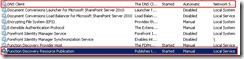
  4. If running Server 2008 R2 on guest, the services supporting network discovery mode must be running:– DNS Client – Function Discovery Resource Publication

    – SSDP Discovery

    – UPnP Device Host

My Environment

A quick word about my environment.  I am running Windows Server 2008 R2 with Hyper V on my laptop and numerous guest VMs running Windows Server 2003 R2 or Windows Server 2008 R2.  I run a domain controller VM and then 1 or 2 SharePoint servers depending on my work needs.  I’ve found this setup to work well except when it comes to the display window for my VMs.

The Issue

Ever since I began running Hyper-V I haven’t been able to RDP to my guest VMs which means the resolution for my connection windows ha been limited to what the native Hyper-V connections allow.  During personal use I can put the resolution up to 1152 x 864, but during presentations I am usually limited to a measly 800 x 600.  That is until today when I decided to fully investigate why I couldn’t connect via RDP.

First a thank you to John Ross (@johnrossjr), Christina Wheeler (@cwheeler76) and Clayton Cobb (@warrtalon) for various suggestions while I was researching tonight.  As it turns out I had not 1, not 2, but 3 items preventing me from using RDP.  Let’s dig into the requirements above.

Allow RDP Connection

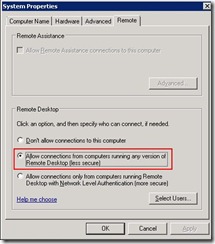
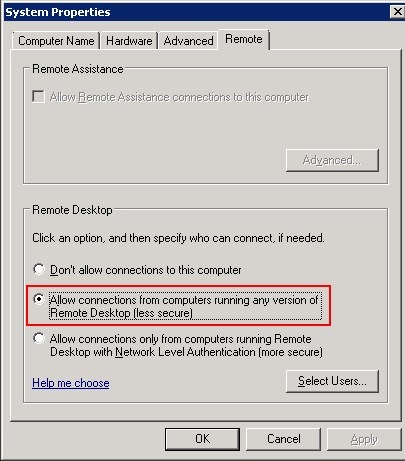
This item I had previously taken care of, but it bears repeating because by default Windows Server 2008 R2 does not allow RDP connections.  Change the setting from “Don’t allow…” to whichever “Allow connections…” setting suits your needs.  I chose the less secure option as this is just my dev laptop.
ConfigureRDPHyperVGuest8

Network Adapter Type

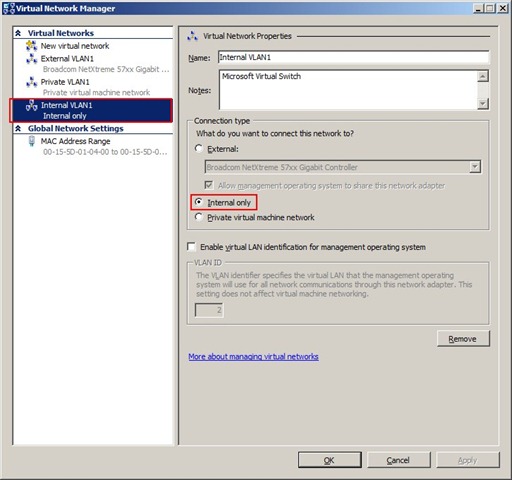
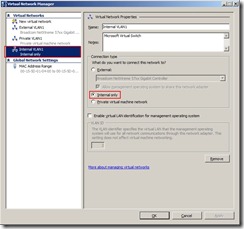
When I originally configured my VMs I configured each to use 2 network adapters: one using the physical ethernet adapter for internet use and a virtual private adapter for communication between the VMs.  The connection for the ethernet adapter is an “”External” adapter and (as my co-worker Kelly Jones pointed out in comments below) does allow connections between host and guest.  After he pointed this out though I realized that my ethernet adapter is not always reliably enabled (power cord not in disables NIC.)  As such I need a secondary adapter that will always be on to connect the host and guest.  The virtual private adapter I had allowed communication ONLY between the VMs and not to my host.  There is a third option “Internal” which allows communication between VMs as well as to the host.  After finding out this distinction I promptly created an Internal network adapter and assigned that to my VMs.
ConfigureRDPHyperVGuest1

Turn On Network Discovery

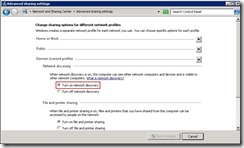
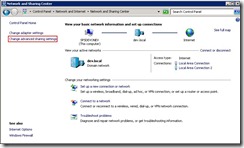
Seems like a pretty common sense thing, but in order to allow remote desktop connections the target computer must able to be found by the source computer (explained here.)  One of the settings that controls if a computer can be found on the network is aptly named Network Discovery.  By default Windows Server 2008 R2 turns Network Discovery off for security purposes.  To enable it open up the Network and Sharing Center.  Click “Change Advanced Sharing Settings” on the left.  On the following screen select “Turn on network discovery” for the currently used profile and click Save Settings.  You may notice though that your selection to turn on network discovery doesn’t save.  If this is the case then you most likely don’t have the supporting services running (as was my case.) ConfigureRDPHyperVGuest4
ConfigureRDPHyperVGuest5

Network Discovery Supporting Services

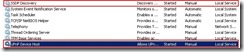
There are a total of 4 services (listed again below) that need to be running before you can turn on network discovery (explained here.)  The below images highlight these services.  In my guest VM I found that I had DNS Client already running while the other 3 were disabled.  I set them all to enabled and started the ones that were stopped.  After this change I returned to the Sharing settings screen and found that Network Discovery was turned on.  I’m not sure whether this was picking up my attempt to turn it on previously or if starting those services turned it on.  Either way the end result was a success.

– DNS Client

– Function Discovery Resource Publication

– SSDP Discovery

– UPnP Device Host
ConfigureRDPHyperVGuest2 ConfigureRDPHyperVGuest3

Before and After Results

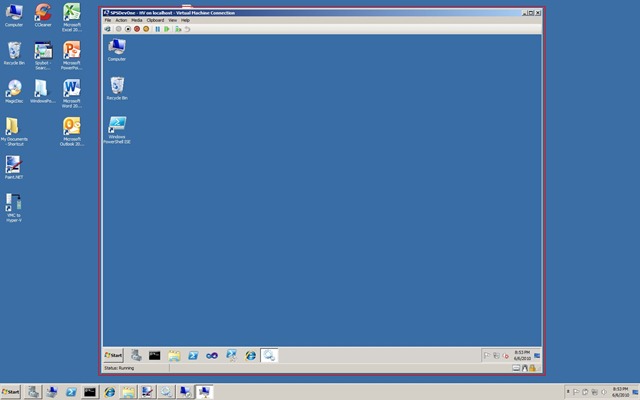
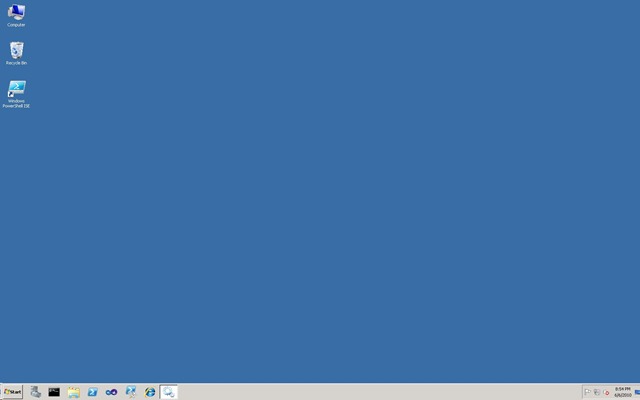
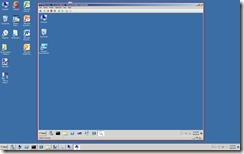
The first image is the smaller square shaped viewing window used by the Hyper-V native connection.  The second is the full-screen RDP connection in all its widescreen glory.
ConfigureRDPHyperVGuest6 ConfigureRDPHyperVGuest7

Conclusion

Over the past few months I’ve found Hyper-V to be very useful for virtualizing my development environments, but I’ve also had a steep learning curve to get various items configured just right.  Allowing RDP connections to guest VMs was one area that I hadn’t been able to get right for the longest time.  Now that I resolved these issues I hope that others can avoid the pitfalls that I ran into.  If you know of any other items I left off feel free to let me know.


-Frog Out


Links

Turning on Network Discovery

http://sqlblog.com/blogs/john_paul_cook/archive/2009/08/15/remote-desktop-connection-on-windows-server-2008-r2.aspx

Services required for Network Discovery

http://social.technet.microsoft.com/Forums/en-US/winservergen/thread/2e1fea01-3f2b-4c46-a631-a8db34ed4f84

Central Ohio Day of .Net 2010 Slides and Files

    This weekend I presented my “The Power of PowerShell + SharePoint 2007” session at the Central Ohio Day of .Net conference in Wilmington, OH.  This is the second year I’ve attended this conference, first time as a presenter.  For those unfamiliar Day of .Net conferences are a one-day conference on all things .NET organized by developers for developers.  These events are usually offered at no cost to anyone interested in .NET development.

    The attendees of my session had some great questions and I hope they all got something worthwhile out of it.  Below are my slides and demo scripts (some of which I didn’t have time to demo) along with my sample profiles.  If you have any questions, comments, or feedback feel free to leave comments here or send me an email at brian.jackett@gmail.com.


Slides and Files

SkyDrive link


Technology and Friends Interview Experience

    On a side note, any of you familiar with one of my Sogeti co-workers in Detroit David Giard may know that he hosts a web series called Technology and Friends.  After my session David tracked me down and asked to interview me about PowerShell.  I was happy to oblige so we sat down and taped some material.  I don’t know when that interview will be going live, but look for it on www.davidgiard.com.


Conclusion

    A big thanks goes out to all of the sponsors, speakers, and attendees for the Central Ohio Day of .Net conference.  Without all of them this conference couldn’t have been possible.  I had a great time at the conference and look forward to coming back next year whether that is as a speaker or attendee.

      -Frog Out