Speaking at SharePoint Saturday Columbus 2013

SPSFull_BuckeyeBlack_Speaking

   It has been 2 years since the last SharePoint Saturday Columbus but thankfully a new group of organizers is taking up the mantel and putting on a new conference this year.  I am honored to be speaking at this year’s event.  Registration is already filled up but if you want to get on the waiting list please do so.  If you’ll be attending feel free to join my session or track me down in the halls to say hi.  Looking forward to a great event, speakers, and attendees.


SharePoint Saturday Columbus 2013

Title: Integrating SharePoint 2013 with Office Web Apps (WAC) Server

Audience and Level: IT Pro / Architect, Intermediate

Abstract: WAC? WOPI? These are some of the new acronyms for Office Web Apps (WAC) Server 2013. This session will highlight what has changed since the 2010 version, what is new for the 2013 version, and how to administrate WAC. We will also cover considerations for capacity planning, installation, high availability, and common pitfalls when deploying WAC. This session will include demos of how to configure WAC server with SharePoint 2013 and how to enable user license enforcement for editing documents through WAC. Attendees need not have prior experience with Office Web Apps but should have an introductory knowledge of SharePoint 2013 administration.


      -Frog Out

PowerShell Script to Workaround No Data in SharePoint 2013 Usage Reports

   Over the past few months I’ve had 2 customers that have run into an scenario where the SharePoint 2013 web analytics usage reports have no data (all zeroes) in the reports.  While working with some brilliant Microsoft escalation engineers (thanks Anthony and Jason) we were able to run some PowerShell scripts that added receivers to start data showing again on the following day.  Since I haven’t seen any posts on this as of yet I thought I would post a version of the PowerShell scripts we used.


Scenario

    In SharePoint 2013 the search service application incorporates web analytics (which is a separate service application in SharePoint 2010).  Web analytics processes usage logs on the SharePoint machines and generates reports on a daily schedule.  These reports can be viewed for an individual site in the site settings under Site Collection Administration > Popularity and Search Reports.
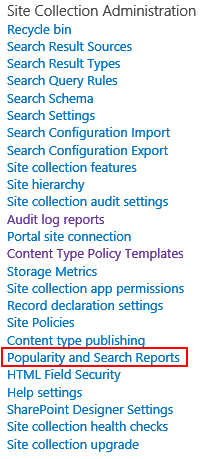
UsageReportDataEmpty1


   In the Popularity and Search Reports you can click on the Usage report which will launch an Excel workbook.

UsageReportDataEmpty2


   What I found with 2 customers and one of my lab farms was that the Usage report contained all zeroes for data even though the customer (and me in my lab farm) had been using the site regularly with multiple accounts over the past few days.
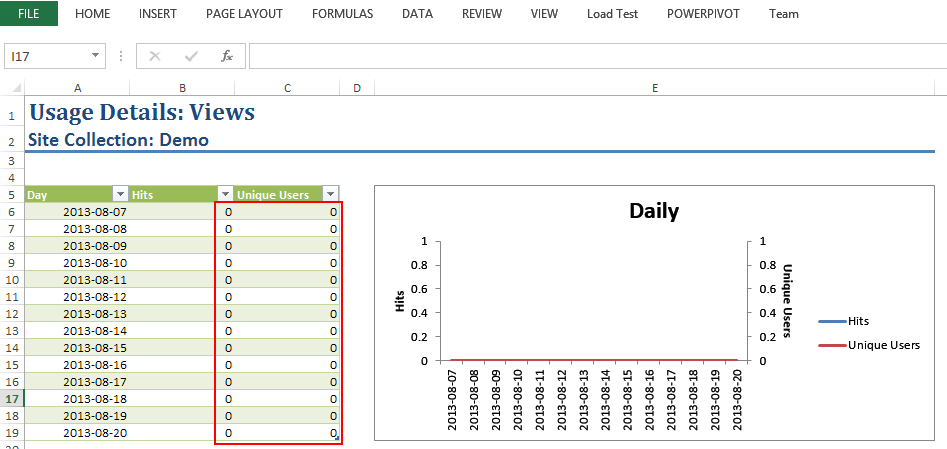
UsageReportDataEmpty3


   We analyzed the logging database and found that it had usage data, but the search analytics database did not.  (Note: do not directly query the search analytics database as that is unsupported as of the time this post was written.  See http://technet.microsoft.com/en-us/library/cc678868.aspx for more information.)  So it appeared the data in the logging database wasn’t being processed by the search service web analytics timer jobs.  After verifying that the timer jobs were indeed running the long road of PowerShell queries into the system began.  We finally used the below commands to arrive at what we believe to be the culprit for these customers.  Our findings follow the commands.


$aud = Get-SPUsageDefinition | where {$_.Name -like “Analytics*”} 
$aud | fl 

$prud = Get-SPUsageDefinition | where {$_.Name -like “Page Requests”}  
$prud | fl 
  • AnalyticsUsage usage definition had no Receivers defined
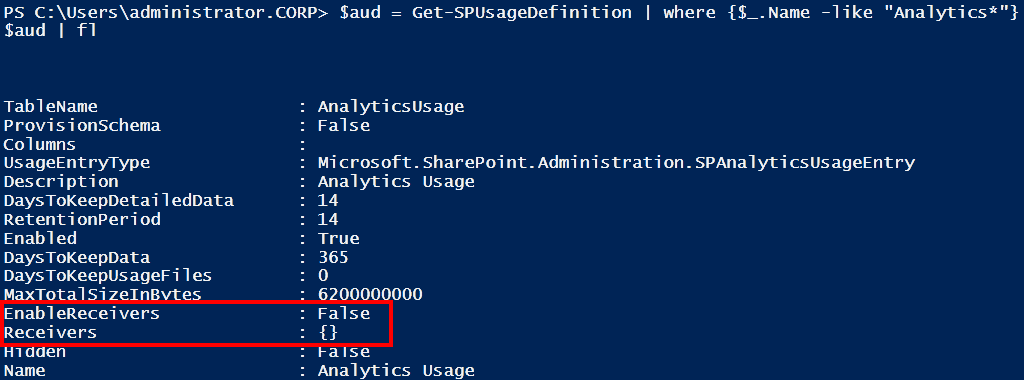
  • PageRequest usage definition had no Receivers defined

UsageReportDataEmpty4


    Not having any Receivers defined also led to the EnableReceivers property to be set to false for both.


Workaround

   The workaround in these scenarios was to manually create the Receivers.  The PowerShell commands to do so is below (slightly modified to check for empty receivers first).  Again this sample script is provided as-is with no warranty.  Do not run this in your environment without first testing.  This is not an official Microsoft approved script.  You can download a copy off my SkyDrive folder as well.


if((Get-PSSnapin -Name Microsoft.SharePoint.PowerShell) -eq $null) 
{ 
    Add-PSSnapin Microsoft.SharePoint.PowerShell 
} 

$aud = Get-SPUsageDefinition | where {$_.Name -like “Analytics*”} 
# if analytics usage definition receivers is empty then manually add back receiver 
if($aud.Receivers.Count -eq 0) 
{ 
    $aud.Receivers.Add(“Microsoft.Office.Server.Search.Applications, Version=15.0.0.0, Culture=neutral, PublicKeyToken=71e9bce111e9429c”, “Microsoft.Office.Server.Search.Analytics.Internal.AnalyticsCustomRequestUsageReceiver”) 
} 
# if analytics usage definition receiver is not enabled then enable it 
if($aud.EnableReceivers -eq $false) 
{ 
    $aud.EnableReceivers = $true 
    $aud.Update() 
} 
$aud | fl 
$prud = Get-SPUsageDefinition | where {$_.Name -like “Page Requests”}  
# if page requests usage definition receivers is empty then manually add back receiver 
if($prud.Receivers.Count -eq 0) 
{ 
    $prud.Receivers.Add(“Microsoft.Office.Server.Search.Applications, Version=15.0.0.0, Culture=neutral, PublicKeyToken=71e9bce111e9429c”, “Microsoft.Office.Server.Search.Analytics.Internal.ViewRequestUsageReceiver”)  
} 
# if page requests usage definition receiver is not enabled then enable it 
if($prud.EnableReceivers -eq $false) 
{ 
    $prud.EnableReceivers = $true 
    $prud.Update() 
} 
$prud | fl 

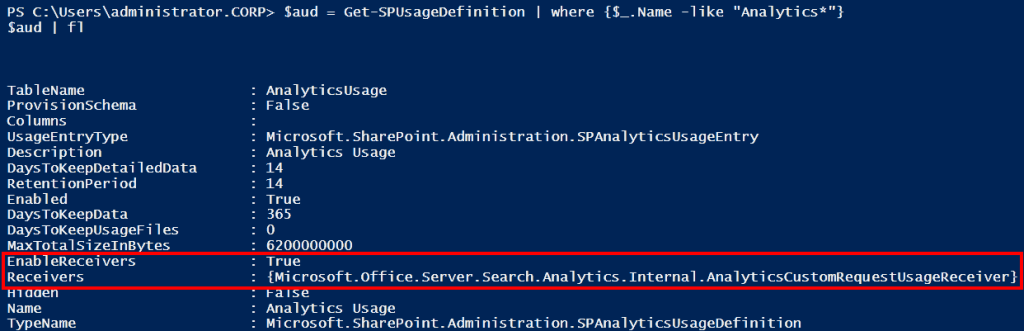
   After the script has been run the output from the prior commands can confirm that Receivers have been created and the EnableReceivers property is set to true.
UsageReportDataEmpty5


<Update 2013-08-09>

   The next step is to recycle the OWSTimer service (SharePoint Timer Service) on each server.  This ensures that the new receivers are properly picked up by the timer jobs.

</Update 2013-08-09> 

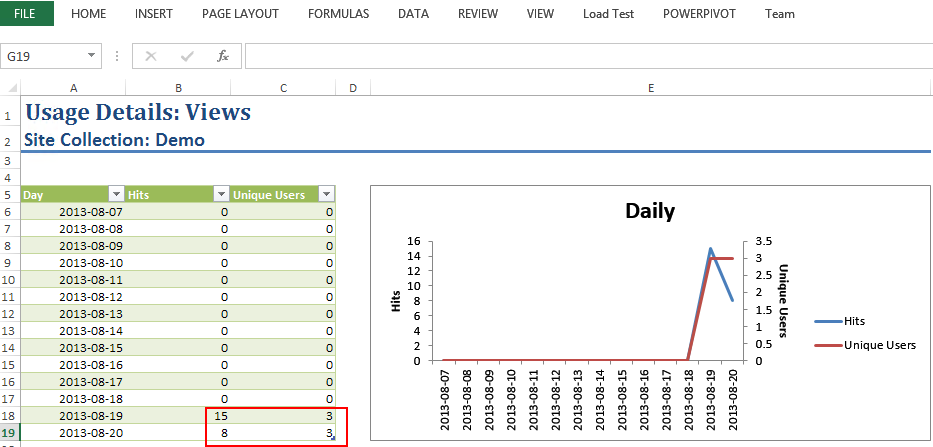
  Waiting one day the usage reports were now showing data.  (Note the below report was mocked up manually to show data as I did not have direct access to the customers’ reports, but this is consistent with what we had seen after the scripts were applied.)
UsageReportDataEmpty6


Conclusion

   This is a strange scenario of no data in the usage reports when there is data in the logging databases.  I’ve run into it myself and with 2 customers, but when I tried to reproduce the scenario I couldn’t.  If anyone is facing this issue hopefully this process of manually creating the usage definition receivers and waiting 24 hrs is a workaround.  Let me know if you have seen this and if the workaround works for you.  Curious to learn more on it.


      -Frog Out

Slides from SPTechCon Boston 2013 Evolution of Social in SharePoint Presentation

   Below are my slides for my SPTechCon Boston 2013 session for “The Evolution of Social in SharePoint 2013”.  I made some last minute updates that will make their way over to the SPTechCon site as well, but for now here they are.  If you attended thanks for coming and I’d love to hear any feedback.  It was a great time presenting at SPTechCon again, sharing knowledge, and connecting with folks..


      -Frog Out

Speaking at SPTechCon Boston 2013 and Call for Speakers SharePoint Saturday Columbus 2013

   Dual purpose blog post this time.  I wanted to announce a presentation I’m giving at SPTechCon Boston 2013 next week as well as pass along info on the call for speakers at the upcoming SharePoint Saturday Columbus 2013.


SPTechCon Boston 2013

   I have the honor of speaking at SPTechCon Boston for another year.  This will make it 4 times now.  The folks at BZ Media always put on a great show with high quality speakers and involvement from the community.  There will even be two different user groups (SharePoint and Project Server) meeting during one night of the conference.  If you haven’t yet registered you still have some time.  If you’ll be attending stop by my session or find me in the halls.


Title: The Evolution of Social in SharePoint

Audience and Level: IT Pro / Architect, Intermediate

Abstract: Activities, newsfeed, community sites, following… these are just some of the big changes introduced to the social experience in SharePoint 2013. This class will discuss the evolution of the social components since SharePoint 2010, the architecture (distributed cache, microfeed, etc.) that supports the social experience, and proper planning considerations when deploying social capabilities (personal sites, SkyDrive Pro and distributed cache). This class will include demos of the social newsfeed, community sites and mentions. Attendees should have an intermediate knowledge of SharePoint 2010 or 2013 administration.


SharePoint Saturday Columbus 2013

   On Sept 14th, 2013 Columbus will be hosting the next SharePoint Saturday Columbus.  This is a bit of a late announcement, but the call for speakers is still open until midnight on Monday Aug 5th, 2013.  That’s tomorrow as of the time of writing.  If you have a topic you’d like to talk about relating in any form to SharePoint we’d love to have you submit.  You can send speaker submissions (click here) to BuckeyeSPUG@live.com if interested.  One of the first conferences I spoke at was a SharePoint Saturday up in Cleveland and it led to so many great opportunities and networking contacts.


      -Frog Out

PowerShell Script to Enumerate SharePoint 2010 or 2013 Permissions and Active Directory Group Membership

   In this post I will present a script to enumerate SharePoint 2010 or 2013 permissions across the entire farm down to the site (SPWeb) level.  As a bonus this script also recursively expands the membership of any Active Directory (AD) group including nested groups which you wouldn’t be able to find through the SharePoint UI.


History

    Back in 2009 (over 4 years ago now) I published one my most read blog posts about enumerating SharePoint 2007 permissions.  I finally got around to updating that script to remove deprecated APIs, supporting the SharePoint 2010 commandlets, and fixing a few bugs.  There are 2 things that script did that I had to remove due to major architectural or procedural changes in the script.

  1. Indenting the XML output
  2. Ability to search for a specific user

   I plan to add back the ability to search for a specific user but wanted to get this version published first.  As for indenting the XML that could be added but would take some effort.  If there is user demand for it (let me know in the comments or email me using the contact button at top of blog) I’ll move it up in priorities.

   As a side note you may also notice that I’m not using the Active Directory commandlets.  This was a conscious decision since not all environments have them available.  Instead I’m relying on the older [ADSI] type accelerator and APIs.  It does add a significant amount of code to the script but it is necessary for compatibility.  Hopefully in a few years if I need to update again I can remove that legacy code.


Solution

   Below is the script to enumerate SharePoint 2010 and 2013 permissions down to site level.  You can also download it from my SkyDrive account or my posting on the TechNet Script Center Repository.

SkyDrive

TechNet Script Center Repository

http://gallery.technet.microsoft.com/scriptcenter/Enumerate-SharePoint-2010-35976bdb

########################################################### 
#DisplaySPWebApp8.ps1 
# 
#Author: Brian T. Jackett 
#Last Modified Date: 2013-07-01 
# 
#Traverse the entire web app site by site to display 
# hierarchy and users with permissions to site. 
########################################################### 

function Expand-ADGroupMembership 
{ 
    Param 
    ( 
        [Parameter(Mandatory=$true, 
                   Position=0)] 
        [string] 
        $ADGroupName, 
        [Parameter(Position=1)] 
        [string] 
        $RoleBinding 
    ) 
    Process 
    { 
        $roleBindingText = “” 
        if(-not [string]::IsNullOrEmpty($RoleBinding)) 
        { 
            $roleBindingText = ” RoleBindings=`”$roleBindings`”” 
        } 
        Write-Output “<ADGroup Name=`”$($ADGroupName)`”$roleBindingText>” 
        $domain = $ADGroupName.substring(0, $ADGroupName.IndexOf(“”) + 1) 
        $groupName = $ADGroupName.Remove(0, $ADGroupName.IndexOf(“”) + 1) 
                            
        #BEGIN – CODE ADAPTED FROM SCRIPT CENTER SAMPLE CODE REPOSITORY 
        #http://www.microsoft.com/technet/scriptcenter/scripts/powershell/search/users/srch106.mspx 
        #GET AD GROUP FROM DIRECTORY SERVICES SEARCH 
        $strFilter = “(&(objectCategory=Group)(name=”+($groupName)+“))” 
        $objDomain = New-Object System.DirectoryServices.DirectoryEntry 
        $objSearcher = New-Object System.DirectoryServices.DirectorySearcher 
        $objSearcher.SearchRoot = $objDomain 
        $objSearcher.Filter = $strFilter 
        # specify properties to be returned 
        $colProplist = (“name”,“member”,“objectclass”) 
        foreach ($i in $colPropList) 
        { 
            $catcher = $objSearcher.PropertiesToLoad.Add($i) 
        } 
        $colResults = $objSearcher.FindAll() 
        #END – CODE ADAPTED FROM SCRIPT CENTER SAMPLE CODE REPOSITORY 
        foreach ($objResult in $colResults) 
        { 
            if($objResult.Properties[“Member”] -ne $null) 
            { 
                foreach ($member in $objResult.Properties[“Member”]) 
                { 
                    $indMember = [adsi] “LDAP://$member” 
                    $fullMemberName = $domain + ($indMember.Name) 
                    
                    #if($indMember[“objectclass”] 
                        # if child AD group continue down chain 
                        if(($indMember | Select-Object -ExpandProperty objectclass) -contains “group”) 
                        { 
                            Expand-ADGroupMembership -ADGroupName $fullMemberName 
                        } 
                        elseif(($indMember | Select-Object -ExpandProperty objectclass) -contains “user”) 
                        { 
                            Write-Output “<ADUser>$fullMemberName</ADUser>” 
                        } 
                } 
            } 
        } 
        
        Write-Output “</ADGroup>” 
    } 
} #end Expand-ADGroupMembership 
# main portion of script 
if((Get-PSSnapin -Name microsoft.sharepoint.powershell) -eq $null) 
{ 
    Add-PSSnapin Microsoft.SharePoint.PowerShell 
} 
$farm = Get-SPFarm 
Write-Output “<Farm Guid=`”$($farm.Id)`”>” 
$webApps = Get-SPWebApplication 
foreach($webApp in $webApps) 
{ 
    Write-Output “<WebApplication URL=`”$($webApp.URL)`” Name=`”$($webApp.Name)`”>” 
    foreach($site in $webApp.Sites) 
    { 
        Write-Output “<SiteCollection URL=`”$($site.URL)`”>” 
        
        foreach($web in $site.AllWebs) 
        { 
            Write-Output “<Site URL=`”$($web.URL)`”>” 
            # if site inherits permissions from parent then stop processing 
            if($web.HasUniqueRoleAssignments -eq $false) 
            { 
                Write-Output “<!– Inherits role assignments from parent –>” 
            } 
            # else site has unique permissions 
            else 
            { 
                foreach($assignment in $web.RoleAssignments) 
                { 
                    if(-not [string]::IsNullOrEmpty($assignment.Member.Xml)) 
                    { 
                        $roleBindings = ($assignment.RoleDefinitionBindings | Select-Object -ExpandProperty name) -join “,” 
                        # check if assignment is SharePoint Group 
                        if($assignment.Member.XML.StartsWith(‘<Group’) -eq “True”) 
                        { 
                            Write-Output “<SPGroup Name=`”$($assignment.Member.Name)`” RoleBindings=`”$roleBindings`”>” 
                            foreach($SPGroupMember in $assignment.Member.Users) 
                            { 
                                # if SharePoint group member is an AD Group 
                                if($SPGroupMember.IsDomainGroup) 
                                { 
                                    Expand-ADGroupMembership -ADGroupName $SPGroupMember.Name 
                                } 
                                # else SharePoint group member is an AD User 
                                else 
                                { 
                                    # remove claim portion of user login 
                                    #Write-Output “<ADUser>$($SPGroupMember.UserLogin.Remove(0,$SPGroupMember.UserLogin.IndexOf(“|”) + 1))</ADUser>” 
                                    Write-Output “<ADUser>$($SPGroupMember.UserLogin)</ADUser>” 
                                } 
                            } 
                            Write-Output “</SPGroup>” 
                        } 
                        # else an indivdually listed AD group or user 
                        else 
                        { 
                            if($assignment.Member.IsDomainGroup) 
                            { 
                                Expand-ADGroupMembership -ADGroupName $assignment.Member.Name -RoleBinding $roleBindings 
                            } 
                            else 
                            { 
                                # remove claim portion of user login 
                                #Write-Output “<ADUser>$($assignment.Member.UserLogin.Remove(0,$assignment.Member.UserLogin.IndexOf(“|”) + 1))</ADUser>” 
                                
                                Write-Output “<ADUser RoleBindings=`”$roleBindings`”>$($assignment.Member.UserLogin)</ADUser>” 
                            } 
                        } 
                    } 
                } 
            } 
            Write-Output “</Site>” 
            $web.Dispose() 
        } 
        Write-Output “</SiteCollection>” 
        $site.Dispose() 
    } 
    Write-Output “</WebApplication>” 
} 
Write-Output “</Farm>” 

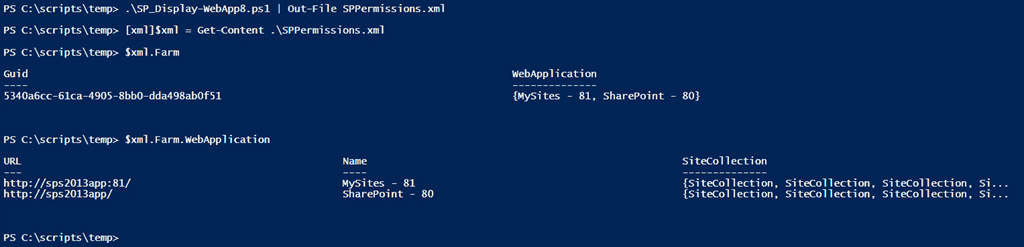
   The output from the script can be sent to an XML which you can then explore using the [XML] type accelerator.  This lets you explore the XML structure however you see fit.  See the screenshot below for an example.

SP20102013Permissions1


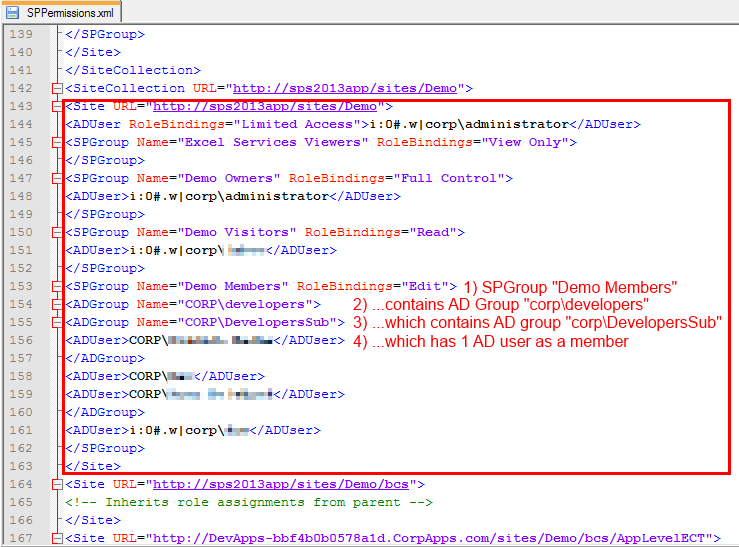
   If you do view the XML output through a text editor (Notepad++ for me) notice the format.  Below we see a SharePoint site that has a SharePoint group Demo Members with Edit permissions assigned.  Demo Members has an AD group corpdevelopers as a member.  corpdevelopers has a child AD group called corpDevelopersSub with 1 AD user in that sub group.  As you can see the script recursively expands the AD hierarchy.

SP20102013Permissions2


Conclusion

   It took me 4 years to finally update this script but I‘m happy to get this published.  I was able to fix a number of errors and smooth out some rough edges.  I plan to develop this into a more full fledged tool over the next year with more features and flexibility (copy permissions, search for individual user or group, optional enumerate lists / items, etc.).  If you have any feedback, feature requests, or issues running it please let me know.  Enjoy the script!


      -Frog Out

PowerShell Script to Determine Number of Files in SharePoint 2010 or 2013 Document Libraries

   Recently my fellow SharePoint PFE and teammate Jim Matson (@jamesmatson3) was looking for a way to display the number of documents inside each document library on a SharePoint 2010 / 2013 farm.  Below is the script that we came up with.


Problem

   It is not too difficult to find all of the document libraries and their item count in a given SharePoint 2010 or 2013 site collection, web application, or farm.  What can be difficult is finding all of that along with the full URL of the site that contains the list and exporting in one object..


Solution

   I used a trick I learned from my previous post on getting Exchange Online mailbox size in GB to use the add-member commandlet to add metadata to a variable or object.  By gathering the site URL and then adding it to a variable of the document library title and item count I had the information Jim needed.  At the end simply output this to a CSV file and then use as needed.  Feel free to download the script from my SkyDrive public folder link below.

Note: I am not testing to see if the output folder exists.  Handle that as you wish if you use this script.


Add-PSSnapin Microsoft.SharePoint.PowerShell 

Start-SPAssignment -Global 
$OutputFile = “C:tempDocCount.csv” 
$results = @() 
$webApps = Get-SPWebApplication 
foreach($webApp in $webApps) 
{ 
    foreach($siteColl in $webApp.Sites) 
    { 
        foreach($web in $siteColl.AllWebs) 
        { 
            $webUrl = $web.url 
            $docLibs = $web.Lists | Where-Object {$_.baseType -eq “DocumentLibrary”} 
            $docLibs | Add-Member -MemberType ScriptProperty -Name WebUrl -Value {$webUrl} 
            $results += ($docLibs | Select-Object -Property WebUrl, Title, ItemCount) 
        } 
    } 
} 
$results | Export-Csv -Path $OutputFile -NoTypeInformation 
  
Stop-SPAssignment -Global

   Here is an example screenshot of the output from the script.

NumberDocsInSPDocLib1


Conclusion

   This script was fairly easy to come up with.  I was happy to be able to combine some previous knowledge learned from another script along with traversing all sites in a farm.  Hopefully if you have need of this script (or something similar) you will find this helpful.


      -Frog Out