Create Shortcut To Easily Edit HOSTS File On Windows 7 Or Server 2008

In this blog post I’ll show you a quick an easy way to create a shortcut to the HOSTS file on Windows 7/Server 2008+.  By itself that wouldn’t be a huge deal, but I’ll throw in a nice bonus so that you’ll add the “Run as Administrator” property so you can save the edits you make.  If you are like me and frequently need to edit the HOSTS file on a computer running with UAC enabled (Vista, Windows 7, Server 2008+) you may have run into the following error when trying to save changes:

“C:WindowsSystem32driversetchosts.txt

You don’t have permission to save in this location.  Contact the administrator to obtain permission.

Would you like to save in the My Documents folder instead?”
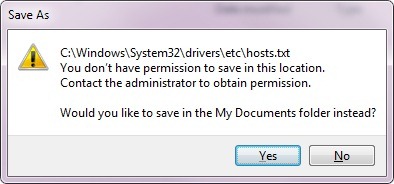
EditHOSTSFile5

The Issue

The error above is caused by the program you are using to edit the HOSTS (Notepad in my case) isn’t running in “Run as Administrator” mode while trying to modify a system file.  As a result it will ask you to save to a location (My Documents) that it does have access to.  Unfortunately we do need to save it to the original location.

Background on HOSTS file

For those unfamiliar, the HOSTS file is used to locally map hostnames to IP addresses and will supersede values that come from Domain Name System (DNS).  As a developer I use the HOSTS file to point my local machine to a development environment that isn’t registered in DNS or perhaps a specific server in a load balanced server farm.

The Solutions

Yes you read this section title right, I came up with multiple solutions (2 1/2 really) to this issue.  If you prefer to see me dazzle you with my PowerShell skills skip ahead to solutions #2 and #3.  If you’d like the old-fashioned “by hand” solution check out #1 below.

Solution #1

As stated above, the first solution I would consider more of a manual approach.  The first thing you will do is create a shortcut to your favorite text editing software.  Since Notepad comes with just about every Windows OS I chose that for simplicity.  One way to create the shortcut is to find it in the All Programs of your Start menu and Right Click –> Send To –> Desktop (create shortcut).
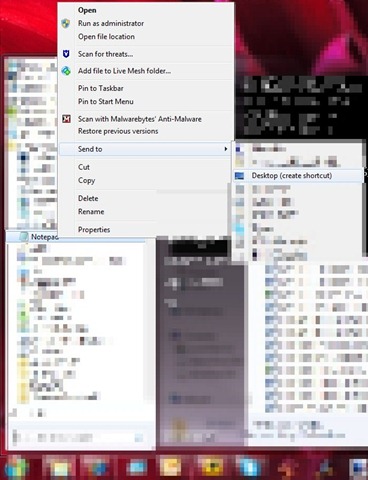
EditHOSTSFile1edited

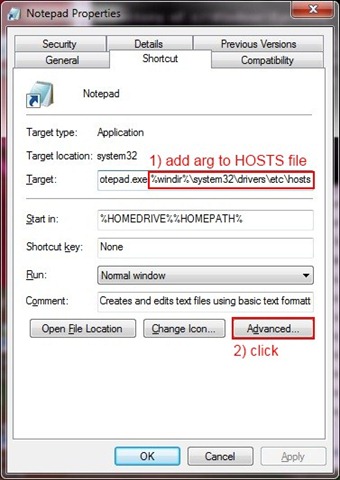
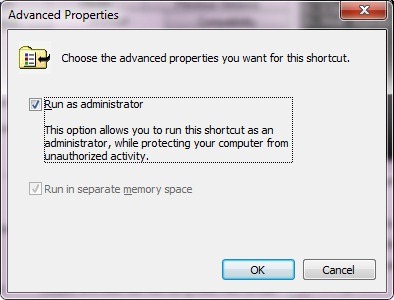
When calling Notepad from the command line it is possible to specify the file to open automatically by listing it as a command line argument.  If your text editor doesn’t support this you’ll need to find an alternate approach.  Once you have the created the shortcut edit the properties by Right Clicking the shortcut and choosing Properties.  You will need to add the file location of HOSTS (%windir%system32driversetchosts) to the value already in the Target box shown below.  After you have added the file location to Target click the Advanced button in the lower right shown below. EditHOSTSFile2edited     On the advanced properties window you’ll want to check the box for “Run as administrator” which then allows you to edit the HOSTS file when opened in Notepad.  Click OK.
EditHOSTSFile3 If everything was successful when you double click the shortcut you should be prompted by a UAC box (because we chose to Run as Administrator) that lists the program (Notepad) and the file location (HOSTS file) to be opened.  Click Yes.
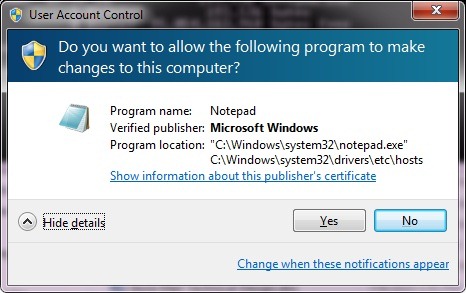
EditHOSTSFile4

Solution #2

The first PowerShell solution automates the process of creating the desktop shortcut but with one drawback: you still need to manually set the shortcut to “Run as Administrator”.  Just follow the steps from Solution #1 to add that additional piece.

Download the script here.

$wshell = New-Object -comObject WScript.Shell

$desktopPath = $wshell.SpecialFolders.Item('Desktop')


$link = $wshell.CreateShortcut("$desktopPathHOSTS.lnk")

$link.TargetPath = '%windir%system32notepad.exe'

$link.Arguments = '%windir%system32driversetchosts'

$link.Description = 'launches HOSTS file'

$link.WorkingDirectory = '%HOMEDRIVE%%HOMEPATH%'

$link.IconLocation = '%windir%system32notepad.exe'

#$link.Hotkey = "CTRL+SHIFT+H"

$link.Save()

Note: You’ll notice that I commented out the line to assign a hotkey.  I was using that hotkey as a 3-button quick test of my script results instead of multiple clicks to return to the desktop, find the shortcut, and click it.  Feel free to uncomment and use it permanently, just be sure you don’t already have a hotkey mapped to that key combination.

Solution #3 (more like #2b)

Since I couldn’t find a way to automate the setting for “Run as Administrator” in Solution #2 I continued my pursuits by “thinking outside the box.”  I thought if I can’t set that property perhaps I can launch the process in elevated mode instead.  (Sidenote: anyone familiar with Mythbusters, one of my favorite TV shows, may recognize their philosophy of attempting to recreate the results without necessarily adhering to the exact circumstances originally proposed.)  As a result what I ended up with was a shortcut on the desktop that actually runs a PowerShell command that in turn opens the HOSTS file in “Run as Administrator” mode.

Download the script here.

$wshell = New-Object -comObject WScript.Shell

$desktopPath = $wshell.SpecialFolders.Item('Desktop')


$link = $wshell.CreateShortcut("$desktopPathHOSTS.lnk")

$link.TargetPath = 'PowerShell'

$link.Arguments = '-command "Start-Process "notepad.exe" -Verb Runas -ArgumentList "C:windowssystem32driversetchosts""'

$link.Description = 'launches HOSTS file'

$link.WorkingDirectory = '%HOMEDRIVE%%HOMEPATH%'

$link.IconLocation = '%windir%system32notepad.exe'

#$link.Hotkey = "CTRL+SHIFT+H"

$link.Save()

While I do appreciate that I was able to get the results I wanted there are a few things that I don’t like about this solution.  First is that I had to hardcode the “C:…” file location for HOSTS.  While a large percentage of users will have their Windows folder on the C: drive, not all will (especially one of my home machines where Windows is on the W: drive.)  Technically I could overcome this with enough string manipulations, but I didn’t have time to mess with it.  The second issue is that I have an intermediate step of launching the PowerShell console which then runs the open Notepad command.  The PowerShell console only shows for a second or two and uses minimal resources but it’s definitely not as efficient as it could be.

Conclusion

So there you have it, 3 different ways to quickly and easily launch the HOSTS file in a save-able manner.  The first two solutions have a minor amount of manual steps required while the third is fully automated but with the drawbacks that I pointed out.  If anyone reading this knows a way to assign the “Run as Administrator” property through PowerShell I would very much appreciate a link or resource.  I spent a good chunk of time researching but came up empty handed.  I hope you were able to gain something useful from this post.  I know I had a great deal of fun researching for it.

-Frog Out

Links

Solution #2 and #3 script downloads

Solution #2 script

Solution #3 script

Create shortcut PowerShell script adapted from

http://powershell.com/cs/blogs/tips/archive/2009/04/20/create-powershell-shortcuts.aspx

Open with “Run as Admininistrator” PowerShell concept adapted from
http://powershell.com/cs/forums/p/3323/4561.aspx#4561

PowerShell Script To Find Instances Of Running SharePoint Workflow

This is a quick blog post for a fun PowerShell script I got to write today.  My client asked me to make a listing of all instances of a particular workflow currently running on one of our SharePoint farms.  Since we have dozens of SharePoint lists spread out across numerous sub-sites on this farm I decided to tackle the request with PowerShell.

Here is a quick overview of what the scrip accomplishes.  First I get a reference to the site collection in question.  Next I get the workflow template from the name of the workflow I’m checking for.  Next I search all webs within the site collection and all lists within each web.  I filter the lists for any workflow associations with a BaseId matching my workflow template Id while also having at least 1 running instance.  Once I know there are running instances on this list I can then loop through all items in the list checking for workflows that are in the “Running” state.  I then output the SPWeb name, SPList name, and SPListItem name into a delimited output.

On a side note you may notice that I use $($variable.property) in my “write-output…” command.  I do this so that the property values are evaluated first before being passed to the the output stream.  If you attempt $variable.property you’ll most likely end up with a default value for $variable (typically ToString()) followed by “.property” which is not the intended result.

Download Script

Click here for a copy of this script off my SkyDrive.

*Note: As I’m currently very busy with SharePoint Saturday Columbus tasks this script is just in draft form so no recursive traversal of site hierarchy, input parameters, comments, etc.

$workflowNameToCheck = "My Sample Workflow"
$url = "http://SharePointDemo"

$spSite = new-object Microsoft.SharePoint.SPSite($url)
$spWeb = $spSite.OpenWeb()

$workflowBase = $spweb.WorkflowTemplates | where {$_.Name -eq $workflowNameToCheck}

$spWeb.Dispose()

foreach($spWeb in $spSite.AllWebs)
{
    for($i = 0; $i -lt $spWeb.Lists.Count; $i++)
    {
        $spList = $spweb.Lists[$i]
        $assoc = $spList.WorkflowAssociations | where {$_.BaseId -eq $workflowBase.Id.ToString() `
                            -and $_.RunningInstances -gt 0}

    if($assoc -ne $null)
        {
        foreach($item in $spList.Items)
            {
                if(($item.Workflows | where {$_.InternalState -eq "Running"}) -ne $null)
                {
                    write-output "$($spWeb.Name) | $($spList.Title) | $($item.Name)"
                }
            }
        }
    }
    $spWeb.Dispose()
}
$spSite.Dispose()

Conclusion

This script (very much in draft form) checks for running instances of a given workflow within a site collection.  After writing this script today I felt that this is probably a common search for some people so I hope you can glean some useful information from it.  If you find it useful or have any questions feel free to let me know.  Enjoy!

-Frog Out

PowerShell Interview on Technology and Friends

    Three weeks ago at the Central Ohio Day of .Net 2010 conference (my recap here) I was approached by one of my Sogeti coworkers David Giard to do a guest interview on PowerShell for his popular video series Technology and Friends.  If you’ve never gotten a chance to see this series, in each episode David interviews a special guest on topics ranging across all forms of technology.  David even puts in some nice production value with music, overlays, and a special unique ending.  His series is a great way to get wide exposure to a variety of topics with a personal touch that you may not typically run into in your typical experience.  If you have any feedback on the video please feel free to leave comments here.  Enjoy the show!


Technology and Friends: Brian Jackett on PowerShell

http://technologyandfriends.com/archive/2010/06/28/tf097.aspx

http://www.viddler.com/player/5086095a/


      -Frog Out

Central Ohio Day of .Net 2010 Slides and Files

    This weekend I presented my “The Power of PowerShell + SharePoint 2007” session at the Central Ohio Day of .Net conference in Wilmington, OH.  This is the second year I’ve attended this conference, first time as a presenter.  For those unfamiliar Day of .Net conferences are a one-day conference on all things .NET organized by developers for developers.  These events are usually offered at no cost to anyone interested in .NET development.

    The attendees of my session had some great questions and I hope they all got something worthwhile out of it.  Below are my slides and demo scripts (some of which I didn’t have time to demo) along with my sample profiles.  If you have any questions, comments, or feedback feel free to leave comments here or send me an email at brian.jackett@gmail.com.


Slides and Files

SkyDrive link


Technology and Friends Interview Experience

    On a side note, any of you familiar with one of my Sogeti co-workers in Detroit David Giard may know that he hosts a web series called Technology and Friends.  After my session David tracked me down and asked to interview me about PowerShell.  I was happy to oblige so we sat down and taped some material.  I don’t know when that interview will be going live, but look for it on www.davidgiard.com.


Conclusion

    A big thanks goes out to all of the sponsors, speakers, and attendees for the Central Ohio Day of .Net conference.  Without all of them this conference couldn’t have been possible.  I had a great time at the conference and look forward to coming back next year whether that is as a speaker or attendee.

      -Frog Out

Error Using 32 vs. 64 bit SharePoint 2007 DLLs with PowerShell

Next time you fire up PowerShell to work with the SharePoint API make sure you launch the proper bit version of PowerShell.  Last week I had an interesting error that led to this blog post.  Travel back in time a little bit with me to see where this 32 vs. 64 bit debate started.

History

Ever since the first pre-beta bits of Office 2010 landed in my lap I have been questioning whether it’s better to run 32 or 64 bit applications on a 64 bit host operating system.  In relation to Office 2010 I heard a number of arguments for 32 bit including this link from the Office 2010 Engineering team.  Given my typical usage scenarios 32 bit seemed the way to go since I wasn’t a “super RAM hungry” Excel user or the like.

The Problem

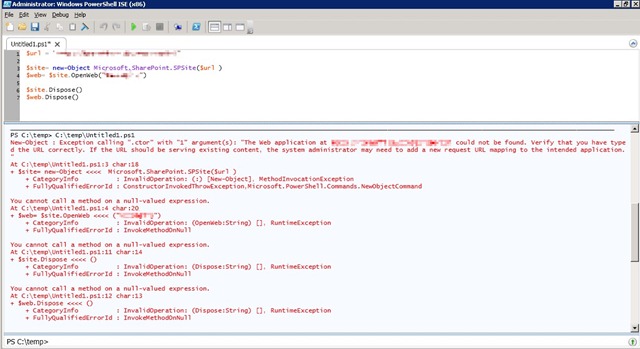
Since I had chosen 32 bit Office 2010, I tried to stick with 32 bit version of other programs that I run assuming the same benefits and rules applied to other applications.  This is where I was wrong.  Last week I was attempting to use 32 bit PowerShell ISE (Integrated Scripting Environment) on a 64 bit WSS 3.0 server.  When trying to reference the 64 bit SharePoint DLLs I got the following errors about not being able to find the web application.

PowerShellBitVersion1

I have run into these errors when I have hosts file issues or improper permissions to the farm / site collection but these were not the case.  After taking a quick spin around the interwebs I ran across the below forum post comment and another MSDN forum reply that explained the error.  Turns out that sometimes it’s not possible to run 32 bit applications against a 64 bit OS / farm / assembly / etc.

…the problem could also be because your SharePoint is 64-Bit but your app is running in 32-bit mode

I quickly exited 32 bit PowerShell ISE and ran the same code under 64 bit PowerShell ISE.  All errors were gone and the script ran successfully.


Conclusion

The rules of 32 vs. 64 bit interoperability do not always apply evenly across all applications and scenarios.  In my case I wasn’t able to run 32 bit PowerShell against 64 bit SharePoint DLLs.  I’m updating all of my links and shortcuts to use 64 bit PowerShell where appropriate.  I’m quite surprised it has taken me this long to run into this error, but sometimes blind luck is all that keeps you from running into errors.  Lesson learned and hopefully this can benefit you as well.  Happy SharePointing all!


-Frog Out


Links

http://blogs.technet.com/b/office2010/archive/2010/02/23/understanding-64-bit-office.aspx

http://social.msdn.microsoft.com/Forums/en-US/sharepointdevelopment/thread/a732cb83-c2ef-4133-b04e-86477b72bbe3/

http://stackoverflow.com/questions/266255/filenotfoundexception-with-the-spsite-constructor-whats-the-problem

SharePoint Saturday DC 2010 Slides, Demo Scripts, and Pictures

Wow! This past weekend I attended SharePoint Saturday Washington DC (SPSDC) which was quite an event to say the least.  For those unfamiliar, SharePoint Saturday is a community driven event where various speakers gather to present at a FREE conference on all topics related to SharePoint.  This made my fifth SharePoint Saturday attended and fourth I’ve spoken at.  SPSDC was a bit different than most SharePoint Saturdays mostly due to the scale of it.  We had almost 950 attendees, over 80 speakers presenting close to 90 sessions, and dozens of sponsors.  A big thanks goes out to the organizers of this event.  They put in a lot of hard work and time to pull this event off and should be very proud of the end result.

For SPSDC I presented “The Power of PowerShell + SharePoint 2007”.  I want to thank all of the attendees of my session for coming and asking some great questions.  Below you can find the slides and demo scripts for this session.  I also took some photos throughout the day (not as many as usual since so much going on) so check them out.  If you have any follow up questions feel free to drop me a line in the comments or the contact link at the top of the site.

Slides and Scripts

Click here for the demo scripts and slides posted on my SkyDrive.


VERY IMPORTANT NOTE: One thing I forgot to mention in my presentation.  In order to run code against the SharePoint API you need to load the Microsoft.SharePoint.dll assembly first.  Run the below command on the PowerShell console line to complete that:


[void][System.Reflection.Assembly]::LoadWithPartialName(“Microsoft.SharePoint”)


Photos

Facebook album

-or-

My album on Windows Live site (higher res shots).

-Frog Out