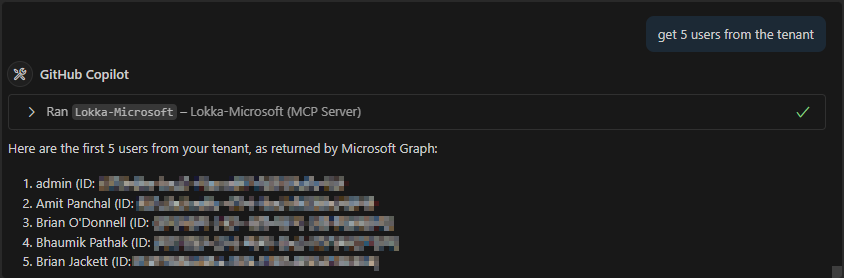
MCP, Microsoft Graph, and Copilot connectors in GitHub Copilot agent mode

[Update 2025-07-09] After internal discussion with Merill Fernando and others, it does appear that you can use delegated authenticated with interactive auth prompt. I will be testing this out soon and share more once testing is complete. [/Update]

Recently I had the chance to test out a number of new technologies as part of my org’s Fix Hack Learn (FHL) week. This includes an MCP (model context protocol) server for Microsoft Graph to ingest public data into a Copilot connector using GitHub Copilot agent mode. While I’ve had lots of experience with Microsoft Graph and Copilot connectors (formerly Graph connectors), the other areas were new to me. In this post I’ll walk through my experience and observations based on my time spent so far.

In general, I was pleasantly pleased with how easy it was to get started. It literally took 5-10 mins starting from nothing to having my first successful prompt successfully responding from the MCP server. The following days I dug in really deep and got a bit lost trying out different models, adding instruction files, and testing out various prompts. By the end of the week, I had a working process that you can see in this shortened video.

Use case

To frame the scenario, my goal was to identify a set of publicly available data (ex. data.gov) and ingest that into M365 Copilot via a Copilot connector without writing any code. Once the data is ingested I could then use M365 Copilot to reason over the data through user prompts.

In my reading thus far, MCP is generally used as a way to expose “tools” to an LLM so that the LLM can identify APIs or other resources to use when processing a user prompt. In my case though I was essentially treating MCP as a means to prototype a development artifact (i.e. Microsoft Graph requests that worked with users, Copilot connectors, SharePoint sites, etc.) Think of this like a developer REPL akin to Microsoft Graph Explorer but instead of calling APIs directly I used natural language prompts as the input.

Getting started

This post is not intended to be an introduction to MCP, but for those interested I found the following resources useful.

https://modelcontextprotocol.io/introduction
https://www.anthropic.com/news/model-context-protocol

From the Microsoft Graph perspective, there is not an official Microsoft Graph MCP server, but I did find a community-based MCP server called https://lokka.dev from my peer Merill Fernando. You can run Lokka locally which I did as an NPM package in VS Code (now natively supported) as well as other options.

Merill provided a quick and easy guide for installation and running the Lokka MCP server. A few of the set up instructions didn’t match the UI screens as this is recently GA’d and subject to change, but I shared with Merill and he was able to update as of the time of writing.

https://lokka.dev/docs/install

Ensure that you have the pre-requisites installed. In my environment that includes (may be higher than stated pre-reqs):

  • Node v22.16.0
  • VSCode v1.101.2 (user setup)

Lastly, ensure that you have created and consented permissions on a Microsoft Entra application registration. Note that at this time, as far as I’m aware, this currently only supports application (i.e. app-only) permissions. There are some workarounds I’ve read about to implement delegated permissions, but it doesn’t appear to be formally supported or part of the MCP spec as of yet. I was originally led to believe that only application permissions are supported (which is what my sample used), but after internal discussion I’m told that delegated auth is now available although not widely adopted by many MCP servers yet. I will be testing delegated auth over the coming week or two and share a separate update.

I purposely only consented the following permissions so that I could test out scenarios that weren’t consented:

  • User.ReadWrite.All
  • ExternalConnection.ReadWrite.OwnedBy
  • ExternalItem.ReadWrite.OwnedBy

Comparing LLM Models

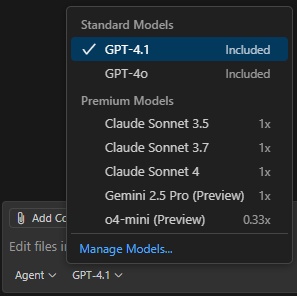
One thing that was not clear to me at first was that GitHub Copilot agent mode supports different LLMs, but more importantly that some of those models are considered “premium” models and have different consumption / usage limits. Additionally, some models (ex. Claude Sonnet 3.7) are only accessible with a paid plan such as Copilot Pro or similar.

https://docs.github.com/copilot/get-started/plans-for-github-copilot

I tried out three different models and landed on GPT-4.1 as my preferred, but recommend that you compare models to best suit your solution needs.

https://docs.github.com/copilot/reference/ai-models/choosing-the-right-ai-model-for-your-task

https://docs.github.com/copilot/concepts/copilot-billing/understanding-and-managing-requests-in-copilot

Ex. screenshot of differing consumption rates depending on model used:
Testing out commands / models

I attempted a number of simple scenarios such as getting users from the tenant, filtering on user properties, and updating metadata on a user. All of these were successful with varying formats of output depending on the model used.

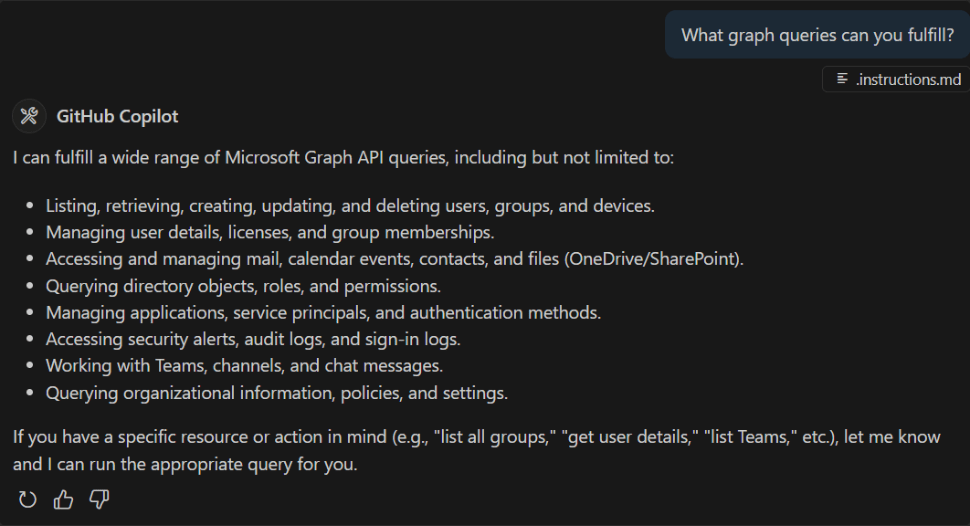
  • GPT-4.1 was my preferred model, primarily because it struck a good balance between figuring things out on its own, good formatting, and prompting me as the developer before proceeding with various creative / destructive actions.
  • Claude Sonnet 3.7 attempted a number of actions on its own without asking me for input and in many cases those has undesired effects. This was the “magic” that I referred to in a previous LinkedIn post. In just 2 testing prompts, I had created a Copilot connector, registered a schema, and ingested sample items. Sadly the schema and sample items were very far off from what was intended and thus this soured my experience.
  • o4-mini on the other hand was very sparse on information that it returned and I perceived it to be much slower (i.e. time to first token in response was at least 50-100% slower than the others).

GPT o4-mini (preview)
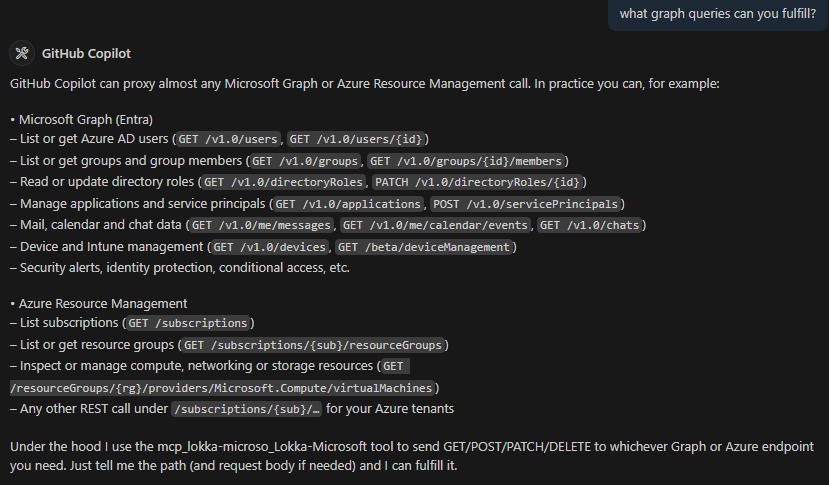
Claude Sonnet 3.7

GPT-4.1 [my preferred so far]
I ran a number of other scenarios as well that are too lengthy to share here, but these include:

  • Creating a Copilot connector (see video near top for overview)
    • Scraping information from website pages
    • Using instruction files (for GitHub Copilot agent mode) to encourage / discourage prompting developer for confirmation of actions
  • Attempting to access resources not granted permissions to
    • ex. read SharePoint files, access Exchange mailboxes
  • Modifying user data in Microsoft Entra
    • ex. assign job title, department, email address, etc.

Conclusion

I am very happy with my time and outcomes testing out MCP + Graph + VS Code, but realize that this is not a production-worthy solution yet. First among them is only supporting application permissions, many of which require global admin consent. There are still big gaps when it comes to fully supporting delegated OAuth, fine-tuning the right amount of control vs. creativeness of the models, and rough edges getting a scenario implemented. I see lots of potential and will continue to keep an eye on this space.

If you have any questions or suggestions for additional use cases, or are already using MCP in your solutions, please share in the comments below.

-Frog Out

Slides from M365 Twin Cities 2023

A huge thank you to the attendees, organizers, volunteers, sponsors, and anyone else involved with M365 Twin Cities. This was my first community conference in 3+ years but it was amazing to share more about Microsoft Graph in my two sessions. I appreciate all of the attendees who joined and had great questions and engagement.

Below are PDF copies of the slides I presented. If you have any questions, feel free to ask in the comments here or reach out to me. Look forward to presenting at more events later this year as opportunities arise.

Getting Up to Speed with Microsoft Graph Development

How to Use Power Automate and Microsoft Graph in Daily Work

-Frog Out

Resources (see more in Resources on this blog)

Microsoft Graph developer center
https://aka.ms/Graph

Microsoft Graph Explorer
https://aka.ms/ge

Microsoft Graph Postman collection
https://aka.ms/GraphPostman

Microsoft Graph extension for Polyglot Notebooks
https://github.com/microsoftgraph/msgraph-dotnet-interactive-extension

Microsoft 365 platform community call (series invite)
https://aka.ms/m365-dev-call

Presenting at M365 Twin Cities 2023

After a few years off from community speaking engagements I’m excited to return to speak at M365 Twin Cities (formerly SharePoint Saturday Twin Cities, now with expanded scope and topics) on Jan 21, 2023. I’ve spoken at this conference twice before and have been very impressed with the level of organization, attendee engagement, and content all-up. I’ll be presenting the following 2 sessions. Registration is still open. If you are in the area, please sign up and look forward to seeing you there.

M365 Twin Cities
https://www.m365tc.com/

Registration
https://www.eventbrite.com/e/m365-twin-cities-winter-2023-tickets-471566266397

Title: Getting Up to Speed with Microsoft Graph Development

Description: “I hear that I need to use Microsoft Graph for developing against Microsoft 365 but I have no clue where to start.” “I want to grant access to company data without throwing in the entire kitchen sink.” Fear not fellow developers and admins. This session we will ramp you up to a 200 level knowledge on the pertinent parts of Microsoft Graph including endpoints available, syntax, authentication flows, and more. We will also cover useful examples of what can be accomplished using these APIs. Prior experience with Microsoft Graph is not required but can be helpful.

Title: How to Use Power Automate and Microsoft Graph in Daily Work

Description: Do you need to automate parts of your daily work routine? What Microsoft Cloud data is available through Microsoft Graph for automating? In this session we’ll walk through multiple real world examples of using Power Automate for daily tasks such as assigning round robin tasks to team members, sending weekly reminders, processing survey results, and more. Prior experience with Power Automate is useful but not required. Target audience is open to all (productivity workers, developers, admins, etc.)

-Frog Out

Introduction to Calling Microsoft Graph from Polyglot Notebooks (.Net Interactive)

This post is a part of Festive Tech Calendar 2022 and a follow-up to Introduction to Calling Microsoft Graph from a C# .Net Core Application from 2018.

Microsoft Graph is the unified API for any developers working with data inside Microsoft 365, Azure Active Directory (Azure AD), Windows, and more.  In this post, we’ll cover how to call Microsoft Graph from Polyglot Notebooks (part of .Net Interactive). We’ll also introduce a preview of the Microsoft Graph extension for .Net Interactive.

Background

Do you ever want to test a few lines of code, but have to write dozens of lines of support code (i.e. “boilerplate” or “basic plumbing” code)?

Microsoft Graph has a number of offerings such as quick starts to let you pick a supported code language, download a sample application, and run the project within a few minutes, but this can still take 5-30 mins depending on your level of familiarity.

Separately, there is Microsoft Graph Explorer or the Microsoft Graph Postman collection to quickly execute a query against Microsoft Graph (seconds to minutes usually), but these only execute HTTP REST endpoints and not using SDKs (which I prefer).

I’ve used 3rd party tools such as LINQPad or websites like .Net Fiddle to quickly prototype and execute Microsoft Graph SDK code but these are often disconnected experiences from where I typically develop which is Visual Studio Code.

.Net Interactive and Polyglot Notebooks

Enter .Net Interactive. .Net Interactive builds upon the Jupyter ecosystem (notebooks, kernels, server, etc.) to allow programming in a notebook fashion (executable code alongside text) but with support for multiple languages (C#, F#, JavaScript, PowerShell, SQL, and more). With this added support for multiple languages, the Visual Studio Code extension has been recently renamed to Polyglot Notebooks (previously called .Net Interactive Notebooks), but the base engine itself is still called .Net Interactive.

At a base level, Polyglot Notebooks allow you to write snippets of executable code in multiple languages alongside markdown text blocks. This is great for writing tutorials, sharing a sample of code with someone with explanation (beyond simple comments in the code), or designing a multi-step process of code blocks.

.Net Interactive is also extensible by allowing developers to create custom kernel extensions, magic commands, or script-based extensions.

Microsoft Graph extension for .Net Interactive

During a recent company hackathon event, myself, Jason Johnston, Jon Sequeira, and Diego Colombo built an initial prototype of a Microsoft Graph extension for .Net Interactive. The extension implements a magic command for #!microsoftgraph that can create and authenticate a GraphServiceClient and then binds it to a variable that can then be used in code blocks. The magic command accepts input parameters to control authentication flow, Azure AD application / tenant, Microsoft Graph API version, and more. The current repository includes support for C# (.Net) but we’re also exploring JavaScript and PowerShell in the future.

Prerequisites

There are a few prerequisites that you will need install

Getting started

After above requirements are met, you can get started by following the instructions in the GitHub repo README or the demo notebook.

Let’s take a look at a few samples.

Create a polyglot notebook

To create a new polyglot notebook, open the Command Palette(Ctrl+Shift+P) on Windows or (Cmd+Shift+P) on MacOS, and select Polyglot Notebook: Create new blank notebook. You can also create a new notebook with Ctrl+Shift+Alt+N key combination on Windows.

Build the NuGet package

After forking the repository, navigate to the source directory and run the following command (or execute in a PowerShell code block inside the notebook) to generate a NuGet package which we will then import in the next steps.

dotnet build ./src/Microsoft.DotNet.Interactive.MicrosoftGraph.csproj

Import the NuGet package

After the NuGet package has been built, run the following commands (be sure to replace <REPLACE_WITH_WORKING_DIRECTORY> with the actual directory location) in a C# script block in the notebook to import the NuGet package.

#i nuget:<REPLACE_WITH_WORKING_DIRECTORY>\src\bin\Debug\
#r "nuget:Microsoft.DotNet.Interactive.MicrosoftGraph,*-*"

Help example

Executing the #!microsoftgraph magic command with -h or –help will display the syntax and parameters available for input. Note that options are available with full name (two dashes “–“) or aliases (one dash “-“).

#!microsoftgraph -h

Create client

The following creates an instance of a GraphServiceClient with variable name “deviceCodeClient” using the device code authentication flow. Be sure to replace the input parameters for “YOUR_TENANT_ID” and “YOUR_CLIENT_ID”.

#!microsoftgraph -t "YOUR_TENANT_ID" -c "YOUR_CLIENT_ID" -a DeviceCode -n deviceCodeClient

Since we used -n to name the GraphServiceClient instance that is created, we can now use that variable going forward to make requests.

Make requests

Now you can execute Microsoft Graph .Net SDK code using the deviceCodeClient GraphServiceClient just created. We will be prompted to complete the device code authentication flow at this time. Follow the prompt and provide the device code provided.

var me = await deviceCodeClient.Me.GetAsync();
Console.WriteLine($"Me: {me.DisplayName}, {me.UserPrincipalName}");

Live demo

Recently Jason Johnston and I joined the M365 platform community call to give an overview and demo of the Microsoft Graph extension for .Net Interactive. If you want to skip to just the demo, jump to 8:28 timestamp in the video to see things in action.

Conclusion

As you can see, the Microsoft Graph extension for .Net Interactive offers a way to write code and text side by side. There are many scenarios that can benefit from this such as workshop tutorials, exploring the SDKs, prototyping solutions, and more. We welcome your input on feature requests, contributions, raising bugs, etc. Please submit issues or pull requests to the GitHub repository and we will review. Thanks and enjoy!

-Frog Out

Resources

Interactive C# with Polyglot Notebooks (good introduction to getting started with Polyglot Notebooks in .Net Interactive)
https://newdevsguide.com/2022/12/14/polyglot-notebooks-csharp/

Find recurring meetings that have ended with Microsoft Graph

Calendar with date circled

When I joined the Microsoft Graph team I set up recurring 1:1 meetings with each of my teammates and a number of people from other teams within our group. As luck would have it those meetings defaulted to have an end date ~1 year from when the series was created.

As you might guess, I forgot to extend some of those meetings and then after they reached their end date I had to go through my calendar to find which ones were impacted and extend them.

<Update 2023-02-02>I confirmed with the PM for this endpoint that the Recurrence property does not support filtering at this time. As such you will need to filter client-side through your own means.</Update>

The below query is intended to find all recurring meetings on your Exchange Online calendar. It is not a complete solution as I haven’t figured out the exact syntax for recurrence property with an end date in the past. Hopefully someone finds this useful and if you have enhancements to help with filtering please feel free to share in the comments.

Click here to try this out in Graph Explorer

Ex. query

https://graph.microsoft.com/v1.0/me/events?$filter=type eq 'seriesMaster'&$select=id,subject,recurrence

Note that type = ‘seriesMaster’ will only find the series and not individual meeting instances which may have exceptions from the original recurrence pattern.

-Frog Out

What are you working on? (share early and often)

Hands working on clay project

I’ve always enjoyed “Show and Tell Fridays”, “Brown bag sessions” (i.e. bring your lunch and a presenter shares about a topic), and hackathons to see what cool things my peers are working on. Not only do I get to see / hear interesting projects and solutions they are building, it also sparks creativity in me to work on my own projects.

During our September 2022 company-wide hackathon I had the opportunity to collaborate with folks from multiple areas of Microsoft (Teams, Outlook, .Net Interactive, M365 Profile, and more) on interesting projects. What was really interesting to me is that 2 of these projects started via tweets on Twitter. A random message from myself was picked up by one engineering team for 1 project and a thread from a peer about “wouldn’t it be cool if…” started another project.

Ultimately, I highly recommend that you take the time to share early and share often your ideas, interests, side projects, and more. You never know how that may lead you and your peers to build the next innovative product / feature / etc.

For those interested, here is a link to one of the hackathon projects I worked on for a “Microsoft Graph extension for .Net Interactive”. For those unfamiliar, .Net Interactive Notebooks allow you to mix text (Markdown) and runnable code snippets (multiple languages supported) in a notebook style format. This custom extension allows authenticating to Microsoft Graph via 3 different authentication flows (possibly more to come) and run Microsoft Graph SDK queries easily.

I’ll be sharing more about this on my blog, M365 platform community call, and a few other places as it continues to develop. For now follow / star / fork / etc. the GitHub repo for more updates.

Microsoft Graph extension for .NET Interactive Notebooks
https://github.com/microsoftgraph/msgraph-dotnet-interactive-extension

-Frog Out