Many years ago I posted How I Blog walking through my blogging process. Over the past few months many of my coworkers and customers have been talking or asking about how to use Azure IaaS for dev / test environments (especially for SharePoint). In this post I’ll walk through the configurations I use, tools that have helped me, and other tips.
Note: This is not meant to be a post on best practices for rolling out your Azure IaaS infrastructure to support SharePoint. This is just my current setup as an reference example for others to learn from. For some best practices please read Wictor Wilen’s post on Microsoft Azure IAAS and SharePoint 2013 tips and tricks and listen to the Microsoft Cloud Show podcast interview Episode 040 – Talking to Wictor Wilen about Hosting SharePoint VMs in IaaS he participated in.
Background
For over 6 months now I have been running my primary set of lab VMs in Azure Infrastructure as a Service (IaaS) VMs. Prior to using Azure VMs I had been using Hyper-V on my laptop (either dual booting into a server OS or the latest iteration on Windows 8 / 8.1) but was always limited by machine resources. Even with a secondary (or tertiary) solid state hybrid drive (this is a newer version than what I currently have in my laptop), 24GB of RAM, and quad core i7 it seemed like I was always juggling disk space for my VHDs or CPUs / RAM for my VMs. Battery life in a hulking laptop like I had is very short and the weight can easily cause strain on your back when carried in a backpack. Nowadays I carry a Lenovo T430s which cut the weight down to almost 1/3 of my old W520.
Configuration
I host 4 SharePoint farms (along with a few one-off VMs) in Azure IaaS using my MSDN benefits. My MSDN benefits include $150 Azure credit per month, 10 free Azure websites, and a host of other freebies. My farms includes a SharePoint 2007 farm, a 2010 farm, and two 2013 farms. I tried to make the configuration between farms as consistent as possible. As such I have a single Windows Server 2012 domain controller that also hosts DNS for all of my VMs and a similar 2 server topology for SQL Server and a SharePoint App / WFE server in each farm.
Note: The names and sizes for Azure IaaS VMs have changed since I first rolled them out (remember the days of small / medium / large / extra large for you early adopters?). The Azure folks seem to have standardized on a naming schema of “A” followed by a number now which I appreciate but there is always a chance that things could change again in the future. As such the names and sizes I list will be what is currently offered.
Servers
- Domain Controller – I use an A0 instance (shared core, 768 MB) running Server 2012 with a (mostly) scripted out configuration. This includes all of the SharePoint service accounts, OUs, and test accounts that I use. If something were to happen to my domain controller I could easily spin up a new one very quickly. I have talked with a few coworkers who host their AD infrastructure in a Windows Azure Active Directory instance. I am not as familiar with AD in general so I stick with what I know and get by with the PowerShell commandlets I need to spin up my domain controller.
- SQL Server – I typically use an A2 instance (2 cores, 3.5 GB) running SQL Server 2012 (except for SharePoint 2007 which runs SQL Server 2008 R2). If I am trying to roll out business intelligence features like SSIS, SSAS, etc. I will increase the VM up to an A3 (4 cores, 7 GB). I also have a SQL Server 2014 VM for my secondary SharePoint 2013 farm which is running the latest and greatest of everything (OS, SQL, patch level, etc.).
- SharePoint Server – I run both SharePoint WFE and APP roles off a single A3 instance (4 cores, 7GB) running Server 2012 during normal operation. Similar to my SQL limitation on the SharePoint 2007 farm I am running Server 2008 R2 for that farm. For my 2013 farm this machine also hosts Workflow Manager 1.0 and Visual Studio 2013. If I need extra horsepower or am running all SharePoint services (or even just SharePoint search) I will increase this to an A4 (8 cores, 14GB). I also have (almost) the entire SharePoint install and configuration scripted out.
- Office Web Apps – While it is technically not supported to run Office Web Apps Server 2013 in Azure I do have a working scenario for one of my SharePoint 2013 farms. This VM is an A2 instance (2 cores, 3.5 GB) running Server 2012.
Virtual Network
- I originally created a separate network for each farm, but after deciding to utilize a single shared domain controller for all environments I instead switched over to just a single virtual network. This happened before the announcement of being able to create connections between virtual networks and I haven’t revisited this item.
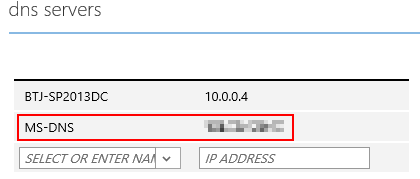
- Special tip on virtual networks. When I first configured a virtual network in my environment I removed the Microsoft DNS IP address that was automatically assigned and instead put the “local” IP address for my domain controller. This resulted in losing outgoing internet connectivity for all of my VMs. I had to delete and recreate my virtual network with a working scenario (see below) of the default Microsoft DNS and then my domain controller IP to handle intra-VM communication.
Tools
- Azure portal – https://portal.azure.com/. This is the new Azure portal design that presents a customizable view into your Azure components. Not all of the features are currently supported but Azure web sites, IaaS VMs, and a few others are accessible. For the older “full” portal site check out https://manage.windowsazure.com.
- Azure Commander – This is a universal app for Windows 8.x and Windows Phone 8.x from Wictor Wilen. This app costs a few bucks but is absolutely worth it in my experience. You can import your subscription file and then be able to stop, start, and view your VM instances (along with a few other Azure resources) on either your phone or PC. I find this very helpful when I am presenting at a customer or conference using my Azure VMs and then need to pack up quickly and head out the door or to my next session. I can quickly and easily stop my VMs from my phone as I head on my way.
Website: http://www.azurecommander.com/
Windows Store: http://apps.microsoft.com/windows/app/azure-commander/9833284f-a80c-45ec-8710-a5863ec44ae4
Windows Phone Store: http://windowsphone.com/s?appId=39393973-0b68-4201-8ca1-a67af69f5fca
Benefits
- Portability – As mentioned previously I no longer need to lug around a laptop + power adapter that are 10+ pounds. Instead my new laptop and power adapter are closer to 4 pounds. I can also launch my VMs, kick off some processes, and then shut my laptop and go to another conference room or head home. When I get there to my destination I pop up my laptop and my VMs are still running and ready for me to resume work quickly.
- Flexibility – When I need to tear down and rebuild farms / servers I don’t have to worry about storage or other resources. Previously when I wanted to rebuild a farm I would have to move VHDs or delete old ones in order to make space for the new set before I could delete the old set.
- Connection speed – The primary source of software and applications on my VMs comes from the MSDN subscriber downloads. There must be a mirror of all the products sitting in the rack next to my VMs because on average I get download speeds of 10-50MB/s (yes that is megabytes not megabits). Download a copy of the SQL Server 2014 ISO takes minutes instead of hours now.
- Cost – As mentioned above my MSDN benefits include $150 per month to use as I see fit on Azure. On average I run my VMs for 5-8hrs a day for 5-10 days in a month. Overall with storage, bandwidth, compute, and other costs I rarely spend more than $50 of that $150 credit. Compared with the electricity costs that I could be incurring from running local VMs in Hyper-V I’ll take my “free” MSDN VMs any day.
Disadvantages
- Lack of snapshots – Currently there is no concept of taking a snapshot of a running VM in Azure. You can shut down a VM and copy the VHD blob to another storage account or download a local copy (quite a hefty download) but these don’t work as well when you need to set up a demo and capture it at a specific point so that you can roll back if needed. With the pace of how quickly the Azure team is rolling out features and new innovations who knows if this might make it into a future release.
- Require internet connection – Despite being in the age of fairly ubiquitous broadband and 4G signal there are still times that I am without a good internet connection. As a backup plan when I don’t have an internet connection or good 4G signal on my MiFi device I do have Hyper-V with a local set of VMs on my laptop. I use them maybe once a month if that.
- Limit of cores (for MSDN subscribers) – This is not a limitation for me but it is worth mentioning since some of my fellow PFE coworkers have brought it up. If you are using your MSDN Azure benefits you are limited to a total of 20 cores allocated to your VMs at one time. The most I use at any time is 14 and that is when I have increased the size of SQL and SharePoint and have Office Web Apps running which is rare. For some of my coworkers though they need to run lab environments with a dozen or more VMs to replicate deployments of Lync, Exchange, AD, SharePoint, and more and can easily use upwards of 80 cores. For them their MSDN benefits are not sufficient to run their lab environments.
Conclusion
I was hesitant about using Azure VMs due to fears about racking up costs that I (not my employer) would have to pay along with having to learn a new platform and set of tools. Now I couldn’t imagine having to go back to running my lab environments locally full time. Hopefully some of the tips and processes I covered in this post will encourage you to check out Azure as a replacement for your on-prem dev / test lab environment. You can even get a 1 month Azure trial to try out $200 worth of services.
-Frog Out
 The Frog Pond of Technology