Newsletter #3 – Tools / automation and the right song

Tools / Automation

I’m not an anthropologist or kinesiologist, but using a broad definition tools can be thought of as an extension of the human body.

  • A hammer allows you to swing your arm and impart more force than your hand could
  • A knife / scissors lets you cut apart materials with more precision than tearing with your bear hands
  • A bicycle lets you travel faster / more distance than your feet can carry you

I like to apply similar logic to computers, automation tools, etc.

  • PowerShell / Bash / can automate processes or tests rather than needing to manually run them
  • Automated alerting / bill pay keeps my financial accounts in check without needing to manually monitor them
  • My blog engine (WordPress at the current time) handles cross posting to Twitter and LinkedIn as well notifying any followers instead of my manually taking those actions
  • Azure DevOps allows my customer to create build and release pipelines to automate the tedious work of building and deploying an application with little to no manual steps

There is (almost) always an upfront investment in configuring, purchasing, etc. these types of tools or automating processes but the end result is generally an improvement in productivity / time to complete / etc.  Well-defined and / or simplistic processes are great targets for automation, but be careful that you don’t fall into the trap of automating the wrong things or spending more time building the automation than you’ll gain.  When in doubt check XKCD for funny examples like below.
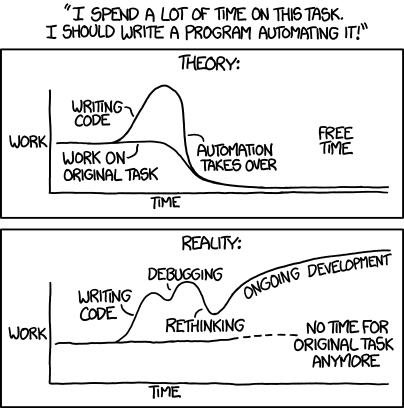
Don Jones has a good article on “What’s not worth automating?” if you are interested in reading more on this topic.

The right tool (song) for the job

My dad is an electrical engineer who moved into sales many years ago.  He is also very handy around the house and likes to help me with house projects when he visits.  On many occasion a part, a bolt, or some other thing will get stuck.  Rather than trying to force what we are working on he always seems to know the right tool, compound, etc. to solve the problem with the least amount of effort needed.

Since I personally work with computers more than I do with my hands I find it helpful to get in the right mindset when I have a task to complete.  The task could be a blog post to write, some code to review, a set of screenshots to edit, etc.  Rather than fighting with myself (i.e. forcing it too much), I find it better to tune out my brain and let the words, code, or ideas flow more easily.

In order to help tune out my brain I have a playlist (called “Repeat All Songs”, link here) that I’ve moved with me from music service to service (now Spotify).  This playlist contains dozens of songs that I can (and frequently do) listen to on single-song repeat over and over.  These span classic rock, techno / house, instrumental, and other genres.  I don’t categorize the songs on my playlist but when I need inspiration or help getting into a specific mindset I browse through there, find a song that fits what I’m looking for, and hit play.

For those looking for some new songs to listen to on repeat here are a few from my recent rotation:

  • Achilles Last Stand – Led Zeppelin (rock)
  • In My Mind – Dynoro (electronica / dance)
  • Fly – Ludovico Einaudi (contemporary piano)
  • Nostos – Jean-Michael Blais (contemporary piano)
  • Lazy Eye – Silversun Pickups (rock, one of my fav bands)
  • Amsterdam – Guster (alternative / rock)
  • Brighton Rock – Queen (rock)
  • This World [Westworld Season 1] – Ramin Djawadi (instrumental)

How about you, do you have any favorite songs for single-song repeat?  Feel free to share back a link or recommendation.

-Frog Out

Newsletter #2 – Creativity, Times of Day, and Email Productivity Hack

If you saw my post yesterday “Starting a New Tiny Newsletter“, I’m starting up a new way to share out my smaller, more “informal” thoughts, articles, and other topics.  It’s called “Frog Pond Thoughts” and I’m publishing the 2nd one below.  I haven’t decided if I want to cross-post on my blog long term or keep them separate in TinyLetter.com / Twitter.  If you have any feedback or suggestions please do share in the comments, email, or on Twitter @BrianTJackett as I’m listening.  For now though enjoy this 2nd one as I expect it will be after the USA holiday of Thanksgiving before then next is published.


#2 – Creativity, Times of Day, and Email Productivity Hack

Creativity

How do I become more creative?

    1. Do creative things.
    2. Share with others.


  • Repeat #1 and #2 on a regular / scheduled basis.


Yes at first these sounds silly or simplistic but I’ve found them to be true (for me personally at least).  What does “do creative things” mean though?  It might be drawing in a notebook, writing a blog post, creating a new presentation, building blocks with my kids (see pictures below), playing a musical instrument, learning a new language (computer or spoken), etc.  Just as exercising your muscles during a workout needs variety, so do you need variety in the creative things you do.  Additionally doing something creative on a regular basis (once a week, once a month, or whatever works for you) ensures that it isn’t a “once and done” type of activity.

“Thanks Brian but what does sharing with others have to do with creativity?”  Glad you / I asked.  Have you ever had a friend, coworker, or family member who told you about a new TV show / game / restaurant / etc. and your first reaction is “that’s cool, have you heard about…?”  By sharing more not only do you become someone that people rely on finding out new things from but they may reciprocate by sharing their own things to you.

Times of Day

Semi-related to creativity, I find that I am more productive with specific categories of tasks at different times of the day.  Every day is different with   I don’t have anything written down or a routine (perhaps I should) but the following is a rough order for my day:

  • 7am
    • Plan out day, create tasks or to-do list, review day’s meetings, send out meeting agendas if needed
  • 8am
    • Write up documentation, blog post, or other creative writing
  • 9am
    • Deep focus on code, prototyping, etc.
  • noon
    • Read up on blogs / Twitter / LinkedIn from the previous day
  • 1pm
    • Deep focus on code, prototyping, etc.
  • 3pm
    • Emails and other communication

Schedules will always be changing depending on meetings, customer questions, etc. but knowing what types of activities I will be most productive at during different times helps me plan out when I should schedule those tasks.  If you open your email first thing in the morning, blink, and then it is suddenly 3 hours later then that is a good indication that you should either time box how long you spend on email and / or schedule it for a different time of day.

Email Productivity Hack

Speaking of email, I don’t like to send email after 5pm local time.  It’s my own personal guideline.  After 5pm is family / me time and if I’m sending emails to peers, customers, etc. it sets the expectation that they should also be reading and responding to emails “after hours”.

Instead of sending emails in the evening, if I have open time after my kids and wife go to bed I’ll draft up a number of emails that I need to write or respond to and then use the “delay delivery” feature of Outlook
(desktop version).  I then specify not to deliver those emails until at least 7am the following morning.  This way when I open my laptop in the morning, usually around 7:15-7:45am, all of those emails will be sent then.  This helps reinforce my personal rule that email is only for during business hours and also clears those emails off my plate to focus on other tasks that I’m more productive at (see above section).


Do you have any productivity hacks that you use?

-Frog Out

Starting a New Tiny Newsletter

If you’re reading this post (thanks to the handful of you out there), I wanted to let you know I’m starting something new.  I’ve been publishing my blog for over 10 years now but there are times I’d like to post something more informal.  It deserves more than a tweet but a full blog post is too much.  I found out about a service called TinyLetter from my friend Jeff Blankenburg.  I plan to write a tiny letter 2-3 times a month.  In it I’ll share interesting articles I’ve read, thoughts on various topics, or projects I’m following.  Think of it as a way to find out what is ticking in my brain that week.  Feel free to subscribe to Frog Pond Thoughts and share with others.  I’m posting the first letter to my blog for now as well.  Enjoy!


#1: Is this mic on? Starting something new…and why frogs?

Why write a tiny newsletter?

When someone does something new I like to think about “why did they do that?”.  I’ll share my own answer for why I’m starting up this tiny newsletter.  Over the past 6+ months I’ve been tossing around the idea of having some way to share out the various articles, topics, and thoughts I explore on a weekly basis.  During my 1:1 meetings with my mentor (you should have at least 1 mentor, topic for another day) I send him half a dozen or more links, stories, projects, etc. that I store in a OneNote (see example below).

While it is great discussing these items with my mentor I’d love to share them out to a broader audience.  I looked into a number of platforms.  I could extend my existing blog or share posts on LinkedIn but each of those didn’t feel like the right platform.  After seeing my friend and fellow Stir Trek Conference board planner Jeff Blankenburg starting up his Tiny Letter again (Blankenthoughts) I thought this would be a great experiment to see how easy it was for composing, distributing, and engaging with others.  Look for a new newsletter at least 2 times a month.

Why frogs?

If you’ve ever read my blog https://briantjackett.com/ (“The Frog Pond of Technology”) you may be asking “Brian what’s the deal with frogs?”.  Glad you asked.

For all of my life I’ve always liked the color green.  I also like to do new things on a regular basis which also means.  I liken this to frogs who are amphibious and able to live in many environments.  In the water, on land, in trees, and more.  Frogs are traditionally green and the change of scenery for frogs’ environments led to me have a natural liking of frogs.  That’s the short and simple answer.

Conclusion

I’m keeping this first newsletter short so that is all for now.  Please subscribe and share with your friends, coworkers, or anyone else who might be interested.

-Frog Out

Query Office 365 and Azure AD Logs with Azure Sentinel / Log Analytics and KQL

A few months ago I shared a tweet with a few quick links for learning about Kusto Query Language (KQL) and Azure Log Analytics.  Since that time Azure Sentinel (which sits of top of Azure Log Analytics) has been released to general availability (GA).  In this post I’ll build on that tweet and share a number of resources for starting out with Azure Sentinel / Azure Log Analytics and KQL.

Before you continue with this post I highly recommend reading MVP Tobias Zimmergren’s post on Monitoring Office 365 tenants with Azure Sentinel.

Monitoring Office 365 tenants with Azure Sentinel
https://zimmergren.net/use-azure-sentinel-to-digest-office-365-audit-logs/

Background

Most Microsoft cloud services emit logs for audit, operational, etc. purposes.  These logs are useful for gaining insights into who is using the service and how they are using it but sometimes it is not always easy to query these services.  You might be restricted to only a few thousands records at a time, a limited set of filters, or other constraints.  Azure Log Analytics and KQL make it possible to query a large number of records (in my experience millions to hundreds of millions) in a short time period (seconds in most cases instead of minutes or hours).

Kusto Query Language (KQL)

Over the years I’ve used T-SQL to query SQL Server when needed, but I am by no means an expert in the T-SQL language or concepts.  Having a basic understanding of T-SQL did make it easier for me to understand the entry level concepts of KQL such as filtering, ordering, grouping, and more.  Intermediate to advanced concepts like time based aggregations or self referential queries took a little more time to understand but my Data & AI PFE peer Ken Kilty provided a lot of good advice in this space.

Kusto Query Language overview
https://docs.microsoft.com/en-us/azure/kusto/query/

SQL to Kusto query translation
https://docs.microsoft.com/en-us/azure/kusto/query/sqlcheatsheet

Limiting Costs

Azure Sentinel (and by proxy Azure Log Analytics) is charged in 2 ways:

  • Ingestion of data
    • Reserved capacity
    • -or-
    • Per GB
  • Retention of data

Azure Sentinel pricing
https://azure.microsoft.com/en-us/pricing/details/azure-sentinel/

For all Office 365 data the ingestion of data is free.  Azure AD audit logs and sign-in logs will be charged according to the reserved capacity or pay-as-you-go per GB model.

Retention of data in an Azure Sentinel enabled workspace is free for the first 90 days.  Beyond the first 90 days pricing is per GB per month.

Ex. Storing Office 365 logs for 9 months, a customer would only be charged for (9 months – 3 free months) = 6 paid months.

Azure Monitor pricing
https://azure.microsoft.com/en-us/pricing/details/monitor/

If you are looking to test out the service “for free” it is possible to configure an Azure Sentinel enabled workspace to ingest Office 365 data and limit the retention of data to < 90 days.  Once you get comfortable with the data schema and writing queries you can increase the retention period.

Sample Queries

In the course of working with customers on monitoring their Office 365 environments I and my teammates have developed a number of KQL queries to find “interesting” data points.  I’ve shared these queries in the following GitHub repo.  Note that these sample queries are provided as-is with no warranty.  If you have any queries of your own that you would like to contribute feel free to submit a pull request (or open an issue) to the repo for review.

Office 365 and Azure AD sample KQL Queries
https://github.com/BrianTJackett/log-analytics-samples

Conclusion

Last year I had never heard of Log Analytics, Azure Sentinel, or KQL.  This year I am seeing it pop up in so many places inside and outside of Microsoft.  I am very eager to see where these technologies go and spread the word about them.  I truly see interesting problems that can be solved with enough data and the right query.  Hopefully this post will give you a nudge in the right direction to start (or continue) looking at these technologies.

-Frog Out

Migrating from PowerShell ISE to Visual Studio Code

In this blog post I’ll share a number of resources for how to move from the PowerShell ISE to Visual Studio Code for writing and executing PowerShell scripts.

See the source image

Background

Much of the content from this post is sourced from two other excellent resources:

In my working with various customers many times we are working on PowerShell scripts together.  I’ve noticed that many are still using the PowerShell ISE as their primary host for developing and executing PowerShell snippets or scripts.  Back in May 2017 the PowerShell team announced the shift of focus from PowerShell ISE to Visual Studio Code with the Announcing PowerShell for Visual Studio Code 1.0! blog post.  Combining the move to PowerShell Core (v6) (based on .Net Core which is cross-platform) with the limitation that the PowerShell ISE is Windows-only meant a change in direction was needed.

In the following sections I’ll overview a number of steps for getting up and running with PowerShell in Visual Studio Code.

Visual Studio Code

The first step is to install Visual Studio Code.  If you’ve feared it because it has the words “Visual Studio” in the name don’t worry.  Visual Studio Code is really a text editor (think Notepad) with really powerful extensions that you can add.  I recommend the “user install” vs. “system install” as the former doesn’t require Administrator rights.

PowerShell extension

The next step is to install the PowerShell extension for Visual Studio Code.  This extension provides syntax highlighting, intellisense, running scripts with F8, and more.

One important change to the Visual Studio Code setting that I found especially helpful is keeping the focus on the editor window (not the console) when executing scripts.  Update the following setting to configure this.

"powershell.integratedConsole.focusConsoleOnExecute": false

Shell Launcher extension

If you have a need to regularly switch between multiple shells (PowerShell v5 / v6 / v7-preview, Git Bash, Windows Subsystem for Linux (WSL) Bash, CMD, etc.) like I do the Shell launcher extension is helpful.  Be sure to follow the instructions for setting a keybinding for switching shells (suggested “Ctrl+Shift+T” on Windows).  In my case this keybinding was already used by another extension but I was okay with overwriting that.

PSISEtoVSCode2
Keybinding for Shell Launcher to launch a shell

The following are the settings I use for the multiple shells:

"shellLauncher.shells.windows": [
        {
            "shell": "C:\\Program Files\\PowerShell\\6\\pwsh.exe",
            "label": "Pwsh Core"
        },
        {
            "shell": "C:\\Program Files\\PowerShell\\7-preview\\pwsh.exe",
            "label": "PSv7 (preview)"
        },        {
            "shell": "C:\\Windows\\System32\\wsl.exe",
            "label": "WSL zsh"
        },
        {
            "shell": "C:\\Windows\\System32\\WindowsPowerShell\\v1.0\\powershell.exe",
            "label": "PowerShell (v5)"
        },
        {
            "shell": "C:\\Windows\\System32\\cmd.exe",
            "label": "cmd"
        },
        {
            "shell": "C:\\Program Files\\Git\\bin\\bash.exe",
            "label": "Git bash"
        },
        {
            "shell": "C:\\Windows\\System32\\bash.exe",
            "label": "WSL Bash"
        }
    ],


Bonus – ZSH and auto-suggest

I’ll be the first to admit that I don’t use Windows Subsystem for Linux (WSL) often.  That said there are times I find it helpful to run the Azure CLI on a WSL shell though.  An example is when I’m doing demos or presentations and I want to showcase the auto-suggest feature in Zsh (short for “Z shell”).  Not only does the auto-suggest help me remember what commands to type but it lets the audience follow along more easily.  See the following links for installing and configuring.


PSISEtoVSCode1
Example Zsh auto-suggest with Azure CLI

Conclusion

In this article I walked through a number of useful extensions or configurations to help migrate from the Windows-only PowerShell ISE to the cross-platform Visual Studio Code.  If you have additional suggestions or tips please share them in the comments.

-Frog Out