Speaking at SharePoint Saturday Columbus 2010 and User Group

Ohio Large resized

This coming Saturday Aug 14th I will be speaking at SharePoint Saturday Columbus 2010 and next Thursday Aug 19th I will be speaking at the local Central Ohio SharePoint User Group (COSPUG) monthly meeting.  If you’ve been following me lately you may have overheard that I’m the lead event coordinator for SharePoint Saturday Columbus.  That alone has consumed almost all of my time for the past 3 months, even more so the last month.  It has truly been a wild ride so far but the event is coming together really well.  I’ll save more about it for my recap post after the event is over.  For now I just wanted to give a quick update about these two speaking engagements (nice to be speaking in-state as opposed to out-of-state the past 8 months.)  Below are the abstracts for my talks.  If you are in the Columbus area feel free to stop on by for either event.  Hope to see you there.


Where: SharePoint Saturday Columbus 2010

Title: Managing SharePoint 2010 Farms With PowerShell

Audience and Level: IT Admin, Beginner

Abstract: “Having you been using STSADM (or worse hand editing processes) to manage your SharePoint 2007 farms? Are you hearing about needing to learn PowerShell to manage SharePoint 2010 farms? This session will serve as part introduction to PowerShell and part overview of how you can use PowerShell to more efficiently and effectively manage your SharePoint 2010 farm. This session is targeted to farm administrators and IT pros and no previous experience with PowerShell is required.”


Where: Central Ohio SharePoint User Group (COSPUG)

Title: Real-World Deployment of SharePoint 2007 Solutions

Audience and Level: IT Admin, Intermediate

Abstract: “All I have to do is run some STSADM commands to deploy my SharePoint solutions, right?” If you are saying that to yourself, then you are missing out on some of the more advanced processes you can employ to deploy and maintain your SharePoint solutions and farm. In this session, we will cover lessons learned from three years of deploying and automating SharePoint solutions. This will include using a combination of STSADM, PowerShell, SharePoint API and a number of other tools in a real-world situation to deploy an entire suite of custom SharePoint solutions. This session is targeted to farm administrators and developers. Prior experience with SharePoint solutions, STSADM and minimal PowerShell experience is suggested.


-Frog Out


Links:

State of Ohio Image
http://scrapbookershaven.com/shop/images/Ohio%20Large.png

PowerShell Script To Find Instances Of Running SharePoint Workflow

This is a quick blog post for a fun PowerShell script I got to write today.  My client asked me to make a listing of all instances of a particular workflow currently running on one of our SharePoint farms.  Since we have dozens of SharePoint lists spread out across numerous sub-sites on this farm I decided to tackle the request with PowerShell.

Here is a quick overview of what the scrip accomplishes.  First I get a reference to the site collection in question.  Next I get the workflow template from the name of the workflow I’m checking for.  Next I search all webs within the site collection and all lists within each web.  I filter the lists for any workflow associations with a BaseId matching my workflow template Id while also having at least 1 running instance.  Once I know there are running instances on this list I can then loop through all items in the list checking for workflows that are in the “Running” state.  I then output the SPWeb name, SPList name, and SPListItem name into a delimited output.

On a side note you may notice that I use $($variable.property) in my “write-output…” command.  I do this so that the property values are evaluated first before being passed to the the output stream.  If you attempt $variable.property you’ll most likely end up with a default value for $variable (typically ToString()) followed by “.property” which is not the intended result.

Download Script

Click here for a copy of this script off my SkyDrive.

*Note: As I’m currently very busy with SharePoint Saturday Columbus tasks this script is just in draft form so no recursive traversal of site hierarchy, input parameters, comments, etc.

$workflowNameToCheck = "My Sample Workflow"
$url = "http://SharePointDemo"

$spSite = new-object Microsoft.SharePoint.SPSite($url)
$spWeb = $spSite.OpenWeb()

$workflowBase = $spweb.WorkflowTemplates | where {$_.Name -eq $workflowNameToCheck}

$spWeb.Dispose()

foreach($spWeb in $spSite.AllWebs)
{
    for($i = 0; $i -lt $spWeb.Lists.Count; $i++)
    {
        $spList = $spweb.Lists[$i]
        $assoc = $spList.WorkflowAssociations | where {$_.BaseId -eq $workflowBase.Id.ToString() `
                            -and $_.RunningInstances -gt 0}

    if($assoc -ne $null)
        {
        foreach($item in $spList.Items)
            {
                if(($item.Workflows | where {$_.InternalState -eq "Running"}) -ne $null)
                {
                    write-output "$($spWeb.Name) | $($spList.Title) | $($item.Name)"
                }
            }
        }
    }
    $spWeb.Dispose()
}
$spSite.Dispose()

Conclusion

This script (very much in draft form) checks for running instances of a given workflow within a site collection.  After writing this script today I felt that this is probably a common search for some people so I hope you can glean some useful information from it.  If you find it useful or have any questions feel free to let me know.  Enjoy!

-Frog Out

Speaking at SPTechCon Boston 2010

    I’m happy to announce that I’ll be speaking at SPTechCon Boston 2010 this upcoming October 20-22.  The presentation I will be giving is titled “Real World Deployment of SharePoint 2007 Solutions” and below is the session abstract.  I’m very excited to be speaking at SPTechCon Boston as I attended and live blogged the recent SPTechCon San Francisco this past Feb (link here to recap of that event) and was impressed with all of the people and content I was exposed to.  If you have a chance to attend SPTechCon Boston I would highly encourage it.  Also on a side note you may notice the nice badge that the SPTechCon organizers provided on the right hand side of my blog.  Look forward to seeing you there if you’re attending.


Title: Real-World Deployment of SharePoint 2007 Solutions

Audience and Level: IT Admin, Intermediate

Abstract: “All I have to do is run some STSADM commands to deploy my SharePoint solutions, right?” If you are saying that to yourself, then you are missing out on some of the more advanced processes you can employ to deploy and maintain your SharePoint solutions and farm. In this session, we will cover lessons learned from three years of deploying and automating SharePoint solutions. This will include using a combination of STSADM, PowerShell, SharePoint API and a number of other tools in a real-world situation to deploy an entire suite of custom SharePoint solutions. This session is targeted to farm administrators and developers. Prior experience with SharePoint solutions, STSADM and minimal PowerShell experience is suggested.


      -Frog Out

Central Ohio Day of .Net 2010 Slides and Files

    This weekend I presented my “The Power of PowerShell + SharePoint 2007” session at the Central Ohio Day of .Net conference in Wilmington, OH.  This is the second year I’ve attended this conference, first time as a presenter.  For those unfamiliar Day of .Net conferences are a one-day conference on all things .NET organized by developers for developers.  These events are usually offered at no cost to anyone interested in .NET development.

    The attendees of my session had some great questions and I hope they all got something worthwhile out of it.  Below are my slides and demo scripts (some of which I didn’t have time to demo) along with my sample profiles.  If you have any questions, comments, or feedback feel free to leave comments here or send me an email at brian.jackett@gmail.com.


Slides and Files

SkyDrive link


Technology and Friends Interview Experience

    On a side note, any of you familiar with one of my Sogeti co-workers in Detroit David Giard may know that he hosts a web series called Technology and Friends.  After my session David tracked me down and asked to interview me about PowerShell.  I was happy to oblige so we sat down and taped some material.  I don’t know when that interview will be going live, but look for it on www.davidgiard.com.


Conclusion

    A big thanks goes out to all of the sponsors, speakers, and attendees for the Central Ohio Day of .Net conference.  Without all of them this conference couldn’t have been possible.  I had a great time at the conference and look forward to coming back next year whether that is as a speaker or attendee.

      -Frog Out

You Can’t Upload An Empty File To SharePoint 2007 Or SharePoint 2010

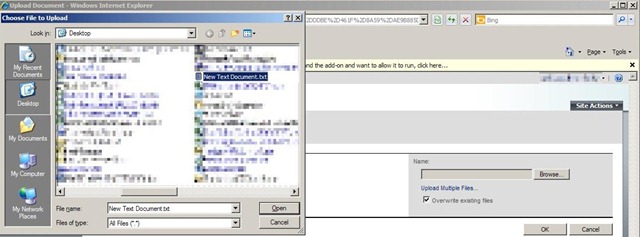
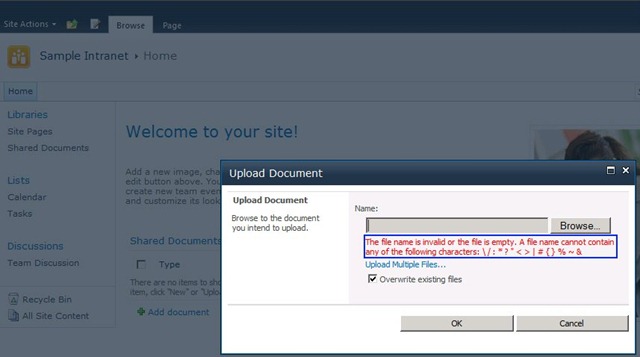
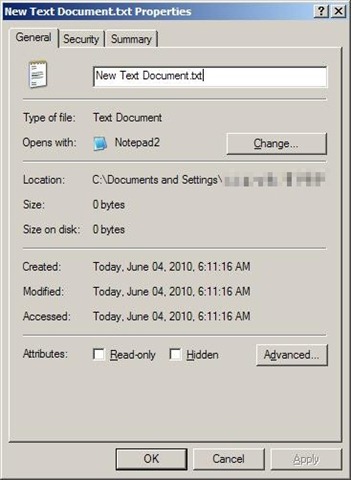
The title of this post is pretty self explanatory, but I thought it worth mentioning since I had never run across this rule until just recently.  A few weeks ago I was testing out a new workflow attached to a SharePoint 2007 document library.  I uploaded various file types to ensure all were handled properly.  One of the files I happened to test with was an empty .txt file to which I got the following error.

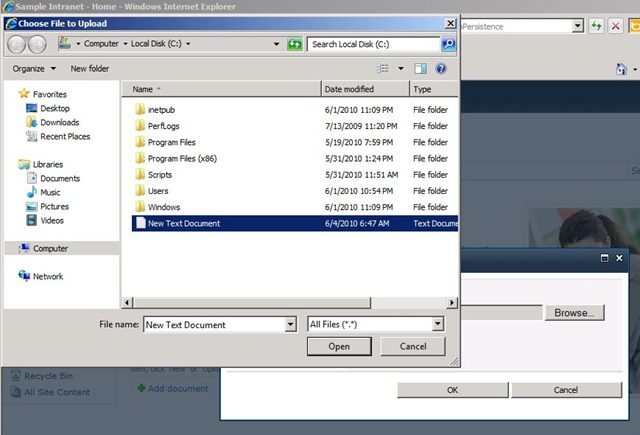
NoUploadBlankFile1 NoUploadBlankFile2 NoUploadBlankFile3     As you can see from the error message you aren’t allowed to upload a file that is empty.  Fast forward to this week when I was doing some research for my upcoming SharePoint 2010 beta exams.  I remembered that error I got a few weeks ago and decided to try out with SharePoint 2010 as well.  No surprises I got a similar error.

NoUploadBlankFile4 NoUploadBlankFile5

Conclusion

Next time you are uploading files to a SharePoint 2007 or 2010 document library, make sure the file is not empty.  Coincidentally when I tweeted about this issue a few friends replied that they had also found this error recently.  I don’t know the internal reasoning why this is prevented but I assume it has something to do with how the blob for the file is stored in the database.  I assume that this would still be the case even if you had Remote Blob Storage (RBS) configured for your farm, but don’t have access to such a farm to confirm.  If anyone reading this does have access and wants to confirm that would be appreciated, just leave a comment.


-Frog Out

Error Using 32 vs. 64 bit SharePoint 2007 DLLs with PowerShell

Next time you fire up PowerShell to work with the SharePoint API make sure you launch the proper bit version of PowerShell.  Last week I had an interesting error that led to this blog post.  Travel back in time a little bit with me to see where this 32 vs. 64 bit debate started.

History

Ever since the first pre-beta bits of Office 2010 landed in my lap I have been questioning whether it’s better to run 32 or 64 bit applications on a 64 bit host operating system.  In relation to Office 2010 I heard a number of arguments for 32 bit including this link from the Office 2010 Engineering team.  Given my typical usage scenarios 32 bit seemed the way to go since I wasn’t a “super RAM hungry” Excel user or the like.

The Problem

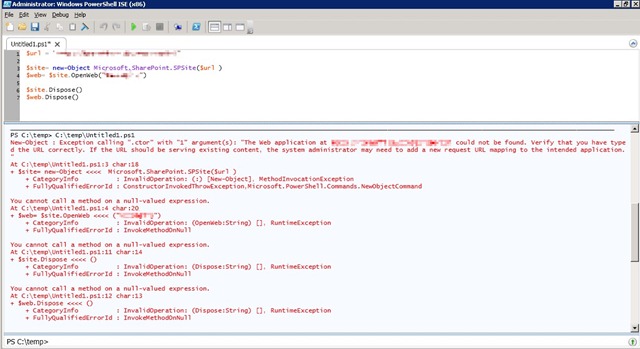
Since I had chosen 32 bit Office 2010, I tried to stick with 32 bit version of other programs that I run assuming the same benefits and rules applied to other applications.  This is where I was wrong.  Last week I was attempting to use 32 bit PowerShell ISE (Integrated Scripting Environment) on a 64 bit WSS 3.0 server.  When trying to reference the 64 bit SharePoint DLLs I got the following errors about not being able to find the web application.

PowerShellBitVersion1

I have run into these errors when I have hosts file issues or improper permissions to the farm / site collection but these were not the case.  After taking a quick spin around the interwebs I ran across the below forum post comment and another MSDN forum reply that explained the error.  Turns out that sometimes it’s not possible to run 32 bit applications against a 64 bit OS / farm / assembly / etc.

…the problem could also be because your SharePoint is 64-Bit but your app is running in 32-bit mode

I quickly exited 32 bit PowerShell ISE and ran the same code under 64 bit PowerShell ISE.  All errors were gone and the script ran successfully.


Conclusion

The rules of 32 vs. 64 bit interoperability do not always apply evenly across all applications and scenarios.  In my case I wasn’t able to run 32 bit PowerShell against 64 bit SharePoint DLLs.  I’m updating all of my links and shortcuts to use 64 bit PowerShell where appropriate.  I’m quite surprised it has taken me this long to run into this error, but sometimes blind luck is all that keeps you from running into errors.  Lesson learned and hopefully this can benefit you as well.  Happy SharePointing all!


-Frog Out


Links

http://blogs.technet.com/b/office2010/archive/2010/02/23/understanding-64-bit-office.aspx

http://social.msdn.microsoft.com/Forums/en-US/sharepointdevelopment/thread/a732cb83-c2ef-4133-b04e-86477b72bbe3/

http://stackoverflow.com/questions/266255/filenotfoundexception-with-the-spsite-constructor-whats-the-problem