PowerShell Script to Enumerate SharePoint 2010 or 2013 Permissions and Active Directory Group Membership

   In this post I will present a script to enumerate SharePoint 2010 or 2013 permissions across the entire farm down to the site (SPWeb) level.  As a bonus this script also recursively expands the membership of any Active Directory (AD) group including nested groups which you wouldn’t be able to find through the SharePoint UI.


History

    Back in 2009 (over 4 years ago now) I published one my most read blog posts about enumerating SharePoint 2007 permissions.  I finally got around to updating that script to remove deprecated APIs, supporting the SharePoint 2010 commandlets, and fixing a few bugs.  There are 2 things that script did that I had to remove due to major architectural or procedural changes in the script.

  1. Indenting the XML output
  2. Ability to search for a specific user

   I plan to add back the ability to search for a specific user but wanted to get this version published first.  As for indenting the XML that could be added but would take some effort.  If there is user demand for it (let me know in the comments or email me using the contact button at top of blog) I’ll move it up in priorities.

   As a side note you may also notice that I’m not using the Active Directory commandlets.  This was a conscious decision since not all environments have them available.  Instead I’m relying on the older [ADSI] type accelerator and APIs.  It does add a significant amount of code to the script but it is necessary for compatibility.  Hopefully in a few years if I need to update again I can remove that legacy code.


Solution

   Below is the script to enumerate SharePoint 2010 and 2013 permissions down to site level.  You can also download it from my SkyDrive account or my posting on the TechNet Script Center Repository.

SkyDrive

TechNet Script Center Repository

http://gallery.technet.microsoft.com/scriptcenter/Enumerate-SharePoint-2010-35976bdb

########################################################### 
#DisplaySPWebApp8.ps1 
# 
#Author: Brian T. Jackett 
#Last Modified Date: 2013-07-01 
# 
#Traverse the entire web app site by site to display 
# hierarchy and users with permissions to site. 
########################################################### 

function Expand-ADGroupMembership 
{ 
    Param 
    ( 
        [Parameter(Mandatory=$true, 
                   Position=0)] 
        [string] 
        $ADGroupName, 
        [Parameter(Position=1)] 
        [string] 
        $RoleBinding 
    ) 
    Process 
    { 
        $roleBindingText = “” 
        if(-not [string]::IsNullOrEmpty($RoleBinding)) 
        { 
            $roleBindingText = ” RoleBindings=`”$roleBindings`”” 
        } 
        Write-Output “<ADGroup Name=`”$($ADGroupName)`”$roleBindingText>” 
        $domain = $ADGroupName.substring(0, $ADGroupName.IndexOf(“”) + 1) 
        $groupName = $ADGroupName.Remove(0, $ADGroupName.IndexOf(“”) + 1) 
                            
        #BEGIN – CODE ADAPTED FROM SCRIPT CENTER SAMPLE CODE REPOSITORY 
        #http://www.microsoft.com/technet/scriptcenter/scripts/powershell/search/users/srch106.mspx 
        #GET AD GROUP FROM DIRECTORY SERVICES SEARCH 
        $strFilter = “(&(objectCategory=Group)(name=”+($groupName)+“))” 
        $objDomain = New-Object System.DirectoryServices.DirectoryEntry 
        $objSearcher = New-Object System.DirectoryServices.DirectorySearcher 
        $objSearcher.SearchRoot = $objDomain 
        $objSearcher.Filter = $strFilter 
        # specify properties to be returned 
        $colProplist = (“name”,“member”,“objectclass”) 
        foreach ($i in $colPropList) 
        { 
            $catcher = $objSearcher.PropertiesToLoad.Add($i) 
        } 
        $colResults = $objSearcher.FindAll() 
        #END – CODE ADAPTED FROM SCRIPT CENTER SAMPLE CODE REPOSITORY 
        foreach ($objResult in $colResults) 
        { 
            if($objResult.Properties[“Member”] -ne $null) 
            { 
                foreach ($member in $objResult.Properties[“Member”]) 
                { 
                    $indMember = [adsi] “LDAP://$member” 
                    $fullMemberName = $domain + ($indMember.Name) 
                    
                    #if($indMember[“objectclass”] 
                        # if child AD group continue down chain 
                        if(($indMember | Select-Object -ExpandProperty objectclass) -contains “group”) 
                        { 
                            Expand-ADGroupMembership -ADGroupName $fullMemberName 
                        } 
                        elseif(($indMember | Select-Object -ExpandProperty objectclass) -contains “user”) 
                        { 
                            Write-Output “<ADUser>$fullMemberName</ADUser>” 
                        } 
                } 
            } 
        } 
        
        Write-Output “</ADGroup>” 
    } 
} #end Expand-ADGroupMembership 
# main portion of script 
if((Get-PSSnapin -Name microsoft.sharepoint.powershell) -eq $null) 
{ 
    Add-PSSnapin Microsoft.SharePoint.PowerShell 
} 
$farm = Get-SPFarm 
Write-Output “<Farm Guid=`”$($farm.Id)`”>” 
$webApps = Get-SPWebApplication 
foreach($webApp in $webApps) 
{ 
    Write-Output “<WebApplication URL=`”$($webApp.URL)`” Name=`”$($webApp.Name)`”>” 
    foreach($site in $webApp.Sites) 
    { 
        Write-Output “<SiteCollection URL=`”$($site.URL)`”>” 
        
        foreach($web in $site.AllWebs) 
        { 
            Write-Output “<Site URL=`”$($web.URL)`”>” 
            # if site inherits permissions from parent then stop processing 
            if($web.HasUniqueRoleAssignments -eq $false) 
            { 
                Write-Output “<!– Inherits role assignments from parent –>” 
            } 
            # else site has unique permissions 
            else 
            { 
                foreach($assignment in $web.RoleAssignments) 
                { 
                    if(-not [string]::IsNullOrEmpty($assignment.Member.Xml)) 
                    { 
                        $roleBindings = ($assignment.RoleDefinitionBindings | Select-Object -ExpandProperty name) -join “,” 
                        # check if assignment is SharePoint Group 
                        if($assignment.Member.XML.StartsWith(‘<Group’) -eq “True”) 
                        { 
                            Write-Output “<SPGroup Name=`”$($assignment.Member.Name)`” RoleBindings=`”$roleBindings`”>” 
                            foreach($SPGroupMember in $assignment.Member.Users) 
                            { 
                                # if SharePoint group member is an AD Group 
                                if($SPGroupMember.IsDomainGroup) 
                                { 
                                    Expand-ADGroupMembership -ADGroupName $SPGroupMember.Name 
                                } 
                                # else SharePoint group member is an AD User 
                                else 
                                { 
                                    # remove claim portion of user login 
                                    #Write-Output “<ADUser>$($SPGroupMember.UserLogin.Remove(0,$SPGroupMember.UserLogin.IndexOf(“|”) + 1))</ADUser>” 
                                    Write-Output “<ADUser>$($SPGroupMember.UserLogin)</ADUser>” 
                                } 
                            } 
                            Write-Output “</SPGroup>” 
                        } 
                        # else an indivdually listed AD group or user 
                        else 
                        { 
                            if($assignment.Member.IsDomainGroup) 
                            { 
                                Expand-ADGroupMembership -ADGroupName $assignment.Member.Name -RoleBinding $roleBindings 
                            } 
                            else 
                            { 
                                # remove claim portion of user login 
                                #Write-Output “<ADUser>$($assignment.Member.UserLogin.Remove(0,$assignment.Member.UserLogin.IndexOf(“|”) + 1))</ADUser>” 
                                
                                Write-Output “<ADUser RoleBindings=`”$roleBindings`”>$($assignment.Member.UserLogin)</ADUser>” 
                            } 
                        } 
                    } 
                } 
            } 
            Write-Output “</Site>” 
            $web.Dispose() 
        } 
        Write-Output “</SiteCollection>” 
        $site.Dispose() 
    } 
    Write-Output “</WebApplication>” 
} 
Write-Output “</Farm>” 

   The output from the script can be sent to an XML which you can then explore using the [XML] type accelerator.  This lets you explore the XML structure however you see fit.  See the screenshot below for an example.
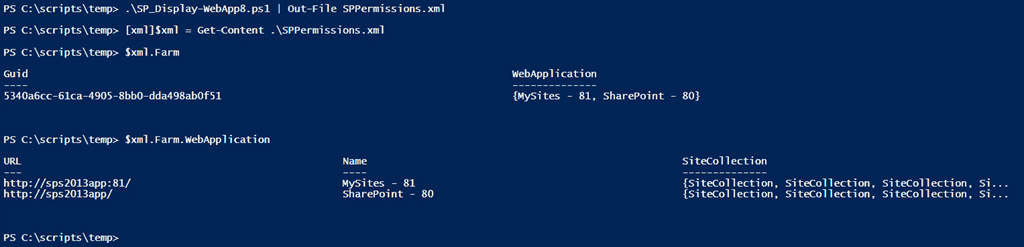
SP20102013Permissions1


   If you do view the XML output through a text editor (Notepad++ for me) notice the format.  Below we see a SharePoint site that has a SharePoint group Demo Members with Edit permissions assigned.  Demo Members has an AD group corpdevelopers as a member.  corpdevelopers has a child AD group called corpDevelopersSub with 1 AD user in that sub group.  As you can see the script recursively expands the AD hierarchy.
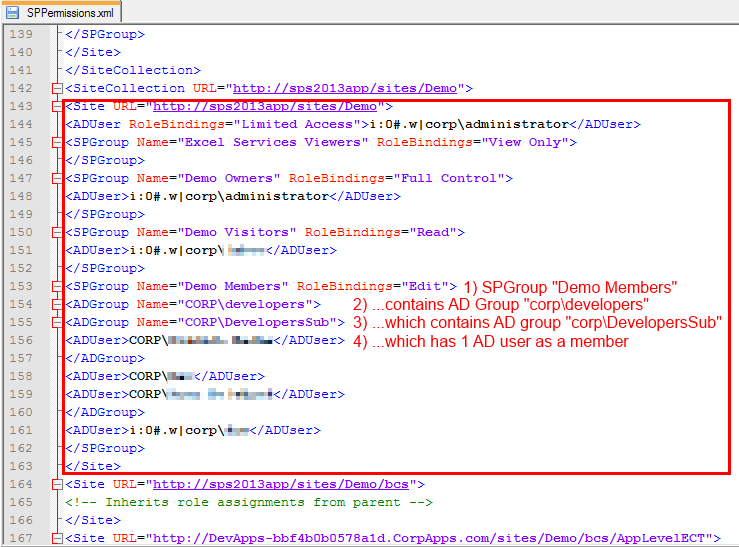
SP20102013Permissions2


Conclusion

   It took me 4 years to finally update this script but I‘m happy to get this published.  I was able to fix a number of errors and smooth out some rough edges.  I plan to develop this into a more full fledged tool over the next year with more features and flexibility (copy permissions, search for individual user or group, optional enumerate lists / items, etc.).  If you have any feedback, feature requests, or issues running it please let me know.  Enjoy the script!


      -Frog Out

PowerShell Script to Determine Number of Files in SharePoint 2010 or 2013 Document Libraries

   Recently my fellow SharePoint PFE and teammate Jim Matson (@jamesmatson3) was looking for a way to display the number of documents inside each document library on a SharePoint 2010 / 2013 farm.  Below is the script that we came up with.


Problem

   It is not too difficult to find all of the document libraries and their item count in a given SharePoint 2010 or 2013 site collection, web application, or farm.  What can be difficult is finding all of that along with the full URL of the site that contains the list and exporting in one object..


Solution

   I used a trick I learned from my previous post on getting Exchange Online mailbox size in GB to use the add-member commandlet to add metadata to a variable or object.  By gathering the site URL and then adding it to a variable of the document library title and item count I had the information Jim needed.  At the end simply output this to a CSV file and then use as needed.  Feel free to download the script from my SkyDrive public folder link below.

Note: I am not testing to see if the output folder exists.  Handle that as you wish if you use this script.


Add-PSSnapin Microsoft.SharePoint.PowerShell 

Start-SPAssignment -Global 
$OutputFile = “C:tempDocCount.csv” 
$results = @() 
$webApps = Get-SPWebApplication 
foreach($webApp in $webApps) 
{ 
    foreach($siteColl in $webApp.Sites) 
    { 
        foreach($web in $siteColl.AllWebs) 
        { 
            $webUrl = $web.url 
            $docLibs = $web.Lists | Where-Object {$_.baseType -eq “DocumentLibrary”} 
            $docLibs | Add-Member -MemberType ScriptProperty -Name WebUrl -Value {$webUrl} 
            $results += ($docLibs | Select-Object -Property WebUrl, Title, ItemCount) 
        } 
    } 
} 
$results | Export-Csv -Path $OutputFile -NoTypeInformation 
  
Stop-SPAssignment -Global

   Here is an example screenshot of the output from the script.

NumberDocsInSPDocLib1


Conclusion

   This script was fairly easy to come up with.  I was happy to be able to combine some previous knowledge learned from another script along with traversing all sites in a farm.  Hopefully if you have need of this script (or something similar) you will find this helpful.


      -Frog Out

Speaking at SharePoint Cincy 2013

SP-speaker-image

   I will be speaking at SharePoint Cincy 2013 on Friday Apr 19th.  This will be my 2nd time speaking at SharePoint Cincy.  I always enjoy getting to speak at local conferences as it is a great chance to connect with customers, meet new and old friends, and give back in a more intimate venue.  I’ll be presenting one topic which I have delivered a similar presentation internally to Microsoft but this is slightly altered and for public consumption.  Registration is still open.  If you attend feel free to stop by and say hi.  I’ll be bringing a copy of my previous book to sign and give away.

Title: Integrating SharePoint with Office Web Apps (WAC) Server

Audience and Level: IT Pro / Architect, Intermediate

Abstract: WAC? WOPI? These are some of the new acronyms for Office Web Apps (WAC) Server 2013. This session will highlight what has changed since the 2010 version, what is new for the 2013 version, and how to administrate WAC. We will also cover considerations for capacity planning, installation, high availability, and common pitfalls when deploying WAC. This session will include demos of how to configure WAC server with SharePoint 2013 and how to enable user license enforcement for editing documents through WAC. Attendees need not have prior experience with Office Web Apps but should have an introductory knowledge of SharePoint 2013 administration.


      -Frog Out

PowerShell Script To Find Where SharePoint 2007 Features Are Activated

   Recently I posted a script to find where SharePoint 2010 Features Are Activated.  I built the original version to use SharePoint 2010 PowerShell commandlets as that saved me a number of steps for filtering and gathering features at each level.  If there was ever demand for a 2007 version I could modify the script to handle that by using the object model instead of commandlets.  Just the other week a fellow SharePoint PFE Jason Gallicchio had a customer asking about a version for SharePoint 2007.  With a little bit of work I was able to convert the script to work against SharePoint 2007.


Solution

   Below is the converted script that works against a SharePoint 2007 farm.  Note: There appears to be a bug with the 2007 version that does not give accurate results against a SharePoint 2010 farm.  I ran the 2007 version against a 2010 farm and got fewer results than my 2010 version of the script.  Discussing with some fellow PFEs I think the discrepancy may be due to sandboxed features, a new concept in SharePoint 2010.  I have not had enough time to test or confirm.  For the time being only use the 2007 version script against SharePoint 2007 farms and the 2010 version against SharePoint 2010 farms.

   Note: This script is not optimized for medium to large farms.  In my testing it took 1-3 minutes to recurse through my demo environment.  This script is provided as-is with no warranty.  Run this in a smaller dev / test environment first.

function Get-SPFeatureActivated 
{ 
# see full script for help info, removed for formatting 
[CmdletBinding()] 
param( 
    [Parameter(position = 1, valueFromPipeline=$true)] 
    [string] 
    $Identity 
)#end param 
    Begin 
    { 
        # load SharePoint assembly to access object model 
        [void][System.Reflection.Assembly]::LoadWithPartialName(“Microsoft.SharePoint”) 
    
        # declare empty array to hold results. Will add custom member for Url to show where activated at on objects returned from Get-SPFeature. 
        $results = @() 
        
        $params = @{} 
    } 
    Process 
    { 
        if([string]::IsNullOrEmpty($Identity) -eq $false) 
        { 
            $params = @{Identity = $Identity} 
        } 
        
        # create hashtable of farm features to lookup definition ids later 
        $farm = [Microsoft.SharePoint.Administration.SPFarm]::Local 
                
        # check farm features 
        $results += ($farm.FeatureDefinitions | Where-Object {$_.Scope -eq “Farm”} | Where-Object {[string]::IsNullOrEmpty($Identity) -or ($_.DisplayName -eq $Identity)} | 
                         % {Add-Member -InputObject $_ -MemberType noteproperty -Name Url -Value ([string]::Empty) -PassThru} | 
                         Select-Object -Property Scope, DisplayName, Id, Url) 
        
        # check web application features 
        $contentWebAppServices = $farm.services | ? {$_.typename -like “Windows SharePoint Services Web Application”} 
        
        foreach($webApp in $contentWebAppServices.WebApplications) 
        { 
            $results += ($webApp.Features | Select-Object -ExpandProperty Definition | Where-Object {[string]::IsNullOrEmpty($Identity) -or ($_.DisplayName -eq $Identity)} | 
                         % {Add-Member -InputObject $_ -MemberType noteproperty -Name Url -Value $webApp.GetResponseUri(0).AbsoluteUri -PassThru} | 
                         Select-Object -Property Scope, DisplayName, Id, Url) 
            
            # check site collection features in current web app 
            foreach($site in ($webApp.Sites)) 
            { 
                $results += ($site.Features | Select-Object -ExpandProperty Definition | Where-Object {[string]::IsNullOrEmpty($Identity) -or ($_.DisplayName -eq $Identity)} | 
                                 % {Add-Member -InputObject $_ -MemberType noteproperty -Name Url -Value $site.Url -PassThru} | 
                                 Select-Object -Property Scope, DisplayName, Id, Url) 
                
                # check site features in current site collection 
                foreach($web in ($site.AllWebs)) 
                { 
                    $results += ($web.Features | Select-Object -ExpandProperty Definition | Where-Object {[string]::IsNullOrEmpty($Identity) -or ($_.DisplayName -eq $Identity)} | 
                                     % {Add-Member -InputObject $_ -MemberType noteproperty -Name Url -Value $web.Url -PassThru} | 
                                     Select-Object -Property Scope, DisplayName, Id, Url)                    
                
                    $web.Dispose() 
                } 
                $site.Dispose() 
            } 
        } 
    } 
    End 
    { 
        $results 
    } 
} #end Get-SPFeatureActivated 

Get-SPFeatureActivated 

Conclusion

   I have posted this script to the TechNet Script Repository (click here).  As always I appreciate any feedback on scripts.  If anyone is motivated to run this 2007 version script against a SharePoint 2010 to see if they find any differences in number of features reported versus what they get with the 2010 version script I’d love to hear from you.


      -Frog Out

SharePoint 2007 Content Deployment Job Error “Specified argument was out of the range of valid values”

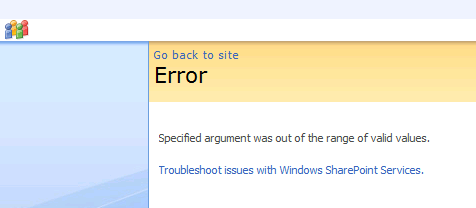
   This week I ran into an interesting error with a customer.  The customer has defined a SharePoint 2007 content deployment path to push content from one SharePoint 2007 farm to another SharePoint 2007 farm.  They can complete 1 full deploy and 1 incremental deploy, but then all incremental deploys error with the following message: “Specified argument was out of the range of valid values”.

ContentDeploymentFailure1r


Cause

   In order to get more insight into the error I used ULSViewer to inspect the ULS logs on the server (ULSViewer is not required to read the ULS logs, it just makes it easier to sort through them).  Looking at the selected log message there was an error when attempting to clean up the content deployment job reports list.

ContentDeploymentFailure2r


Solution

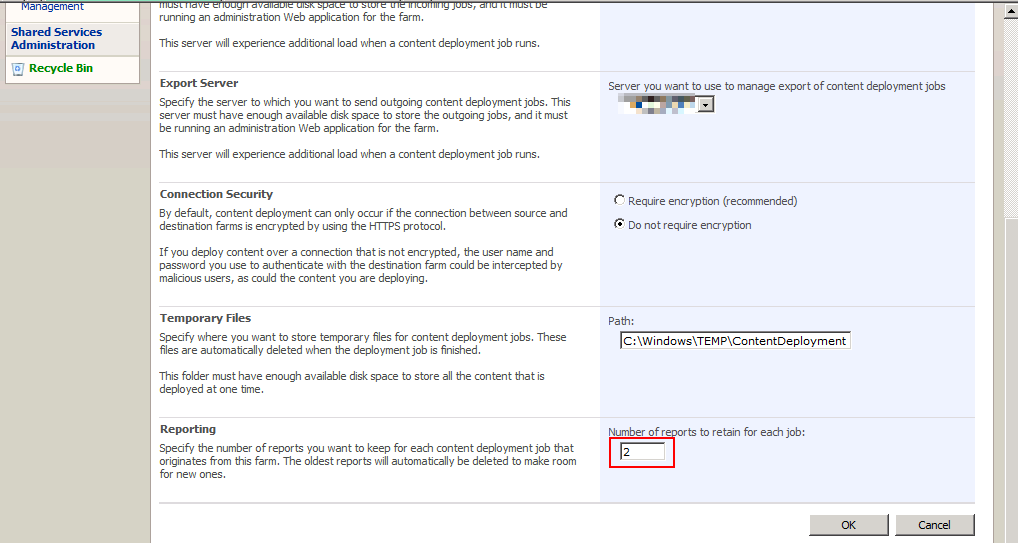
   The solution to this issue is fairly simple.  On the customer farm they had set the number of reports to keep at 1.  The default value is 20 but they had changed to 1 to conserve space which was limited on this server.  Apparently this caused an issue in which the timer job would error when attempting to clean up the reports list.  We changed the value to 2 and tried to re-run the job.  The job completed successfully for all that we tried.  Problem solved. ContentDeploymentFailure3r


SharePoint 2010 Consideration

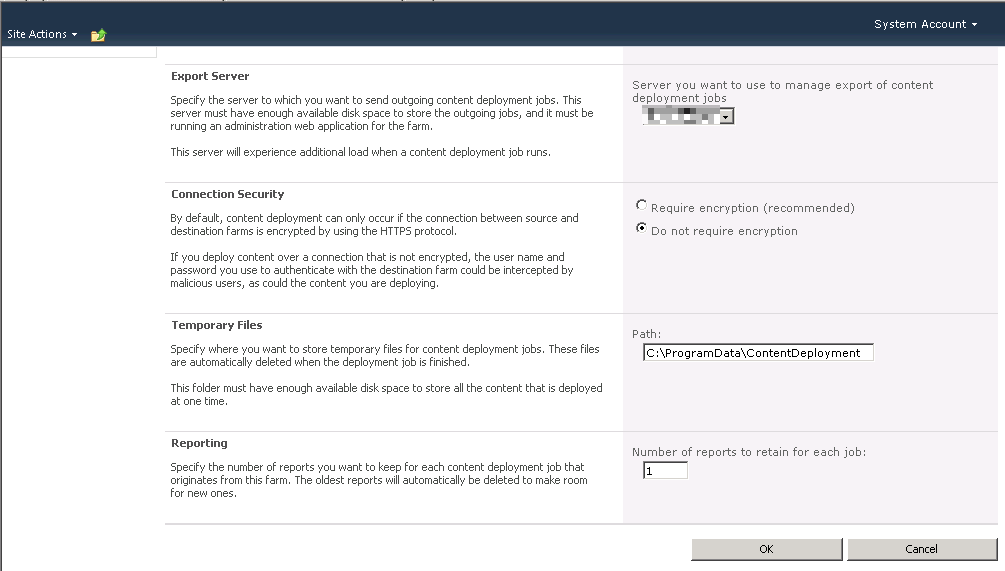
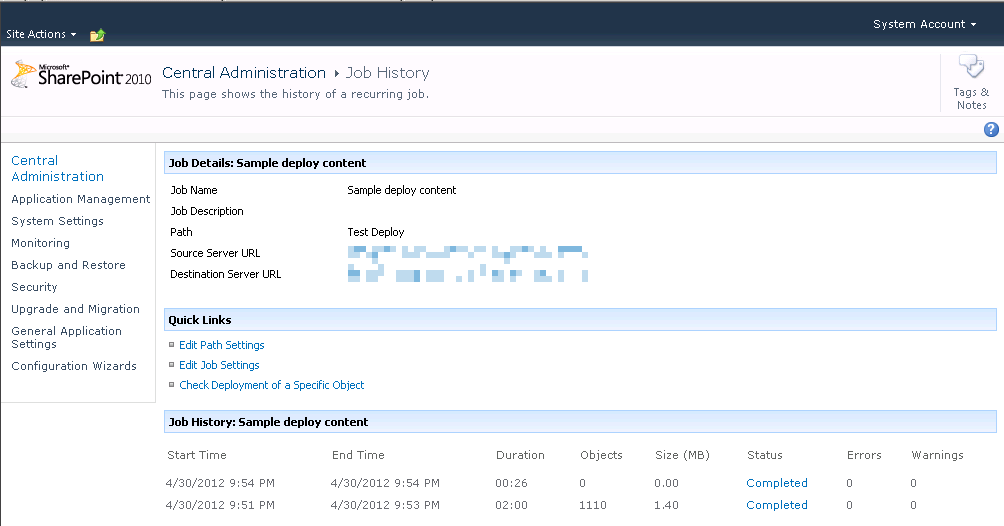
   After testing this out in SharePoint 2007 I decided to try this in SharePoint 2010.  Thankfully it appears this has been corrected in 2010.  I set the number of reports to 1 and was able to execute the job multiple times.

ContentDeploymentFailure5r


ContentDeploymentFailure4r


Conclusion

   If you are using content deployment jobs in SharePoint 2007 be sure that you set the number of reports to keep to a number greater than 1.  Apparently there is a issue with a value of 1 where the timer job cannot clean up the reports list due to an out of range exception.  This does not appear to be an issue in SharePoint 2010.


      -Frog Out

Speaking at SharePoint Cincy and SharePoint Saturday Twin Cities

I have a few conferences I’ll be speaking at in the next few weeks.  The first is SharePoint Cincy in Cincinnati, OH on Friday March 16th.  The other is SharePoint Saturday Twin Cities in Minneapolis, MN on April 14th.  Below are the details for each.  Assuming copies of my book arrive in time for either conference I’ll be giving away a book or two and signing them.  Stop by and see me if you’ll be attending either conference.


Sessions

SharePointCincy2012

Where: SharePoint Cincy 2012

Title: PowerShell for the SharePoint 2010 Developer

Audience and Level: Developer, Intermediate

Abstract: PowerShell is not just for SharePoint 2010 administrators. Developers also get access to a wide range of functionality with PowerShell. In this session we will dive into using PowerShell with the .Net framework, web services, and native SharePoint commandlets. We will also cover some of the more intermediate to advanced techniques available within PowerShell that will improve your work efficiency. Not only will you learn how to automate your work but also learn ways to prototype solutions faster. This session is targeted to developers and assumes a basic familiarity with PowerShell.

Slides and Code download:


2012_SPSTwinCities_Logo_300

Where: SharePoint Saturday Twin Cities 2012

Title: SharePoint 2010 and Integrating Line of Business Applications

Audience and Level: Developer, Intermediate

Abstract: PowerShell is not just for SharePoint 2010 administrators. Developers also get access to a wide range of functionality with PowerShell. In this session we will dive into using PowerShell with the .Net framework, web services, and native SharePoint commandlets. We will also cover some of the more intermediate to advanced techniques available within PowerShell that will improve your work efficiency. Not only will you learn how to automate your work but also learn ways to prototype solutions faster. This session is targeted to developers and assumes a basic familiarity with PowerShell.

Slides and Code download:


-Frog Out