A big thank you to everyone that attended my PowerShell for Your SharePoint Toolbelt at Dogfood Con this year. We packed quite a few demos into the 60 minute session. My slides and demo scripts are below.
Demo PowerShell Scripts
Slide Deck
-Frog Out
A big thank you to everyone that attended my PowerShell for Your SharePoint Toolbelt at Dogfood Con this year. We packed quite a few demos into the 60 minute session. My slides and demo scripts are below.
Demo PowerShell Scripts
Slide Deck
-Frog Out
<Update 2016/09/13>
Please see the following Microsoft support article for resolving this issue.
SharePoint 2013 or Project Server 2013 Setup error if the .NET Framework 4.6 is installed
https://support.microsoft.com/en-us/kb/3087184
</Update>
<Update 2015/7/28 2:30pm> I received clarification that the SharePoint product group does support installing .Net 4.6 onto an existing SharePoint 2013 farm server. It is the installer for SharePoint 2013 that will fail to detect .Net 4.5 if .Net 4.6 is already installed and thus throw an error. A future update should correct this scenario with the installer.
On a related note I was able to successfully uninstall .Net 4.6 from a server (remove the KB as mentioned at bottom of this post) and then install SharePoint 2013.
</Update>
Quick publish on this item and I’ll update once I have more details. One of my customers is exploring Visual Studio 2015 / .Net 4.6 which was just released a week or two ago. During some testing I found out that (as of July 28 2015 when this is published) you cannot install SharePoint 2013 binaries onto a server that has .Net 4.6 (or Visual Studio 2015 which includes .Net 4.6) installed. I received the below error message.

Since .Net 4.6 is an in-place upgrade of .Net 4/4.5/4.5.1/4.5.2 SharePoint has an issue with finding .Net 4.5.x after applying 4.6. I am testing out removing the associated KB for .Net 4.6 to see if this is reversible should you accidentally deploy this to a dev / test farm. I’m also testing if you can install .Net 4.6 / Visual Studio 2015 onto an existing SharePoint 2013 farm.
Removing associated KB…
Download .Net framework
https://msdn.microsoft.com/en-us/library/5a4x27ek(v=vs.110).aspx
Hopefully this helps someone before they run into issues with their farm. Feel free to leave a comment if you find out any additional details or workarounds.
-Frog Out
This was the first year of the Microsoft Ignite conference which merged a number of previous conferences including TechEd, SharePoint Conference, Project Conference, and more. With over 23,000 attendees, a new venue, and numerous Microsoft senior leadership and product group in attendance (including CEO Satya Nadella himself) this was definitely a huge event. Rather than re-capping the event itself I wanted to take a minute to mention a few items that I heard / saw at the conference. I am still downloading and viewing a number of sessions that I couldn’t attend (same time as another session or room was at capacity) but these are highlights that I wanted to share with others.
Recap
What’s New for IT Professionals in SharePoint Server 2016 (session recording with announcement)
Configuring SharePoint 2013 for the Forefront Identity Manager 2010 R2 Service Pack 1 Portal (install overview)
Microsoft Project Siena: Build Apps and Create New Mobile Solutions (session recording with demos)
Microsoft Project Siena (Beta) (product site)
Implementing Next Generation SharePoint Hybrid Search with the Cloud Search Service Application (session recording)
Nano Server (session recording)
Nano Server: The Future of Windows Server Starts Now (session recording)
Remotely Managing Nano Server (session recording)
Windows PowerShell Unplugged with Jeffrey Snover (session recording)
On a side note I also wanted to mention one of the obvious but not always talked about benefits of going to a conference like this in-person. During the week I was able to introduce myself to a number of presenters that I had previously not met. Some were MVPs, fellow Premier Field Engineers (PFEs), product group members, and more. The connections you make can last for years and provide an invaluable network for sharing information and getting assistance when you are in need. I even got a PowerShell sticker directly from Jeffrey Snover himself (another personal highlight).
Conclusion
This is just a short list of some of the sessions that I attended along with highlights or key points that I wanted to share. If I find anything else significant from the recordings I am going back to watch I’ll update this post. For now though go check out the recordings above or the hundreds of other ones that are up on Channel 9. I encourage you to attend next year when Ignite 2016 will be in Chicago again May 9-13.
-Frog Out
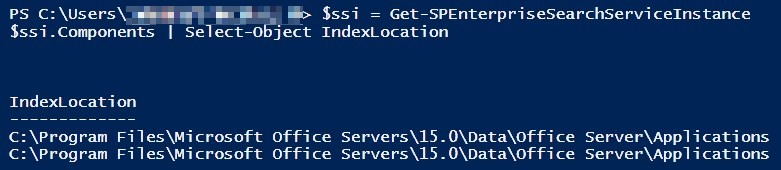
Blogging this as a simple reminder to myself on the default (out of the box) value of the Search Service Application index location in SharePoint 2013. Invariably I have to look this up every couple of months when supporting customers and only ever find the PowerShell commands to retrieve it. Putting both on here. Hopefully this saves someone else a few minutes of their day as well.
PowerShell Commands
$ssi = Get-SPEnterpriseSearchServiceInstance
$ssi.Components | Select-Object IndexLocation
Default Value
C:Program FilesMicrosoft Office Servers15.0DataOffice ServerApplications
-Frog Out
I was pleased to once again speak at the Dog Food Conference here in Columbus, OH. I believe this is the 3rd year that I have spoken and the 4th or 5th year that I have attended. The venue has moved to a more spacious location which definitely helped with giving attendees, speakers, and vendors more room to spread out, I was especially happy to meet up with dozens of previous customers and co-workers at the conference. This really is a great mix of audiences (developers, IT pros, and business users), customer segments, and topics (SharePoint, .Net, PowerShell, BI, ALM, and more).
Thanks to everyone who attended my session at the very end of the last day of the conference. We had a number of good side discussions and questions throughout the presentation. Below are my slides and scripts.
Demo PowerShell Scripts
Slidedeck
-Frog Out
Many years ago I posted How I Blog walking through my blogging process. Over the past few months many of my coworkers and customers have been talking or asking about how to use Azure IaaS for dev / test environments (especially for SharePoint). In this post I’ll walk through the configurations I use, tools that have helped me, and other tips.
Note: This is not meant to be a post on best practices for rolling out your Azure IaaS infrastructure to support SharePoint. This is just my current setup as an reference example for others to learn from. For some best practices please read Wictor Wilen’s post on Microsoft Azure IAAS and SharePoint 2013 tips and tricks and listen to the Microsoft Cloud Show podcast interview Episode 040 – Talking to Wictor Wilen about Hosting SharePoint VMs in IaaS he participated in.
Background
For over 6 months now I have been running my primary set of lab VMs in Azure Infrastructure as a Service (IaaS) VMs. Prior to using Azure VMs I had been using Hyper-V on my laptop (either dual booting into a server OS or the latest iteration on Windows 8 / 8.1) but was always limited by machine resources. Even with a secondary (or tertiary) solid state hybrid drive (this is a newer version than what I currently have in my laptop), 24GB of RAM, and quad core i7 it seemed like I was always juggling disk space for my VHDs or CPUs / RAM for my VMs. Battery life in a hulking laptop like I had is very short and the weight can easily cause strain on your back when carried in a backpack. Nowadays I carry a Lenovo T430s which cut the weight down to almost 1/3 of my old W520.
Configuration
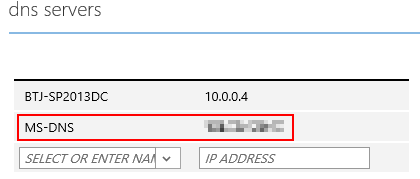
I host 4 SharePoint farms (along with a few one-off VMs) in Azure IaaS using my MSDN benefits. My MSDN benefits include $150 Azure credit per month, 10 free Azure websites, and a host of other freebies. My farms includes a SharePoint 2007 farm, a 2010 farm, and two 2013 farms. I tried to make the configuration between farms as consistent as possible. As such I have a single Windows Server 2012 domain controller that also hosts DNS for all of my VMs and a similar 2 server topology for SQL Server and a SharePoint App / WFE server in each farm.
Note: The names and sizes for Azure IaaS VMs have changed since I first rolled them out (remember the days of small / medium / large / extra large for you early adopters?). The Azure folks seem to have standardized on a naming schema of “A” followed by a number now which I appreciate but there is always a chance that things could change again in the future. As such the names and sizes I list will be what is currently offered.
Servers
Virtual Network
Tools
Website: http://www.azurecommander.com/
Windows Store: http://apps.microsoft.com/windows/app/azure-commander/9833284f-a80c-45ec-8710-a5863ec44ae4
Windows Phone Store: http://windowsphone.com/s?appId=39393973-0b68-4201-8ca1-a67af69f5fca
Benefits
Disadvantages
Conclusion
I was hesitant about using Azure VMs due to fears about racking up costs that I (not my employer) would have to pay along with having to learn a new platform and set of tools. Now I couldn’t imagine having to go back to running my lab environments locally full time. Hopefully some of the tips and processes I covered in this post will encourage you to check out Azure as a replacement for your on-prem dev / test lab environment. You can even get a 1 month Azure trial to try out $200 worth of services.
-Frog Out
 The Frog Pond of Technology