Enumerating SharePoint Site Templates for Site Collection with PowerShell

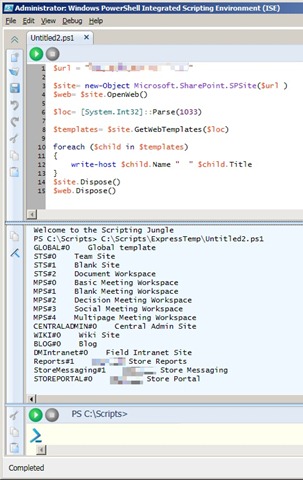
As part of my automated deployment post last week, one step of my deployment script called for creating a SharePoint site collection using the “STSADM –o createsite” command with the –sitetemplate option used for a specific site template.  If you have never had to create a site collection from a template at the command line you may not know what to put (or know what is available to you) for the –sitetemplate option.  To remedy this I created a very simple PowerShell script that opens a site collection and enumerates the usable site templates.

EnumerateSiteTemplates1

Note: The results listed will be specific to the site collection queried and will most likely be different from the templates in the global site template catalog listed when running STSADM –o enumtemplates.  Also note that some results (ex. STS and MPS) have multiple listings with a different # following them.  These are the same site template just with different build configurations specified.  Using this knowledge we can see that for instance the blank site and team site use the same template just with different components added or activated.  You can use this same capability in your own custom site templates if you are making multiple variations of a template.

Code Snippet:

$url = "http://hq.devone.local"

$site= new-Object Microsoft.SharePoint.SPSite($url )
$loc= [System.Int32]::Parse(1033)
$templates= $site.GetWebTemplates($loc)

foreach ($child in $templates)
{
    write-host $child.Name "  " $child.Title
}
$site.Dispose()

Enjoy the script and happy SharePointing adventures.

-Frog Out

Lessons Learned from Automating a SharePoint Deployment

Now this is a topic that really excites me.  It combines two things I love: automation and SharePoint.  At my current client we are in the process of moving our custom SharePoint applications to the production environment.  As we are moving to production, that means that we develops have less handle on the implementations be they databases, code migration, etc.  To ease the load on the infrastructure team who is implementing our custom application I took the liberty of automating as much of the process as possible.  The goal I set for myself was to take a base SharePoint farm (bits installed and Central Administration site running) all the way to a fully functioning production farm in less than 1 hour.  Here are a few numbers to give you an idea of the scope of this endeavor.

  • 5 distinct custom applications
  • 1 web application with additional extension for forms based authentication
  • 15+ custom and 3rd party WSPs
  • 1 root site collection
  • 4 subsites (all with unique security settings)

Additionally we have some custom databases, stored procedures, and database related pieces that are also deployed, but since that is technically outside of the standard SharePoint realm I won’t be touching on that.  Ok, now that you have any idea of the scope of this implementation let’s get down to what all this entails, why you would consider automating your deployment, and some of the lessons learned from my experience.

First, what can you use to automate your deployment?  There are a number of tools available each having their own pros and cons.  Here are a few options and brief analysis.

  1. STSADM.exe – this is an out of the box provided command line tool for performing certain administrative tasks.  STSADM can perform a number of operations that aren’t available through the SharePoint UI, but additionally since it is a command line tool can be put into batch scripts for running multiple commands consistently.  I typically script commands into either a .bat file or a PowerShell script (our next focus.)
  2. PowerShell – I’ll say this now and I’ll say it again as many times as needed: If you are a Windows/SharePoint admin/developer/power user and haven’t begun to learn to use PowerShell, make this a high priority.  In a previous post I talked about how important PowerShell is going to be going forward with any Microsoft technology.  Just look at the fact that it is built-in (re: can’t be uninstalled) from Windows 7 and Server 2008 R2.  That aside, PowerShell let’s you run STSADM commands, SharePoint API calls, or even SharePoint web service calls.  In v2 you’ll be able to run remote commands, debug scripts, and have access to a host of other new functionality bits.
  3. Team Foundation Server – I have not personally had much of a chance to look into this process aside from reading a few articles.  Essentially what you can do is have automated builds run from your Team Foundation Server and be able to track and analyze deployments in one integrated environment.  For very large or well disciplined organizations this seems like a good progression step.
  4. 3rd party product – this could range anywhere from a workflow product able to run command line calls to a task scheduler product able to schedule batch scripts.  Again these would most likely rely on STSADM or one of the SharePoint APIs.  The ability to schedule scripts or have them fire according to workflow logic may be something useful in your organization depending on size and needs.

Second, why automate deployments?  Won’t you spend as much time developing the deployment scripts as manually clicking the buttons or typing the commands?  This is a conversation best discussed with the team doing the development and the team doing the deployment.  If both happen to be the same team or your organization is very small perhaps the benefit of automation won’t be worthwhile (in the short term.)  For larger organizations (and in the long term) I would always recommend automated deployments.  There are a number of reasons including having a repeatable process, reducing “fat fingered” commands, reducing deployment time per environment, and reducing need for developer to be on hand during implementation among others.  On the flipside there is the added time for developing the scripts and added difficulty debugging scripts.  Taken together your organization should decide what works best for you.

Third, what’s the catch?  No one gets a free lunch (unless you somehow do get free lunches regularly, then give me a call and share your secret) so there must be something that manual has an advantage over automated.  Due to the very complex nature of our current deployment there are a few items that automation actually produces unintended results.  Here are a few to note.

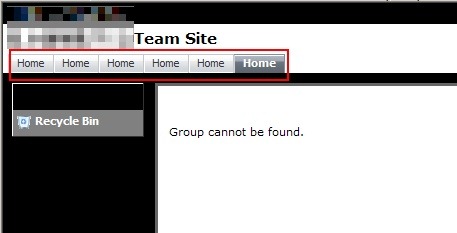
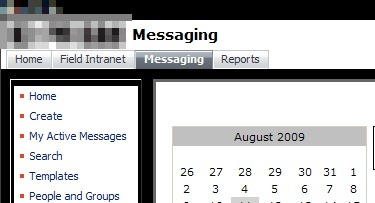
  • Deploying site definition as a subsite does not inherit top link bar properly.  See the pictures below.  Essentially we are seeing the top link bar fill with links to the subsite home page (first picture) instead of using the parent site’s top link bar (second picture.)  As a result we are forced to manually create our subsites.  Luckily using custom site definitions handles the heavy lifting of this process.2 3
  • In a farm that has multiple web front ends, activating features that have multiple updates to the web.config (read this article, excellent background) can cause issues.  The requests to update the web.config on each web front end will be sent out, but only one request can be fulfilled at a time.  As we have about 5+ features that fall into this category they back up and do not complete.  We have not found a good mechanism for delaying sending requests until the previous has completed.  In time with more practice we may find a way to fine tune this so that is no longer an issue.
  • When deploying sites/subsites from a site definition, any web part connections (one web part sending data to another web part) must be manually configured.  So far that I have seen web part connections cannot be contained in the onet.xml site definition (instantiation vs. declaration assuming) but I have a hunch that you could create a simple feature that’s sole purpose is to contact the web part manager and create web part connections.  I have not had the time to test this out, but it sounds plausible.  If anyone has thoughts or suggestions on this topic please leave feedback below.
  • Also when deploying sites/subsites from a site definition, some features cannot be properly activated during site creation time.  A good example is a custom feature that creates additional SharePoint groups on your site.  This is a tough one to describe, but visualize a chicken and an egg (yes, chosen for comedic sake.)  The chicken is your new site and the egg is a SharePoint group created by a feature activated on (born from) your site (your chicken).  When you create your new site (chicken) you are calling for features to also be activated (group created/egg born).  Since the egg comes from the chicken, it can’t possibly be called while the chicken itself is being born.  This leads to an error and the egg never gets born then.  Instead you must manually (or in a later script step) activate the feature that creates this group.  I hope this one didn’t thoroughly confuse you.  Just know that some features might not be able to be activated at site creation time.

If you were paying attention at the beginning you may be asking yourself “great overview on automating your install Brian, but how close did you get to your goal of a 1 hour deployment?”  We don’t have accurate measurements of the deployment time previously as our development environments grew organically at first and were slowly added to.  I would estimate that rebuilding from scratch by hand would take at least 3+ hours and constant babysitting by the implementer.  With the new process we are able to deploy the entire base farm as described above in roughly 30-45 mins.  On top of that, about 70% of that time is spent just waiting for the WSP files to be deployed to the farm.  As an added bonus, the number of clicks and lines typed is drastically reduced (I would rough estimate by 70% and 90% respectively.)

So there you have it, a quick intro/lessons learned for automating a SharePoint deployment.  For a much more example-based and in depth article please read this Automate Web App Deployment with SharePoint API.  I have referenced it many times when doing deployments and it covers just about everything from deploying lists to updating web.config to installing SharePoint.  If you have any questions, comments, or suggestions please feel free to leave them.  If there are any requests I can give a basic outline of what goes into my deployment scripts or how to architect them.  Thanks for reading.

-Frog Out

Presenting at COSPUG Show and Tell Event

On Friday, May 22nd the Central Ohio SharePoint User Group (COSPUG) is hosting a Show and Tell Event at the Microsoft office in Columbus.  I’ll be presenting on combining PowerShell and SharePoint.  This will be an introductory style presentation for those who have limited to medium experience with PowerShell and a few “laser show” type finale scripts to hopefully wow the crowd.  With the current schedule I’ll be presenting during the last technical track session of the day.  Shane Young from SharePoint911 will be the keynote speaker and as with almost all talks he gives I’m sure it will be energetic and informative.  On top of all those great reasons why you should attend, the event is FREE.  Hard to beat that.  Registration can be found at the following link: click here.  Hope to see you there.

    -Frog out

The Power of PowerShell and SharePoint: Enumerating SharePoint Permissions and Active Directory

<Update 2013-07-01> This script has been updated for SharePoint 2010 / 2013.  Please see my updated script and blog post at PowerShell
Script to Enumerate SharePoint 2010 or 2013 Permissions and Active Directory
Group Membership
.

</Update 2013-07-01>

<Update>

Posting code didn’t format as well as hoped.  Download the below script here.

</Update>

For those of you who are SharePoint admins or developers but have never dug into the SharePoint API or PowerShell, I would recommend first checking out some tutorials on both and referencing the SharePoint Developer Center.  At a later date I hope to be able to provide some quick demo scripts that highlight the power, time savings, and overall usefulness that can be gained by combining PowerShell and the SharePoint API.  For now though I wish to post a script I developed almost a year ago as a side project to combine a number of powerful features into one script.  To start, let me overview what the below script is capable of.

  1. Recursively crawl a site or entire web application within SharePoint
  2. Enumerate permissions assigned to a SharePoint site
  3. Detail the SharePoint users assigned to a SharePoint group
  4. Determine if an Active Directory group is a member of a SharePoint group
  5. Detail the Active Directory users who are members of an Active Directory group
  6. Search for a specific user’s permissions on a SharePoint site

Before anyone says anything, yes I realize that combining so many utilities into one script is probably a bad design and I should’ve broken out functionality.  Yes this is probably true, but I want to state that this script was never intended for Production release.  Instead I was prototyping what was possible with PowerShell and I even surprised myself with what I ended up with.  Here is an attempt to visualize what the above hierarchy would look like.

–Site

——SharePoint User A

——SharePoint Group A

————SharePoint User B

————Active Directory Group A

——————Active Directory User A

——————Active Directory User B

As you can see, this allows you to dig much further than what you might normally surface from the SharePoint API.  The true purpose of this script was to determine if a user was assigned permissions anywhere within a web application, even if indirectly by membership in a SharePoint group or Active Directory group.  This was only ever intended for a test environment, so you may still find some bugs when running against your own environment.

Before running this, ensure that you have loaded the SharePoint assembly with the following call (typically placed into your PowerShell profile for ease of use):

[void][System.Reflection.Assembly]::LoadWithPartialName(“Microsoft.SharePoint”)

Please leave me feedback if you end up trying out this script or have any questions on how/why I wrote things the way I did.  I always enjoy constructive criticism and dialog.  If you do re-post this anywhere, be sure to include the reference to the source material for the Active Directory call portion as I borrowed it from the PowerShell Script Center.

Example call:

.DisplaySPWebApp6.ps1 http://server WebApp userA


Note: The below script does not format properly through WordPress after I migrated my blog.  Please refer to the source script for better view.


###########################################################
#DisplaySPWebApp6.ps1 -URL  -searchScope  -userToFind 
#
#Author: Brian Jackett
#Last Modified Date: Jan. 12, 2009
#
#Supply Traverse the entire web app site by site to display
# hierarchy and users with permissions to site.
###########################################################

&nbsp;

#DECLARE VARIABLES
[string]$siteUrl = $args[0]
[string]$searchScope = $args[1]
[string]$userToFind = $args[2]

#DECLARE CONSTANTS
$BUFFER_CHARS = " "

function DetermineSpaceBuffer #-iterations 
{
[string]$spaceBuffer = ""
for($i = 0; $i -lt $args[0]; $i++)
{$spaceBuffer += $BUFFER_CHARS}

return $spaceBuffer
}

#DECLARE FUNCTIONS
function DrillDownADGroup #-group  -depth 
{
[string]$spaceBuffer = DetermineSpaceBuffer $args[1]
$domain = $args[0].Name.substring(0, $args[0].Name.IndexOf("\") + 1)
$groupName = $args[0].Name.Remove(0, $args[0].Name.IndexOf("\") + 1)

#BEGIN - CODE ADAPTED FROM SCRIPT CENTER SAMPLE CODE REPOSITORY
#http://www.microsoft.com/technet/scriptcenter/scripts/powershell/search/users/srch106.mspx

#GET AD GROUP FROM DIRECTORY SERVICES SEARCH
$strFilter = "(&amp;(objectCategory=Group)(name="+($groupName)+"))"
$objDomain = New-Object System.DirectoryServices.DirectoryEntry
$objSearcher = New-Object System.DirectoryServices.DirectorySearcher
$objSearcher.SearchRoot = $objDomain
$objSearcher.Filter = $strFilter

#
$colProplist = ("name","member")
foreach ($i in $colPropList)
{
$catcher = $objSearcher.PropertiesToLoad.Add($i)
}
$colResults = $objSearcher.FindAll()

#END - CODE ADAPTED FROM SCRIPT CENTER SAMPLE CODE REPOSITORY

&nbsp;

foreach ($objResult in $colResults)
{
foreach ($member in $objResult.Properties.member)
{
$indMember = [adsi] "LDAP://$member"

#ATTEMPT TO GET AD OBJECT TYPE FOR USER, NOT WORKING RIGHT NOW
#$user = $indMember.PSBase
#$user.Properties

$fullUserName = $domain + ($indMember.Name)
DisplayADEntry $fullUserName ($args[1])
}
}
}

function DisplaySPGroupMembers #-group  -depth 
{
[string]$spaceBuffer = DetermineSpaceBuffer $args[1]

if($args[0].Users -ne $Null)
{
#START SHAREPOINT USERS ENTITY
Write-Output $spaceBuffer""

foreach($user in $args[0].Users)
{
DisplayADEntry $user ($args[1] + 1)
}

#END SHAREPOINT USERS ENTITY
Write-Output $spaceBuffer""
}
}

function DisplayADEntry #-user/group  -depth 
{
#FILTER RESULTS IF LOOKING FOR SPECIFIC USER
if($args[0].IsDomainGroup -eq "True")
{
$outputText = "$spaceBuffer$BUFFER_CHARS" + ($args[0])
Write-Output $outputText
DrillDownADGroup $args[0] ($args[1])
$outputText = "$spaceBuffer$BUFFER_CHARS"
Write-Output $outputText
}
else
{
#USER FOUND AS A CHILD OF AN EMBEDDED AD GROUP
if(($userToFind -ne "" -and ($userToFind.ToUpper() -eq $args[0].LoginName.ToUpper() -or $userToFind.ToUpper() -eq $args[0].ToUpper())) -or $userToFind -eq "")
{
$outputText = "$spaceBuffer$BUFFER_CHARS" + ($args[0]) + ""
Write-Output $outputText
}
}
}

function DetermineUserAccess #-web  -depth 
{
[string]$spaceBuffer = DetermineSpaceBuffer $args[1]

#START SHAREPOINT GROUPS ENTITY
Write-Output "$spaceBuffer"

foreach($perm in $args[0].Permissions)
{
#CHECK IF MEMBER IS AN ACTIVE DIRECTORY ENTRY OR SHAREPOINT GROUP
if($perm.XML.Contains('MemberIsUser="True"') -eq "True")
{
DisplayADEntry $perm.Member ($args[1] + 1)
}
#IS A SHAREPOINT GROUP
else
{
$outputText = "$spaceBuffer$BUFFER_CHARS" + ($perm.Member)
Write-Output $outputText
DisplaySPGroupMembers $perm.Member ($args[1] + 2)
Write-Output "$spaceBuffer$BUFFER_CHARS"
}
}

#END SHAREPOINT GROUPS ENTITY
Write-Output "$spaceBuffer"
}

function DisplayWebApplication #-webApp 
{
[string]$spaceBuffer = DetermineSpaceBuffer $args[1]

#START WEB APPLICATION ENTITY
$outputText = "$spaceBuffer" + ($args[0].Name)
Write-Output $outputText

if($args[0].Sites -ne $Null)
{
#START CONTAINED SITE COLLECTIONS ENTITY
Write-Output "$spaceBuffer$BUFFER_CHARS"

foreach($spSiteColl in $args[0].Sites)
{
DisplaySiteCollection $spSiteColl ($args[1] + 2)
$spSiteColl.Dispose()
}

#END CONTAINED SITE COLLECTIONS ENTITY
Write-Output "$spaceBuffer$BUFFER_CHARS"
}

#END WEB APPLICATION ENTITY
"$spaceBuffer"
}

function DisplaySiteCollection #-siteColl  -depth 
{
[string]$spaceBuffer = DetermineSpaceBuffer $args[1]
$sc = $args[0].OpenWeb()

#START SITE COLLECTION ENTITY
$outputText = "$spaceBuffer" + ($sc.URL)
Write-Output $outputText

if($sc -ne $Null)
{
#START CONTAINED SITES ENTITY
Write-Output "$spaceBuffer$BUFFER_CHARS"

foreach ($spWeb in $sc)
{
DisplayWeb $spWeb ($args[1] + 2)
$spWeb.Dispose()
}

#END CONTAINED SITES ENTITY
Write-Output "$spaceBuffer$BUFFER_CHARS"
}

#END SITE COLLECTION ENTITY
Write-Output "$spaceBuffer"

#CLEANUP SITE COLLECTION VARIABLE
$sc.Dispose()
}

function DisplayWeb #-web  -depth  -parentWeb 
{
[string]$spaceBuffer = DetermineSpaceBuffer $args[1]

#START SITE ENTITY
$outputText = "$spaceBuffer" + ($args[0].URL)
Write-Output $outputText

if($args[0].HasUniquePerm -eq "True")
{
DetermineUserAccess $args[0] ($args[1] + 1)
}
else
{
Write-Output "$spaceBuffer<!--Inherits from parent&gt;-->"
}

&nbsp;

if($args[0].Webs -ne $Null)
{
#START CONTAINED SUBSITES ENTITY
Write-Output "$spaceBuffer$BUFFER_CHARS"

#RECURSIVELY SEARCH SUBWEBS
foreach ($spSubWeb in $args[0].Webs)
{
DisplayWeb $spSubWeb ($args[1] + 2)
$spSubWeb.Dispose()
}
#END CONTAINED SUBSITES ENTITY
Write-Output "$spaceBuffer$BUFFER_CHARS"
}

#END SITE ENTITY
Write-Output "$spaceBuffer"
}

function DisplayMissingParametersMessage
{
#Write-Output "You are missing a parameter for 'Site URL'"
$script:siteURL = Read-Host "Enter Site URL"
}

############
# MAIN
############

#IF MISSING PARM FOR SITE URL, ASK FOR INPUT TO FILL
if($args.length -eq 0)
{
DisplayMissingParametersMessage
}

$rootSite = New-Object Microsoft.SharePoint.SPSite($siteUrl)
$spWebApp = $rootSite.WebApplication

&nbsp;

Write-Output ""

#IF SEARCH SCOPE SPECIFIED FOR SITE, ONLY SEARCH SITE
if($searchScope -eq "-site")
{
DisplaySiteCollection $rootSite 1
}
#ELSE SEARCH ENTIRE WEB APP
else
{
DisplayWebApplication $spWebApp 1
}
Write-Output ""

&nbsp;

#CLEANUP
$rootSite.Dispose()