Be Careful Installing .Net 4.6 / Visual Studio 2015 with SharePoint 2013 (July 2015)

<Update 2016/09/13>

Please see the following Microsoft support article for resolving this issue.

SharePoint 2013 or Project Server 2013 Setup error if the .NET Framework 4.6 is installed

https://support.microsoft.com/en-us/kb/3087184

</Update>

<Update 2015/7/28 2:30pm>  I received clarification that the SharePoint product group does support installing .Net 4.6 onto an existing SharePoint 2013 farm server.  It is the installer for SharePoint 2013 that will fail to detect .Net 4.5 if .Net 4.6 is already installed and thus throw an error.  A future update should correct this scenario with the installer.


   On a related note I was able to successfully uninstall .Net 4.6 from a server (remove the KB as mentioned at bottom of this post) and then install SharePoint 2013.

</Update>


   Quick publish on this item and I’ll update once I have more details.  One of my customers is exploring Visual Studio 2015 / .Net 4.6 which was just released a week or two ago.  During some testing I found out that (as of July 28 2015 when this is published) you cannot install SharePoint 2013 binaries onto a server that has .Net 4.6 (or Visual Studio 2015 which includes .Net 4.6) installed.  I received the below error message.

Net46andSP2013

   Since .Net 4.6 is an in-place upgrade of .Net 4/4.5/4.5.1/4.5.2 SharePoint has an issue with finding .Net 4.5.x after applying 4.6.  I am testing out removing the associated KB for .Net 4.6 to see if this is reversible should you accidentally deploy this to a dev / test farm.  I’m also testing if you can install .Net 4.6 / Visual Studio 2015 onto an existing SharePoint 2013 farm.


Removing associated KB…

  • On Windows Vista SP2 / Windows 7 SP1/ Windows Server 2008 SP2 / Windows Server 2008 R2 SP1, you will see the Microsoft .NET Framework 4.6  as an installed product under Programs and Features in Control Panel.
  • On Windows 8 / Windows Server 2012 you can find this as Update for Microsoft Windows (KB3045562) under Installed Updates in Control Panel.
  • On Windows 8.1 / Windows Server 2012 R2 you can find this as Update for Microsoft Windows (KB3045563) under Installed Updates in Control Panel.

Download .Net framework

https://msdn.microsoft.com/en-us/library/5a4x27ek(v=vs.110).aspx


    Hopefully this helps someone before they run into issues with their farm.  Feel free to leave a comment if you find out any additional details or workarounds.


      -Frog Out

Stir Trek: Thor Edition Registration Opens March 17th

thorWeb - Dark

Registration for Stir Trek: Thor Edition opens at 12:00am “Thors”day March 17th.  Stir Trek is now in its third year and this is the second year I’ve helped with planning.  For those unfamiliar the Stir Trek conference here is the description from the website.

Stir Trek is an opportunity to learn about the newest advances and latest trends in Web and Mobile development. There will be 30 Sessions in six tracks, so you can pick the content that interests you the most. And the best part? At the end of the day you will be treated to a private screening of Thor on its opening day!

Last year Stir Trek: Iron Man Edition sold out well before the conference and had a long waitlist.  Based on CodeMash selling out in just 3.5 days earlier this year I highly recommend you register early.  We also have a star studded list of speakers ranging from international experts to local leaders.  This will be the best $35 you spend all year.


Easter Egg:  I originally had an idea that we should start selling tickets at 1:30am rather than 12:00am.  If you can figure out why I proposed 1:30am leave a comment below.  Any good sleuths will find this riddle elementary.


-Frog Out

Create Shortcut To Easily Edit HOSTS File On Windows 7 Or Server 2008

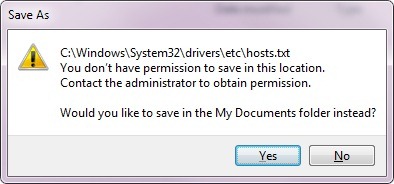
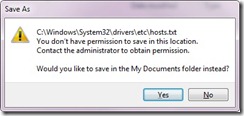
In this blog post I’ll show you a quick an easy way to create a shortcut to the HOSTS file on Windows 7/Server 2008+.  By itself that wouldn’t be a huge deal, but I’ll throw in a nice bonus so that you’ll add the “Run as Administrator” property so you can save the edits you make.  If you are like me and frequently need to edit the HOSTS file on a computer running with UAC enabled (Vista, Windows 7, Server 2008+) you may have run into the following error when trying to save changes:

“C:WindowsSystem32driversetchosts.txt

You don’t have permission to save in this location.  Contact the administrator to obtain permission.

Would you like to save in the My Documents folder instead?”
EditHOSTSFile5

The Issue

The error above is caused by the program you are using to edit the HOSTS (Notepad in my case) isn’t running in “Run as Administrator” mode while trying to modify a system file.  As a result it will ask you to save to a location (My Documents) that it does have access to.  Unfortunately we do need to save it to the original location.

Background on HOSTS file

For those unfamiliar, the HOSTS file is used to locally map hostnames to IP addresses and will supersede values that come from Domain Name System (DNS).  As a developer I use the HOSTS file to point my local machine to a development environment that isn’t registered in DNS or perhaps a specific server in a load balanced server farm.

The Solutions

Yes you read this section title right, I came up with multiple solutions (2 1/2 really) to this issue.  If you prefer to see me dazzle you with my PowerShell skills skip ahead to solutions #2 and #3.  If you’d like the old-fashioned “by hand” solution check out #1 below.

Solution #1

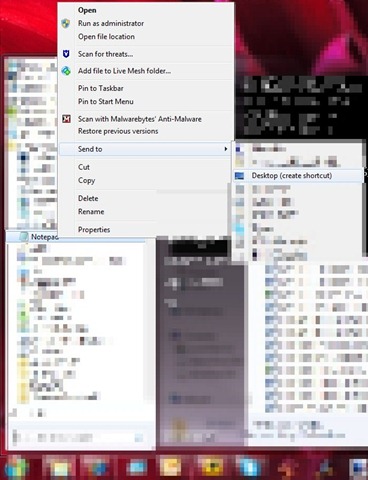
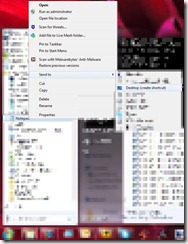
As stated above, the first solution I would consider more of a manual approach.  The first thing you will do is create a shortcut to your favorite text editing software.  Since Notepad comes with just about every Windows OS I chose that for simplicity.  One way to create the shortcut is to find it in the All Programs of your Start menu and Right Click –> Send To –> Desktop (create shortcut).
EditHOSTSFile1edited

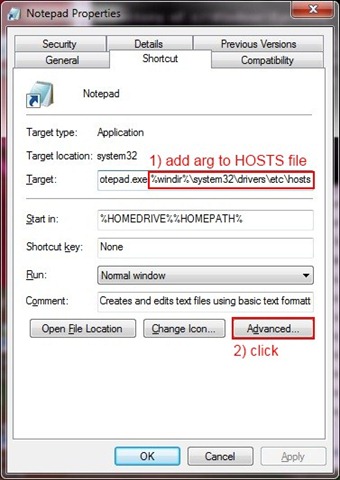
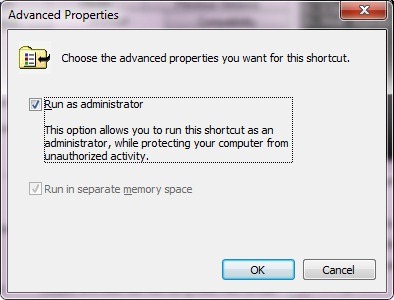
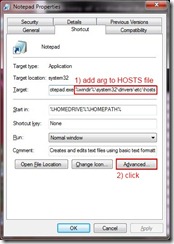
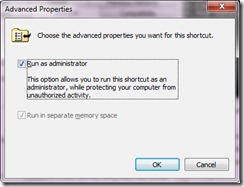
When calling Notepad from the command line it is possible to specify the file to open automatically by listing it as a command line argument.  If your text editor doesn’t support this you’ll need to find an alternate approach.  Once you have the created the shortcut edit the properties by Right Clicking the shortcut and choosing Properties.  You will need to add the file location of HOSTS (%windir%system32driversetchosts) to the value already in the Target box shown below.  After you have added the file location to Target click the Advanced button in the lower right shown below. EditHOSTSFile2edited     On the advanced properties window you’ll want to check the box for “Run as administrator” which then allows you to edit the HOSTS file when opened in Notepad.  Click OK.
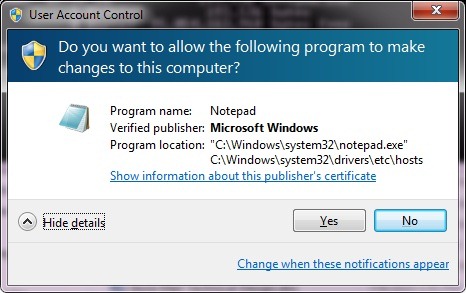
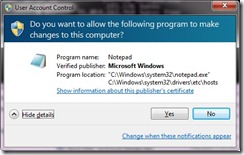
EditHOSTSFile3 If everything was successful when you double click the shortcut you should be prompted by a UAC box (because we chose to Run as Administrator) that lists the program (Notepad) and the file location (HOSTS file) to be opened.  Click Yes.
EditHOSTSFile4

Solution #2

The first PowerShell solution automates the process of creating the desktop shortcut but with one drawback: you still need to manually set the shortcut to “Run as Administrator”.  Just follow the steps from Solution #1 to add that additional piece.

Download the script here.

$wshell = New-Object -comObject WScript.Shell

$desktopPath = $wshell.SpecialFolders.Item('Desktop')


$link = $wshell.CreateShortcut("$desktopPathHOSTS.lnk")

$link.TargetPath = '%windir%system32notepad.exe'

$link.Arguments = '%windir%system32driversetchosts'

$link.Description = 'launches HOSTS file'

$link.WorkingDirectory = '%HOMEDRIVE%%HOMEPATH%'

$link.IconLocation = '%windir%system32notepad.exe'

#$link.Hotkey = "CTRL+SHIFT+H"

$link.Save()

Note: You’ll notice that I commented out the line to assign a hotkey.  I was using that hotkey as a 3-button quick test of my script results instead of multiple clicks to return to the desktop, find the shortcut, and click it.  Feel free to uncomment and use it permanently, just be sure you don’t already have a hotkey mapped to that key combination.

Solution #3 (more like #2b)

Since I couldn’t find a way to automate the setting for “Run as Administrator” in Solution #2 I continued my pursuits by “thinking outside the box.”  I thought if I can’t set that property perhaps I can launch the process in elevated mode instead.  (Sidenote: anyone familiar with Mythbusters, one of my favorite TV shows, may recognize their philosophy of attempting to recreate the results without necessarily adhering to the exact circumstances originally proposed.)  As a result what I ended up with was a shortcut on the desktop that actually runs a PowerShell command that in turn opens the HOSTS file in “Run as Administrator” mode.

Download the script here.

$wshell = New-Object -comObject WScript.Shell

$desktopPath = $wshell.SpecialFolders.Item('Desktop')


$link = $wshell.CreateShortcut("$desktopPathHOSTS.lnk")

$link.TargetPath = 'PowerShell'

$link.Arguments = '-command "Start-Process "notepad.exe" -Verb Runas -ArgumentList "C:windowssystem32driversetchosts""'

$link.Description = 'launches HOSTS file'

$link.WorkingDirectory = '%HOMEDRIVE%%HOMEPATH%'

$link.IconLocation = '%windir%system32notepad.exe'

#$link.Hotkey = "CTRL+SHIFT+H"

$link.Save()

While I do appreciate that I was able to get the results I wanted there are a few things that I don’t like about this solution.  First is that I had to hardcode the “C:…” file location for HOSTS.  While a large percentage of users will have their Windows folder on the C: drive, not all will (especially one of my home machines where Windows is on the W: drive.)  Technically I could overcome this with enough string manipulations, but I didn’t have time to mess with it.  The second issue is that I have an intermediate step of launching the PowerShell console which then runs the open Notepad command.  The PowerShell console only shows for a second or two and uses minimal resources but it’s definitely not as efficient as it could be.

Conclusion

So there you have it, 3 different ways to quickly and easily launch the HOSTS file in a save-able manner.  The first two solutions have a minor amount of manual steps required while the third is fully automated but with the drawbacks that I pointed out.  If anyone reading this knows a way to assign the “Run as Administrator” property through PowerShell I would very much appreciate a link or resource.  I spent a good chunk of time researching but came up empty handed.  I hope you were able to gain something useful from this post.  I know I had a great deal of fun researching for it.

-Frog Out

Links

Solution #2 and #3 script downloads

Solution #2 script

Solution #3 script

Create shortcut PowerShell script adapted from

http://powershell.com/cs/blogs/tips/archive/2009/04/20/create-powershell-shortcuts.aspx

Open with “Run as Admininistrator” PowerShell concept adapted from

http://powershell.com/cs/forums/p/3323/4561.aspx#4561

Central Ohio Day of .Net 2010 Slides and Files

    This weekend I presented my “The Power of PowerShell + SharePoint 2007” session at the Central Ohio Day of .Net conference in Wilmington, OH.  This is the second year I’ve attended this conference, first time as a presenter.  For those unfamiliar Day of .Net conferences are a one-day conference on all things .NET organized by developers for developers.  These events are usually offered at no cost to anyone interested in .NET development.

    The attendees of my session had some great questions and I hope they all got something worthwhile out of it.  Below are my slides and demo scripts (some of which I didn’t have time to demo) along with my sample profiles.  If you have any questions, comments, or feedback feel free to leave comments here or send me an email at brian.jackett@gmail.com.


Slides and Files

SkyDrive link


Technology and Friends Interview Experience

    On a side note, any of you familiar with one of my Sogeti co-workers in Detroit David Giard may know that he hosts a web series called Technology and Friends.  After my session David tracked me down and asked to interview me about PowerShell.  I was happy to oblige so we sat down and taped some material.  I don’t know when that interview will be going live, but look for it on www.davidgiard.com.


Conclusion

    A big thanks goes out to all of the sponsors, speakers, and attendees for the Central Ohio Day of .Net conference.  Without all of them this conference couldn’t have been possible.  I had a great time at the conference and look forward to coming back next year whether that is as a speaker or attendee.

      -Frog Out

Slides and Files from Day of .Net Ann Arbor ‘10

    This past Saturday I presented “Real World Deployment of SharePoint 2007 Solutions” at the Ann Arbor Day of .Net conference in Ann Arbor, MI.  Below are my slides and PowerShell demo scripts I used during the presentation.  Thanks to everyone who attended my session, as well as the sponsors, speakers, organizers and all attendees who made this event happen.


Slides and demo scripts

Be Careful When Referencing SPList.Items

BeCarefulSafe

Be very careful how you reference your SPListItem objects through the SharePoint API.  I’ll say it again.  Be very careful how you reference your SPListItem objects through the SharePoint API.  Ok, now that you get the point that this will be a “learn from my mistakes and don’t do unsmart things like I did” post, let’s dig into what it was that I did poorly.

Scenario

For the past year I’ve been building custom .Net applications that are hosted through SharePoint.  These application involve a number of SharePoint lists, external databases, custom web parts, and other SharePoint elements to provide functionality.  About two weeks ago I received a message from one of our end users that a custom application was performing slowly.  Specifically performance was slow when users were performing actions that interacted with the primary SharePoint list storing data for that app.

The Problem

I took a copy of the production site into a dev environment to investigate the code that was executing.  After attaching the debugger and running through the code I quickly found pieces of code referencing SPListItem objects (like below) that were performing very poorly:

SPListItem myItem = SPContext.Current.Web.Lists["List Name"].Items.GetItemById(value);

// do updates on SPListItem retrieved

As it turns out the SPList I was referencing was fairly large at ~1000 items and weighing in over 150 MB.  You see the problem with my above code is that I retrieved the SPListItem by first (unnecessarily) going through the Items member of the list.  As I understand it, when doing so the executing code will attempt to resolve that entity and pull it from the database and into RAM (all 150 MB.)  This causes the equivalent of a 50 car pile up in terms of performance with a single update taking more than 15 seconds.

The Solution

The solution is actually quite simple and I wish I had realized this during development.  Instead of going through the Items member it is possible to call GetItemById(…) directly on the SPList as in the example below:

SPListItem myItem = SPContext.Current.Web.Lists["List Name"].GetItemById(value);

// do updates on SPListItem retrieved

After making this simple change performance skyrocketed and updates were back to less than a second.

Conclusion

When given the option between two solutions, usually the simplest is the best solution.  In my scenario I was adding extra complexity going through the API the long way around to get to the objects I needed and it ended up hurting performance greatly.  Luckily we were able to find and resolve the performance issue in a relatively short amount of time.  Like I said at the beginning of the post, learn from my mistakes and hope it helps you.

-Frog Out

Image linked from http://www.freespirit.com/files/IMAGE/COVER/LARGE/BeCarefulSafe.jpg