Recap SharePoint Saturday Columbus 2010 with Slides and Demo Scripts

SharePointSaturdayColumbus     This past Saturday I am very pleased to say that SharePoint Saturday Columbus 2010 (SPSColumbus) was a success.  I’m happy to say that for many reasons, not least amongst 1) I had an awesome team help me plan this event, 2) the session I presented went really well, and 3) the early feedback I’ve gotten from those who attended has been very positive.  This marks the first SharePoint Saturday in Columbus and second in Ohio (SPSCleveland was last Novermber.)  It’s great to see SharePoint Saturdays expanding across the US and now even to Europe (SPSUK).

The Team

I can’t talk about SPSColumbus being a success without mentioning my team.  Jennifer Mason, Sean McDonough, Nicola Young, Michelle Caldwell, Joe Hartsel, and myself have been meeting almost weekly for the past four months to take this event from just an idea in our minds to a complete event.  I can honestly say this event wouldn’t have been a fraction of how great it was without all of their time, hard work, and commitment.  To them a great thanks goes out.

Numbers and Twitter

In terms of numbers we are still tabulating the final results but we had just under 100 attendees, 24 speakers, and about 15 people representing sponsors putting us around 140 total.  This was great to see as past SharePoint events in Columbus draw anywhere from 50-80 attendees.  The twitter traffic and general buzz was really high yesterday which was great to see (SPSColumbus Twitter results.)

Photos, Slides, and Scripts

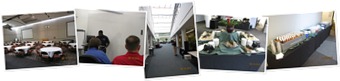
Aside from ensuring the event ran smoothly throughout the day, I also gave my “Managing SharePoint 2010 Farms with PowerShell” presentation and also snapped a few pics.  Check out Marcy Keller’s first batch of photos here for a much more professional looking album.  Below are my albums (FB and Live), slides, and demo scripts.


Facebook album with tagging and captions (click here)

MS Live album, larger size (click below)


Slides and demo scripts (click here)


Conclusion

SharePoint Saturday Columbus was a big success in my mind and I’m so glad to be a part of it.  It’ll be nice to have part of my daily life back now that the SPSColumbus is completed.  I do have a few other side projects that will continue to keep me busy the next two months, but I’m hoping to keep up with some technical blog posts now that I have a few week break until the next conference I’m speaking at (SPTechCon Boston.)  If you attended SPSColumbus and had any feedback (positive, negative, or otherwise) please feel free to send it my way via email or comment here.  Thanks and happy SharePoint-ing.


-Frog Out

Speaking at SharePoint Saturday Columbus 2010 and User Group

Ohio Large resized

This coming Saturday Aug 14th I will be speaking at SharePoint Saturday Columbus 2010 and next Thursday Aug 19th I will be speaking at the local Central Ohio SharePoint User Group (COSPUG) monthly meeting.  If you’ve been following me lately you may have overheard that I’m the lead event coordinator for SharePoint Saturday Columbus.  That alone has consumed almost all of my time for the past 3 months, even more so the last month.  It has truly been a wild ride so far but the event is coming together really well.  I’ll save more about it for my recap post after the event is over.  For now I just wanted to give a quick update about these two speaking engagements (nice to be speaking in-state as opposed to out-of-state the past 8 months.)  Below are the abstracts for my talks.  If you are in the Columbus area feel free to stop on by for either event.  Hope to see you there.


Where: SharePoint Saturday Columbus 2010

Title: Managing SharePoint 2010 Farms With PowerShell

Audience and Level: IT Admin, Beginner

Abstract: “Having you been using STSADM (or worse hand editing processes) to manage your SharePoint 2007 farms? Are you hearing about needing to learn PowerShell to manage SharePoint 2010 farms? This session will serve as part introduction to PowerShell and part overview of how you can use PowerShell to more efficiently and effectively manage your SharePoint 2010 farm. This session is targeted to farm administrators and IT pros and no previous experience with PowerShell is required.”


Where: Central Ohio SharePoint User Group (COSPUG)

Title: Real-World Deployment of SharePoint 2007 Solutions

Audience and Level: IT Admin, Intermediate

Abstract: “All I have to do is run some STSADM commands to deploy my SharePoint solutions, right?” If you are saying that to yourself, then you are missing out on some of the more advanced processes you can employ to deploy and maintain your SharePoint solutions and farm. In this session, we will cover lessons learned from three years of deploying and automating SharePoint solutions. This will include using a combination of STSADM, PowerShell, SharePoint API and a number of other tools in a real-world situation to deploy an entire suite of custom SharePoint solutions. This session is targeted to farm administrators and developers. Prior experience with SharePoint solutions, STSADM and minimal PowerShell experience is suggested.


-Frog Out


Links:

State of Ohio Image

http://scrapbookershaven.com/shop/images/Ohio%20Large.png

Recap SharePoint Saturday New York City 2010 with Slides and Demo Scripts

This past weekend I gave my “Managing SharePoint 2010 Farms with PowerShell” talk at SharePoint Saturday New York City (SPSNYC) 2010.  Thanks to everyone that attended my talk.  They had a lot of great questions and seemed engaged.

I’ve begun to lose track of how many SharePoint Saturdays I’ve attended or spoken at now, but it’s close to 9 and 7 respectively.  This was a great trip as it’s been over 10 years since I’ve been to New York and this time around held it’s own set of stories to share.  For those just interested in the slides and demo scripts those are provided just below.  For those interested in some of stories and photos from this trip proceed further down.

Slides and Scripts

Download here

Pictures

Pictures on Facebook (with tagging)

Facebook album

Higher Res pictures on Windows Live album

Stories

One great story from this trip involves my last blog post about blue screening the morning of my presentation.  Luckily I was able to recover within a few hours and give my presentation later in the day.

The first night in New York was also great as we followed up the speaker dinner with a Japanese karaoke house and then Russian bar.  Special thanks to two of our group members who ordered some excellent food and drinks (including caviar and borsch soup.)  That diversity of cultures is something that we here in Columbus, OH don’t get as much exposure to.

Following the conference on Saturday I was able to meet up with an old high school friend who showed me around downtown and east village New York.  The pizza at Lombardi’s (pictures in albums above) was a true highlight of the trip.

The one negative story from the trip (aside from blue screening above) was that I missed out on the speaker photo after the conference.  We assembled for it but then split up to do some clean up.  As I was returning from another room fixing up chair arrangements they just finished up taking the pictures.  Only a minor disappointment.

Conclusion

SharePoint Saturday New York was a big success with over 200 attendees (I heard close to 270).  My next SharePoint Saturday will be in my new hometown for SharePoint Saturday Columbus.  In addition to being the event coordinator I’m also speaking at the conference (same presentation for SharePoint 2010 and PowerShell.)  there is still a week left to register so if you are in the area feel free to sign up: register here.


-Frog Out

Dell E6410 Integrated HD Graphics Driver Update Causes Blue Screen of Death

If you’re not wincing already by see those feared words “blue screen of death” (BSOD) then allow me to detail how this story got even worse.  This situation may affect you if you are running Windows Server 2008 R2 on a Dell E6400 or E6500 series laptop.  If you’d like the solution steps skip down to the bottom, although you may not like what I tell you since (at the time of writing) it involves installing Server ‘08 R2 Service Pack 1 beta.

Background

Our story begins with me in Ney York for SharePoint Saturday New York City 2010 this past weekend.  I arrived Friday night for the speaker dinner and continued the night with friends for karaoke and seeing the town.  I got back to my hotel too late to give my presentation a last run through and make sure everything was in order.

The next morning I arrived at the conference venue early to finish those last minute checks I had neglected the night before.  The laptop I use for most of my work (recently upgraded to) is a Dell E6410 with Intel Integrated HD graphics card.  I dual boot it between Windows 7 and Windows Server 2008 R2 (for Hyper-V and 64 bit VMs.)  Not surprisingly I had forgotten to update the graphics drivers on my Server ‘08 R2 install to allow it to connect to a projector.  Ironically I had run into this same issue at SharePoint Saturday Michigan earlier this year on my previous laptop.  When I faced this issue that time I just installed the latest display driver appropriate for Windows 7 and was good to go in 10 minutes.  This time around I was not so fortunate.

Issue

Learning from my mistakes the previous time I went out to the Intel site and searched for the latest Windows 7 version of my display drivers.  After downloading I ran the installer.  Just as the install progress bar hit 100% and popped up the success window everything went to hell as my machine blue screened.  “Ohh no, this is not good” I exclaimed to the other speakers in the room.  Many of them offered to let me use their laptops if I couldn’t get it working, so thanks to all of them.  I didn’t panic quite yet and figured a reboot might solve the issue.  I did a hard recycle of my laptop and was greeted by a garbled welcome screen similar to the old days when you tried to tune your TV to a blocked movie channel.  Not a good sign.  I rebooted once again but this time into Safe Mode and rolled back the display drivers which got me back to square one.

Resolution

As I mentioned above, the solution to my issue was to install Server ‘08 R2 Service Pack 1 (SP1) beta (download here).  Make sure to launch your browser in “Run As Admin” mode to actually start the download.  After doing some quick searching across the interwebs I ran across this forum post on Connect.  The general consensus from comments is that Hyper-V didn’t mix well with the display drivers on my Server ‘08 R2 install.  Some users were able to correct it with SP 1 beta.  Since I only had a few hours until my presentation it was worth a shot.  I downloaded the service pack beta, ran the installer, and 30ish minutes later I was greeted by the welcome screen.  I ran the display driver update again and thankfully this time didn’t have any blue screens.  Fabian Williams actually snapped a really good picture of me waiting for the screen to come back up.

Brian Updates Display Drivers BSOD

Conclusion

There appears to be a semi-widespread issue with Dell E6400 and E6500 series laptops running Server ‘08 R2 and Hyper-V.  It may not be specific to those Dell laptops, but that’s where I’m seeing the most comments about it occurring.  I was able to resolve this issue by installing the Service Pack 1 beta (at time of writing) so that may be a solution for now.  Seeing as I’ve had this issue in the past I may start moving away from Hyper-V and towards VirtualBox or VMWare, but I’ve had really good performance out of Hyper-V so I’m still undecided.  Lesson for all of you readers is that you should always test out every aspect of your presentation well before you deliver it and have backups (screenshots, files hosted in cloud, etc.) as much as possible.


-Frog Out

Speaking at SharePoint Saturday New York 2010

New_York_City_Statue_of_Liberty_resized

With the busy schedule I’ve been keeping lately I realized I hadn’t even posted on here that I will be speaking at SharePoint Saturday New York (SPSNY) 2010 this weekend.  I will be presenting my “Managing SharePoint 2010 Farms With PowerShell” session for the second time ever.  The last time I presented this talk SharePoint 2010 hadn’t RTMed yet so I’ve updated the slides and demo scripts a little bit since then.  Aside from giving this presentation I’m also excited to be sitting in on a number of other amazing speakers that will also be presenting.  You can find the abstract below.  If you’ll be attending SPSNY feel free to stop in to my session.


Title: Managing SharePoint 2010 Farms With PowerShell”

Audience and Level: IT Admin, Beginner

Abstract: “Having you been using STSADM (or worse hand editing processes) to manage your SharePoint 2007 farms? Are you hearing about needing to learn PowerShell to manage SharePoint 2010 farms? This session will serve as part introduction to PowerShell and part overview of how you can use PowerShell to more efficiently and effectively manage your SharePoint 2010 farm. This session is targeted to farm administrators and IT pros and no previous experience with PowerShell is required.”


-Frog Out

Create Shortcut To Easily Edit HOSTS File On Windows 7 Or Server 2008

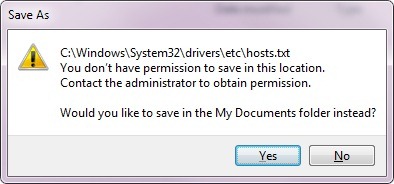
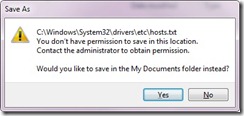
In this blog post I’ll show you a quick an easy way to create a shortcut to the HOSTS file on Windows 7/Server 2008+.  By itself that wouldn’t be a huge deal, but I’ll throw in a nice bonus so that you’ll add the “Run as Administrator” property so you can save the edits you make.  If you are like me and frequently need to edit the HOSTS file on a computer running with UAC enabled (Vista, Windows 7, Server 2008+) you may have run into the following error when trying to save changes:

“C:WindowsSystem32driversetchosts.txt

You don’t have permission to save in this location.  Contact the administrator to obtain permission.

Would you like to save in the My Documents folder instead?”
EditHOSTSFile5

The Issue

The error above is caused by the program you are using to edit the HOSTS (Notepad in my case) isn’t running in “Run as Administrator” mode while trying to modify a system file.  As a result it will ask you to save to a location (My Documents) that it does have access to.  Unfortunately we do need to save it to the original location.

Background on HOSTS file

For those unfamiliar, the HOSTS file is used to locally map hostnames to IP addresses and will supersede values that come from Domain Name System (DNS).  As a developer I use the HOSTS file to point my local machine to a development environment that isn’t registered in DNS or perhaps a specific server in a load balanced server farm.

The Solutions

Yes you read this section title right, I came up with multiple solutions (2 1/2 really) to this issue.  If you prefer to see me dazzle you with my PowerShell skills skip ahead to solutions #2 and #3.  If you’d like the old-fashioned “by hand” solution check out #1 below.

Solution #1

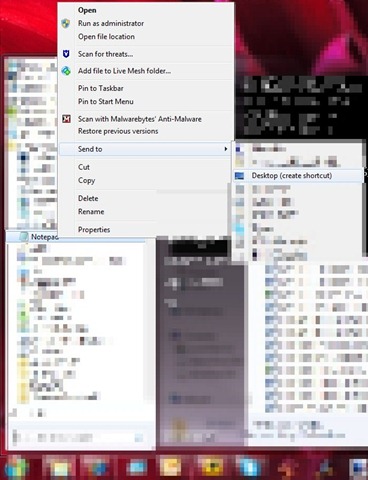
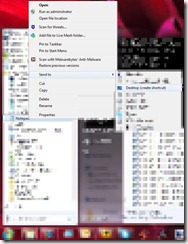
As stated above, the first solution I would consider more of a manual approach.  The first thing you will do is create a shortcut to your favorite text editing software.  Since Notepad comes with just about every Windows OS I chose that for simplicity.  One way to create the shortcut is to find it in the All Programs of your Start menu and Right Click –> Send To –> Desktop (create shortcut).
EditHOSTSFile1edited

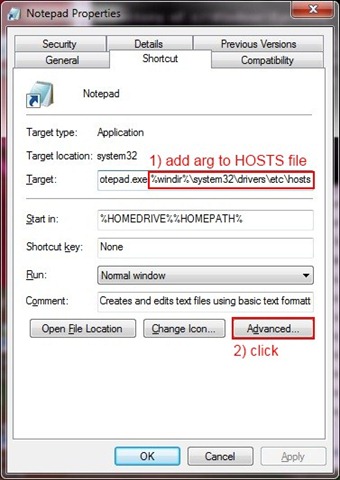
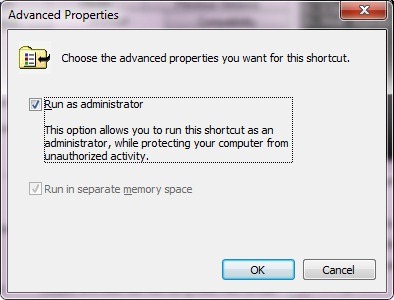
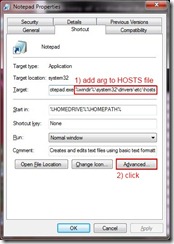
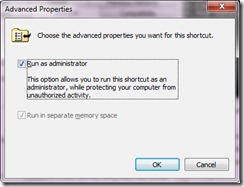
When calling Notepad from the command line it is possible to specify the file to open automatically by listing it as a command line argument.  If your text editor doesn’t support this you’ll need to find an alternate approach.  Once you have the created the shortcut edit the properties by Right Clicking the shortcut and choosing Properties.  You will need to add the file location of HOSTS (%windir%system32driversetchosts) to the value already in the Target box shown below.  After you have added the file location to Target click the Advanced button in the lower right shown below. EditHOSTSFile2edited     On the advanced properties window you’ll want to check the box for “Run as administrator” which then allows you to edit the HOSTS file when opened in Notepad.  Click OK.
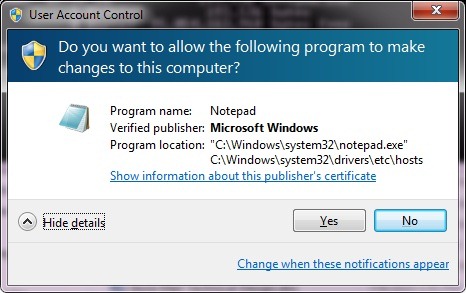
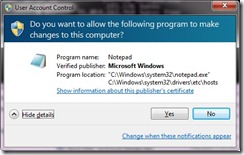
EditHOSTSFile3 If everything was successful when you double click the shortcut you should be prompted by a UAC box (because we chose to Run as Administrator) that lists the program (Notepad) and the file location (HOSTS file) to be opened.  Click Yes.
EditHOSTSFile4

Solution #2

The first PowerShell solution automates the process of creating the desktop shortcut but with one drawback: you still need to manually set the shortcut to “Run as Administrator”.  Just follow the steps from Solution #1 to add that additional piece.

Download the script here.

$wshell = New-Object -comObject WScript.Shell

$desktopPath = $wshell.SpecialFolders.Item('Desktop')


$link = $wshell.CreateShortcut("$desktopPathHOSTS.lnk")

$link.TargetPath = '%windir%system32notepad.exe'

$link.Arguments = '%windir%system32driversetchosts'

$link.Description = 'launches HOSTS file'

$link.WorkingDirectory = '%HOMEDRIVE%%HOMEPATH%'

$link.IconLocation = '%windir%system32notepad.exe'

#$link.Hotkey = "CTRL+SHIFT+H"

$link.Save()

Note: You’ll notice that I commented out the line to assign a hotkey.  I was using that hotkey as a 3-button quick test of my script results instead of multiple clicks to return to the desktop, find the shortcut, and click it.  Feel free to uncomment and use it permanently, just be sure you don’t already have a hotkey mapped to that key combination.

Solution #3 (more like #2b)

Since I couldn’t find a way to automate the setting for “Run as Administrator” in Solution #2 I continued my pursuits by “thinking outside the box.”  I thought if I can’t set that property perhaps I can launch the process in elevated mode instead.  (Sidenote: anyone familiar with Mythbusters, one of my favorite TV shows, may recognize their philosophy of attempting to recreate the results without necessarily adhering to the exact circumstances originally proposed.)  As a result what I ended up with was a shortcut on the desktop that actually runs a PowerShell command that in turn opens the HOSTS file in “Run as Administrator” mode.

Download the script here.

$wshell = New-Object -comObject WScript.Shell

$desktopPath = $wshell.SpecialFolders.Item('Desktop')


$link = $wshell.CreateShortcut("$desktopPathHOSTS.lnk")

$link.TargetPath = 'PowerShell'

$link.Arguments = '-command "Start-Process "notepad.exe" -Verb Runas -ArgumentList "C:windowssystem32driversetchosts""'

$link.Description = 'launches HOSTS file'

$link.WorkingDirectory = '%HOMEDRIVE%%HOMEPATH%'

$link.IconLocation = '%windir%system32notepad.exe'

#$link.Hotkey = "CTRL+SHIFT+H"

$link.Save()

While I do appreciate that I was able to get the results I wanted there are a few things that I don’t like about this solution.  First is that I had to hardcode the “C:…” file location for HOSTS.  While a large percentage of users will have their Windows folder on the C: drive, not all will (especially one of my home machines where Windows is on the W: drive.)  Technically I could overcome this with enough string manipulations, but I didn’t have time to mess with it.  The second issue is that I have an intermediate step of launching the PowerShell console which then runs the open Notepad command.  The PowerShell console only shows for a second or two and uses minimal resources but it’s definitely not as efficient as it could be.

Conclusion

So there you have it, 3 different ways to quickly and easily launch the HOSTS file in a save-able manner.  The first two solutions have a minor amount of manual steps required while the third is fully automated but with the drawbacks that I pointed out.  If anyone reading this knows a way to assign the “Run as Administrator” property through PowerShell I would very much appreciate a link or resource.  I spent a good chunk of time researching but came up empty handed.  I hope you were able to gain something useful from this post.  I know I had a great deal of fun researching for it.

-Frog Out

Links

Solution #2 and #3 script downloads

Solution #2 script

Solution #3 script

Create shortcut PowerShell script adapted from

http://powershell.com/cs/blogs/tips/archive/2009/04/20/create-powershell-shortcuts.aspx

Open with “Run as Admininistrator” PowerShell concept adapted from

http://powershell.com/cs/forums/p/3323/4561.aspx#4561