“Requested registry access is not allowed” error on .Net / SharePoint application

    The error message “Requested registry access is not allowed” coming from a .Net / SharePoint application can be slightly misleading as I will explain in this post.  Today I ran into this error message while trying to log into a Forms Based Authentication (FBA) SharePoint site at my client.  The hosting web front end (WFE) server was recently rebuilt from scratch (re: fresh OS) so first thoughts pointed towards a permissions error relating to IIS and the registry.  Sadly that started to take me down the wrong path.  Luckily my coworker Kelly Jones overheard me talking about this error and pointed me to an article he remembered from a previous project with the same error.  Read this Microsoft support article for info about the true error with the event log.

    As part of the custom applications we are hosting on SharePoint we also built a logging component that writes out to the event log when errors occur.  In order to distinguish our event log entries we created a new event log source under the Application event log.  The code to do add this event log source is very simple (see below) but it must be executed as a user with administrative access because it requires writing to the registry.  Ahh, so our old friendly but misleading error message from above about the registry did have a hand in our problem, but that wasn’t readily apparent at first.

if (!EventLog.SourceExists("MyNewEventLogSource"))

{

    EventLog.CreateEventSource("MyNewEventLogSource", "EventLog");

}


     Here’s the long explanation of why this error occurred in the first place.  Typically our custom event log source is created during installation of the WSP that handles our logging, or just before a new event log entry is written if it doesn’t already exist.  When we rebuilt the primary WFE we rebuilt the entire server from scratch (re: blank OS).  When that WFE rejoined the farm it didn’t contain the custom event log source.  The WSP for logging wasn’t reinstalled (because it was already installed on the farm) so it didn’t fire the code to add the custom event log source back to the primary WFE.  After the primary WFE took back hosting duties and encountered the login warning the application pool identity attempted to write out to our custom event log source.  Our application pool identity doesn’t have local admin permissions on that server so it failed to created the event log source.  Consequently that failed attempt at event log source creation throws an exception that wasn’t properly handled (can’t write out the exception leading to a chicken and egg scenario) so it bubbled up to the user.

     Long story short, I wrote a very simplistic console app to run on any WFE that may be affected by this situation in the future.  Below is a bare bones version of the method but you’ll get the idea.  We are looking into a more permanent solution on how to avoid this situation in the future, but the need to be run as a local admin account adds some extra kinks.  For now this console app will get us through.

static public void MyEventLogInstaller(string EventSourceName)

{

    if (!EventLog.SourceExists(EventSourceName))

    {

        Console.WriteLine("Source doesn't exist, attempting create");


        try

        {

            EventLog.CreateEventSource(EventSourceName, "Application");

        }

        catch (Exception ex)

        {

            Console.WriteLine("Error creating event log source: " + ex.Message);

        }

    }

    else

    {

        Console.WriteLine("Source already exists, not performing any actions");

    }

}

     Hopefully this post sheds some light into the partially cryptic error message I saw and saves you from wasting time looking into registry permissions as I did at first.  Enjoy.


    -Frog Out

“Server Application Unavailable” Error on SharePoint (or .Net) Web Application

KISS = “Keep it Simple, Stupid.”  Remember that acronym as you continue reading.  Today I received StackOverflowException errors when deploying custom solutions to a new SharePoint environment at my client.  Previously I was under the impression that all of our environments were configured as identical to each other as possible, but as I will explain later that was not the case.  Technically speaking this error could happen to any .Net web application, not just a SharePoint one.

Little back story, we are migrating a custom solution (series of multiple applications) packaged as WSPs through various environments at my client.  We have made it through all but a few environments with no major problems deploying our custom solution.  So the fact that we saw this major error in a later environment (and none previous) was reason for concern.  At first I was worried that variations to this environment (load balanced WFEs, new AD domain, etc) were to blame.  That was not the case.  Next I thought deploying our custom code was somehow breaking this environment.  We are using a fairly methodical process for deployments between environments which you can read about here.  The environment threw StackOverflowExceptions when activating a feature on almost any deployed solutions, but strangely that was not the real cause either.  Finally I decided to go back to the KISS principle which ended up isolating the real issue.

For starters I tried deploying a plain vanilla web application with a blank site collection.  The web app and site collection created successfully which was good news.  I then tried to navigate to the newly created site and was greeted by the wonderful “Server Application Unavailable” error seen below along with the 2 event log errors.

Server Unavailable1

Server Application Unavailable

Server Unavailable2

Event 1334 – Failed to initialize AppDomain…Could not load file or assembly “System.Web”…

Server Unavailable3

Event ID 1088 – Failed to execute request because the App-Domain could not be created

Considering I was getting this error with a blank site and no custom code installed I ruled out our custom solutions as the root cause (sigh of relief for myself and the rest of the development team.)  Upon closer inspection of the event log error id 1334, I saw that there was an access denied error when trying to read System.Web from the GAC.  Strange that IIS was having trouble reading a standard .Net assembly from the GAC.  A quick tour of the interwebs and a few hits pointed to possibly needing to run “aspnet_regiis –i” to register ASP.Net with IIS on the server.  Typically I run that command as a pre-requisite for installing SharePoint, but I was not present for the installation of this environment so assumed it had been completed.  I have also heard some say it depends on which order you install IIS and .Net on your server if you need to run it.  Please leave feedback if you can clarify that for me.  So I decide to try running the command in the off chance it fixes things.

Server Unavailable4

aspnet_regiis.exe -i

As luck would have it, running that command fixed my issues.  I was then able to successfully pull up the blank site.  In a random turn of fate we did have to re-install SharePoint in that farm as service packs and other upgrades had been deployed prematurely to the farm without proper testing.  We are still clearing up those items of the re-install, but early indications suggest we are in the clear with our deployments.

For my part I made a few assumptions that proved faulty.  These included that a) SharePoint was properly installed and configured b) someone had previously verified basic site functionality existed and c) that the problem lay with the most complex pieces of the puzzle.  So in closing, sometimes it’s necessary to step back and start from the beginning…KISS as they say.  Hopefully this post can save someone a headache of troubleshooting.  Leave feedback if you have any questions, comments, or suggestions.


-Frog Out

Selected for COSPUG Member Spotlight of the Month

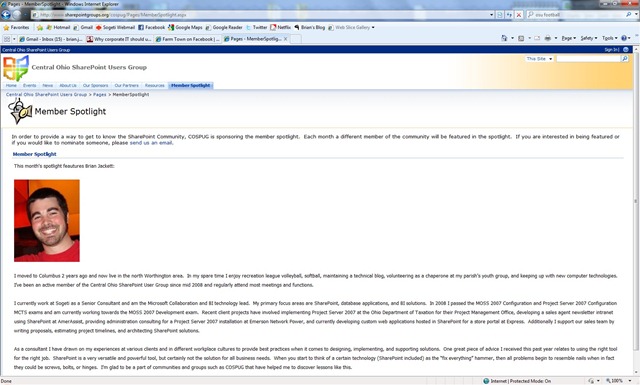
Recently I was honored to hear that I had been nominated and selected for the Central Ohio SharePoint User Group (COSPUG) Member Spotlight of the Month.  I’ve been attending COSPUG regularly for over a year and a half now and recently been getting more involved with the steering committee.  Earlier this summer I gave a presentation on “The Power of PowerShell and SharePoint” during a Show-N-Tell event.  As an aside, I’m tentatively giving an updated version of that presentation at the SharePoint Saturday Cleveland on Nov 14th, more details on that event forthcoming.  I was asked to write up a quick bio of myself which went live over this past weekend.  If you are sometimes a lazy clicker like myself I’ve included what was posted below.

In regards to this recognition I want to highlight something I picked up from a few speakers I’ve seen recently (especially Mike Eaton and Jeff Blankenburg).  What they taught me is that it’s a good thing to pass along instances of recognition to you manager/superiors/higher-ups when you receive it.  You shouldn’t feel like you are “tooting your own horn” or “gloating” if you forward them an email when a client praises you or a group of your peers honors you with an award.  Rather you should take the opportunity to let them know “yes I am a worthwhile employee and I see value in what I do” in so many words.  Hopefully in turn they also see your value and are rewarding you accordingly.  This doesn’t always mean monetarily, there are other forms of rewards and compensation to be given/received.

All in all I want to thank everyone that has gotten me involved with SharePoint, COSPUG, and Sogeti over the past 2+ years.  I hope to continue contributing to COSPUG, to my coworkers, and especially to the community at large as they’ve already given me much so far.

Member Spotlight article:

I moved to Columbus 2 years ago and now live in the north Worthington area. In my spare time I enjoy recreation league volleyball, softball, maintaining a technical blog, volunteering as a chaperone at my parish’s youth group, and keeping up with new computer technologies. I’ve been an active member of the Central Ohio SharePoint User Group since mid 2008 and regularly attend most meetings and functions.

I currently work at Sogeti as a Senior Consultant and am the Microsoft Collaboration and BI technology lead. My primary focus areas are SharePoint, database applications, and BI solutions. In 2008 I passed the MOSS 2007 Configuration and Project Server 2007 Configuration MCTS exams and am currently working towards the MOSS 2007 Development exam. Recent client projects have involved implementing Project Server 2007 at the Ohio Department of Taxation for their Project Management Office, developing a sales agent newsletter intranet using SharePoint at AmerAssist, providing administration consulting for a Project Server 2007 installation at Emerson Network Power, and currently developing custom web applications hosted in SharePoint for a store portal at Express. Additionally I support our sales team by writing proposals, estimating project timelines, and architecting SharePoint solutions.

As a consultant I have drawn on my experiences at various clients and in different workplace cultures to provide best practices when it comes to designing, implementing, and supporting solutions. One great piece of advice I received this past year relates to using the right tool for the right job. SharePoint is a very versatile and powerful tool, but certainly not the solution for all business needs. When you start to think of a certain technology (SharePoint included) as the “fix everything” hammer, then all problems begin to resemble nails when in fact they could be screws, bolts, or hinges. I’m glad to be a part of communities and groups such as COSPUG that have helped me to discover lessons like this.


COSPUGMemberSpotlight

-Frog Out

Single Sign-On Across .Net Web Apps Using Forms Based Authentication

     <foreword>Please read this explanation of Forms Based Authentication (FBA) first if you are unfamiliar with how FBA works or is implemented. </foreword>

    Achieving single sign-on capabilities using Forms Based Authentication is much easier than I had initially expected, yet it took awhile to find the exact settings required.  To get FBA working in SharePoint click here for a good starter from the SharePoint team blog.  I also used this article from MSDN as a reference for ultimately determining what settings were necessary in our environment.

    Small back story for what we are doing.  We have a SharePoint farm that has split authentication: Windows Integrated for users on the network at the office and FBA for users out in the field on the extranet.  Separate from our SharePoint farm is a .Net web application to assist with password reset and registration.  When the user logs in to SharePoint via FBA they are redirected to the external application if there is any problem with their account.  We wanted to implement single sign-on between the applications so that a user wasn’t re-prompted for credentials after the redirect.

     The general solution involved the following main items:

  • Changes to both applications’ web.config files
  • Configuring host headers for each app to be in the same domain lookup
  • 1 line of code to read authentication cookie


    So let’s review what was added to get this working starting with the web.config entries.

<system.web>
   <authentication mode="Forms">
      <forms name="nameOfCookie"
         loginUrl="loginPage.aspx"
         path="/"
         domain="mydomain.com"
         protection="All"/>
   </authentication>
   <machineKey validationKey="value" decryptionKey="value"
       validation="value" decryption="value" />
</system.web>

    For the web.config entries you’ll need to ensure that both apps are set to Forms authentication.  Next specify a “name” value which will be used to identify your authentication cookie on the receiving application.  By default this value is “.ASPXAUTH”.  Specify the domain that each web application will be run under.  Using host headers your site URLs might look like “site1.mydomain.com” and “site2.mydomain.com”.  Specify protection=”All” so that the authentication cookie is encrypted using the machineKey value that you specify.  Lastly provide identical machineKey entries on each web application so that both can read the authentication cookie provided by each other.  I used a free random machine key generator in my development environment, but you’ll probably want your security team to handle generating and keeping track of keys for non-development environments.

    The next step involved configuring each site to use host headers assigned to the same domain.  This article from TechNet gives a brief intro to get you started.  As stated just above, I configured the web app URLs to appear as “site1.mydomain.com” and “site2.mydomain.com” to match my entries in the web.config.
    Lastly is the code required to read the authentication cookie.  If you read the explanation article linked in the foreword above you’ll read that after logging in using forms authentication, the authentication cookie containing the currently authenticated user (along with other data) is passed along with responses back to the server.  Due to this fact, on the receiving page in the other web application we can decrypt the cookie and read who is currently authentication even though they never logged in again to the the other application.  Here is the code to explicitly reference that cookie.
string loggedInUser = FormsAuthentication.Decrypt(Request.Cookies.Get("cookieName").Value).Name
    And that wraps up the changes to my web apps to allow single sign-on for forms based authentication.  If your web applications are SSL enabled I believe there are a few additional settings you’ll need, but they should be covered in the links I provided.  I hope this helps you or at least gives you some good resources to refer to for FBA.  If you have any questions, comments, or other feedback feel free to leave it below.
 
    -Frog Out

Enumerating SharePoint Site Templates for Site Collection with PowerShell

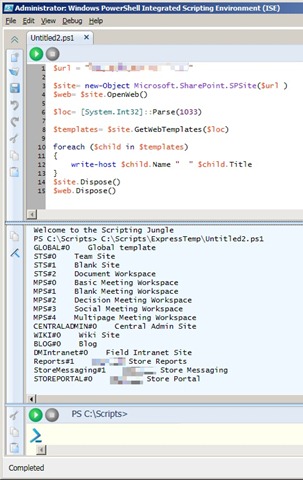
As part of my automated deployment post last week, one step of my deployment script called for creating a SharePoint site collection using the “STSADM –o createsite” command with the –sitetemplate option used for a specific site template.  If you have never had to create a site collection from a template at the command line you may not know what to put (or know what is available to you) for the –sitetemplate option.  To remedy this I created a very simple PowerShell script that opens a site collection and enumerates the usable site templates.

EnumerateSiteTemplates1

Note: The results listed will be specific to the site collection queried and will most likely be different from the templates in the global site template catalog listed when running STSADM –o enumtemplates.  Also note that some results (ex. STS and MPS) have multiple listings with a different # following them.  These are the same site template just with different build configurations specified.  Using this knowledge we can see that for instance the blank site and team site use the same template just with different components added or activated.  You can use this same capability in your own custom site templates if you are making multiple variations of a template.

Code Snippet:

$url = "http://hq.devone.local"

$site= new-Object Microsoft.SharePoint.SPSite($url )
$loc= [System.Int32]::Parse(1033)
$templates= $site.GetWebTemplates($loc)

foreach ($child in $templates)
{
    write-host $child.Name "  " $child.Title
}
$site.Dispose()

Enjoy the script and happy SharePointing adventures.

-Frog Out

Lessons Learned from Automating a SharePoint Deployment

Now this is a topic that really excites me.  It combines two things I love: automation and SharePoint.  At my current client we are in the process of moving our custom SharePoint applications to the production environment.  As we are moving to production, that means that we develops have less handle on the implementations be they databases, code migration, etc.  To ease the load on the infrastructure team who is implementing our custom application I took the liberty of automating as much of the process as possible.  The goal I set for myself was to take a base SharePoint farm (bits installed and Central Administration site running) all the way to a fully functioning production farm in less than 1 hour.  Here are a few numbers to give you an idea of the scope of this endeavor.

  • 5 distinct custom applications
  • 1 web application with additional extension for forms based authentication
  • 15+ custom and 3rd party WSPs
  • 1 root site collection
  • 4 subsites (all with unique security settings)

Additionally we have some custom databases, stored procedures, and database related pieces that are also deployed, but since that is technically outside of the standard SharePoint realm I won’t be touching on that.  Ok, now that you have any idea of the scope of this implementation let’s get down to what all this entails, why you would consider automating your deployment, and some of the lessons learned from my experience.

First, what can you use to automate your deployment?  There are a number of tools available each having their own pros and cons.  Here are a few options and brief analysis.

  1. STSADM.exe – this is an out of the box provided command line tool for performing certain administrative tasks.  STSADM can perform a number of operations that aren’t available through the SharePoint UI, but additionally since it is a command line tool can be put into batch scripts for running multiple commands consistently.  I typically script commands into either a .bat file or a PowerShell script (our next focus.)
  2. PowerShell – I’ll say this now and I’ll say it again as many times as needed: If you are a Windows/SharePoint admin/developer/power user and haven’t begun to learn to use PowerShell, make this a high priority.  In a previous post I talked about how important PowerShell is going to be going forward with any Microsoft technology.  Just look at the fact that it is built-in (re: can’t be uninstalled) from Windows 7 and Server 2008 R2.  That aside, PowerShell let’s you run STSADM commands, SharePoint API calls, or even SharePoint web service calls.  In v2 you’ll be able to run remote commands, debug scripts, and have access to a host of other new functionality bits.
  3. Team Foundation Server – I have not personally had much of a chance to look into this process aside from reading a few articles.  Essentially what you can do is have automated builds run from your Team Foundation Server and be able to track and analyze deployments in one integrated environment.  For very large or well disciplined organizations this seems like a good progression step.
  4. 3rd party product – this could range anywhere from a workflow product able to run command line calls to a task scheduler product able to schedule batch scripts.  Again these would most likely rely on STSADM or one of the SharePoint APIs.  The ability to schedule scripts or have them fire according to workflow logic may be something useful in your organization depending on size and needs.

Second, why automate deployments?  Won’t you spend as much time developing the deployment scripts as manually clicking the buttons or typing the commands?  This is a conversation best discussed with the team doing the development and the team doing the deployment.  If both happen to be the same team or your organization is very small perhaps the benefit of automation won’t be worthwhile (in the short term.)  For larger organizations (and in the long term) I would always recommend automated deployments.  There are a number of reasons including having a repeatable process, reducing “fat fingered” commands, reducing deployment time per environment, and reducing need for developer to be on hand during implementation among others.  On the flipside there is the added time for developing the scripts and added difficulty debugging scripts.  Taken together your organization should decide what works best for you.

Third, what’s the catch?  No one gets a free lunch (unless you somehow do get free lunches regularly, then give me a call and share your secret) so there must be something that manual has an advantage over automated.  Due to the very complex nature of our current deployment there are a few items that automation actually produces unintended results.  Here are a few to note.

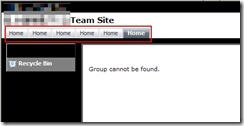
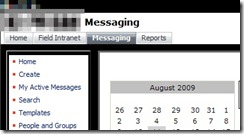
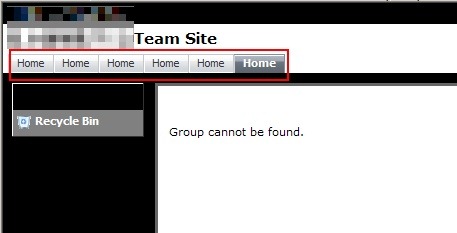
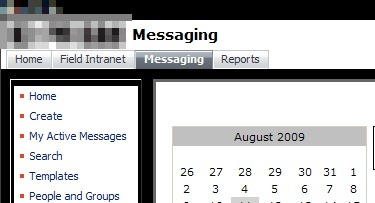
  • Deploying site definition as a subsite does not inherit top link bar properly.  See the pictures below.  Essentially we are seeing the top link bar fill with links to the subsite home page (first picture) instead of using the parent site’s top link bar (second picture.)  As a result we are forced to manually create our subsites.  Luckily using custom site definitions handles the heavy lifting of this process.2 3
  • In a farm that has multiple web front ends, activating features that have multiple updates to the web.config (read this article, excellent background) can cause issues.  The requests to update the web.config on each web front end will be sent out, but only one request can be fulfilled at a time.  As we have about 5+ features that fall into this category they back up and do not complete.  We have not found a good mechanism for delaying sending requests until the previous has completed.  In time with more practice we may find a way to fine tune this so that is no longer an issue.
  • When deploying sites/subsites from a site definition, any web part connections (one web part sending data to another web part) must be manually configured.  So far that I have seen web part connections cannot be contained in the onet.xml site definition (instantiation vs. declaration assuming) but I have a hunch that you could create a simple feature that’s sole purpose is to contact the web part manager and create web part connections.  I have not had the time to test this out, but it sounds plausible.  If anyone has thoughts or suggestions on this topic please leave feedback below.
  • Also when deploying sites/subsites from a site definition, some features cannot be properly activated during site creation time.  A good example is a custom feature that creates additional SharePoint groups on your site.  This is a tough one to describe, but visualize a chicken and an egg (yes, chosen for comedic sake.)  The chicken is your new site and the egg is a SharePoint group created by a feature activated on (born from) your site (your chicken).  When you create your new site (chicken) you are calling for features to also be activated (group created/egg born).  Since the egg comes from the chicken, it can’t possibly be called while the chicken itself is being born.  This leads to an error and the egg never gets born then.  Instead you must manually (or in a later script step) activate the feature that creates this group.  I hope this one didn’t thoroughly confuse you.  Just know that some features might not be able to be activated at site creation time.

If you were paying attention at the beginning you may be asking yourself “great overview on automating your install Brian, but how close did you get to your goal of a 1 hour deployment?”  We don’t have accurate measurements of the deployment time previously as our development environments grew organically at first and were slowly added to.  I would estimate that rebuilding from scratch by hand would take at least 3+ hours and constant babysitting by the implementer.  With the new process we are able to deploy the entire base farm as described above in roughly 30-45 mins.  On top of that, about 70% of that time is spent just waiting for the WSP files to be deployed to the farm.  As an added bonus, the number of clicks and lines typed is drastically reduced (I would rough estimate by 70% and 90% respectively.)

So there you have it, a quick intro/lessons learned for automating a SharePoint deployment.  For a much more example-based and in depth article please read this Automate Web App Deployment with SharePoint API.  I have referenced it many times when doing deployments and it covers just about everything from deploying lists to updating web.config to installing SharePoint.  If you have any questions, comments, or suggestions please feel free to leave them.  If there are any requests I can give a basic outline of what goes into my deployment scripts or how to architect them.  Thanks for reading.

-Frog Out