Deploying SharePoint Solution Files to Non-12 Hive Locations on Multiple Web Front Ends

In a previous post, I mentioned having an issue deploying SharePoint solution files to a non-12 Hive locations on all web front ends (WFEs).  The problem I faced was that WSPBuilder doesn’t allow me to edit the manifest.xml file (reference, near bottom) and my custom code to copy the files was successful, but only executing on the WFE from which the feature activation command was being called.  Once we moved to a multiple WFE environment all of the other WFEs were missing files.

The always helpful Sean McDonough suggested that I use an SharePoint Timer job because that will execute code on all WFEs.  I had never built a custom timer job so I researched the links Sean shared and dove head first into it.  I had moderate success but ran into an issue with the account running my timer job (which ended up being the Farm Access account) not having write permissions to the non-12 Hive location as it was not a local admin on every WFE in the farm.  The solution to that problem (another blog post forthcoming on solving that ACL permission issue) was looping through the WFEs during feature activation.  As it turns out, discovering that I could loop through each WFE led to a much simpler solution to my original problem.2007-02-13-Ockhams_Razor    Any of you familiar with Occam’s Razor (also spelled Ockham) will realize that simpler solutions are almost always the better solution.  So instead of wiring up a feature to set write permissions, then store needed values in a property bag, and then kick off a timer job I went with a much simpler solution.  Below is a code snippet for how to deploy SharePoint solution files to a non-12 Hive location on multiple web front ends without using a timer job (wow that’s a mouthful.)

The files I am deploying are a set of support files for the RadEditor for MOSS Lite Edition that need to live in the “wpresources” folder (which is a sibling folder of the 12-Hive.)  I originally deploy the files to a subfolder “Support Files” of the feature root folder.  From there they are copied to the appropriate location within “wpresources”.  You may also download the code snippet from my SkyDrive here.

public override void FeatureActivated(SPFeatureReceiverProperties properties)

{

    // set source and destination folders

    string sourceFolder = properties.Definition.RootDirectory + @"Support Files";

    string destinationFolder = properties.Definition.RootDirectory + @"........wpresourcesRadEditorSharePoint4.5.6.0__1f131a624888eeedRadControlsEditor";

    List<string> filesToDeploy = new List<string>();


    // dynamically find all files in the source folder

    DirectoryInfo folder = new DirectoryInfo(sourceFolder);

    FileInfo[] filesInFolder = folder.GetFiles();

    foreach (FileInfo file in filesInFolder)

    {

        filesToDeploy.Add(file.Name);

    }


    // recurse through each web front end

    foreach (SPServer server in properties.Definition.Farm.Servers)

    {

        if (server.Role == SPServerRole.WebFrontEnd)

        {

            // copy support files per web front end

            foreach (string filename in filesToDeploy)

            {

                try

                {

                    // reference files based on network share format (serverNameC$...)

                    string sourceFile = @"" + server.Address + @"" + sourceFolder.Replace(":", "$") + @"" + filename;

                    string destinationFile = @"" + server.Address + @"" + destinationFolder.Replace(":", "$") + @"" + filename;


                    System.IO.File.Copy(sourceFile, destinationFile, true);

                }

                catch (Exception ex)

                {

                    // ..exception handling goes here

                }

            }

        }

    }

}

As far as I can tell my research didn’t turn up any other results on this topic so this may be me blazing some trails on the subject matter.  If you have any questions, comments, or feedback please feel free to leave some below.  I’ll update this post with a link to my forthcoming post on setting ACL permissions during feature activate.  Happy SharePointing.

-Frog Out

Fixing the SharePoint DateTimeControl MinDate Property (or How I Learned to Make the DateTimeControl Read-Only and Love SharePoint Controls)

Excusing the long post title referencing Dr. Strangelove, I’d like to point out a small bug with the SharePoint DateTimeControl.  If you have ever implemented this control, you may find that you can set the MinDate property which is supposed to limit the range of dates allowed.  However, doing so only limits the calendar popup associated with this control, but the user can still enter a date below the MinDate into the textbox (see comments in reference.)

I did a little searching on the interwebs and found the following post which described setting that textbox control read-only on the aspx page.  Below you will find the code to make it read-only in the code behind.

using Microsoft.SharePoint.WebControls;


DateTimeControl dtc = new DateTimeControl();

dtc.DateOnly = true;

dtcMinDate = DateTime.Today.Date;

((TextBox)dtc.Controls[0]).ReadOnly = true;

In the last line, you will see that we are accessing a child control.  At a basic level, the SharePoint DateTimeControl is just a wrapper for 4 controls: a date textbox, an hour and a minute dropdown, and a required field validator.  Since the date textbox is the first control, we can cast it as a textbox and set the ReadOnly property and be all set.

DateTimeControl1

Before: able to edit textbox

DateTimeControl2

After: textbox is read only and calendar selection limited

One other note about the DateTimeControl.  There is an issue with the SelectedDate property of the DateTimeControl not persisting through postback (reference 1 and reference 2).  Example scenario: if you set the SelectedDate on page load, change the SelectedDate through UI, then have a page postback (perhaps for a required field validation on another control) your change to the SelectedDate will be lost and the original value from during page load will reappear.  I have attempted all suggestions for enabling viewstate on parent container, removing Id, and clearing selection to no avail.  My next steps will be to convert this over to an AJAXControlToolkit Calendar Extender implementation and see if that works.  Expect a follow up post if that does fix the problem.

As you can see, the SharePoint DateTimeControl is a nice option since you’ll have access to it out of the box with SharePoint, but there are a few bugs to be aware of when deciding whether to use it or not.  You might just be as well off building your own control to handle date selection.  If you’ve run into any other issue or have suggestions for fixes to the problems above please leave some feedback below.

-Frog Out

Links

SharePoint DateTimeControl MSDN page

http://msdn.microsoft.com/en-us/library/microsoft.sharepoint.webcontrols.datetimecontrol.aspx

Make SharePoint DateTimeControl textbox read-only

http://greggalipeau.wordpress.com/2008/06/27/sharepoint-datetimecontrol-validation/

DateTimeControl SelectedDate issue

http://www.eggheadcafe.com/software/aspnet/31645560/problem-with-sharepoint-d.aspx

DateTimeControl ViewState issue

http://social.msdn.microsoft.com/Forums/en-US/sharepointdevelopment/thread/efe5602f-ed95-44c8-8722-077eacdb9844/

Register External JavaScript and CSS Files On SharePoint 2007 WebPart

     If mathematics teaches us anything, it’s that there are usually multiple solutions for one problem.  When you need to add a reference to a JavaScript or CSS file for a .Net web application (such as SharePoint) from the code behind you have many options available to you.  Below are two SharePoint specific methods that you can use to reference a JavaScript and CSS file from within a web part (or any other custom code solution.)


Registering Javascript 

   The first example registers an external JavaScript file.  Typically when you reference an external JavaScript file it is cached by the browser so it doesn’t need to be re-downloaded each time the page is loaded.  This is good for improving performance, but can be an issue when you update your JavaScript file and find that you are still executing the old JavaScript.  Using the below method appends a unique postfix to the JavaScript filename so that a new version is downloaded as needed without having to reset browser files or do other sorts of trickery.

using Microsoft.SharePoint.WebControls;

ScriptLink.Register(this.Page, <JS_FILE_NAME>, true);

Example of output

"text/javascript" language="javascript" 

src="/_layouts/1033/MyAppCommon/JS_File_Name.js?97XRFCZSv%2BI8aGRCPfUgTg%3D%3D">


Registering CSS

     The second example registers a cascading style sheet.  This is useful for when you have a CSS file that contains branding styles that you need to include with a web part but don’t want to include on a master page.  This method will handle adding the link to the <head> tag of the page as needed.

using Microsoft.SharePoint.WebControls;

CssRegistration.Register(CSS_FILE_NAME);

Example of output

<link rel="stylesheet" type="text/css" href="/_layouts/MyAppCommon/Css_FileName.css"/>


Conclusion

    These are both very simplistic methods that can be utilized on your SharePoint web parts to help you include JavaScript and CSS files.  On my current project we have used these quite a bit to pair custom JavaScript and CSS with individual web parts instead of at a higher level where they may not be appropriate.  Perhaps you’ll be able to make use of these as well.  Until next time, happy SharePoint’ing.

Links

Scriptlink.Register MSDN page

CSSRegistration.Register MSDN page


     -Frog Out

Deploy Files to SharePoint Web Application Virtual Directories At Feature Activation


Original: 2009/5/6

Updated: 2009/12/1 – see bottom

Updated: 2009/12/31 – see bottom (Follow up post here)

Have you ever had a need to deploy some files to all of the virtual directories (every IIS site folder corresponding to a zone in the web app) for a SharePoint web application feature?  After searching the interwebs high and low I was unable to find any information relating to this topic, so this might very well be one of the first publicly available.  I want to say that getting this to work yesterday was one of the most fun development tasks I’ve done in awhile.  Hopefully this can help someone else who is struggling with the same task or at least give you some fun things to try out.

First the premise.  My client is hosting Reporting Services 2005 reports for a SharePoint custom application.  The custom application lives in the Layouts folder of the 12 Hive.  The reports will not be hosted on Reporting Services, but instead locally in the web application.  Since the ReportViewer web control that will be displaying the reports only knows the virtual directory root (c:inetpubwwwrootwssVirtualDirectories<port number of SharePoint zone>) we need a way to copy the files into that directory (and all other virtual directories for the web app meaning 3 zones in our environment) instead of residing in the 12 Hive.  As such we wanted a clean solution for deploying these reports to the virtual directory folder that had the least amount of human intervention (ex. a batch command that ran XCOPY to copy the files into hardcoded folders would require human intervention beyond deploying the WSP file).

As with all SharePoint development solutions, I (under the pain of death) recommend wrapping them up as features and files inside of a WSP file.  I don’t recommend building your WSP by hand as it is very tedious and there are some free tools that can help you immensely in this area.  Currently I use either Visual Studio extensions for Windows SharePoint Services 1.2 (VSeWSS) or WSPBuilder.  Each has it’s own set of pros and cons, but I’ll save that for another blog post.  On this project we’re using WSPBuilder as the lead developer began using it and I’ve been grandfathered into it.

So we have a WSPBuilder project with all of our custom application files laid out in the appropriate folders.  Our reports are placed into a subfolder of feature DeployCustomApplication.  During installation of the WSP solution these files are copied to the corresponding 12 Hive folder.  To get them from that location to the web app virtual directory we created a feature receiver.  Feature receivers allow custom code to be called upon feature install, activate, deactivate, and uninstall.  The process is carried out as follows:

  1. Get reference to target web application
  2. For Each loop to process each dictionary pair in the web application’s IISSettings property
  3. Delete report files if they already exist (1)
  4. Perform file copy from the 12 Hive location to the bin directory of the individual web site virtual directory folders

(1) = Delete report files first as they are subject to source control and will be marked read-only.  The copy method is unable to overwrite a read-only file even with the OverWrite boolean flag set to true.

Here is a screenshot of the report files in the WSP project (pixelation on files done with Paint.Net, excellent free program I use all the time for image modifications similar to Photo Shop).  For those with a super keen eye you might even be able to tell that I doctored the report file names as well, but that’ll be our little secret.
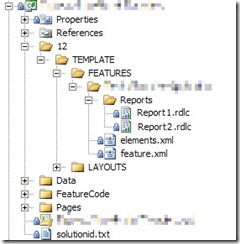
DeployCustomApplicationWSPProject_2

Below is a slightly modified version (removing application name, client code, variable names, and other extraneous items) of the feature receiver code.  As an added bonus, you’ll also see in the AddHttpHandlerVerb() method how another teammate developed a process to modify the web.config file of each virtual directory to allow the ReportViewer web control.  I wish I could claim that as well, but sadly it was done by the time I joined the team.  Here is a link to the below code: download code here.

   1:  using System;
   2:  using System.Collections.Generic;
   3:  using System.Text;
   4:  using System.IO;
   5:  using System.Web.Hosting;
   6:  using Microsoft.SharePoint;
   7:  using Microsoft.SharePoint.Administration;
   8:  using Microsoft.SharePoint.Utilities;
   9:  using System.Web;
  10:  using System.Web.UI;
  11:  using System.Web.UI.WebControls;
  12:  
  13:  namespace CustomApplication
  14:  {
  15:      class CustomApplication : SPFeatureReceiver
  16:      {
  17:  
  18:          private SPWebApplication _webApp;
  19:          private String _Owner;
  20:  
  21:          public override void FeatureActivated(SPFeatureReceiverProperties properties)
  22:          {
  23:              try
  24:              {
  25:          // get references to target web application and feature definition
  26:                  _webApp = (SPWebApplication)properties.Feature.Parent;
  27:                  _Owner = properties.Feature.DefinitionId.ToString();
  28:  
  29:                  DeployReportFiles();
  30:  
  31:          AddHttpHandlerVerb();
  32:              }
  33:              catch (Exception ex)
  34:              {
  35:                  string message = "Error occurred while activating CustomApplication feature";
  36:                  Logger.logException(ex, message, System.Diagnostics.EventLogEntryType.Error, "<GUID>");
  37:  
  38:                  throw new SPException("Error during Activation.  See event log for further details");
  39:              }
  40:          }
  41:  
  42:          public override void FeatureDeactivating(SPFeatureReceiverProperties properties)
  43:          {
  44:              try
  45:              {
  46:          // get references to target web application
  47:                  _webApp = (SPWebApplication)properties.Feature.Parent;
  48:  
  49:                  RemoveReportFiles();
  50:              }
  51:              catch (Exception ex)
  52:              {
  53:                  string message = "Error occurred while deactivating feature CustomApplication";
  54:                  Logger.logException(ex, message, System.Diagnostics.EventLogEntryType.Error, "<GUID>");
  55:  
  56:                  throw new SPException("Error during Feature Deactivation. See event log for further details");
  57:              }
  58:          }
  59:  
  60:          public override void FeatureInstalled(SPFeatureReceiverProperties properties)
  61:          {
  62:          }
  63:  
  64:          public override void FeatureUninstalling(SPFeatureReceiverProperties properties)
  65:          {
  66:          }
  67:  
  68:          private void DeployReportFiles()
  69:          {
  70:              // first remove report files if they exist
  71:              RemoveReportFiles();
  72:  
  73:          // loop through each IisSettings dictionary pair (zones [dafault, intranet, internet, etc.] configured for web application)
  74:              foreach (KeyValuePair<SPUrlZone, SPIisSettings> pair in _webApp.IisSettings)
  75:              {
  76:          // copy report from 12 Hive location to the IisSettings zone virtual directory
  77:                  File.Copy(SPUtility.GetGenericSetupPath(@"TEMPLATEFEATURESCustomApplicationReportsReport1.rdlc"), pair.Value.Path.FullName.ToString() + @"binReport1.rdlc", true);
  78:                  File.Copy(SPUtility.GetGenericSetupPath(@"TEMPLATEFEATURESCustomApplicationReportsReport2.rdlc"), pair.Value.Path.FullName.ToString() + @"binReport2.rdlc", true);
  79:              }
  80:          }
  81:  
  82:          private void RemoveReportFiles()
  83:          {
  84:          // loop through each IisSettings dictionary pair (zones [dafault, intranet, internet, etc.] configured for web application)
  85:              foreach (KeyValuePair<SPUrlZone, SPIisSettings> pair in _webApp.IisSettings)
  86:              {
  87:                  // if Report1 report exists, delete
  88:                  if (File.Exists(pair.Value.Path.FullName.ToString() + @"binReport1.rdlc"))
  89:                      File.Delete(pair.Value.Path.FullName.ToString() + @"binReport1.rdlc");
  90:  
  91:                  // if Report2 report exists, delete
  92:                  if (File.Exists(pair.Value.Path.FullName.ToString() + @"binReport2.rdlc"))
  93:                      File.Delete(pair.Value.Path.FullName.ToString() + @"binReport2.rdlc");
  94:              }
  95:          }
  96:  
  97:          private void AddHttpHandlerVerb()
  98:          {
  99:          // get reference to web config modification object and set properties
 100:              SPWebConfigModification HttpHandlerMod = new SPWebConfigModification();
 101:              HttpHandlerMod.Owner = _Owner;
 102:              HttpHandlerMod.Path = "configuration/system.web/httpHandlers";
 103:              HttpHandlerMod.Name = "add verb HttpHandler ReportViewer";
 104:              HttpHandlerMod.Value = "<add verb="*" path="Reserved.ReportViewerWebControl.axd" type = "Microsoft.Reporting.WebForms.HttpHandler, Microsoft.ReportViewer.WebForms, Version=9.0.0.0, Culture=neutral, PublicKeyToken=b03f5f7f11d50a3a" />";
 105:  
 106:          // if web configuration modification exists, remove
 107:              if (_webApp.WebConfigModifications.Contains(HttpHandlerMod))
 108:              {
 109:                  _webApp.WebConfigModifications.Remove(HttpHandlerMod);
 110:              }
 111:  
 112:          // apply web configuration modificatoin
 113:              _webApp.WebConfigModifications.Add(HttpHandlerMod);
 114:          }
 115:      }
 116:  }

What I like about this solution is that it was developed in a short amount of time (hour or two to work out kinks), it is easily repeatable, and can be applied to other needs besides just Reporting Services reports.  Please leave any feedback if you end up using this process, have suggestions to make it better, or have any other comments.  Thanks and enjoy.

<Update1 – 2009/12/1>

After 6 months using the below method to deploy files to our development environments, it wasn’t until just recently that I noticed a fatal flaw in the below design: files are only deployed on the server from which the feature activate command is processed.  In plain English, if you have 3 web front ends (WFEs) and you activate the feature on WFE1 then WFE1 will get the files, but WFE2 and WFE3 will not.  The solution to this problem was suggested by my new good friend Sean McDonough: deploy using a SharePoint timer job.  I’m working on ironing out some of the changes for this and will have a new post on the matter once that’s complete.  Look for a link to that post from here soon.

</Update1>

<Update2 – 2009/12/31>

Here is the link to the follow up post I mentioned above: Click here.  After doing a little research and trying out timer jobs I found that a timer job was not the best solution for my situation.  Instead I opted for a method of looping through the web front ends and doing a file copy directly to the servers.  That same mechanism can be wrapped around the logic in this post so that files are copied to all web application folders on each web front end.  Read more about it in that follow up post.

</Update2>


-Frog Out

SharePoint Saturday Cleveland 2009 Recap

As noted in my previous post I attended and spoke at the SharePoint Saturday Cleveland 2009 conference.  For those unfamiliar, SharePoint Saturday is a community driven event where various speakers gather to present at a FREE conference on all topics related to SharePoint.  This was my first SharePoint Saturday and it was a great community event to attend.  Over the past 6 months or so I’ve been following various Twitter users talking about SharePoint Saturdays in their region so I was excited to see what all the buzz was about.

Friday night I arrived in Cleveland for the speaker (nerd) dinner at Fahrenheit in Tremont.  I was finally able to put a face (real, not just their picture online) to various names like Eric Harlan (@ericharlan) and Jesse Murray (@lackscreativity) from the Baltimore and Detroit Sogeti offices, Rick Black (@ricknology), and also see some familiar faces again like John Ferringer (@ferringer), Sean McDonough (@spmcdonough), Callahan (@cacallahan) and Melissa Lucarelli (@smartyskirt).  Can you sense that I know too many people by their Twitter names?

Saturday started off early as I was scheduled to speak during the first session.  I gave my “The Power of PowerShell + SharePoint” presentation to about 20 people.  As most of the crowd was still waking up I threw in some jokes and funny slides to keep things lively.  They had a number of great questions as we went along and hopefully learned a good introduction to PowerShell and how to use it with SharePoint.

After my session I tried to attend talks on other topics that I hadn’t heard much about such as PerformancePoint, InfoPath Forms, SharePoint branding, and the new Metadata Manager.  I wish I could have attended more sessions, but only so much time in the day and I can only be in one place at a time.  Overall the level of content was good and I appreciate all the time and hard work each speaker put into the day.

Following the conference wrap-up session a dozen or so attendees and speakers met at The Blind Pig in downtown Cleveland for a ritual SharePint.  The Blind Pig was nice enough to host us and provide drinks and appetizers while us conference folks got to unwind from the day.  It was good to hear positive feedback from the conference and get to share SharePoint and personal stories.

As all good things must come to an end, so did my time at SharePoint Saturday Cleveland.  I was able to snap a few pictures which I’ve posted a link to below.  I’ve heard there will be a SharePoint Saturday Indianapolis early in 2010 as well as ones being planned for Pittsburgh and Columbus not far after.  If you’ve never been to a SharePoint Saturday I would highly encourage you to attend (did I mention it’s FREE!)  A final thanks to everyone who helped put on the event, spoke, sponsored, or had any hand in making this event happen.  Without you this never would have been possible.  I look forward to attending more such events and keeping the SharePoint community growing.

-Frog Out

SharePoint Saturday Cleveland Slides and Demo Scripts – PowerShell + SharePoint

     This weekend I spoke at the SharePoint Saturday Cleveland event and gave my “PowerShell + SharePoint” talk.  At some point I believe they will be publishing our slides and any demo items but I wanted to list mine here as I promised I would for various attendees.  Below are links to my SkyDrive where I have hosted these files.  If you have any questions or issues getting them let me know.  I’ll be posting a recap with some pictures soon as well.  Thanks to all who attended my presentation and SPSCleveland, look forward to more such events in the future.


SharePoint Saturday Cleveland demo files and slides


   -Frog Out