Slides, Code, and Photos from SPTechCon San Francisco 2011

    Note: Updated 2/12/11 with links to both presentation materials.

    This past week I presented two sessions at SPTechCon San Francisco 2011.  The first session was “The Expanding Developer Toolbox for SharePoint 2010” which .  Thanks to all of my attendees for this session.  They had so many great questions that we ran out of time before covering all of the planned material.  Especially for them I’ve provided the slides and code samples to walk through them on their own.

The second session was “Real World Deployment of SharePoint 2007 Solutions”.  In talking with attendees before the session many were looking for 2007 content.  At the conference SharePoint 2010 was represented much more heavily than 2007, so I was glad to fill a need in the community.

Slides and Code

Click here for “The Expanding Developer Toolbox for SharePoint 2010” materials

Click here for “Real World Deployment of SharePoint 2007 Solutions” materials

Photos

Pictures on FaceBook

Click here

Pictures on Windows Live (higher res)

Side Trips

Aside from the conference itself I also got to take a few side trips during the nights.  A special thanks to Dux Raymond Sy (Twitter) for organizing a Mongolian Hot Pot dinner on Monday (see pictures) and Michael Noel (Twitter) for organizing a Korean bbq dinner on Tuesday (again see pictures).  These were both new experiences for me and I thoroughly enjoyed the time with friends and trying something new.  Another thanks to Mark Miller (Twitter) for giving a personal tour around various sites of San Fran to myself and a few others.  It was great hearing the backstory of different neighborhoods and buildings from someone who had lived in the area for years.  Overall a great addition to the conference itself.

Conclusion

This is the 3rd SPTechCon I’ve attended and the conference is getting better with each iteration.  The fine folks at BZ Media should be proud of the effort they’ve put in.  The next SPTechCon will be in Boston in June.  As of right now I won’t be attending that one but I highly recommend anyone to go if you have the chance.

-Frog Out

Guest Post: Instantiate SharePoint Workflow On Item Deleted

In this post, guest author Lucas Eduardo Silva will walk you through the steps of instantiating a workflow using an item event receiver from a custom list.  The ItemDeleting event will require approval via the workflow.

Foreword

As you may have read recently, I injured my right hand and have had it in a cast for the past 3 weeks.  Due to this I planned to reduce my blogging while my hand heals.  As luck would have it, I was actually approached by someone who asked if they could be a guest author on my blog.  I’ve never had a guest author, but considering my injury now seemed like as good a time as ever to try it out.

About the Guest Author

Lucas Eduardo Silva (email) works for CPM Braxis, a sibling company to my employer Sogeti in the CapGemini family.  Lucas and I exchanged emails a few times after one of my  recent posts and continued into various topics.  When I posted that I had injured my hand, Lucas mentioned that he had a post idea that he would like to publish and asked if it could be published on my blog.  The below content is the result of that collaboration.

The Problem

Lucas has a big problem.  He has a workflow that he wants to fire every time an item is deleted from a custom list. He has already created the association in the “item deleting event”, but needs to approve the deletion but the workflow is finishing first. Lucas put an onWorkflowItemChanged wait for the change of status approval, but it is not being hit.

The Solution

Note: This solution assumes you have the Visual Studio Extensions for Windows SharePoint Services (VSeWSS) installed to access the SharePoint project templates within VIsual Studio.

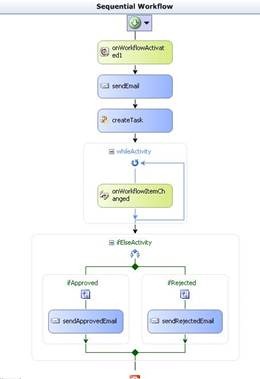
1 – Create a workflow that will be activated by ItemEventReceiver.
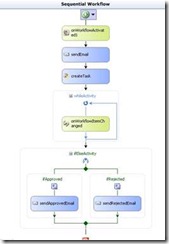
clip_image002

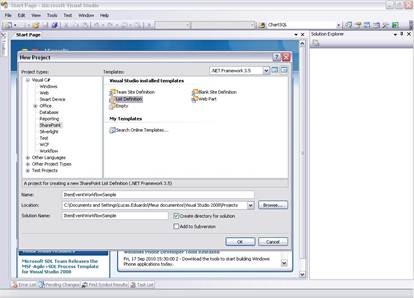
2 – Create the list by Visual Studio clicking in File -> New -> Project. Select SharePoint, then List Definition.
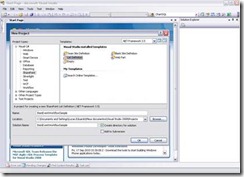
clip_image004

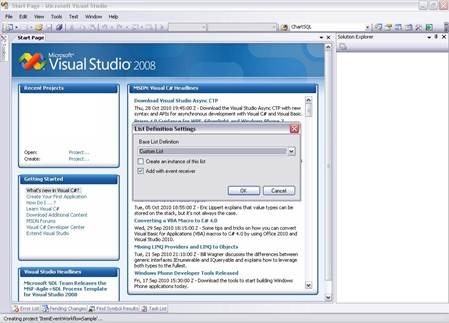
3 – Select the type of document to be created. List, Document Library, Wiki, Tasks, etc..
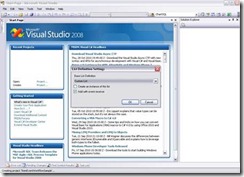
clip_image006

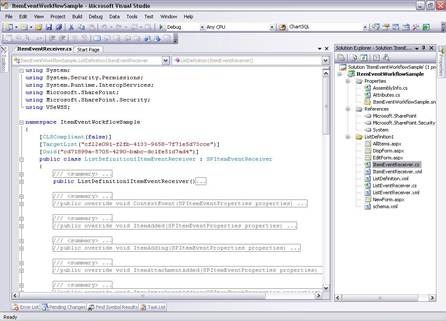
4 – Visual Studio creates the file ItemEventReceiver.cs with all possible events in a list.
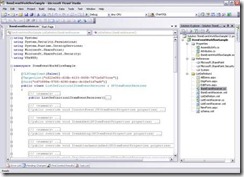
clip_image008

5 – In the workflow project, open the workflow.xml and copy the ID.

6 – Uncomment the ItemDeleting and insert the following code by replacing the ID that you copied earlier.

//Cancel the Exclusion 

properties.Cancel = true;


//Activating Exclusion Workflow

SPWorkflowManager workflowManager = properties.ListItem.Web.Site.WorkflowManager;


SPWorkflowAssociation wfAssociation =

    properties.ListItem.ParentList.WorkflowAssociations.

    GetAssociationByBaseID(new Guid("37b5aea8-792a-4ded-be25-d283d9fe1f9d"));


workflowManager.StartWorkflow(properties.ListItem, wfAssociation, wfAssociation.AssociationData, true);


properties.Status = SPEventReceiverStatus.CancelNoError;

7 – properties.Cancel cancels the event being activated and executes the code that is inside the event. In the example, it cancels the deletion of the item to start the workflow that will be active as an association list with the workflow ID.

8 – Create and deploy the workflow and the list for SharePoint.
9 – Create a list through the model that was created.
10 – Enable the workflow in the list and Congratulations!

Every time you try to delete the item the workflow is activated.

TIP: If you really want to delete the item after the workflow is done you will have to delete the item by the workflow.

this.workflowProperties.Site.AllowUnsafeUpdates = true;

this.workflowProperties.Item.Delete();

this.workflowProperties.List.Update();

Conclusion

In this guest post Lucas took you through the steps of creating an item deletion approval workflow with an event receiver.  This was also the first time I’ve had a guest author on this blog.  Many thanks to Lucas for putting together this content and offering it.  I haven’t decided how I’d handle future guest authors, mostly because I don’t know if there are others who would want to submit content.  If you do have something that you would like to guest author on my blog feel free to drop me a line and we can discuss.  As a disclaimer, there are no guarantees that it will be published though.  For now enjoy Lucas’ post and look for my return to regular blogging soon.

-Frog Out

<Update 1> If you wish to contact Lucas you can reach him at luesilva1102@gmail.com </Update 1>
PowerShell Script To Find All Closed Web Parts On SharePoint Site

Are your SharePoint pages loading slowly because you have numerous closed web parts eating up valuable resources?  Are you an admin tasked with tracking down those closed web parts?  Recently my friend Brian Gough asked me a fairly simple question: “Is it possible to use PowerShell to find all ‘closed’ webparts in a site collection?”  In this post I’ll show you a short PowerShell script that will identify all closed web parts on a site and it’s sub-sites.

Solution

The script below uses an advanced function (requires PowerShell V2) to search within a SharePoint and it’s sub-sites for all instances of closed web parts on all pages.  I use the SPLimitedWebPartManager associated with each page within the SPWeb object to get a reference to the web parts.  Since I am using the SharePoint API (loaded in the Begin block) directly you can run this against both SharePoint 2007 and 2010 (Note: only tested against SharePoint 2007 so far).  If you are running PowerShell V1 you can run just the code inside the function by itself and provide a site URL manually.

Click here to download the script.

function Search-SPClosedWebParts

{

<# 

 .Synopsis

  Finds instances of closed web parts on SharePoint site and sub-sites.

 .Description

  Finds instances of closed web parts on SharePoint site and sub-sites.

 .Parameter

  SiteUrl

  SiteUrl to search for closed web parts

 .Example

  Search-SPClosedWebParts

  Finds instances of closed web parts on SharePoint site and sub-sites.

#>

[CmdletBinding()]

param(

    [Parameter(Mandatory = $true, valueFromPipeline=$true)]

    [String]

    $SiteUrl

)#end param

    Begin

    {

        [void][System.Reflection.Assembly]::LoadWithPartialName("Microsoft.SharePoint")

    }

    Process

    {

        $site = new-Object Microsoft.SharePoint.SPSite($SiteUrl)


        $site.AllWebs | ForEach-Object {

            $currentWeb = $_

            $pages = $currentWeb.Files | Where-Object {$_.Name -match ".aspx"}


            $pages | ForEach-Object {

                $currentPage = $_

                $webPartManager = $currentWeb.GetLimitedWebPartManager($currentPage.ServerRelativeUrl, `

                    [System.Web.UI.WebControls.WebParts.PersonalizationScope]::Shared)


                $webPartManager.WebParts | ForEach-Object {

                    if($_.IsClosed)

                    {

                        Write-Host "'$($_.Title)' on $($currentPage.ServerRelativeUrl) is closed"

                    }

                }

            }


            $currentWeb.Dispose()

        }


        $site.Dispose()

    }

} #end Search-SPClosedWebParts


$siteUrlToSearch = Read-Host -Prompt "Enter site URL to check for closed web parts"


Search-SPClosedWebParts -SiteUrl $siteUrlToSearch

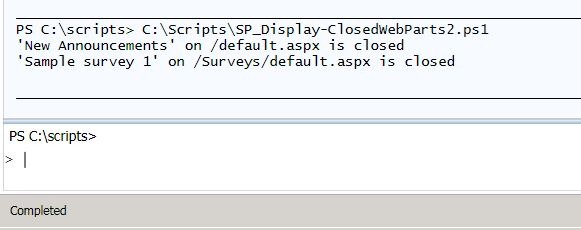
FindClosedWebPart1

Screenshot output from calling script

Conclusion

Using the SharePoint API and some basic looping structures I demonstrated a short script that can quickly and easily identify web parts that have been closed.  If desired you could modify the script to also automatically delete these closed web parts.  Since we are only concerned with finding instances of closed web parts I have left that functionality out for now.  Feel free to use and adapt this script as you like, but please attribute the original source if you re-publish or distribute a modified version.  Now go enjoy all that extra time you’ll have from not having to manually track down all those closed web parts.

-Frog Out

Links

Display closed web parts PowerShell Script

http://cid-9137d132751b949f.office.live.com/self.aspx/.Public/Blog%20files/SP%5E_Display-ClosedWebParts2.ps1

Slides, Scripts, and Photos from SPTechCon Boston 2010

A big thank you to everyone who attended my “Real-World Deployment of SharePoint 2010 Solutions” at SPTechCon Boston 2010 this week.  I hope you learned some things and can take them back to improve your farms.  This was my first time speaking at SPTechCon and second one attended.  It was great to catch up with countless old friends I haven’t seen in awhile as well as meet new friends.  I’m looking forward to speaking at SPTechCon San Francisco 2011 in Feb, so if you’re attending feel free to stop by one of my sessions.  Registration has already begun, but you can get a discount for registering early.  Based on Boston selling out this year I would recommend registering sooner rather than later to ensure your spot.

On a side note, special thanks to a few of my attendees who after hearing that I really like frogs recommended I stop by Frog Pond at Boston Commons while in town.  Thankfully I was able to swing by on my way to the airport for a few minutes.  Unfortunately the pond was closed for maintenance, but I was able to get my picture taken with a few of the frog statues in the area (see album below).  Yet another unique experience to have while traveling to different cities.


Slides and Scripts: click here


Photos

Facebook link (with tagging): click here

Live Photos link (higher res):

-Frog Out

Announcing “Save PowerShell To SharePoint” CodePlex Project

logo-home[1]

In this post I will talk about a new script I wrote to save PowerShell ISE files to a versioned SharePoint document library as well as a side project I created on CodePlex to host this code and future releases.

Background

Recently I began listening to the PowerScripting Podcast and I’m slowly catching up on old podcasts.  On episodes 121 and 122 (most recent ones I’ve listened to as of this writing) Hal and Jonathan talked about an idea that piqued my interest immediately: using SharePoint as a script repository for PowerShell scripts.  As I was in my car at the time I began to brainstorm ideas on how to accomplish this and what should be in scope for such a project.  As soon as I reached my destination I began working on a proof of concept and subsequent list of additional tasks to flesh this out.  Below you will find an adaptation of my C# code snippet to upload a file to a SharePoint document library (blogged about here) that I worked into a PowerShell script.

Add-Type -TypeDefinition @"

using System.Net;

using System.Text;


public class SharePointFileUploader

{

    public static void UploadFile(string textToOutput, string uploadPath)

    {

        ASCIIEncoding encoder = new ASCIIEncoding();

        byte[] bytesToOutput = encoder.GetBytes(textToOutput.ToString());

        using (WebClient client = new WebClient())

        {

            client.Credentials = System.Net.CredentialCache.DefaultCredentials;

            client.UploadData(uploadPath, "PUT", bytesToOutput);

        }


        return;

    }

}

"@


$documentLibraryPath = Read-Host -Prompt "Enter URL of Document Library";

$documentLibraryPath = $documentLibraryPath.TrimEnd('/')


foreach($aFile in $psise.CurrentPowerShellTab.Files)

{

    $textToOutput = $aFile.Editor.Text;

    $uploadPath = "$documentLibraryPath/$($aFile.DisplayName.Replace('*', ''))";


    [SharePointFileUploader]::UploadFile($textToOutput, $uploadPath)

}

What The Script Does

Note: This script is just a proof of concept that took 15 minutes to write and is not entirely fleshed out.  With that said, this script declares a new type that uploads a string to a specified URL path.  Next it loops through all open files in your PowerShell ISE and uploads the content of these files (even unnamed/unsaved files) to a SharePoint document library using our newly added type.  The beauty is that if you have turned on versioning for your document library the file content will add a new version.

Future Goals

While it is nice to have a script that performs this upload manually, wouldn’t it be nice to have this functionality happen automatically similar to how Microsoft Office Word or Excel auto saves your work every X minutes.  That idea has led me to draw up some additional features I would like to build in as my spare time allows.  Here are a few of those planned features (some already under development or research begun):

  • Create/select SharePoint document library through a form (WPF?)
  • Create background job to automatically run upload process every X minutes while PowerShell host is open
  • Add support for PowerShell console (history commands?)
  • Add support for deploying as a module with configuration settings in profile
  • Add support for SharePoint 2010 native PowerShell commandlets
  • Retrieve past version of script from document library
  • Create help file

After I started writing down these features I began to realize that perhaps there would be enough interest to make this script into a CodePlex project that could be community developed and reviewed.

CodePlex Project

I am happy to announce the creation of Save PowerShell To SharePoint as a new CodePlex project.  I have to admit, I have never created or participated in a CodePlex project up to this point.  Despite my lack of previous involvement I feel like this is a great pet project for me to break into a community project.  This project is currently in the alpha stages while I upload the script code and work on documenting the current status and to-do items.  I’m trying to work towards attainable goals and plan on this being an organic project rather than planning on version X.0 from the get go.

Conclusion

In this post I provided a proof of concept PowerShell script for uploading the currently opened files in a PowerShell ISE instance and also announced the creation of my first CodePlex project Save PowerShell To SharePoint.  Overall I am very excited to begin work on this project as it combines two of my great passions: PowerShell and SharePoint.  A big thank you to Hal and Jonathan for bringing up this idea as I don’t want to steal any of their credit for the formation of the idea.  Once again it amazed me that PowerShell provided a lightweight platform to throw together a useful script in such a short amount of time.  I know that I won’t be able to devote as much time to this as I would like at first, but great things start with baby steps.  Please feel free to try out the script and leave feedback on the project site as development progresses.

-Frog Out

Links

PowerScripting Podcast home page

PowerScripting Podcast Episode 122 – Don Jones Scripting Editor Shoot-Out

PowerScripting Podcast Episode 121 – Jay Dave on UAC and AppLocker

Programmatically uploading files to a SharePoint 2007 document library

Save PowerShell To SharePoint CodePlex project page

Slides and Scripts from BuckeyeSPUG August 2010 Presentation

    This month I had the pleasure of presenting at the BuckeyeSPUG (formerly Central Ohio SPUG) meeting here in Columbus, OH.  This is the first time I was the main presenter at our user group, having done small presentations along with other presenters in past meetings.  The attendees had some great questions and hopefully learned some new tricks to use on their SharePoint 2007 farms.  Thanks to everyone who came out.  Below are the slides and demo scripts for those interested.


Slides and Scripts: click here