Fixing “Failed to create field: Field type is not installed properly” Error on SharePoint 2010 List

Upgrading a SharePoint farm can reveal hidden issues that may not be causing any visible consequences in your current environment.  This was especially the case in a recent customer visit to assist with an upgrade from SharePoint 2007 to SharePoint 2010.  During the upgrade we encountered the error “Failed to create field: Field type <field name> is not installed properly” while attempting to upgrade hundreds of SharePoint lists and document libraries.  The issue my customer faced related to a single 3rd party company’s custom field which I have removed to keep confidentiality.  Below is a recap of what we encountered and how we worked around the issue.  I am also making available the PowerShell script I wrote to find all instances of a field name in a web application.

Problem

The field that was causing the issue was a hidden column (SPFIeld.Hidden = true, MSDN link) that was installed by a 3rd party solution the customer no longer wanted to use.  The customer had uninstalled the 3rd party WSP file, but the custom field still existed on hundreds of lists and document libraries.  Unfortunately because the column was hidden it didn’t show up in the list settings page.

When the customer tried to upgrade the environment they had an entry in the ULS logs with the below information.  The message is the key piece of information.

Area SharePoint Foundation
Category Fields
Event ID 8l1l
Level High
Message Failed to create field: Field type <field name removed> is not installed properly.  Go to the list settings page to delete this field.
Correlation ID <correlation ID>

As the error message stated we could go to the list settings page to delete the field.  Unfortunately the error message (and the next ULS entry with the stack trace) didn’t specify which lists contained the problematic field.  I thought it best to use PowerShell to traverse the thousands of lists and libraries in the environment to find which ones contained a field matching the problem field name.

In order to do this I repurposed an script I had written to display all site collection administrators in a web application.  I thought finding instance of the field name would be as easy as calling SPList.Fields.Contains(“field name looking for”) but I was wrong.  The problem was that the SPFieldCollection enumerator was not able to successfully enumerate the fields on any lists that contained the problematic field.  I received an error similar to what I saw in the ULS logs about the problematic field not installed properly.

Receiving an error was not entirely useless though.  I knew that receiving an exception while enumerating the list fields would point me to the lists that I needed to correct.  I decided to use the Try / Catch construct to capture the exception and add that list (and it’s parent SPWeb) to an array of results.  Below is a slightly modified version of the script that I ended up using.  You can download the script below as well.

###############################################################
#SP_Display-InstancesOfErroringFieldNameInWebApp4.ps1
#
#Author: Brian T. Jackett
#Last Modified Date: Dec. 7, 2011
#
#Traverse the entire web app site by site to display
# instances of a field name on lists.  Expectation is that
# enumeration of list will produce an error that can be
# captured.  Does not work against external lists at this time.
###############################################################

$url = read-host -Prompt "Enter a web application URL"

$result = @()

Start-SPAssignment -Global
$webApp = Get-SPWebApplication $url

foreach($site in $webApp.Sites)
{
    write-debug "Site: $($site.url)"
    foreach($web in $site.allwebs)
    {
        write-debug "   Web: $($web.name)"
        foreach($list in $web.lists)
        {
            try
            {
                #if an error occurs when enumerating through the list fields then a result
                $list.Fields | out-null
            }
            catch
            {
                write-debug "      List Error: $($list.title)"

                #disable allowing multiple content types on list (used later in blog post)
                $list.ContentTypesEnabled = $false
                $list.Update()

                #store the web URL and list title with the erroring field
                $result += @{$($web.url)=$($list.title)}
            }
        }
    }
}

write-output "****Results****"
$result

Stop-SPAssignment -Global

The output of the script showed that the customer had hundreds of lists and libraries that contained the problematic field.  Since this was affecting hundreds of lists I thought it would be more efficient to use PowerShell to loop through all lists that were experiencing this issues and remove the field using the server Object Model API for SPField.Delete().  Unfortunately when I used that API method I received an error message stating that it is not possible to remove a SharePoint field that is hidden.  Frustration ensued.

Solution

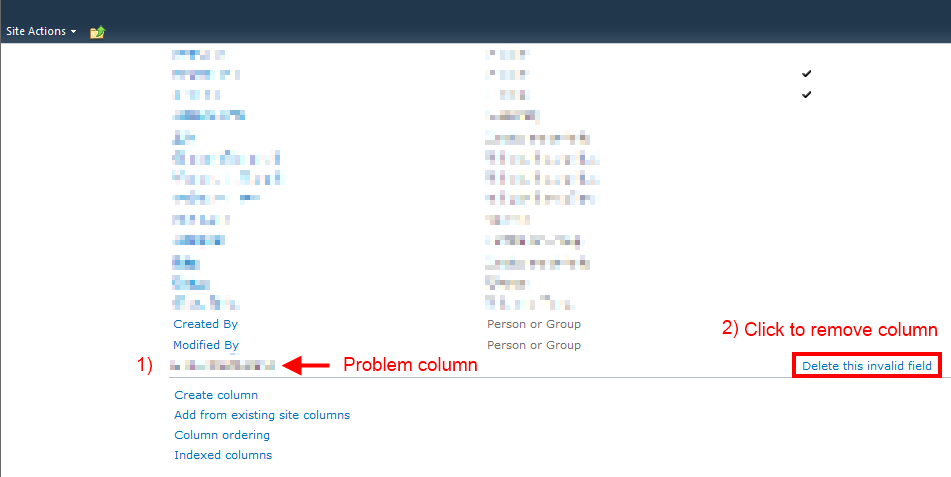
Since programmatic deletion of the field was not possible  I resorted to following the error message instructions of removing them by hand on the list settings page. I was able to delete the field from about 20% of the lists using this method (see following screenshot.)
DeleteInvalidSPListField1

The remaining 80% of the problematic lists I received an error page stating that the list settings page was not viewable because the problem field was not installed properly.  More frustration ensued.

At this point I looked for a pattern between lists that I could view the settings pages and those that I could not view.  One pattern did emerge.  Lists that I could view did not allow multiple content types.  Lists that I could not view had the setting for “Allow management of content types” set to Yes (see following screenshot.)

DeleteInvalidSPListField2

    Now because I was not able to view the list settings page I couldn’t turn off management of content types through the UI.  I was able to modify the setting using PowerShell and the server Object Model API for SPList.ContentTypesEnabled though.  I updated my above script to include the below lines.

$list.ContentTypesEnabled = $false

$list.Update()

After the lists were updated to disallow multiple content types I was then able to view the list settings page through the UI.  This allowed us to clean up an additional 75% of the lists.  Sadly there were a few dozen lists that were still unable to view the list settings page.  For those isolated list instances it was decided to either migrate content from the existing 2007 farm by hand (download and re-upload) or have users delete and recreate the content.

Conclusion

In order to fix the lists the contained the problematic field we had to go through the UI to manually remove the field.  To get a listing of the affected lists I used the PowerShell script above to find all lists that could not enumerate through their fields.  Additionally most lists required that I disabled multiple content types on the lists.  This may be an unacceptable option in your environment but that was an acceptable loss in this environment.  Beyond that there were still lists that were not able to be saved in their current form.

Whenever you install or use any 3rd party solutions know that there can be risks associated with them.  Despite my customer having uninstalled the solution and tested the migration previously this issue still occurred.  With all of the support staff involved we ended up losing days worth of time due to this problematic field.  Hopefully if you run into this same scenario you can use this audit script and processes to troubleshoot your issue more quickly.

-Frog Out

Speaking at SPS Cincinnati 2011

SharePointSaturdayCincinnati

On Saturday Oct 29th, 2011 I’ll be speaking at SharePoint Saturday Cincinnati.  My presentation is “PowerShell for the SharePoint 2010 Developer” which covers an introduction to PowerShell while focusing on integration with SharePoint and the .Net framework.  This presentation has a fair amount of demonstrations and sample code.  I’m excited to be attending SPSCincinnati as it is a short drive from Columbus and I also know a number of the other speakers and organizers.  It’s looking to be a great conference.  Click here for registration information.


Sessions

Where: SharePoint Saturday Cincinnati 2011

Title: PowerShell for the SharePoint 2010 Developer

Audience and Level: Developer, Intermediate

Abstract: PowerShell is not just for SharePoint 2010 administrators. Developers also get access to a wide range of functionality with PowerShell. In this session we will dive into using PowerShell with the .Net framework, web services, and native SharePoint commandlets. We will also cover some of the more intermediate to advanced techniques available within PowerShell that will improve your work efficiency. Not only will you learn how to automate your work but also learn ways to prototype solutions faster. This session is targeted to developers and assumes a basic familiarity with PowerShell.

Slides and Code download: click here


Title: The Expanding Developer Toolbox for SharePoint 2010

Audience and Level: Developer, Beginner

Abstract: PowerShell is not just for SharePoint 2010 administrators. Developers also get access to a wide range of functionality with PowerShell. In this session we will dive into using PowerShell with the .Net framework, web services, and native SharePoint commandlets. We will also cover some of the more intermediate to advanced techniques available within PowerShell that will improve your work efficiency. Not only will you learn how to automate your work but also learn ways to prototype solutions faster. This session is targeted to developers and assumes a basic familiarity with PowerShell.

Slides and Code download: click here

Note: This was a last minute added session that I was asked to present due to a speaker cancellation.


Conclusion

I had an excellent time at this SharePoint Saturday from the fun speaker dinner to meeting new and old friends at the conference to presenting my two sessions (one added due to a speaker cancellation).  I’m glad to see Cincinnati has a vibrant SharePoint community especially with their first SPS.  Good to see Ohio is going strong in multiple cities.


-Frog Out

PowerShell Script To Traverse All Sites In SharePoint 2010 (or 2007) Farm

    Over the past few years I’ve written a number of blog posts on performing various actions against a site collection or web application (display site collection admins, find all SPShell admins with database, find closed web parts).  Invariably with every post I get some comments along the lines of “this is great, how can I run this against every site in the farm”.  Well today you get your wish (sort of).  Below you will find a template script that traverses all sites within your local farm.  Isn’t that great!?!

    In it’s current state this script will simply output the title and URL of every site within the farm.  You may modify the function to perform your desired actions.  One stipulation is that you must have proper access to each of the web applications / site collections in order to actually traverse them.  Please leave any feedback that you have on this template in the comments.


Scripts

SharePoint 2010

Download the SharePoint 2010 template here.


Here is the source as well

function RecurseSiteAndDoSomething() {
    param([Microsoft.SharePoint.SPWeb]$SiteIdentity)

    Write-Output "Site: $($SiteIdentity.Url)"
    
    if($SiteIdentity.Webs.Count -gt 0)
    {
        foreach($subWeb in $SiteIdentity.Webs)
        {
            RecurseSiteAndDoSomething -SiteIdentity $subWeb
        }
    }
}

$contentWebAppServices = (Get-SPFarm).services |
 ? {$_.typename -eq "Microsoft SharePoint Foundation Web Application"}

foreach($webApp in $contentWebAppServices.WebApplications)
{
    Write-Output "Web Application: $($webApp.name)"
    foreach($siteColl in $webApp.Sites)
    {
        Write-Output "Site Collection: $($siteColl.Url)"
        RecurseSiteAndDoSomething -SiteIdentity $($siteColl.RootWeb)
    }
} 

SharePoint 2007

I am still ironing out a few things with the SharePoint 2007 version, but here is the current script.


function RecurseSiteAndDoSomething() {
    param([Microsoft.SharePoint.SPWeb]$SiteIdentity)

    Write-Output "Site: $($SiteIdentity.Url)"
    
    if($SiteIdentity.Webs.Count -gt 0)
    {
        foreach($subWeb in $SiteIdentity.Webs)
        {
            RecurseSiteAndDoSomething -SiteIdentity $subWeb
        }
    }
}

$contentWebAppServices = ([Microsoft.SharePoint.Administration.SPFarm]::Local).services | 
? {$_.typename -eq "Microsoft SharePoint Foundation Web Application"}

foreach($webApp in $contentWebAppServices.WebApplications)
{
    Write-Output "Web Application: $($webApp.name)"
    foreach($siteColl in $webApp.Sites)
    {
        Write-Output "Site Collection: $($siteColl.Url)"
        RecurseSiteAndDoSomething -SiteIdentity $($siteColl.RootWeb)
    }
} 


Conclusion

    In this post I presented a template script for recursively traversing each site within the local SharePoint farm.  This is just a first pass at this template.  If I make any updates in the future I will update this post to reflect.


      -Frog Out

Unable To Activate SharePoint 2010 Publishing Features If Create Subsites Is Disabled

Recently I was at a client that was experiencing an odd issue: they couldn’t activate the SharePoint Server Publishing Infrastructure site collection feature. In this post I’ll walkthrough some of the processes that we went through to diagnose the error. For those wanting the short version it turns out the web application policy for “Create Subsites” had been disabled.  You can jump to the Solution section jump to the solution section below.


Diagnose

To start we checked the ULS logs to see what showed for the correlation ID.  Results were inconclusive.  We found a whole host of errors, but nothing seemed definitive.  The most promising error was related to an “access denied” and failure to create site PressReleases (remember this point.)  The logged in user had full control access to the site, was a site collection administrator, and had no other warning signs of why it would get an access denied error.

We checked the web application policies applied to the permission levels (Full Control, Contributor, etc.) to see if any had denied any permissions.  All were showing as enabled.

We then tried to replicate the error in a different site collection in the same web application.  That attempt failed.  This verified that it wasn’t an issue with just that site collection so we went one level higher and created a new web application.  On the new web application we attempted to activate the feature in a new site collection which succeeded.  This led us closer to determining it was an issue with the web application.

In order to get more information about the above errors we turned verbose logging on for all options.  We then triggered the error and read through the ULS logs (now with verbose details).  After a bit of digging we found the following line that stuck out.

“PermissionMask check failed. asking for 0x00800000, have… <permission mask we had>”

I looked up the permissions masks within the SPRights class (click here) to find out the permission it was asking for.  It turns out 0x00800000 corresponds to the “ManageSubwebs” right.  Looking back this validated our error for failure to create site PressReleases.

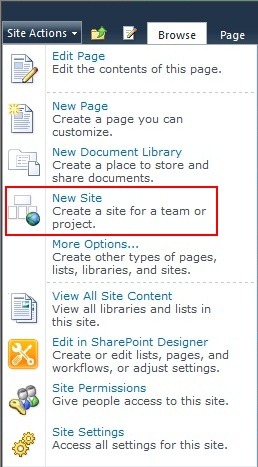
We then decided to create a blank subsite to see if that also had an issue.  This is where we really honed in on the issue: the menu option to create a subsite was missing!  The create list, page, and other options were available but not create subsite.

CreateSubSites2

    Here is a screenshot of the out of the box action menu for comparison.  Notice that “New Site” is an available option.

CreateSubSites3


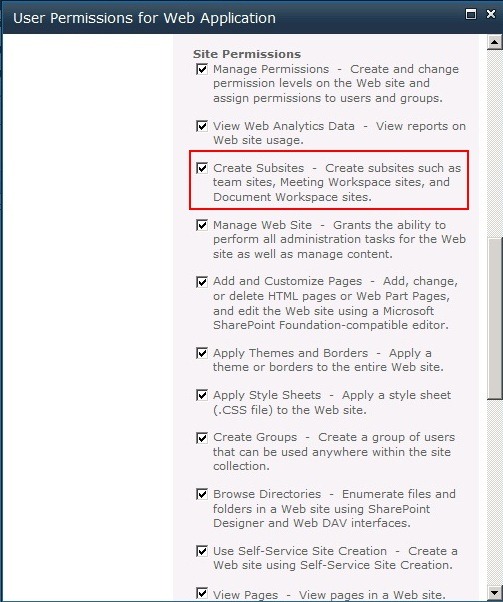
Now that we found we couldn’t create subsites we returned again to Central Administration for the web application policy.  The previous time we checked the policies applied to permission levels but not the overall policy.  As we scrolled down the allowed permissions lo and behold we found something disabled: Create Subsites.


Solution

Navigate to Central Administration and click Manage Web Applications.  Click the picture of a person with a key in front.  Scroll down until you see the Create Subsites permission.  Check the box for this permission.


CreateSubSites4

CreateSubSites1


Conclusion

In summary the client was experiencing issues with activating the publishing infrastructure features.  A side issue we noticed was that we couldn’t create subsites which also turned out to be the root cause.  Although we took a few twists and turns while troubleshooting this issue I hope you see some of the common areas and thought processes to go through.


-Frog Out


Links

SPRights permissions masks

http://technet.microsoft.com/en-us/query/dd585419

SharePoint Saturday Columbus 2011 Call for Speakers and Sponsors Is Open

2011_SPS_Logo_Columbus

Once again myself and a great group of individuals (Jennifer Mason, Sean McDonough, Nicola Young, and Michelle Caldwell) are organizing a SharePoint Saturday in Columbus, OH.  The event will be on August 20, 2011 at the OCLC Conference Center, a fantastic venue that attendees (including speakers and sponsors) gave high praises on for last year’s event.

Today we announced the opening of call for speakers and sponsors.  If you are interested in speaking please fill out the speaker submission form (click here) and email back to spscolumbus@live.com by July 6th.  If you are interested in sponsoring please email spscolumbus@live.com for details.  We have many sponsorship opportunities available.  You can find more information for both on the SPSColumbus homepage (website).

Registration has not yet opened, but stay tuned for details.  We’re looking to make this an even better event this year.  Hope to see you there!


-Frog Out

PowerShell Script To Display All SharePoint Site Collection Administrators In Web Application

In this post I present a script that will display all of the site collection administrators for a given web application.  This script will work for SharePoint 2007 or 2010 as it uses the object model rather than the new SharePoint 2010 commandlets.  Special thanks to Tasha Scott (Twitter) for posting a request for this script.  It took less than 15 minutes to come up with and formalize.

tweet1

Solution

The solution is fairly straight forward.  First you grab a reference to a site collection.  Get the web application from that.  Then loop through all of the site collections within the web application.  For each site collection iterate over the SiteAdministrators property for the RootWeb.  Then write out the site url and admin display names.  The script below is the condensed version, but the version on the Script Repository is a bit fleshed out.

Click here for link to TechNet Script Repository full version

$siteUrl = Read-Host "Enter Site URL"


$rootSite = New-Object Microsoft.SharePoint.SPSite($siteUrl)

$spWebApp = $rootSite.WebApplication


foreach($site in $spWebApp.Sites)

{

    foreach($siteAdmin in $site.RootWeb.SiteAdministrators)

    {

        Write-Host "$($siteAdmin.ParentWeb.Url) - $($siteAdmin.DisplayName)"

    }

    $site.Dispose()

}

$rootSite.Dispose()

Conclusion

As in past times a friend on Twitter has run into a roadblock, requested help, and I was able to come up with a PowerShell script in a short amount of time to solve the problem.  I really enjoy the SharePoint community and how it can band together when situations like this arise.  Hopefully you’ll use this script and share some of your own in the future.  For now enjoy documenting the site collection admins in your farm.

-Frog Out