Implementing the AJAXControlToolkit AutoCompleteExtender inside SharePoint

<Foreword>For those looking for help integrating the AJAXControlToolkit with SharePoint check out this post: Integrating ASP.NET AJAX with SharePoint</Foreword>

I’ve never been one to use JavaScript that much in my web development, partially because I haven’t had much training with it and partially because I usually work on heavy server side web applications.  My current work project was well suited for some of the AJAXControlToolkit controls so I’ve been trying out other controls in the toolkit to see what uses they may have.  Last week I ran into a difficult client request that I didn’t have an efficient solution for in my first few passes.  Here’s the back story.

The client has 500+ stores that they operate and part of the web application I’m designing sends messages between those stores.  The user will select various criteria for which stores are included: zone, district, state, etc.  One of the selections happens to be a custom store group code.  The number of store group codes currently used is well above 8000.  Obviously making the end user scroll through a list of 8000+ options is not ideal.  After attempting to implement a quick proof of concept of how bad performance was the web page chugged after every action.  The page size alone was over 1 MB and response time was going on 15-30 seconds or more.  What I wanted to present was something akin to a search engine (http://www.bing.com as an example) suggestion box that gives the user suggestions as they type.
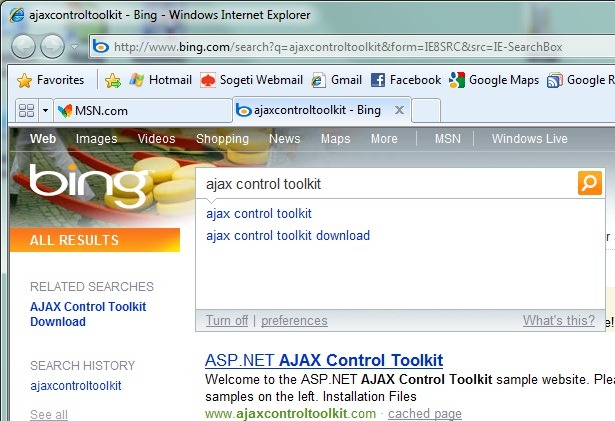
AutoCompleteExtender3

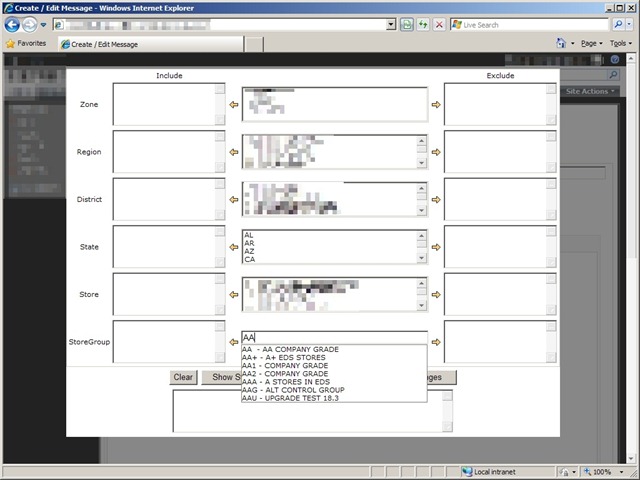
With this type of solution I could have the user filter the available options to less than 600 with just 1 letter entered and less than 50 with 2 letters entered.  Not only would this be more manageable to search through, but it would also save posting all of that extraneous data into the web page file thereby reducing the page size considerably.  Eventually I ran across the AutoCompleteExtender from the AJAXControlToolkit.  The way this control extender works is that you wire up a target control (textbox) and a web service that you will call into to get your results.  Below is part of the code needed to get this working.  I included a TextBoxWatermarkExtender as well to give a hint to the user.

TextBox txt = new TextBox();

txt.ID = "txtStoreGroupList";

txt.Width = Unit.Percentage(100);

table.Rows[rowNum].Cells[3].Controls.Add(txt);


table.Rows[rowNum].Cells[3].Controls.Add(new LiteralControl("Type at least 2 characters of store group code"));


// watermark extender gives directions on adding store groups

AjaxControlToolkit.TextBoxWatermarkExtender twe = new AjaxControlToolkit.TextBoxWatermarkExtender();

twe.ID = "tweStoreGroupList";

twe.TargetControlID = "txtStoreGroupList";

twe.WatermarkText = "Begin typing store group code...";

table.Rows[rowNum].Cells[3].Controls.Add(twe);


// autocomplete extender enables lookup of store groups without loading all 8000+ onto page

AjaxControlToolkit.AutoCompleteExtender ace = new AjaxControlToolkit.AutoCompleteExtender();

ace.ID = "aceStoreGroupList";

ace.ServiceMethod = "GetStoreGroupCompletionList";

ace.ServicePath = "/_layouts/autocompleteservice.asmx";

ace.TargetControlID = "txtStoreGroupList";

ace.MinimumPrefixLength = 2;

ace.CompletionSetCount = 50;

ace.CompletionInterval = 300;

ace.EnableCaching = true;

table.Rows[rowNum].Cells[3].Controls.Add(ace);

Looking at the implementation of the AutoCompleteExtender I require a “MinimumPrefixLength” of 2 and a “CompletionSetCount” of 50 so that the result set is manageable.  I have created a Web Service “autocompleteservice.asmx” with a web method “GetStoreGroupCompletionList” to return my suggestion short list.  This required a little bit of trickery to get working, so note the web service and web method decoration attributes.

[WebService(Namespace = "Your namespace goes here")]

[WebServiceBinding(ConformsTo = WsiProfiles.BasicProfile1_1)]

[System.Web.Script.Services.ScriptService]

public class AutoCompleteService : System.Web.Services.WebService

{

    static string _connectionstring = null;

    static DataTable dt = null;


    public AutoCompleteService()

    {


    }


    [System.Web.Services.WebMethod]

    [System.Web.Script.Services.ScriptMethod]

    public string[] GetStoreGroupCompletionList(string prefixText, int count)

    {

        List<string> results = new List<string>();


        // if datatable for store group data is empty, skip this step

        if (dt == null )

        {

            // CALL INTO DATABASE FOR RESULTS REMOVED


        }


        DataRow[] rows = dt.Select("Group_Code LIKE '" + prefixText + "%'");


        for (int i = 0; i < rows.Length  && i < count; i++)

        {

            results.Add(rows[i]["FormattedDescription"].ToString());

        }


        return results.ToArray();

    }

}

Be sure to include the “[System.Web.Script.Services.ScriptService]” attribute for the web service and the “[System.Web.Script.Services.ScriptMethod]” on the web method as they are not typical inclusions (thanks to this post for leading me in the right direction).  Essentially what they do is allow for the AJAX (any JavaScript really) to call this web service and web method.  Without them you will get something like a giant list of “undefined” values returned.  Now we simply need to publish this web service to a location that SharePoint can reach.  I chose the “/_layouts/” folder for convenience sake.  You could easily publish it to a different location or server that you have access to if needed.

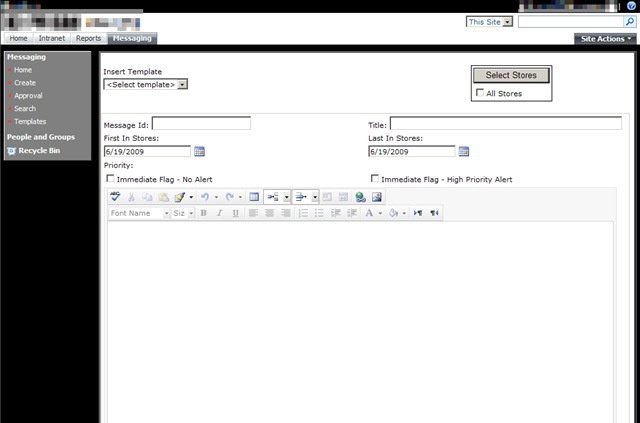
What we end up with is a very nice and easy to use textbox with suggestions that improves performance, improves the user experience, and required minimal coding to complete.
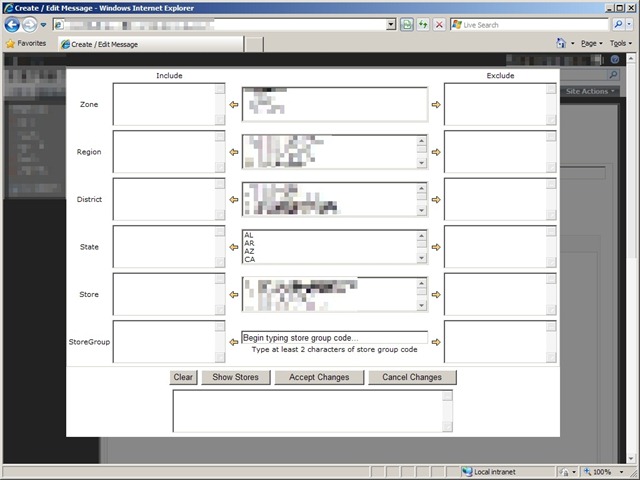
AutoCompleteExtender1

AutoCompleteExtender2

As always please leave any feedback if you liked/disliked this example, have suggestions, etc.  Feel free to “borrow” my code snippets but please include references to the source material here if you do.

-Frog Out
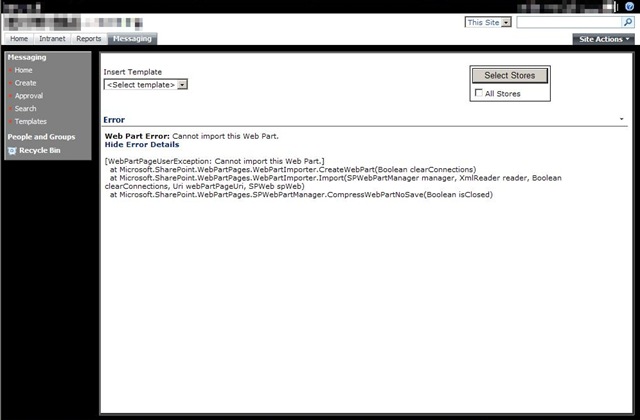
“Cannot import this Web Part” Error with SharePoint Site Template

Generic error messages… SharePoint can sometimes be full of them.  This morning I ran into the “Web Part Error:: Cannot import this Web Part” error (below) that I’ve seen many times before, but none of the usual fixes corrected it.

AddWebPartError1a

The background story is that I’m developing a number of site templates that are pre-populated with security groups, lists, content types, and web parts for easy deployment of a custom application hosted on a SharePoint site.  [As an aside, in the next week or so I’ll be posting about how to get started on setting up site templates and what tools you can use to make your life much easier].

Up until this morning there were never any problems deploying the web part in question.  This morning we did a new push of our build to the test environment.  Most times we completely wipe out the site collection and start from scratch (to catch errors just like this).  As it turns out, this web part was only throwing an error if it was added at site creation/provisioning time.  If you deleted and re-added the web part it would function as normal.

Doing some compares on the source code for the web part showed that I had recently added some security checks to ensure the user accessing the page had proper permissions (i.e. Site Readers couldn’t use an edit textbox in the web part).  As I was performing this check numerous times, I decided to run the check once and store the outcome in a variable.  Unfortunately I placed that security check in the Web Part constructor code (see below).

public MessageEditor()
{
this.ExportMode = WebPartExportMode.All;// my security check was here
}

After a little sleuthing I moved the security check code out of the constructor and into my CreateChildControls() method.

        protected override void CreateChildControls()
{
if (!_error)
{
try
{
base.CreateChildControls();// new location of security check// add controls to the web part
this.Controls.Add(TableControl());
}
catch (Exception ex)
{
HandleException(ex);
}
}
}


Making that little adjustment allowed the web part to be added without an error.  Apparently during site creation, the account that was instantiating the site (SharePoint System or perhaps the Application Pool ID?) was throwing an exception when hitting the security check code in the constructor.

AddWebPartError2

So lessons learned for the day:

  1. Do complete site rebuilds often to catch very rare bugs such as this
  2. Be aware of where you place your custom code
  3. SharePoint errors (can) lead to learning the intricacies of how it works as a web application

As I said, starting to prepare some material for a future blog post on how to export site data such as content types, site definitions, etc.  Until then, leave feedback if you found this article helpful and remember to share your knowledge with others.

– Frog Out

An Alternative for the Modal Popup in SharePoint 2007

This week I got to play with some of the controls in the AJAX Control Toolkit, specifically the Modal Popup Extender.  I hadn’t gotten a chance to sink my teeth into anything AJAX so I was pretty excited to see what it offers.  On my current project I’m building custom web parts for a SharePoint application being used on limited size screens (think 800×600).  As such we need to be very resourceful with screen real estate and limit the number of page changes.

The Modal Popup Extender sounded like a great fit for popping up additional entry forms without causing the user to navigate away from the primary entry screen.  As many people who have attempted to implement the Modal Popup Extender on SharePoint can attest (example 1 & example 2) there are compatibility issues with properly viewing the popup.  I quickly ran into some of those issues with the pop up not appearing at the X and Y coordinates specified, the background CSS wasn’t properly rendered, or a host of other errors.  I added the below DOCTYPE tag to the master page as suggested by many people.

<!DOCTYPE html PUBLIC “-//W3C//DTD XHTML 1.0 Transitional//EN” “http://www.w3.org/TR/xhtml1/DTD/xhtml1-transitional.dtd”&gt;

Adding the DOCTYPE did help rendering the modal popup, but I began to see errors rendering out of the box SharePoint controls.  As I wasn’t willing to sacrifice out of the box controls for the modal popup extender, we began to search for alternatives.

I quickly found an example offered on a forum, but the formatting and implementation were not very clean or well suited to my needs.  I decided to clean up the code and below is what resulted.  Now we have a modal popup box with disabled background functioning through a web part.

Add the first control which will be the darkened background panel.

private Panel ModalBackgroundPanelControl()

{

// panel will hold modal popup items

Panel pnlModal = new Panel();

pnlModal.ID = "pnlModal";

pnlModal.Style["display"] = "none";

pnlModal.Style["position"] = "absolute";

pnlModal.Style["left"] = "0px";

pnlModal.Style["top"] = "0px";

pnlModal.Style["z-index"] = "9";

pnlModal.Style["background-color"] = "#383838";

pnlModal.Style["filter"] = "alpha(opacity=60)";


return pnlModal;

}

Add the second control which will be the modal popup panel.  This panel contains an update panel which will house some controls of its own (buttons, textboxes, inputs, etc).  I place all but the OK button inside this update panel since we want only the OK button to perform a postback (which resets the modal popup) and the other input controls to maintain the modal popup.

private Panel ModalSelectStoresPanelControl()

{

    Panel pnlSelectStores = new Panel();

    pnlSelectStores.ID = "pnlSelectStores";

    pnlSelectStores.Style["display"] = "none";

    pnlSelectStores.Style["position"] = "absolute";

    pnlSelectStores.Style["left"] = "250px";

    pnlSelectStores.Style["top"] = "25px";

    pnlSelectStores.Style["z-index"] = "10";

    pnlSelectStores.Style["background-color"] = "#FFFFFF";


    // add update panel so that interior controls added don't perform postback

    // update panel contains its own controls for program logic

    pnlSelectStores.Controls.Add(ModalSelectStoresUpdatePanelControl());


    // add OK button control

    pnlSelectStores.Controls.Add(AcceptChangesButtonControl());


    return pnlSelectStores;

}

Lastly is a “Select Stores” button which will fire off the modal popup.  Note the Javascript event handler which essentially sets the display attribute to none or showing (block).

private Button SelectStoresButtonControl()

{

    Button btnSelectStores = new Button();

    btnSelectStores.ID = "btnSelectStores";

    btnSelectStores.Text = "Select Stores";


    // get reference to the client id for popup panels

    string modalPanelClientId = ((Panel)this.FindControl("pnlModal")).ClientID;

    string selectStoresPanelClientId = ((Panel)this.FindControl("pnlSelectStores")).ClientID;


    btnSelectStores.Click += new EventHandler(SelectStoresButtonClicked);


    // set onclick event so that popups display and resize to fit screen

    btnSelectStores.Attributes.Add("onClick", "javascript:document.getElementById('" + modalPanelClientId + "').style.width = document.body.clientWidth + 'px';document.getElementById('" + modalPanelClientId + "').style.height = document.body.clientHeight + 'px';document.getElementById('" + modalPanelClientId + "').style.display='block';document.getElementById('" + selectStoresPanelClientId + "').style.display='block';");


    return btnSelectStores;

}

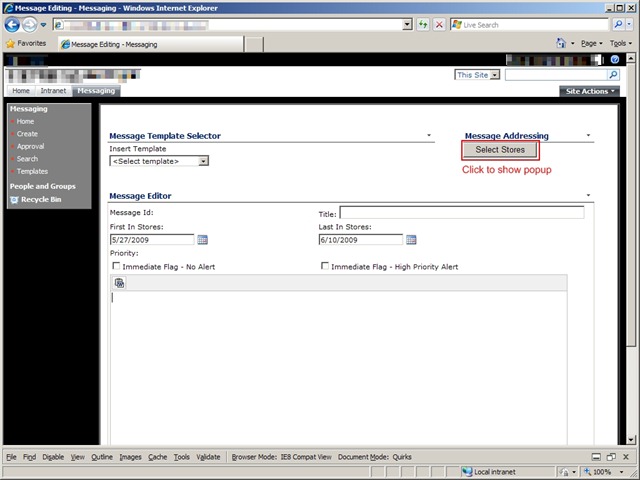
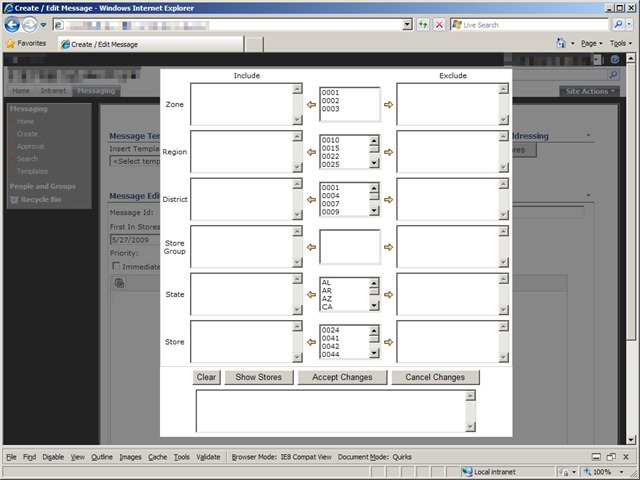
Screenshots of the popup in action.  You can see that the popup contains a number of additional controls not shown above in my code.

ModalPopup1 ModalPopup2

There is one drawback that I haven’t yet overcome.  Currently my code resizes the background panel to be the size of the internet browser window.  If the user resizes the window or if the popup content extends beyond that size then the user can edit items in the newly extended area.  I will look into disabling resizing and scroll bars, but that doesn’t fully remove the problems.  If you have suggestions for overcoming those issues please feel free to share.

Presenting at COSPUG Show and Tell Event

On Friday, May 22nd the Central Ohio SharePoint User Group (COSPUG) is hosting a Show and Tell Event at the Microsoft office in Columbus.  I’ll be presenting on combining PowerShell and SharePoint.  This will be an introductory style presentation for those who have limited to medium experience with PowerShell and a few “laser show” type finale scripts to hopefully wow the crowd.  With the current schedule I’ll be presenting during the last technical track session of the day.  Shane Young from SharePoint911 will be the keynote speaker and as with almost all talks he gives I’m sure it will be energetic and informative.  On top of all those great reasons why you should attend, the event is FREE.  Hard to beat that.  Registration can be found at the following link: click here.  Hope to see you there.

    -Frog out

Deploy Files to SharePoint Web Application Virtual Directories At Feature Activation

Original: 2009/5/6

Updated: 2009/12/1 – see bottom

Updated: 2009/12/31 – see bottom (Follow up post here)

Have you ever had a need to deploy some files to all of the virtual directories (every IIS site folder corresponding to a zone in the web app) for a SharePoint web application feature?  After searching the interwebs high and low I was unable to find any information relating to this topic, so this might very well be one of the first publicly available.  I want to say that getting this to work yesterday was one of the most fun development tasks I’ve done in awhile.  Hopefully this can help someone else who is struggling with the same task or at least give you some fun things to try out.

First the premise.  My client is hosting Reporting Services 2005 reports for a SharePoint custom application.  The custom application lives in the Layouts folder of the 12 Hive.  The reports will not be hosted on Reporting Services, but instead locally in the web application.  Since the ReportViewer web control that will be displaying the reports only knows the virtual directory root (c:inetpubwwwrootwssVirtualDirectories<port number of SharePoint zone>) we need a way to copy the files into that directory (and all other virtual directories for the web app meaning 3 zones in our environment) instead of residing in the 12 Hive.  As such we wanted a clean solution for deploying these reports to the virtual directory folder that had the least amount of human intervention (ex. a batch command that ran XCOPY to copy the files into hardcoded folders would require human intervention beyond deploying the WSP file).

As with all SharePoint development solutions, I (under the pain of death) recommend wrapping them up as features and files inside of a WSP file.  I don’t recommend building your WSP by hand as it is very tedious and there are some free tools that can help you immensely in this area.  Currently I use either Visual Studio extensions for Windows SharePoint Services 1.2 (VSeWSS) or WSPBuilder.  Each has it’s own set of pros and cons, but I’ll save that for another blog post.  On this project we’re using WSPBuilder as the lead developer began using it and I’ve been grandfathered into it.

So we have a WSPBuilder project with all of our custom application files laid out in the appropriate folders.  Our reports are placed into a subfolder of feature DeployCustomApplication.  During installation of the WSP solution these files are copied to the corresponding 12 Hive folder.  To get them from that location to the web app virtual directory we created a feature receiver.  Feature receivers allow custom code to be called upon feature install, activate, deactivate, and uninstall.  The process is carried out as follows:

  1. Get reference to target web application
  2. For Each loop to process each dictionary pair in the web application’s IISSettings property
  3. Delete report files if they already exist (1)
  4. Perform file copy from the 12 Hive location to the bin directory of the individual web site virtual directory folders

(1) = Delete report files first as they are subject to source control and will be marked read-only.  The copy method is unable to overwrite a read-only file even with the OverWrite boolean flag set to true.

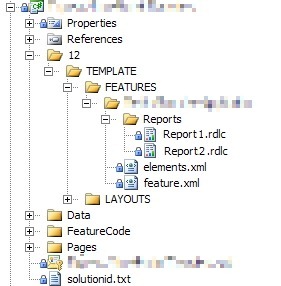
Here is a screenshot of the report files in the WSP project (pixelation on files done with Paint.Net, excellent free program I use all the time for image modifications similar to Photo Shop).  For those with a super keen eye you might even be able to tell that I doctored the report file names as well, but that’ll be our little secret.

DeployCustomApplicationWSPProject_2

Below is a slightly modified version (removing application name, client code, variable names, and other extraneous items) of the feature receiver code.  As an added bonus, you’ll also see in the AddHttpHandlerVerb() method how another teammate developed a process to modify the web.config file of each virtual directory to allow the ReportViewer web control.  I wish I could claim that as well, but sadly it was done by the time I joined the team.  Here is a link to the below code: download code here.

   1:  using System;
   2:  using System.Collections.Generic;
   3:  using System.Text;
   4:  using System.IO;
   5:  using System.Web.Hosting;
   6:  using Microsoft.SharePoint;
   7:  using Microsoft.SharePoint.Administration;
   8:  using Microsoft.SharePoint.Utilities;
   9:  using System.Web;
  10:  using System.Web.UI;
  11:  using System.Web.UI.WebControls;
  12:  
  13:  namespace CustomApplication
  14:  {
  15:      class CustomApplication : SPFeatureReceiver
  16:      {
  17:  
  18:          private SPWebApplication _webApp;
  19:          private String _Owner;
  20:  
  21:          public override void FeatureActivated(SPFeatureReceiverProperties properties)
  22:          {
  23:              try
  24:              {
  25:          // get references to target web application and feature definition
  26:                  _webApp = (SPWebApplication)properties.Feature.Parent;
  27:                  _Owner = properties.Feature.DefinitionId.ToString();
  28:  
  29:                  DeployReportFiles();
  30:  
  31:          AddHttpHandlerVerb();
  32:              }
  33:              catch (Exception ex)
  34:              {
  35:                  string message = "Error occurred while activating CustomApplication feature";
  36:                  Logger.logException(ex, message, System.Diagnostics.EventLogEntryType.Error, "<GUID>");
  37:  
  38:                  throw new SPException("Error during Activation.  See event log for further details");
  39:              }
  40:          }
  41:  
  42:          public override void FeatureDeactivating(SPFeatureReceiverProperties properties)
  43:          {
  44:              try
  45:              {
  46:          // get references to target web application
  47:                  _webApp = (SPWebApplication)properties.Feature.Parent;
  48:  
  49:                  RemoveReportFiles();
  50:              }
  51:              catch (Exception ex)
  52:              {
  53:                  string message = "Error occurred while deactivating feature CustomApplication";
  54:                  Logger.logException(ex, message, System.Diagnostics.EventLogEntryType.Error, "<GUID>");
  55:  
  56:                  throw new SPException("Error during Feature Deactivation. See event log for further details");
  57:              }
  58:          }
  59:  
  60:          public override void FeatureInstalled(SPFeatureReceiverProperties properties)
  61:          {
  62:          }
  63:  
  64:          public override void FeatureUninstalling(SPFeatureReceiverProperties properties)
  65:          {
  66:          }
  67:  
  68:          private void DeployReportFiles()
  69:          {
  70:              // first remove report files if they exist
  71:              RemoveReportFiles();
  72:  
  73:          // loop through each IisSettings dictionary pair (zones [dafault, intranet, internet, etc.] configured for web application)
  74:              foreach (KeyValuePair<SPUrlZone, SPIisSettings> pair in _webApp.IisSettings)
  75:              {
  76:          // copy report from 12 Hive location to the IisSettings zone virtual directory
  77:                  File.Copy(SPUtility.GetGenericSetupPath(@"TEMPLATEFEATURESCustomApplicationReportsReport1.rdlc"), pair.Value.Path.FullName.ToString() + @"binReport1.rdlc", true);
  78:                  File.Copy(SPUtility.GetGenericSetupPath(@"TEMPLATEFEATURESCustomApplicationReportsReport2.rdlc"), pair.Value.Path.FullName.ToString() + @"binReport2.rdlc", true);
  79:              }
  80:          }
  81:  
  82:          private void RemoveReportFiles()
  83:          {
  84:          // loop through each IisSettings dictionary pair (zones [dafault, intranet, internet, etc.] configured for web application)
  85:              foreach (KeyValuePair<SPUrlZone, SPIisSettings> pair in _webApp.IisSettings)
  86:              {
  87:                  // if Report1 report exists, delete
  88:                  if (File.Exists(pair.Value.Path.FullName.ToString() + @"binReport1.rdlc"))
  89:                      File.Delete(pair.Value.Path.FullName.ToString() + @"binReport1.rdlc");
  90:  
  91:                  // if Report2 report exists, delete
  92:                  if (File.Exists(pair.Value.Path.FullName.ToString() + @"binReport2.rdlc"))
  93:                      File.Delete(pair.Value.Path.FullName.ToString() + @"binReport2.rdlc");
  94:              }
  95:          }
  96:  
  97:          private void AddHttpHandlerVerb()
  98:          {
  99:          // get reference to web config modification object and set properties
 100:              SPWebConfigModification HttpHandlerMod = new SPWebConfigModification();
 101:              HttpHandlerMod.Owner = _Owner;
 102:              HttpHandlerMod.Path = "configuration/system.web/httpHandlers";
 103:              HttpHandlerMod.Name = "add verb HttpHandler ReportViewer";
 104:              HttpHandlerMod.Value = "<add verb="*" path="Reserved.ReportViewerWebControl.axd" type = "Microsoft.Reporting.WebForms.HttpHandler, Microsoft.ReportViewer.WebForms, Version=9.0.0.0, Culture=neutral, PublicKeyToken=b03f5f7f11d50a3a" />";
 105:  
 106:          // if web configuration modification exists, remove
 107:              if (_webApp.WebConfigModifications.Contains(HttpHandlerMod))
 108:              {
 109:                  _webApp.WebConfigModifications.Remove(HttpHandlerMod);
 110:              }
 111:  
 112:          // apply web configuration modificatoin
 113:              _webApp.WebConfigModifications.Add(HttpHandlerMod);
 114:          }
 115:      }
 116:  }

What I like about this solution is that it was developed in a short amount of time (hour or two to work out kinks), it is easily repeatable, and can be applied to other needs besides just Reporting Services reports.  Please leave any feedback if you end up using this process, have suggestions to make it better, or have any other comments.  Thanks and enjoy.

<Update1 – 2009/12/1>

After 6 months using the below method to deploy files to our development environments, it wasn’t until just recently that I noticed a fatal flaw in the below design: files are only deployed on the server from which the feature activate command is processed.  In plain English, if you have 3 web front ends (WFEs) and you activate the feature on WFE1 then WFE1 will get the files, but WFE2 and WFE3 will not.  The solution to this problem was suggested by my new good friend Sean McDonough: deploy using a SharePoint timer job.  I’m working on ironing out some of the changes for this and will have a new post on the matter once that’s complete.  Look for a link to that post from here soon.

</Update1>

<Update2 – 2009/12/31>

Here is the link to the follow up post I mentioned above: Click here.  After doing a little research and trying out timer jobs I found that a timer job was not the best solution for my situation.  Instead I opted for a method of looping through the web front ends and doing a file copy directly to the servers.  That same mechanism can be wrapped around the logic in this post so that files are copied to all web application folders on each web front end.  Read more about it in that follow up post.

</Update2>

-Frog Out

The Power of PowerShell and SharePoint: Enumerating SharePoint Permissions and Active Directory

<Update 2013-07-01> This script has been updated for SharePoint 2010 / 2013.  Please see my updated script and blog post at PowerShell
Script to Enumerate SharePoint 2010 or 2013 Permissions and Active Directory
Group Membership
.

</Update 2013-07-01>

<Update>

Posting code didn’t format as well as hoped.  Download the below script here.

</Update>

For those of you who are SharePoint admins or developers but have never dug into the SharePoint API or PowerShell, I would recommend first checking out some tutorials on both and referencing the SharePoint Developer Center.  At a later date I hope to be able to provide some quick demo scripts that highlight the power, time savings, and overall usefulness that can be gained by combining PowerShell and the SharePoint API.  For now though I wish to post a script I developed almost a year ago as a side project to combine a number of powerful features into one script.  To start, let me overview what the below script is capable of.

  1. Recursively crawl a site or entire web application within SharePoint
  2. Enumerate permissions assigned to a SharePoint site
  3. Detail the SharePoint users assigned to a SharePoint group
  4. Determine if an Active Directory group is a member of a SharePoint group
  5. Detail the Active Directory users who are members of an Active Directory group
  6. Search for a specific user’s permissions on a SharePoint site

Before anyone says anything, yes I realize that combining so many utilities into one script is probably a bad design and I should’ve broken out functionality.  Yes this is probably true, but I want to state that this script was never intended for Production release.  Instead I was prototyping what was possible with PowerShell and I even surprised myself with what I ended up with.  Here is an attempt to visualize what the above hierarchy would look like.

–Site

——SharePoint User A

——SharePoint Group A

————SharePoint User B

————Active Directory Group A

——————Active Directory User A

——————Active Directory User B

As you can see, this allows you to dig much further than what you might normally surface from the SharePoint API.  The true purpose of this script was to determine if a user was assigned permissions anywhere within a web application, even if indirectly by membership in a SharePoint group or Active Directory group.  This was only ever intended for a test environment, so you may still find some bugs when running against your own environment.

Before running this, ensure that you have loaded the SharePoint assembly with the following call (typically placed into your PowerShell profile for ease of use):

[void][System.Reflection.Assembly]::LoadWithPartialName(“Microsoft.SharePoint”)

Please leave me feedback if you end up trying out this script or have any questions on how/why I wrote things the way I did.  I always enjoy constructive criticism and dialog.  If you do re-post this anywhere, be sure to include the reference to the source material for the Active Directory call portion as I borrowed it from the PowerShell Script Center.

Example call:

.DisplaySPWebApp6.ps1 http://server WebApp userA


Note: The below script does not format properly through WordPress after I migrated my blog.  Please refer to the source script for better view.


###########################################################
#DisplaySPWebApp6.ps1 -URL  -searchScope  -userToFind 
#
#Author: Brian Jackett
#Last Modified Date: Jan. 12, 2009
#
#Supply Traverse the entire web app site by site to display
# hierarchy and users with permissions to site.
###########################################################

&nbsp;

#DECLARE VARIABLES
[string]$siteUrl = $args[0]
[string]$searchScope = $args[1]
[string]$userToFind = $args[2]

#DECLARE CONSTANTS
$BUFFER_CHARS = " "

function DetermineSpaceBuffer #-iterations 
{
[string]$spaceBuffer = ""
for($i = 0; $i -lt $args[0]; $i++)
{$spaceBuffer += $BUFFER_CHARS}

return $spaceBuffer
}

#DECLARE FUNCTIONS
function DrillDownADGroup #-group  -depth 
{
[string]$spaceBuffer = DetermineSpaceBuffer $args[1]
$domain = $args[0].Name.substring(0, $args[0].Name.IndexOf("\") + 1)
$groupName = $args[0].Name.Remove(0, $args[0].Name.IndexOf("\") + 1)

#BEGIN - CODE ADAPTED FROM SCRIPT CENTER SAMPLE CODE REPOSITORY
#http://www.microsoft.com/technet/scriptcenter/scripts/powershell/search/users/srch106.mspx

#GET AD GROUP FROM DIRECTORY SERVICES SEARCH
$strFilter = "(&amp;(objectCategory=Group)(name="+($groupName)+"))"
$objDomain = New-Object System.DirectoryServices.DirectoryEntry
$objSearcher = New-Object System.DirectoryServices.DirectorySearcher
$objSearcher.SearchRoot = $objDomain
$objSearcher.Filter = $strFilter

#
$colProplist = ("name","member")
foreach ($i in $colPropList)
{
$catcher = $objSearcher.PropertiesToLoad.Add($i)
}
$colResults = $objSearcher.FindAll()

#END - CODE ADAPTED FROM SCRIPT CENTER SAMPLE CODE REPOSITORY

&nbsp;

foreach ($objResult in $colResults)
{
foreach ($member in $objResult.Properties.member)
{
$indMember = [adsi] "LDAP://$member"

#ATTEMPT TO GET AD OBJECT TYPE FOR USER, NOT WORKING RIGHT NOW
#$user = $indMember.PSBase
#$user.Properties

$fullUserName = $domain + ($indMember.Name)
DisplayADEntry $fullUserName ($args[1])
}
}
}

function DisplaySPGroupMembers #-group  -depth 
{
[string]$spaceBuffer = DetermineSpaceBuffer $args[1]

if($args[0].Users -ne $Null)
{
#START SHAREPOINT USERS ENTITY
Write-Output $spaceBuffer""

foreach($user in $args[0].Users)
{
DisplayADEntry $user ($args[1] + 1)
}

#END SHAREPOINT USERS ENTITY
Write-Output $spaceBuffer""
}
}

function DisplayADEntry #-user/group  -depth 
{
#FILTER RESULTS IF LOOKING FOR SPECIFIC USER
if($args[0].IsDomainGroup -eq "True")
{
$outputText = "$spaceBuffer$BUFFER_CHARS" + ($args[0])
Write-Output $outputText
DrillDownADGroup $args[0] ($args[1])
$outputText = "$spaceBuffer$BUFFER_CHARS"
Write-Output $outputText
}
else
{
#USER FOUND AS A CHILD OF AN EMBEDDED AD GROUP
if(($userToFind -ne "" -and ($userToFind.ToUpper() -eq $args[0].LoginName.ToUpper() -or $userToFind.ToUpper() -eq $args[0].ToUpper())) -or $userToFind -eq "")
{
$outputText = "$spaceBuffer$BUFFER_CHARS" + ($args[0]) + ""
Write-Output $outputText
}
}
}

function DetermineUserAccess #-web  -depth 
{
[string]$spaceBuffer = DetermineSpaceBuffer $args[1]

#START SHAREPOINT GROUPS ENTITY
Write-Output "$spaceBuffer"

foreach($perm in $args[0].Permissions)
{
#CHECK IF MEMBER IS AN ACTIVE DIRECTORY ENTRY OR SHAREPOINT GROUP
if($perm.XML.Contains('MemberIsUser="True"') -eq "True")
{
DisplayADEntry $perm.Member ($args[1] + 1)
}
#IS A SHAREPOINT GROUP
else
{
$outputText = "$spaceBuffer$BUFFER_CHARS" + ($perm.Member)
Write-Output $outputText
DisplaySPGroupMembers $perm.Member ($args[1] + 2)
Write-Output "$spaceBuffer$BUFFER_CHARS"
}
}

#END SHAREPOINT GROUPS ENTITY
Write-Output "$spaceBuffer"
}

function DisplayWebApplication #-webApp 
{
[string]$spaceBuffer = DetermineSpaceBuffer $args[1]

#START WEB APPLICATION ENTITY
$outputText = "$spaceBuffer" + ($args[0].Name)
Write-Output $outputText

if($args[0].Sites -ne $Null)
{
#START CONTAINED SITE COLLECTIONS ENTITY
Write-Output "$spaceBuffer$BUFFER_CHARS"

foreach($spSiteColl in $args[0].Sites)
{
DisplaySiteCollection $spSiteColl ($args[1] + 2)
$spSiteColl.Dispose()
}

#END CONTAINED SITE COLLECTIONS ENTITY
Write-Output "$spaceBuffer$BUFFER_CHARS"
}

#END WEB APPLICATION ENTITY
"$spaceBuffer"
}

function DisplaySiteCollection #-siteColl  -depth 
{
[string]$spaceBuffer = DetermineSpaceBuffer $args[1]
$sc = $args[0].OpenWeb()

#START SITE COLLECTION ENTITY
$outputText = "$spaceBuffer" + ($sc.URL)
Write-Output $outputText

if($sc -ne $Null)
{
#START CONTAINED SITES ENTITY
Write-Output "$spaceBuffer$BUFFER_CHARS"

foreach ($spWeb in $sc)
{
DisplayWeb $spWeb ($args[1] + 2)
$spWeb.Dispose()
}

#END CONTAINED SITES ENTITY
Write-Output "$spaceBuffer$BUFFER_CHARS"
}

#END SITE COLLECTION ENTITY
Write-Output "$spaceBuffer"

#CLEANUP SITE COLLECTION VARIABLE
$sc.Dispose()
}

function DisplayWeb #-web  -depth  -parentWeb 
{
[string]$spaceBuffer = DetermineSpaceBuffer $args[1]

#START SITE ENTITY
$outputText = "$spaceBuffer" + ($args[0].URL)
Write-Output $outputText

if($args[0].HasUniquePerm -eq "True")
{
DetermineUserAccess $args[0] ($args[1] + 1)
}
else
{
Write-Output "$spaceBuffer<!--Inherits from parent&gt;-->"
}

&nbsp;

if($args[0].Webs -ne $Null)
{
#START CONTAINED SUBSITES ENTITY
Write-Output "$spaceBuffer$BUFFER_CHARS"

#RECURSIVELY SEARCH SUBWEBS
foreach ($spSubWeb in $args[0].Webs)
{
DisplayWeb $spSubWeb ($args[1] + 2)
$spSubWeb.Dispose()
}
#END CONTAINED SUBSITES ENTITY
Write-Output "$spaceBuffer$BUFFER_CHARS"
}

#END SITE ENTITY
Write-Output "$spaceBuffer"
}

function DisplayMissingParametersMessage
{
#Write-Output "You are missing a parameter for 'Site URL'"
$script:siteURL = Read-Host "Enter Site URL"
}

############
# MAIN
############

#IF MISSING PARM FOR SITE URL, ASK FOR INPUT TO FILL
if($args.length -eq 0)
{
DisplayMissingParametersMessage
}

$rootSite = New-Object Microsoft.SharePoint.SPSite($siteUrl)
$spWebApp = $rootSite.WebApplication

&nbsp;

Write-Output ""

#IF SEARCH SCOPE SPECIFIED FOR SITE, ONLY SEARCH SITE
if($searchScope -eq "-site")
{
DisplaySiteCollection $rootSite 1
}
#ELSE SEARCH ENTIRE WEB APP
else
{
DisplayWebApplication $spWebApp 1
}
Write-Output ""

&nbsp;

#CLEANUP
$rootSite.Dispose()