SPTechCon San Francisco 2010 Recap

As mentioned in a recent post, I attended SPTechCon in San Francisco, CA on Feb 10-12, 2010.  This was the first time I had attended this conference (now in it’s second year,) but I can easily say it was one of the best conferences (both personally and professionally) that I have attended since I started actively attending in the past 3 years.  Here’s a quick recap of the conference with links at the bottom to the many pictures and videos that I took.

Arriving

Heading out to CA was a bit of a struggle.  Due to massive amounts of snow and other bad winter weather I opted to take an earlier (6am instead of 2pm) flight out on Tues Feb 9th.  The earlier flight helped, but I still ran into delays with my connection in Detroit, MI.  [Ed. note: Kudos to Delta for allowing me to change my flight time free of charge and compensating me with bonus sky miles due to delay.]  Despite the delays, I was happy to arrive with all of my luggage only 3 hours later than scheduled.  Sadly many other conference attendees and even some speakers were delayed by up to days.

Tuesday night was fun as I met up for dinner and drinks with a number of folks from the SharePoint 911 crew as well as other members of the End User SharePoint Live Blogging team.  This was the first conference I had volunteered to be a live blogger for, so it was good to meet some fellow volunteers ahead of time and get a feel for what to expect.  You can read archives of the live feeds here and a short explanation about our team of volunteers here.

Conference

SPTechCon was an amazing conference for two main reasons: the conference content and the networking opportunities.  First the content.  SPTechCon begins on Wednesday with 100-200 level workshops that are offered as full day or half day sessions.  Thursday and Friday follow up with 75 minute sessions with 8 offerings per time slot in a wide variety of focus areas ranging from admin to developer to business user and everything in between.  Here are the sessions I attended (many of which I live blogged.)

  • Phil Wicklund – SharePoint 101: The Developer
  • Laura Rogers – Making the Most of Out-of-the-Box Web Parts
  • Todd Klindt and Shane Young – Administering SharePoint 2010 with PowerShell
  • Heather Solomon – Migrating Custom Branding from MOSS 2007 to SharePoint 2010
  • Tom Rizzo – Thursday morning keynote
  • Michael Noel – Lessons Learned from Years of SharePoint Deployments
  • Paul Swider – The “Humanizing” of SharePoint
  • Jennifer Mason – Putting Together an Effective SharePoint Team
  • Mark Ferraz – Team Development for Delivering Complex Projects (missed first half due to lunch)
  • Mark Rackley – SharePoint Web Services: The ‘Special Sauce’ of SharePoint

What really impressed me was that I was able to learn some new things from some unlikely sources.  This includes Phil’s 101 developer, Laura’s out of the box web parts, and Jen’s team building sessions.  I like it when I can take a step back from so called “advanced topics” and revisit some of the basics and foundation areas to glean new information.  A big thanks goes out to all of the speakers for taking time to develop material, present, and answer countless questions from audience members.

Networking was the other reason I appreciated this conference.  I’ve been to a number of regional and national conferences in the past from Central Ohio Day of .Net to Stir Trek to SharePoint Saturdays to TechEd North America and many more.  All of these were great for connecting with the community of attendees, but somehow SPTechCon took it one step further.  I got to finally meet and get to know a number of great members of the SharePoint community (see pictures below for some of our hanging out.)  There are so many I want to list, but a quick few I have to at least thank here.  Mark Rackley (@mrackley) for being my roommate and giving us car rides numerous times (especially to ski shuttle at 5am,) Joel Oleson (@joeloleson) for also driving us around throughout the week, Mike Noel (@michaeltnoel) for giving us a tour of San Fran attractions, Eric Harlan (@ericharlan) for initiating the ski event and introducing me to a number of the other folks I met, Jen Mason (@jennifermason) for also introducing me to others, and Lori Gowin (@lorigowin) and Cathy Dew (@catpaint1) for helping when I had live blogging questions and providing lots of laughs.  Thanks to all of the others I met; I had a blast and hope to see you again soon at another event.

ShareSki

After many days spent at the conference, my friend Eric Harlan and I took 2 days to head up to Lake Tahoe for some skiing.  If any of you don’t know Eric, he’s quite an avid skier.  A quick look at the header image of his blog shows off that fact.  Eric was able to find a great deal for our ski trip through Bay Area Ski Bus.  The deal included shuttle ride from San Francisco to Tahoe, lift tickets for 2 days, 1 night in hotel, continental breakfast both mornings, and an apres-ski party (food, snacks, and drinks) both afternoons for $260ish per person.  That is an amazing deal considering lift tickets out West are fairly expensive and then you throw in shuttle, hotel room, food and drinks and it’s hard to believe they are making money.  Both Eric and I highly recommend them for anyone looking for a way to ski Tahoe if you are around the bay area in California.

Great  deal on shuttle aside, skiing was fun and enjoyable.  The first day we skied Northstar ski resort and the second we skied Sugar Bowl ski resort.  I’ve been skiing since I was about 10, but both resorts were larger than anything I’ve skied in the mid-west.  Weather could’ve been better as it was in the mid to high 40s during the day and not much cooler in the morning.  Happily I can report I only fell a handful of times with only one fall that was actually scary (think of a movie where the hero is sliding down a hill and can’t stop because it’s so steep, yea that was me.)  Overall I had a great time and don’t look forward to skiing the smaller hills back home from now on.

Photos and Links

Facebook album of below photos (includes tagging and comments, recommend this link more)

Ski video 1 – 360 panorama of Sugar Land

Ski video 2 – Eric showing off some sweet skills

Ski video 3 – Me skiing down the mountain

Conclusion

SPTechCon was a great conference to attend this year.  I got to learn some great content, meet amazing people, and get a short break away from work.  I’ll definitely look into attending the Boston SPTechCon later this year as I hear great things about that as well.  Big thanks out to all of the speakers, vendors, conference planners, and conference attendees for making this such a memorable event.  Look forward to the next great event.


-Frog Out
Programmatically Uploading Files To A SharePoint 2007 Document Library

    Uploading files to a SharePoint document library through the web UI is a fairly simple process, but did you know it’s also possible to programmatically upload a file (or string) to a document library?  Over the past two weeks I’ve had the latter scenario come up with friends and coworkers in several separate instances so I thought I’d post some simple code snippets on how to accomplish this.  I can’t take all credit as I borrowed the base code for uploading from a project my coworker Kelly Jones and I are on.  Below are two code snippets for first uploading a byte array representation of a string and second for uploading a file.

Uploading a string (converted to file) to a document library

string textToOutput = "Some text I want to put out to a file";

string uploadPath = "<URL for your document library + filename>";

// ex. http://server/myDocLib/SomeFile.csv


ASCIIEncoding encoder = new ASCIIEncoding();

byte[] bytesToOutput = encoder.GetBytes(textToOutput.ToString());


using (WebClient client = new WebClient())

{

    client.Credentials = System.Net.CredentialCache.DefaultCredentials;

    client.UploadData(uploadPath, "PUT", bytesToOutput);

}

Uploading a file to document library

string localFilename = "<path to file you wish to upload>";

// ex. c:tempmyFileToUpload.doc


FileStream myStream = new FileStream(localFilename, FileMode.Open, FileAccess.Read);

BinaryReader myReader = new BinaryReader(myStream);

byte[] bytesToOutput = reader.ReadBytes((int)myStream.Length);

myReader.Close();

myStream.Close();


using (WebClient client = new WebClient())

{

    client.Credentials = System.Net.CredentialCache.DefaultCredentials;

    client.UploadData(uploadPath, "PUT", bytesToOutput);

}


Conclusion

    Programmatically uploading a file to a SharePoint document library is actually a fairly simple process as seen by the short code snippets above.  The basic premise is that you are performing an HttpRequest Put operation with the byte array representation of either a file or a string.  I’ve used this on a number of occasions at one of my current clients and it’s been very helpful.  Feel free to leave feedback if you found this helpful, have any questions, or suggestions for improvement.


    -Frog Out

SharePoint Saturday Indianapolis 2010 Recap

This past Saturday I spent the better part of my day at SharePoint Saturday Indianapolis (or SPSIndy for the “cool” geeks.)  For those unfamiliar, SharePoint Saturday is a community driven event where various speakers gather to present at a FREE conference on all topics related to SharePoint.  This amazing community event marked my second SharePoint Saturday attended (read my recap of SPSCleveland) and my first SharePoint Saturday as a regular attendee (not presenting.)  From the stats side I heard that over 370 people registered with around 250 attendees the day of.  That is definitely a great turn out for Indy’s first SharePoint Saturday.  I know that many others like myself drove in (3 hrs each way for me) from far away to attend.  So here’s a little recap of my day and the event.

My Saturday morning started off very early leaving Columbus, OH around 5:30am.  I was driving with Jennifer Mason (President of COSPUG and one of the SPSIndy presenters) and since she was speaking during first session we couldn’t be late.  We arrived with plenty of time so I was able to enjoy some of the wonderful hot breakfast food and drink provided.  If you haven’t been to too many conferences, you may not know that hot breakfasts are a rarity so I took full advantage in this case.  I also got to meet some local SharePoint developers during breakfast who I ended up talking to quite a bit throughout the day.

The actual conference kicked off very well with an introduction by Rob Bogue (head of the local SharePoint user group and all around great guy) and the rest of the steering committee.  For sessions, I attended a variety of topics mostly focused on the development or administrator side.  These included:

  • Woody “Windy” Windischman (@WoodyWindy) – “Intro to SharePoint Designer 2010”
  • Steve Pietrek (@SPietrek) – “Developing Silverlight for SharePoint”
  • Darrin Bishop (@bishopd) – “Goodbye STSADM, Hello PowerShell”
  • Fabian Williams (@FabianWilliams) – “Business Connectivity Services…<long title>”
  • James Curtis (@piercove) – “Intro to Client Object Model”
  • (Caught tail end of session) John Ferringer (@ferringer) & Sean McDonough (@spmcdonough) – “SharePoint Disaster Recovery”

Overall I learned a great deal, met a bunch of great speakers and attendees, and even won a SharePoint Reporting book in Darrin Bishop’s session (hooray for my PowerShell knowledge being useful!)  It was especially nice getting to hang out with some new friendships I’ve developed through the SharePoint community.  Below is my album of pictures I snapped throughout the day.  Feel free to take a look through them.  The next SharePoint Saturday I’m planning on attending will be SharePoint Satuday Michigan on March 13th.  Mark your calendars and register for it if you’ll be around the area that date.  Hopefully I’ll see you there.

Ohh, one last note.  A big thanks goes out to all of the organizers, speakers, sponsors, and attendees of SPSIndy.  Without all of you this event couldn’t have been possible.  Please continue to support the SharePoint community.  It has a lot to offer and it’s all made possible because of these people, companies, and events that continue to amaze me every time I get involved.  Thanks so much.

-Frog Out

Converting An Enter Key Press Into A Tab Key Press For Web Forms

How many times have you been filling out an online form and halfway through filling in your responses you accidentally press the Enter key which then attempts to submit the form?  This can be a common problem when the online form is wired up to have a “submit” button be the default form button on a page.

The most complete solution to this issue is having your submit process be able to handle all scenarios of submission (incomplete, invalid, etc).  If you are looking for a quick (partial) fix though, it is possible to trap the Enter key press and convert it to another key press (e.g. Tab key.)  A  few simple lines of JavaScript and adding a client-side event handler to your input controls can accomplish that.  I wish I could claim the credit for this, but I found this on many online resources (reference 1 and reference 2.)  Note: My example focuses on Internet Explorer; I have not tested against other browsers at this time.  Please read these references for more information on cross-browser compatibility.

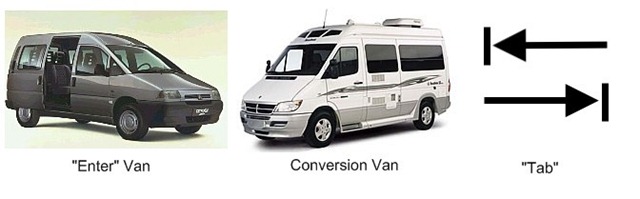
ConvertVans1

My silly attempt at humor

First, you’ll need to add a JavaScript function to trap the Enter key press (keyCode 13) and convert it to a Tab key press (keyCode 9).  Since my current work is on SharePoint development I place most of my JavaScript functions into an external file (previous blog post details) to be referenced by web part code.  Below are two examples, first on an HTML or ASPX page (includes tag) and second in an external file (without tag.)

"JavaScript">

function ModifyEnterKeyPressAsTab() {

    if (window.event && window.event.keyCode == 13) {

        window.event.keyCode = 9;

    }

}


JavaScript block on HTML/ASPX page
function ModifyEnterKeyPressAsTab() {

    if (window.event && window.event.keyCode == 13) {

        window.event.keyCode = 9;

    }

}

JavaScript block in external file

    The next step is to call the above JavaScript function from an added client-side event handler to any input controls users will be filling out.  These input controls include textboxes, radio buttons, etc.  A client-side event handler (vs. server-side) are used so that  any key press will be intercepted before the server is able to respond (e.g. accept a premature form submit.)  Below is an example of adding the event handler to a Textbox.

TextBox textbox1 = new TextBox();

textbox1.Attributes.Add("onKeyDown", "ModifyEnterKeyPressAsTab();");

In the above example, any time a user has focus on the Textbox and presses a key our JavaScript function will be called.  If the key press is Enter, the function will return a Tab key press which moves focus to the next control in TabIndex order.  Note: Since we are converting to a Tab key press, you’ll want to make sure the TabIndex of your controls is set appropriately so user’s are progressed in the desired order down/across the page.

Conclusion

Converting your Enter key press into another key press, such as Tab, is a rather crude workaround to a common problem of early form submission, but it’s a starting point to alleviating issues your end users may run into.  If you read the resources I linked to above you’ll notice there is additional information on how to make this solution more cross-browser friendly (specifically for FireFox vs. IE.)  If you have any comments on this topic or found this post helpful, feel free to leave feedback below.

-Frog Out

Deploying SharePoint Solution Files to Non-12 Hive Locations on Multiple Web Front Ends

In a previous post, I mentioned having an issue deploying SharePoint solution files to a non-12 Hive locations on all web front ends (WFEs).  The problem I faced was that WSPBuilder doesn’t allow me to edit the manifest.xml file (reference, near bottom) and my custom code to copy the files was successful, but only executing on the WFE from which the feature activation command was being called.  Once we moved to a multiple WFE environment all of the other WFEs were missing files.

The always helpful Sean McDonough suggested that I use an SharePoint Timer job because that will execute code on all WFEs.  I had never built a custom timer job so I researched the links Sean shared and dove head first into it.  I had moderate success but ran into an issue with the account running my timer job (which ended up being the Farm Access account) not having write permissions to the non-12 Hive location as it was not a local admin on every WFE in the farm.  The solution to that problem (another blog post forthcoming on solving that ACL permission issue) was looping through the WFEs during feature activation.  As it turns out, discovering that I could loop through each WFE led to a much simpler solution to my original problem.2007-02-13-Ockhams_Razor    Any of you familiar with Occam’s Razor (also spelled Ockham) will realize that simpler solutions are almost always the better solution.  So instead of wiring up a feature to set write permissions, then store needed values in a property bag, and then kick off a timer job I went with a much simpler solution.  Below is a code snippet for how to deploy SharePoint solution files to a non-12 Hive location on multiple web front ends without using a timer job (wow that’s a mouthful.)

The files I am deploying are a set of support files for the RadEditor for MOSS Lite Edition that need to live in the “wpresources” folder (which is a sibling folder of the 12-Hive.)  I originally deploy the files to a subfolder “Support Files” of the feature root folder.  From there they are copied to the appropriate location within “wpresources”.  You may also download the code snippet from my SkyDrive here.

public override void FeatureActivated(SPFeatureReceiverProperties properties)

{

    // set source and destination folders

    string sourceFolder = properties.Definition.RootDirectory + @"Support Files";

    string destinationFolder = properties.Definition.RootDirectory + @"........wpresourcesRadEditorSharePoint4.5.6.0__1f131a624888eeedRadControlsEditor";

    List<string> filesToDeploy = new List<string>();


    // dynamically find all files in the source folder

    DirectoryInfo folder = new DirectoryInfo(sourceFolder);

    FileInfo[] filesInFolder = folder.GetFiles();

    foreach (FileInfo file in filesInFolder)

    {

        filesToDeploy.Add(file.Name);

    }


    // recurse through each web front end

    foreach (SPServer server in properties.Definition.Farm.Servers)

    {

        if (server.Role == SPServerRole.WebFrontEnd)

        {

            // copy support files per web front end

            foreach (string filename in filesToDeploy)

            {

                try

                {

                    // reference files based on network share format (serverNameC$...)

                    string sourceFile = @"" + server.Address + @"" + sourceFolder.Replace(":", "$") + @"" + filename;

                    string destinationFile = @"" + server.Address + @"" + destinationFolder.Replace(":", "$") + @"" + filename;


                    System.IO.File.Copy(sourceFile, destinationFile, true);

                }

                catch (Exception ex)

                {

                    // ..exception handling goes here

                }

            }

        }

    }

}

As far as I can tell my research didn’t turn up any other results on this topic so this may be me blazing some trails on the subject matter.  If you have any questions, comments, or feedback please feel free to leave some below.  I’ll update this post with a link to my forthcoming post on setting ACL permissions during feature activate.  Happy SharePointing.

-Frog Out

Fixing the SharePoint DateTimeControl MinDate Property (or How I Learned to Make the DateTimeControl Read-Only and Love SharePoint Controls)

Excusing the long post title referencing Dr. Strangelove, I’d like to point out a small bug with the SharePoint DateTimeControl.  If you have ever implemented this control, you may find that you can set the MinDate property which is supposed to limit the range of dates allowed.  However, doing so only limits the calendar popup associated with this control, but the user can still enter a date below the MinDate into the textbox (see comments in reference.)

I did a little searching on the interwebs and found the following post which described setting that textbox control read-only on the aspx page.  Below you will find the code to make it read-only in the code behind.

using Microsoft.SharePoint.WebControls;


DateTimeControl dtc = new DateTimeControl();

dtc.DateOnly = true;

dtcMinDate = DateTime.Today.Date;

((TextBox)dtc.Controls[0]).ReadOnly = true;

In the last line, you will see that we are accessing a child control.  At a basic level, the SharePoint DateTimeControl is just a wrapper for 4 controls: a date textbox, an hour and a minute dropdown, and a required field validator.  Since the date textbox is the first control, we can cast it as a textbox and set the ReadOnly property and be all set.

DateTimeControl1

Before: able to edit textbox

DateTimeControl2

After: textbox is read only and calendar selection limited

One other note about the DateTimeControl.  There is an issue with the SelectedDate property of the DateTimeControl not persisting through postback (reference 1 and reference 2).  Example scenario: if you set the SelectedDate on page load, change the SelectedDate through UI, then have a page postback (perhaps for a required field validation on another control) your change to the SelectedDate will be lost and the original value from during page load will reappear.  I have attempted all suggestions for enabling viewstate on parent container, removing Id, and clearing selection to no avail.  My next steps will be to convert this over to an AJAXControlToolkit Calendar Extender implementation and see if that works.  Expect a follow up post if that does fix the problem.

As you can see, the SharePoint DateTimeControl is a nice option since you’ll have access to it out of the box with SharePoint, but there are a few bugs to be aware of when deciding whether to use it or not.  You might just be as well off building your own control to handle date selection.  If you’ve run into any other issue or have suggestions for fixes to the problems above please leave some feedback below.

-Frog Out

Links

SharePoint DateTimeControl MSDN page

http://msdn.microsoft.com/en-us/library/microsoft.sharepoint.webcontrols.datetimecontrol.aspx

Make SharePoint DateTimeControl textbox read-only

http://greggalipeau.wordpress.com/2008/06/27/sharepoint-datetimecontrol-validation/

DateTimeControl SelectedDate issue

http://www.eggheadcafe.com/software/aspnet/31645560/problem-with-sharepoint-d.aspx

DateTimeControl ViewState issue

http://social.msdn.microsoft.com/Forums/en-US/sharepointdevelopment/thread/efe5602f-ed95-44c8-8722-077eacdb9844/