SPSiteDataQuery Returns Only One List Type At A Time

    The SPSiteDataQuery class in SharePoint 2007 is very powerful, but it has a few limitations.  One of these limitations that I ran into this morning (and caused hours of frustration) is that you can only return results from one list type at a time.  For example, if you are trying to query items from an out of the box custom list (list type = 100) and document library (list type = 101) you will only get items from the custom list (SPSiteDataQuery defaults to list type = 100.)  In my situation I was attempting to query multiple lists (created from custom list templates 10001 and 10002) each with their own content types.

Solution

    Since I am only able to return results from one list type at a time, I was forced to run my query twice with each time setting the ServerTemplate (translates to ListTemplateId if you are defining custom list templates) before executing the query.  Below is a snippet of the code to accomplish this.

SPSiteDataQuery spDataQuery = new SPSiteDataQuery();

spDataQuery.Lists = "<Lists ServerTemplate='10001' />";

// ... set rest of properties for spDataQuery


var results = SPContext.Current.Web.GetSiteData(spDataQuery).AsEnumerable();


// only change to SPSiteDataQuery is Lists property for ServerTemplate attribute

spDataQuery.Lists = "<Lists ServerTemplate='10002' />";


// re-execute query and concatenate results to existing entity

results = results.Concat(SPContext.Current.Web.GetSiteData(spDataQuery).AsEnumerable());


Conclusion

    Overall this isn’t an elegant solution, but it’s a workaround for a limitation with the SPSiteDataQuery.  I am now able to return data from multiple lists spread across various list templates.  I’d like to thank those who commented on this MSDN page that finally pointed out the limitation to me.  Also a thanks out to Mark Rackley for “name dropping” me in his latest article (which I humbly insist I don’t belong in such company)  as well as encouraging me to write up a quick post on this issue above despite my busy schedule.  Hopefully this post saves some of you from the frustrations I experienced this morning using the SPSiteDataQuery.  Until next time, Happy SharePoint’ing all.


      -Frog Out


Links

MSDN Article for SPSiteDataQuery

http://msdn.microsoft.com/en-us/library/microsoft.sharepoint.spsitedataquery.lists.aspx
Announcing Stir Trek: Iron Man Edition

    Today marks the official launch day of Stir Trek: Iron Man Edition.  This year’s conference will take place on Friday May 7th, 2010.  In case you are unfamiliar, Stir Trek is a regional conference hosted in Columbus, OH that focuses on covering topics from Microsoft’s annual Mix conference along with other web, mobile, and development related topics.  In addition to great session content from the conference, the day ends with a private screening of the new Iron Man 2 film.

    This is the second year for the Stir Trek conference and it is being expanded upon in every possible way.  More session tracks, more speakers, higher attendance capacity, and more excitement.  Here are a few things that you’ll get with your conference ticket [from the Stir Trek website]:

  • 6 hours of brand-new content, delivered by well-known regional and national speakers
  • Attendee packet
  • Lunch
  • Attendee T-shirt
  • A chance at winning prizes ranging from software licenses to an Xbox 360 and games.
  • Private screening of IronMan 2* at 4PM
  • Refreshments during the movie

    * An additional ticket to the movie can be purchased for $10.


        Last year’s Stir Trek conference sold out in less than 30 days, so don’t wait to reserve your spot.  Click here for registration.  Armor up your development skills today!

          -Frog Out

    Converting An Enter Key Press Into A Tab Key Press For Web Forms

    How many times have you been filling out an online form and halfway through filling in your responses you accidentally press the Enter key which then attempts to submit the form?  This can be a common problem when the online form is wired up to have a “submit” button be the default form button on a page.

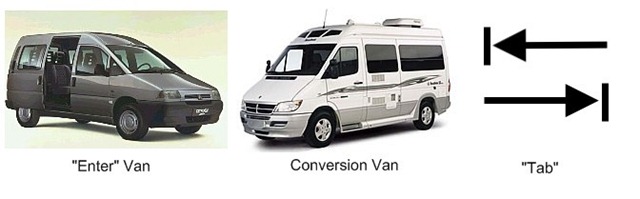
    The most complete solution to this issue is having your submit process be able to handle all scenarios of submission (incomplete, invalid, etc).  If you are looking for a quick (partial) fix though, it is possible to trap the Enter key press and convert it to another key press (e.g. Tab key.)  A  few simple lines of JavaScript and adding a client-side event handler to your input controls can accomplish that.  I wish I could claim the credit for this, but I found this on many online resources (reference 1 and reference 2.)  Note: My example focuses on Internet Explorer; I have not tested against other browsers at this time.  Please read these references for more information on cross-browser compatibility.

    ConvertVans1

    My silly attempt at humor

    First, you’ll need to add a JavaScript function to trap the Enter key press (keyCode 13) and convert it to a Tab key press (keyCode 9).  Since my current work is on SharePoint development I place most of my JavaScript functions into an external file (previous blog post details) to be referenced by web part code.  Below are two examples, first on an HTML or ASPX page (includes tag) and second in an external file (without tag.)

    "JavaScript">

    function ModifyEnterKeyPressAsTab() {

        if (window.event && window.event.keyCode == 13) {

            window.event.keyCode = 9;

        }

    }


    JavaScript block on HTML/ASPX page
    function ModifyEnterKeyPressAsTab() {

        if (window.event && window.event.keyCode == 13) {

            window.event.keyCode = 9;

        }

    }

    JavaScript block in external file

        The next step is to call the above JavaScript function from an added client-side event handler to any input controls users will be filling out.  These input controls include textboxes, radio buttons, etc.  A client-side event handler (vs. server-side) are used so that  any key press will be intercepted before the server is able to respond (e.g. accept a premature form submit.)  Below is an example of adding the event handler to a Textbox.

    TextBox textbox1 = new TextBox();

    textbox1.Attributes.Add("onKeyDown", "ModifyEnterKeyPressAsTab();");

    In the above example, any time a user has focus on the Textbox and presses a key our JavaScript function will be called.  If the key press is Enter, the function will return a Tab key press which moves focus to the next control in TabIndex order.  Note: Since we are converting to a Tab key press, you’ll want to make sure the TabIndex of your controls is set appropriately so user’s are progressed in the desired order down/across the page.

    Conclusion

    Converting your Enter key press into another key press, such as Tab, is a rather crude workaround to a common problem of early form submission, but it’s a starting point to alleviating issues your end users may run into.  If you read the resources I linked to above you’ll notice there is additional information on how to make this solution more cross-browser friendly (specifically for FireFox vs. IE.)  If you have any comments on this topic or found this post helpful, feel free to leave feedback below.

    -Frog Out

    Fixing the SharePoint DateTimeControl MinDate Property (or How I Learned to Make the DateTimeControl Read-Only and Love SharePoint Controls)

    Excusing the long post title referencing Dr. Strangelove, I’d like to point out a small bug with the SharePoint DateTimeControl.  If you have ever implemented this control, you may find that you can set the MinDate property which is supposed to limit the range of dates allowed.  However, doing so only limits the calendar popup associated with this control, but the user can still enter a date below the MinDate into the textbox (see comments in reference.)

    I did a little searching on the interwebs and found the following post which described setting that textbox control read-only on the aspx page.  Below you will find the code to make it read-only in the code behind.

    using Microsoft.SharePoint.WebControls;


    DateTimeControl dtc = new DateTimeControl();

    dtc.DateOnly = true;

    dtcMinDate = DateTime.Today.Date;

    ((TextBox)dtc.Controls[0]).ReadOnly = true;

    In the last line, you will see that we are accessing a child control.  At a basic level, the SharePoint DateTimeControl is just a wrapper for 4 controls: a date textbox, an hour and a minute dropdown, and a required field validator.  Since the date textbox is the first control, we can cast it as a textbox and set the ReadOnly property and be all set.

    DateTimeControl1

    Before: able to edit textbox

    DateTimeControl2

    After: textbox is read only and calendar selection limited

    One other note about the DateTimeControl.  There is an issue with the SelectedDate property of the DateTimeControl not persisting through postback (reference 1 and reference 2).  Example scenario: if you set the SelectedDate on page load, change the SelectedDate through UI, then have a page postback (perhaps for a required field validation on another control) your change to the SelectedDate will be lost and the original value from during page load will reappear.  I have attempted all suggestions for enabling viewstate on parent container, removing Id, and clearing selection to no avail.  My next steps will be to convert this over to an AJAXControlToolkit Calendar Extender implementation and see if that works.  Expect a follow up post if that does fix the problem.

    As you can see, the SharePoint DateTimeControl is a nice option since you’ll have access to it out of the box with SharePoint, but there are a few bugs to be aware of when deciding whether to use it or not.  You might just be as well off building your own control to handle date selection.  If you’ve run into any other issue or have suggestions for fixes to the problems above please leave some feedback below.

    -Frog Out

    Links

    SharePoint DateTimeControl MSDN page

    http://msdn.microsoft.com/en-us/library/microsoft.sharepoint.webcontrols.datetimecontrol.aspx

    Make SharePoint DateTimeControl textbox read-only

    http://greggalipeau.wordpress.com/2008/06/27/sharepoint-datetimecontrol-validation/

    DateTimeControl SelectedDate issue

    http://www.eggheadcafe.com/software/aspnet/31645560/problem-with-sharepoint-d.aspx

    DateTimeControl ViewState issue

    http://social.msdn.microsoft.com/Forums/en-US/sharepointdevelopment/thread/efe5602f-ed95-44c8-8722-077eacdb9844/

    “Requested registry access is not allowed” error on .Net / SharePoint application

        The error message “Requested registry access is not allowed” coming from a .Net / SharePoint application can be slightly misleading as I will explain in this post.  Today I ran into this error message while trying to log into a Forms Based Authentication (FBA) SharePoint site at my client.  The hosting web front end (WFE) server was recently rebuilt from scratch (re: fresh OS) so first thoughts pointed towards a permissions error relating to IIS and the registry.  Sadly that started to take me down the wrong path.  Luckily my coworker Kelly Jones overheard me talking about this error and pointed me to an article he remembered from a previous project with the same error.  Read this Microsoft support article for info about the true error with the event log.

        As part of the custom applications we are hosting on SharePoint we also built a logging component that writes out to the event log when errors occur.  In order to distinguish our event log entries we created a new event log source under the Application event log.  The code to do add this event log source is very simple (see below) but it must be executed as a user with administrative access because it requires writing to the registry.  Ahh, so our old friendly but misleading error message from above about the registry did have a hand in our problem, but that wasn’t readily apparent at first.

    if (!EventLog.SourceExists("MyNewEventLogSource"))

    {

        EventLog.CreateEventSource("MyNewEventLogSource", "EventLog");

    }


         Here’s the long explanation of why this error occurred in the first place.  Typically our custom event log source is created during installation of the WSP that handles our logging, or just before a new event log entry is written if it doesn’t already exist.  When we rebuilt the primary WFE we rebuilt the entire server from scratch (re: blank OS).  When that WFE rejoined the farm it didn’t contain the custom event log source.  The WSP for logging wasn’t reinstalled (because it was already installed on the farm) so it didn’t fire the code to add the custom event log source back to the primary WFE.  After the primary WFE took back hosting duties and encountered the login warning the application pool identity attempted to write out to our custom event log source.  Our application pool identity doesn’t have local admin permissions on that server so it failed to created the event log source.  Consequently that failed attempt at event log source creation throws an exception that wasn’t properly handled (can’t write out the exception leading to a chicken and egg scenario) so it bubbled up to the user.

         Long story short, I wrote a very simplistic console app to run on any WFE that may be affected by this situation in the future.  Below is a bare bones version of the method but you’ll get the idea.  We are looking into a more permanent solution on how to avoid this situation in the future, but the need to be run as a local admin account adds some extra kinks.  For now this console app will get us through.

    static public void MyEventLogInstaller(string EventSourceName)

    {

        if (!EventLog.SourceExists(EventSourceName))

        {

            Console.WriteLine("Source doesn't exist, attempting create");


            try

            {

                EventLog.CreateEventSource(EventSourceName, "Application");

            }

            catch (Exception ex)

            {

                Console.WriteLine("Error creating event log source: " + ex.Message);

            }

        }

        else

        {

            Console.WriteLine("Source already exists, not performing any actions");

        }

    }

         Hopefully this post sheds some light into the partially cryptic error message I saw and saves you from wasting time looking into registry permissions as I did at first.  Enjoy.


        -Frog Out

    “Server Application Unavailable” Error on SharePoint (or .Net) Web Application

    KISS = “Keep it Simple, Stupid.”  Remember that acronym as you continue reading.  Today I received StackOverflowException errors when deploying custom solutions to a new SharePoint environment at my client.  Previously I was under the impression that all of our environments were configured as identical to each other as possible, but as I will explain later that was not the case.  Technically speaking this error could happen to any .Net web application, not just a SharePoint one.

    Little back story, we are migrating a custom solution (series of multiple applications) packaged as WSPs through various environments at my client.  We have made it through all but a few environments with no major problems deploying our custom solution.  So the fact that we saw this major error in a later environment (and none previous) was reason for concern.  At first I was worried that variations to this environment (load balanced WFEs, new AD domain, etc) were to blame.  That was not the case.  Next I thought deploying our custom code was somehow breaking this environment.  We are using a fairly methodical process for deployments between environments which you can read about here.  The environment threw StackOverflowExceptions when activating a feature on almost any deployed solutions, but strangely that was not the real cause either.  Finally I decided to go back to the KISS principle which ended up isolating the real issue.

    For starters I tried deploying a plain vanilla web application with a blank site collection.  The web app and site collection created successfully which was good news.  I then tried to navigate to the newly created site and was greeted by the wonderful “Server Application Unavailable” error seen below along with the 2 event log errors.

    Server Unavailable1

    Server Application Unavailable

    Server Unavailable2

    Event 1334 – Failed to initialize AppDomain…Could not load file or assembly “System.Web”…

    Server Unavailable3

    Event ID 1088 – Failed to execute request because the App-Domain could not be created

    Considering I was getting this error with a blank site and no custom code installed I ruled out our custom solutions as the root cause (sigh of relief for myself and the rest of the development team.)  Upon closer inspection of the event log error id 1334, I saw that there was an access denied error when trying to read System.Web from the GAC.  Strange that IIS was having trouble reading a standard .Net assembly from the GAC.  A quick tour of the interwebs and a few hits pointed to possibly needing to run “aspnet_regiis –i” to register ASP.Net with IIS on the server.  Typically I run that command as a pre-requisite for installing SharePoint, but I was not present for the installation of this environment so assumed it had been completed.  I have also heard some say it depends on which order you install IIS and .Net on your server if you need to run it.  Please leave feedback if you can clarify that for me.  So I decide to try running the command in the off chance it fixes things.

    Server Unavailable4

    aspnet_regiis.exe -i

    As luck would have it, running that command fixed my issues.  I was then able to successfully pull up the blank site.  In a random turn of fate we did have to re-install SharePoint in that farm as service packs and other upgrades had been deployed prematurely to the farm without proper testing.  We are still clearing up those items of the re-install, but early indications suggest we are in the clear with our deployments.

    For my part I made a few assumptions that proved faulty.  These included that a) SharePoint was properly installed and configured b) someone had previously verified basic site functionality existed and c) that the problem lay with the most complex pieces of the puzzle.  So in closing, sometimes it’s necessary to step back and start from the beginning…KISS as they say.  Hopefully this post can save someone a headache of troubleshooting.  Leave feedback if you have any questions, comments, or suggestions.


    -Frog Out
