Productivity Tips

   A few months ago during my first end of year review at Microsoft I was doing an assessment of my year.  One of my personal goals to come out of this reflection was to improve my personal productivity.  While I hear many people say “I wish I had more hours in the day so that I could get more done” I feel like that is the wrong approach.  There is an inherent assumption that you are being productive with your time that you already have and thus more time would allow you to be as productive given more time.

   Instead of wishing I could add more hours to the day I’ve begun adopting a number of processes or behavior changes in my personal life to make better use of my time with the goal of improving productivity.  The areas of focus are as follows:

  1. Focus
  2. Processes
  3. Tools
  4. Personal health
  5. Email

Note: A number of these topics have spawned from reading Scott Hanselman’s blog posts on productivity, reading of David Allen’s book Getting Things Done, and discussions with friends and coworkers who had great insights into this topic.


Focus

Pre-reading / viewing:

Overcome your work addiction

Millennials paralyzed by choice

Its Not What You Read Its What You Ignore (Scott Hanselman video)

   I highly recommend Scott Hanselman’s video above and this post before continuing with this article.  It is well worth the 40+ mins price of admission for the video and couple minutes for article.  One key takeaway for me was listing out my activities in an average week and realizing which ones held little or no value to me.  We all have a finite amount of time to work each day.  Do you know how much time and effort you spend on various aspects of your life (family, friends, religion, work, personal happiness, etc.)?  Do your actions and commitments reflect your priorities?

   The biggest time consumers with little value for me were time spent on social media services (Twitter and Facebook), playing an MMO video game, and watching TV.  I still check up on Facebook, Twitter, Microsoft internal chat forums, and other services to keep contact with others but I’ve reduced that time significantly.  As for TV I’ve cut the cord and no longer subscribe to cable TV.  Instead I use Netflix, RedBox, and over the air channels but again with reduced time consumption.  With the time I’ve freed up I’m back to working out 2-3 times a week and reading 4 nights a week (both of which I had been neglecting previously).  I’ll mention a few tools for helping measure your time in the Tools section.


Processes

   Do not multi-task.  I’ll say it again.  Do not multi-task.  There is no such thing as multi tasking.  The human brain is optimized to work on one thing at a time.  When you are “multi-tasking” you are really doing 2 or more things at less than 100%, usually by a wide margin.  I take pride in my work and when I’m doing something less than 100% the results typically degrade rapidly.

   Now there are some ways of bending the rules of physics for this one.  There is the notion of getting a double amount of work done in the same timeframe.  Some examples would be listening to podcasts / watching a movie while working out, using a treadmill as your work desk, or reading while in the bathroom.

   Personally I’ve found good results in combining one task that does not require focus (making dinner, playing certain video games, working out) and one task that does (watching a movie, listening to podcasts).  I believe this is related to me being a visual and kinesthetic (using my hands or actually doing it) learner.  I’m terrible with auditory learning.  My fiance and I joke that sometimes we talk and talk to each other but never really hear each other.


Goals / Tasks

   Goals can give us direction in life and a sense of accomplishment when we complete them.  Goals can also overwhelm us and give us a sense of failure when we don’t complete them.  I propose that you shift your perspective and not dwell on all of the things that you haven’t gotten done, but focus instead on regularly setting measureable goals that are within reason of accomplishing.

   At the end of each time frame have a retrospective to review your progress.  Do not feel guilty about what you did not accomplish.  Feel proud of what you did accomplish and readjust your goals for the next time frame to more attainable goals.  Here is a sample schedule I’ve seen proposed by some.  I have not consistently set goals for each timeframe, but I do typically set 3 small goals a day (this blog post is #2 for today).

  • Each day set 3 small goals
  • Each week set 3 medium goals
  • Each month set 1 large goal
  • Each year set 2 very large goals


Tools

   Tools are an extension of our human body.  They help us extend beyond what we can physically and mentally do.  Below are some tools I use almost daily or have found useful as of late.

Disclaimer: I am not getting endorsed to promote any of these products.  I just happen to like them and find them useful.

Instapaper – Save internet links for reading later.  There are many tools like this but I’ve found this to be a great one.  There is even a “read it later” JavaScript button you can add to your browser so when you navigate to a site it will then add this to your list.

Stacks for Instapaper – A Windows Phone 7 app for reading my Instapaper articles on the go.  It does require a subscription to Instapaper (nominal $3 every three months) but is easily worth the cost.  Alternatively you can set up your Kindle to sync with Instapaper easily but I haven’t done so.

News.me – News.me is a web service that will aggregate the top stories from your Facebook or Twitter stream and then send you a daily email.  I used to use a service that got bought by Twitter a few months ago, but I’ve honestly forgotten the name of that company.  I now use a combination of News.me and Instapaper to read news stories on my time schedule instead of constantly checking Twitter all day long.

SlapDash Podcast – Apps for Windows Phone and  Windows 8 (possibly other platforms) to sync podcast viewing / listening across multiple devices.  Now that I have my Surface RT device (which I love) this is making my consumption easier to manage.

Feed Reader – Simple Windows 8 app for quickly catching up on my RSS feeds.  I used to have hundreds of unread items all the time.  Now I’m down to 20-50 regularly and it is much easier and faster to consume on my Surface RT.  There is also a free version (which I use) and I can’t see much different between the free and paid versions currently.

Rescue Time – Have you ever wondered how much time you’ve spent on websites vs. email vs. “doing work”?  This service tracks your computer actions and then lets you report on them.  This can help you quantitatively identify areas where your actions are not in line with your priorities.

PowerShell – Windows automation tool.  It is now built into every client and server OS.  This tool has saved me days (and I mean the full 24 hrs worth) of time and effort in the past year alone.  If you haven’t started learning PowerShell and are administrating any Windows OS or server product you need to start learning PowerShell today.

Various blogging tools – I wrote a post a couple years ago called How I Blog about my blogging process and tools used.  Almost all of it still applies today.


Personal Health

   Some of these may be common sense or debatable, but I’ve found them to help prioritize my daily activities.

  • Get plenty of sleep on a regular basis.  Sacrificing sleep too many nights a week negatively impacts your cognition, attitude, and overall health.
  • Exercise at least three days.  Exercise could be lifting weights, taking the stairs up multiple flights of stairs, walking for 20 mins, or a number of other “non-traditional” activities.  I find that regular exercise helps with sleep and improves my overall attitude.
  • Eat a well balanced diet.  Too much sugar, caffeine, junk food, etc. are not good for your body.  This is not a matter of losing weight but taking care of your body and helping you perform at your peak potential.


Email

   Email can be one of the biggest time consumers (i.e. waster) if you aren’t careful.

  • Time box your email usage.  Set a meeting invite for yourself if necessary to limit how much time you spend checking email.
  • Use rules to prioritize your email.  Email from external customers, my manager, or include me directly on the To line go into my inbox.  Everything else goes a level down and I have 30+ rules to further sort it, mostly distribution lists.
  • Use keyboard shortcuts (when available).  I use Outlook for my primary email and am constantly hitting Alt + S to send, Ctrl + 1 for my inbox, Ctrl + 2 for my calendar, Space / Tab / Shift + Tab to mark items as read, and a number of other useful commands.  Learn them and you’ll see your speed getting through emails increase.
  • Keep emails short.  No one Few people like reading through long emails.  The first line should state exactly why you are sending the email followed by a 3-4 lines to support it.  Anything longer might be better suited as a phone call or in person discussion.


Conclusion

   In this post I walked through various tips and tricks I’ve found for improving personal productivity.  It is a mix of re-focusing on the things that matter, using tools to assist in your efforts, and cutting out actions that are not aligned with your priorities.  I originally had a whole section on keyboard shortcuts, but with my recent purchase of the Surface RT I’m finding that touch gestures have replaced numerous keyboard commands that I used to need.  I see a big future in touch enabled devices.  Hopefully some of these tips help you out.  If you have any tools, tips, or ideas you would like to share feel free to add in the comments section.


      -Frog Out


Links

Scott Hanselman Productivity posts

http://www.hanselman.com/blog/CategoryView.aspx?category=Productivity

Overcome your work addiction

http://blogs.hbr.org/hbsfaculty/2012/05/overcome-your-work-addiction.html?awid=5512355740280659420-3271


Millennials paralyzed by choice

http://priyaparker.com/blog/millennials-paralyzed-by-choice


Its Not What You Read Its What You Ignore (video)

http://www.hanselman.com/blog/ItsNotWhatYouReadItsWhatYouIgnoreVideoOfScottHanselmansPersonalProductivityTips.aspx


Cutting the cord – Jeff Blankenburg

http://www.jeffblankenburg.com/2011/04/06/cutting-the-cord/


Building a sitting standing desk – Eric Harlan

http://www.ericharlan.com/Everything_Else/building-a-sitting-standing-desk-a229.html


Instapaper

http://www.instapaper.com/u


Stacks for Instapaper

http://www.stacksforinstapaper.com/


Slapdash Podcast

Windows Phone –

 http://www.windowsphone.com/en-us/store/app/slapdash-podcasts/90e8b121-080b-e011-9264-00237de2db9e

Windows 8 –

http://apps.microsoft.com/webpdp/en-us/app/slapdash-podcasts/0c62e66a-f2e4-4403-af88-3430a821741e/m/ROW


Feed Reader

http://apps.microsoft.com/webpdp/en-us/app/feed-reader/d03199c9-8e08-469a-bda1-7963099840cc/m/ROW


Surface RT

http://surface.microsoftstore.com/store/msstore/Content/pbpage.Surface?ESICaching=off


Rescue Time

http://www.rescuetime.com/


PowerShell Script Center

http://technet.microsoft.com/en-us/scriptcenter/bb410849.aspx
What I’m Up To: November 2012

   This is a short personal post to let any regular readers know what I’m up to (and why I’ll be in reduced blogging mode for a bit).

  • Writing 2 chapters for a SharePoint 2013 book (more to announce closer to publish date)
  • Doing research, proof of concepts, and testing for above said writing
  • Developing a SharePoint PowerShell diagnostic script to clean up issues found by the Health Analyzer
  • Prepping for teaching SharePoint 2013 content to customers

   There are some other community and personal commitments taking up my time (in addition to normal work responsibilities).  Since the number of hours in a day is limited to 24 hours I’m making a late addition to my goals for 2012 for the year of learning and adopting more personal productivity practices.  Before the end of this year I’ll be posting a couple that I’ve already adopted that are working well for me.  Scott Hanselman posted a great video recently that sparked me down this path.  I highly recommend you watch.


“It’s not what you read it’s what you ignore” video – Scott Hanselman

http://www.hanselman.com/blog/ItsNotWhatYouReadItsWhatYouIgnoreVideoOfScottHanselmansPersonalProductivityTips.aspx


      -Frog Out

PowerShell Script To Find Where SharePoint 2007 Features Are Activated

   Recently I posted a script to find where SharePoint 2010 Features Are Activated.  I built the original version to use SharePoint 2010 PowerShell commandlets as that saved me a number of steps for filtering and gathering features at each level.  If there was ever demand for a 2007 version I could modify the script to handle that by using the object model instead of commandlets.  Just the other week a fellow SharePoint PFE Jason Gallicchio had a customer asking about a version for SharePoint 2007.  With a little bit of work I was able to convert the script to work against SharePoint 2007.


Solution

   Below is the converted script that works against a SharePoint 2007 farm.  Note: There appears to be a bug with the 2007 version that does not give accurate results against a SharePoint 2010 farm.  I ran the 2007 version against a 2010 farm and got fewer results than my 2010 version of the script.  Discussing with some fellow PFEs I think the discrepancy may be due to sandboxed features, a new concept in SharePoint 2010.  I have not had enough time to test or confirm.  For the time being only use the 2007 version script against SharePoint 2007 farms and the 2010 version against SharePoint 2010 farms.

   Note: This script is not optimized for medium to large farms.  In my testing it took 1-3 minutes to recurse through my demo environment.  This script is provided as-is with no warranty.  Run this in a smaller dev / test environment first.

function Get-SPFeatureActivated 
{ 
# see full script for help info, removed for formatting 
[CmdletBinding()] 
param( 
    [Parameter(position = 1, valueFromPipeline=$true)] 
    [string] 
    $Identity 
)#end param 
    Begin 
    { 
        # load SharePoint assembly to access object model 
        [void][System.Reflection.Assembly]::LoadWithPartialName(“Microsoft.SharePoint”) 
    
        # declare empty array to hold results. Will add custom member for Url to show where activated at on objects returned from Get-SPFeature. 
        $results = @() 
        
        $params = @{} 
    } 
    Process 
    { 
        if([string]::IsNullOrEmpty($Identity) -eq $false) 
        { 
            $params = @{Identity = $Identity} 
        } 
        
        # create hashtable of farm features to lookup definition ids later 
        $farm = [Microsoft.SharePoint.Administration.SPFarm]::Local 
                
        # check farm features 
        $results += ($farm.FeatureDefinitions | Where-Object {$_.Scope -eq “Farm”} | Where-Object {[string]::IsNullOrEmpty($Identity) -or ($_.DisplayName -eq $Identity)} | 
                         % {Add-Member -InputObject $_ -MemberType noteproperty -Name Url -Value ([string]::Empty) -PassThru} | 
                         Select-Object -Property Scope, DisplayName, Id, Url) 
        
        # check web application features 
        $contentWebAppServices = $farm.services | ? {$_.typename -like “Windows SharePoint Services Web Application”} 
        
        foreach($webApp in $contentWebAppServices.WebApplications) 
        { 
            $results += ($webApp.Features | Select-Object -ExpandProperty Definition | Where-Object {[string]::IsNullOrEmpty($Identity) -or ($_.DisplayName -eq $Identity)} | 
                         % {Add-Member -InputObject $_ -MemberType noteproperty -Name Url -Value $webApp.GetResponseUri(0).AbsoluteUri -PassThru} | 
                         Select-Object -Property Scope, DisplayName, Id, Url) 
            
            # check site collection features in current web app 
            foreach($site in ($webApp.Sites)) 
            { 
                $results += ($site.Features | Select-Object -ExpandProperty Definition | Where-Object {[string]::IsNullOrEmpty($Identity) -or ($_.DisplayName -eq $Identity)} | 
                                 % {Add-Member -InputObject $_ -MemberType noteproperty -Name Url -Value $site.Url -PassThru} | 
                                 Select-Object -Property Scope, DisplayName, Id, Url) 
                
                # check site features in current site collection 
                foreach($web in ($site.AllWebs)) 
                { 
                    $results += ($web.Features | Select-Object -ExpandProperty Definition | Where-Object {[string]::IsNullOrEmpty($Identity) -or ($_.DisplayName -eq $Identity)} | 
                                     % {Add-Member -InputObject $_ -MemberType noteproperty -Name Url -Value $web.Url -PassThru} | 
                                     Select-Object -Property Scope, DisplayName, Id, Url)                    
                
                    $web.Dispose() 
                } 
                $site.Dispose() 
            } 
        } 
    } 
    End 
    { 
        $results 
    } 
} #end Get-SPFeatureActivated 

Get-SPFeatureActivated 

Conclusion

   I have posted this script to the TechNet Script Repository (click here).  As always I appreciate any feedback on scripts.  If anyone is motivated to run this 2007 version script against a SharePoint 2010 to see if they find any differences in number of features reported versus what they get with the 2010 version script I’d love to hear from you.


      -Frog Out

Slides and Scripts from SPTechCon Boston 2012

   This week I presented two sessions at SPTechCon Boston 2012.  Below are the slides for both presentations.  The PowerShell for SharePoint Dev download also includes my demo scripts plus some additional ones that weren’t in the presentation.  Thanks to everyone who attended my sessions.  I hope you had a great learning and networking experience at the conference.


PowerShell for the SharePoint 2010 Developer


Integrating Line-of-Business Applications with SharePoint 2010


      -Frog Out

PowerShell Script To Find Where SharePoint 2010 Features Are Activated

   The script on this post will find where features are activated within your SharePoint 2010 farm.


Problem

   Over the past few months I’ve gotten literally dozens of emails, blog comments, or personal requests from people asking “how do I find where a SharePoint feature has been activated?”  I wrote a script to find which features are installed on your farm almost 3 years ago.  There is also the Get-SPFeature PowerShell commandlet in SharePoint 2010.  The problem is that these only tell you if a feature is installed not where they have been activated.  This is especially important to know if you have multiple web applications, site collections, and /or sites.


Solution
   The default call (no parameters) for Get-SPFeature will return all features in the farm.  Many of the parameter sets accept filters for specific scopes such as web application, site collection, and site.  If those are supplied then only the enabled / activated features are returned for that filtered scope.  Taking the concept of recursively traversing a SharePoint farm and merging that with calls to Get-SPFeature at all levels of the farm you can find out what features are activated at that level.  Store the results into a variable and you end up with all features that are activated at every level.

   Below is the script I came up with (slight edits for posting on blog).  With no parameters the function lists all features activated at all scopes.  If you provide an Identity parameter you will find where a specific feature is activated.  Note that the display name for a feature you see in the SharePoint UI rarely matches the “internal” display name.  I would recommend using the feature id instead.  You can download a full copy of the script by clicking on the link below.

   Note: This script is not optimized for medium to large farms.  In my testing it took 1-3 minutes to recurse through my demo environment.  This script is provided as-is with no warranty.  Run this in a smaller dev / test environment first.


function Get-SPFeatureActivated 
{ 
# see full script for help info, removed for formatting 
[CmdletBinding()] 
param( 
  [Parameter(position = 1, valueFromPipeline=$true)] 
  [Microsoft.SharePoint.PowerShell.SPFeatureDefinitionPipeBind] 
  $Identity 
)#end param 
  Begin 
  { 
    # declare empty array to hold results. Will add custom member ` 
    # for Url to show where activated at on objects returned from Get-SPFeature. 
    $results = @() 
    
    $params = @{} 
  } 
  Process 
  { 
    if([string]::IsNullOrEmpty($Identity) -eq $false) 
    { 
      $params = @{Identity = $Identity 
            ErrorAction = “SilentlyContinue” 
      } 
    } 
  
    # check farm features 
    $results += (Get-SPFeature -Farm -Limit All @params | 
             % {Add-Member -InputObject $_ -MemberType noteproperty ` 
                -Name Url -Value ([string]::Empty) -PassThru} | 
             Select-Object -Property Scope, DisplayName, Id, Url) 

    # check web application features 
    foreach($webApp in (Get-SPWebApplication)) 
    { 
      $results += (Get-SPFeature -WebApplication $webApp -Limit All @params | 
               % {Add-Member -InputObject $_ -MemberType noteproperty ` 
                  -Name Url -Value $webApp.Url -PassThru} | 
               Select-Object -Property Scope, DisplayName, Id, Url) 
      # check site collection features in current web app 
      foreach($site in ($webApp.Sites)) 
      { 
        $results += (Get-SPFeature -Site $site -Limit All @params | 
                 % {Add-Member -InputObject $_ -MemberType noteproperty ` 
                    -Name Url -Value $site.Url -PassThru} | 
                 Select-Object -Property Scope, DisplayName, Id, Url) 
                 
        $site.Dispose() 
        # check site features in current site collection 
        foreach($web in ($site.AllWebs)) 
        { 
          $results += (Get-SPFeature -Web $web -Limit All @params | 
                   % {Add-Member -InputObject $_ -MemberType noteproperty ` 
                      -Name Url -Value $web.Url -PassThru} | 
                   Select-Object -Property Scope, DisplayName, Id, Url) 
          $web.Dispose() 
        } 
      } 
    } 
  } 
  End 
  { 
    $results 
  } 
} #end Get-SPFeatureActivated 

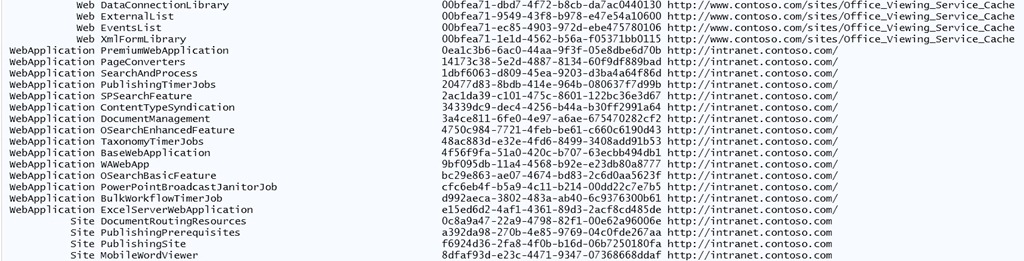
SPFeatureActivatedOutput1

Snippet of output from Get-SPFeatureActivated


Conclusion

   This script has been requested for a long time and I’m glad to finally getting a working “clean” version.  If you find any bugs or issues with the script please let me know.  I’ll be posting this to the TechNet Script Center after some internal review.  Enjoy the script and I hope it helps with your admin / developer needs.


      -Frog Out

Get Exchange Online Mailbox Size in GB

   As mentioned in my previous post I was recently working with a customer to get started with Exchange Online PowerShell commandlets.  In this post I wanted to follow up and show one example of a difference in output from commandlets in Exchange 2010 on-premises vs. Exchange Online.


Problem

   The customer was interested in getting the size of mailboxes in GB.  For Exchange on-premises this is fairly easy.  A fellow PFE Gary Siepser wrote an article explaining how to accomplish this (click here).  Note that Gary’s script will not work when remoting from a local machine that doesn’t have the Exchange object model installed.  A similar type of scenario exists if you are executing PowerShell against Exchange Online.  The data type for TotalItemSize  being returned (ByteQuantifiedSize) exists in the Exchange namespace.  If the PowerShell session doesn’t have access to that namespace (or hasn’t loaded it) PowerShell works with an approximation of that data type.

   The customer found a sample script on this TechNet article that they attempted to use (minor edits by me to fit on page and remove references to deleted item size.)


Get-Mailbox -ResultSize Unlimited |
   Get-MailboxStatistics |
   Select DisplayName,StorageLimitStatus, `
   @{name="TotalItemSize (MB)"; expression={[math]::Round( `
   ($_.TotalItemSize.Split("(")[1].Split(" ")[0].Replace(",","")/1MB),2)}}, `
   ItemCount |
   Sort "TotalItemSize (MB)" -Descending |
   Export-CSV "C:My DocumentsAll Mailboxes.csv" -NoTypeInformation


  The script is targeted to Exchange 2010 but fails for Exchange Online.  In Exchange Online when referencing the TotalItemSize property though it does not have a Split method which ultimately causes the script to fail.


Solution

   A simple solution would be to add a call to the ToString method off of the TotalItemSize property (in bold on line 5 below).


Get-Mailbox -ResultSize Unlimited |
   Get-MailboxStatistics |
   Select DisplayName,StorageLimitStatus, `
   @{name="TotalItemSize (MB)"; expression={[math]::Round( `
   ($_.TotalItemSize.ToString().Split("(")[1].Split(" ")[0].Replace(",","")/1MB),2)}}, `
   ItemCount |
   Sort "TotalItemSize (MB)" -Descending |
   Export-CSV "C:My DocumentsAll Mailboxes.csv" -NoTypeInformation


   This fixes the script to run but the numerous string replacements and splits are an eye sore to me.  I attempted to simplify the string manipulation with a regular expression (more info on regular expressions in PowerShell click here).  The result is a workable script that does one nice feature of adding a new member to the mailbox statistics called TotalItemSizeInBytes.  With this member you can then convert into any byte level (KB, MB, GB, etc.) that suits your needs.  You can download the full version of this script below (includes commands to connect to Exchange Online session).

$UserMailboxStats = Get-Mailbox -RecipientTypeDetails UserMailbox `
   -ResultSize Unlimited |
   Get-MailboxStatistics
$UserMailboxStats |
   Add-Member -MemberType ScriptProperty -Name TotalItemSizeInBytes `
   -Value {$this.TotalItemSize -replace "(.*()|,| [a-z]*)", ""}
$UserMailboxStats |
   Select-Object DisplayName,@{Name="TotalItemSize (GB)"; `
   Expression={[math]::Round($_.TotalItemSizeInBytes/1GB,2)}}


Conclusion

   Moving from on-premises to the cloud with PowerShell (and PowerShell remoting in general) can sometimes present some new challenges due to what you have access to.  This means that you must always test your code / scripts.  I still believe that not having to physically RDP to a server is a huge gain over some of the small hurdles you may encounter during the transition.  Scripting is the future of administration and makes you more valuable.  Hopefully this script and the concepts presented help you be a better admin / developer.


      -Frog Out


Links

The Get-MailboxStatistics Cmdlet, the TotalitemSize Property, and that pesky little “b”

http://blogs.technet.com/b/gary/archive/2010/02/20/the-get-mailboxstatistics-cmdlet-the-totalitemsize-property-and-that-pesky-little-b.aspx


View Mailbox Sizes and Mailbox Quotas Using Windows PowerShell

http://technet.microsoft.com/en-us/exchangelabshelp/gg576861#ViewAllMailboxes


Regular Expressions with Windows PowerShell

http://www.regular-expressions.info/powershell.html


“I don’t always test my code…” image

http://blogs.pinkelephant.com/images/uploads/conferences/I-dont-always-test-my-code-But-when-I-do-I-do-it-in-production.jpg


The One Thing: Brian Jackett and SharePoint 2010

http://www.youtube.com/watch?v=Sg_h66HMP9o