Sometimes The Customer Is NOT Always Right

Before reading this post, I highly recommend reading Top 5 reasons why “The Customer Is Always Right” is wrong.  That article gives great insight into the thoughts to follow.

In the US we have an old saying that says “the customer is always right.”  As time goes by there are various people (like the Southwest CEO in the article above) who don’t believe that phrase to be quite true.  While I may agree that it is not always a true statement, I feel there are some valuable lessons on both sides of this topic to be learned.  So far with my blog I have tried to stick to writing how-to or technical related articles, but recently this phrase has come up a few times so I’m dipping into “op-ed” territory for this post.  I’ll illustrate two such instances that spurred me on this topic.

The first instance I witnessed from the angle of the company.  Last week while I was waiting in line at a local video game retailer.  Ahead of me was a man (let’s call him Bob) in his late 20’s to early 30’s purchasing a new video game.  Bob asked to also get a copy of the strategy guide for the same game.  The clerk replied that the strategy guide had not been released yet so their store had no copies.  Bob insisted that the clerk had the product.  After 10 minutes of numerous phone calls, checks into the database, and searching through the store the clerk told Bob that he was unable to locate it.  Finally fed up Bob paid for his game and left the store cursing the clerk loud enough for other customers to hear.

After Bob had left, the clerk apologized for my wait (well over 10 minutes by this point) and having to witness that exchange.   He told me that Bob was a regular so all managers and associates knew him by face.  Every time Bob came in he complained about something.  Each time the employees tried to work with him and be as polite as possible.  During my encounter Bob had negatively affected a number of people in the store.  The clerk was subjected to verbal abuse, I was kept waiting, and a number of other younger customers overheard Bob swearing and half-yelling at the clerk.  Perhaps management (like the Southwest CEO) should tell Bob that there are plenty of other retailers Bob could use instead of theirs.

The second instance is more a series of events I’ve witnessed trending on various forms of media (blogs, twitter, forums, etc) coming from the angle of the dissatisfied customer.  One such event occurred a few weeks ago while listening to a fellow Twitterer (let’s call him Sam) rant about the horrible sales service he received from a local cable provider.  At the end of this series of tweets Sam finished with “<cable company name> FAIL.”

For those of us in the know, it’s not uncommon to see blog posts, tweets, or forum comments with FTW (for the win), FTL (for the lose), or epic fail announcements.  I typically don’t think much of these announcements, but Sam’s comment stuck out more than usual for me.  I think it struck a chord with me because it reminded me of a funny/insightful article I read about “if clients treated architects like software developers”.  It’s (near) impossible to please every person every single time for a given situation.  What can be helpful though is for all sides to take a minute and look at the situation from the perspective of the other person.  It’s also important to set expectations early on so that both sides know what they are getting into.  Too often we are more focused on getting MY problem resolved rather than working towards a solution that is positive for everyone.

I don’t claim to have the perfect answer for the issues that result from customer/seller relationship, but I do encourage you to take a few minutes to think about the situation from all angles the next time you feel the need to yell at a company or complain about bad service.  Sometimes the custom is NOT always right.

If any of my 7 readers out there enjoyed this switch up to a more “op-ed” style post (or if you down right didn’t like it and wish I never went down this route again) let me know in the comments.  I’ll always be working on technical posts, but if people enjoy a little variety I’m happy to give it a shot.  Thanks for reading.


-Frog Out


Extra Links

Funny “customer isn’t right” conversations

http://notalwaysright.com/

Homer Simpson Epic Fail


Vender Client relationship – in real world situations (funny video)
Using SharePoint Built-In Property Bags: SPWebApplication.Properties and SPWeb.Properties

     I ran across a feature of SharePoint a few weeks ago that I wanted to share: the SPWebApplication.Properties and SPWeb.Properties property bags.  These property bags can be used for many different needs, but I see a great application for them with feature activation/deactivation.

     At my current client we have almost a dozen features that make direct modifications to the web.config files of our web applications (see below for excellent link on making changes to the web.config files.)  Some of these modifications are simple additions and can be retracted with no residual effects.  Others are modifications to existing values and lose whatever was previously there.  Since we are not concerned about having to return a web application to the original state it has not been a problem to lose those existing values.  What if we didn’t have to lose those existing values though?

    After discovering these available property bags I was interested in trying to store existing values during activation and then restoring them during deactivation.  All of our web.config changing features are scoped to the web application level, so I investigated the SPWebApplication.Properties piece first.

// ...inside web app feature activation code

SPWebApplication webApp = (SPWebApplication)properties.Feature.Parent;


string existingValue = ... //get existing value from web.config

webApp.Properties.Add("mySetting", existingValue);


// reference property later

string savedProperty = webApp.Properties["mySetting"];


    Accessing SPWeb.Properties was just as easy except that I referenced the web application differently.  Since the feature is scoped to the web, the Feature.Parent will be an SPWeb instance instead of SPWebApplication.  Follow this pattern instead.

SPWeb web = (SPWeb)properties.Feature.Parent;

web.Properties.Add("mySetting", existingValue);


     So there you have it, a nice way to store values at the web application and web levels for whatever needs you may have.  Given the timeframe at my client we may not have time to implement this update, but it’s good to know that it exists for future reference if nothing else.  Wictor Wilen (linked below) has a concise write-up about some additional options available for storing data for SharePoint along with explanations of limitations.  Feel free to leave feedback if you found this post helpful.


   -Frog Out


Links:

How To: Modify the web.config file in SharePoint using SPWebConfigModification

http://www.crsw.com/mark/Lists/Posts/Post.aspx?ID=32

Six ways to store settings in SharePoint

http://www.wictorwilen.se/Post/Six-ways-to-store-settings-in-SharePoint.aspx

Organize Your Desktop With Fences™ From Stardock

Are you a presenter having to deal with your desktop getting jumbled while switching resolutions for a projector?  Are you an end user who has too many unorganized desktop icons?  I feel like Ron Popeil with lead ins like these, but really I just wanted to pass along a great FREE product I’ve been using the past few months to help me organize my desktop for multiple needs.

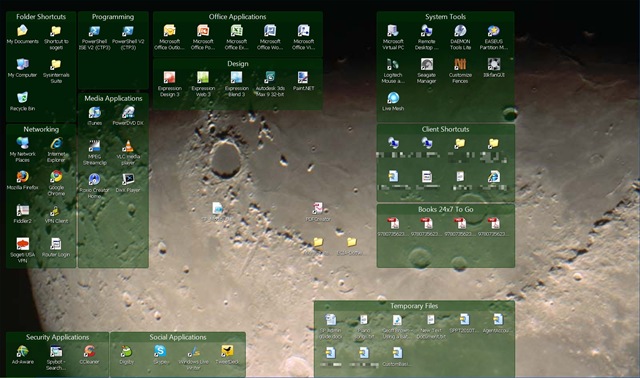
Stardock released their desktop management tool called Fences which a coworker referred me to a few months ago.  Essentially you can create groupings (fences) on your desktop and place your icons inside these groupings.  If you resize your desktop or adjust the individual fences, the tool will automatically adjust accordingly.

Fences1     Another nice feature is the ability to hide portions of your desktop to remove the clutter.  I really like this feature so that only the fences and icons that I’m currently using the most are displayed.  Other icons like a DVD burning program or rarely used shortcuts and applications can be hidden.  Just configure the fences or icons that will always display, then double click anywhere on the desktop to hide the rest.

Fences2

One last feature I like is taking snapshots of your desktop layout.  This allows you to create multiple configurations (home, work, just a backup, etc.) that can be restored at any time.  So check out this great tool and let me know how you like it.  I’ve seen a few minor updates over the past months I’ve used it.  At the time of this writing it’s just made it to a release candidate recently.  Hopefully it’ll remain a free product once it becomes a full product.  Enjoy.

And finally a video a Ron Popeil for those of you who know you know him but can’t quite put a face to the name.


-Frog Out

Windows 7, SharePoint 2010, and Events I’m Speaking At Coming Up

As most of the technology world knows (and even the general public thanks to commercials like the one below… who doesn’t love unicorns, kittens and rainbows) Windows 7 is releasing to the public on Oct 22, 2009.  Normally this would get me very excited except that I’ve been running Windows 7 RTM as the primary boot on my home desktop and as the secondary boot on my work laptop for a few months now.  I didn’t get much chance to use Vista over the past few years (client workstations with XP, working more with servers, etc) so I’m taking a more concerted effort to jump into Windows 7 early on.  So far the experience has been great with only one major issue I had with IE8 (crashing due to plug-ins) which I’m writing another post about.

Despite the Windows 7 release this week, what really has me excited is the start of the SharePoint Conference 2009 today.  Sadly I am unable to attend the conference this year so I’ve been trying to follow news coming out of the conference through live blogging from EndUserSharePoint.com and Twitter tweeps.  One of the best pieces of news I heard confirmed one of my long held beliefs: STSADM is essentially being replaced by PowerShell (reference).  Now this isn’t to say that you can’t use STSADM going forward with SharePoint 2010.  STSADM will still be around for backwards compatibility, but you really do want to learn PowerShell if you’ll be working in any sort of developer or administrative role with SharePoint.

Speaking of SharePoint and PowerShell, I just received word today that I was accepted to speak at SharePoint Saturday Cleveland coming up on Nov. 14th, 2009.  My presentation is titled “The Power of PowerShell + SharePoint” and it will be half introduction to PowerShell and half overview of how admins/developers can use PowerShell to maintain and develop against their farm.  I’ve been using PowerShell to help me with SharePoint for over a year now and I’m very happy to see that PowerShell is taking such a prominent place amongst tools for SharePoint.  So if you’re free on the Sat Nov 14th and can make it to the Cleveland area come see me talk, the event is free.  Registration and schedules should be posted shortly to the link above.  I’ll post my slides and code samples to my blog for those unable to attend or wishing to try out samples as well.


-Frog Out

PowerShell Script: Find All SharePoint Features Installed On Farm

     Determining all of the SharePoint features installed on a farm CAN be a very labor intensive process, but it doesn’t have to be.  If you’ve ever used the STSADM command line tool you may be aware that there is an “stsadm –o enumsolutions” command to determine all solutions on the farm, but there is no “stsadm –o enumfeatures” command.  At a client of mine I was doing wrap up documentation and detailing all of our custom WSP solutions (over 20 now) and the associated features (over 70 it turns out.)  Rather than dig through SharePoint admin screens or the numerous Visual Studio projects for hours documenting this information, I decided to fire up my trusty friend PowerShell and see if I couldn’t write a quick script to find the information I was looking for.

     Sure enough, using PowerShell and the SharePoint API I was able to write a script in 5 minutes that saved me over an hour of work.  I created 2 version of the script for different possible needs.

  1. Version 1 – simple output of all features in table format sorted by solutionId then featureName
  2. Version 2 – output of all features in table grouped by solutionId, then solutionId is replaced by actual solution name with a separate lookup (very minor performance loss due solution name replacement)

    Additionally, all out of the box features (solutionId is all 0’s) are ignored so only custom features are returned.  Run the below commands making sure to fill in the appropriate URL for your farm.  Additionally you can download both from my SkyDrive here: Version 1 and Version 2

Version 1
$url = "Your site URL here"


$site= new-Object Microsoft.SharePoint.SPSite($url)


$site.WebApplication.Farm.FeatureDefinitions `

| where-object {$_.solutionid -ne '00000000-0000-0000-0000-000000000000'} `

| Sort-Object solutionid,displayname `

| ft -property solutionid,displayname,scope -auto > features.txt


$site.Dispose()


Version 2
$url = "Your site URL here"


$site= new-Object Microsoft.SharePoint.SPSite($url)


#send all features to output file features.txt

$site.WebApplication.Farm.FeatureDefinitions `

| where-object {$_.solutionid -ne '00000000-0000-0000-0000-000000000000'} `

| Sort-Object solutionid,displayname `

| ft -property displayname,scope -auto -groupBy solutionid > features.txt


#replace solutionId in features.txt with solution name

foreach($s in $site.WebApplication.Farm.Solutions)

{

    (Get-Content features.txt) `

    | Foreach-Object {$_ -replace $s.solutionid.ToString(), $s.Name} `

    | Set-Content features.txt    

}


$site.Dispose()


    Feel free to leave feedback if you find these useful.  I’m starting to build up some more PowerShell + SharePoint scripts for some talks later this fall and it’s always good to know what others are looking to get out of PowerShell scripting.  Thanks for reading.


      -Frog Out

A Tale of the SharePoint Timer Service Repeatedly Crashing

SharePoint WSP deployment jobs failing due to a faulty timer job can be a difficult problem to track down.  I’ll walk you through the scenario I faced at a client recently with all of the issues I faced due to the SharePoint Timer Service repeatedly crashing.

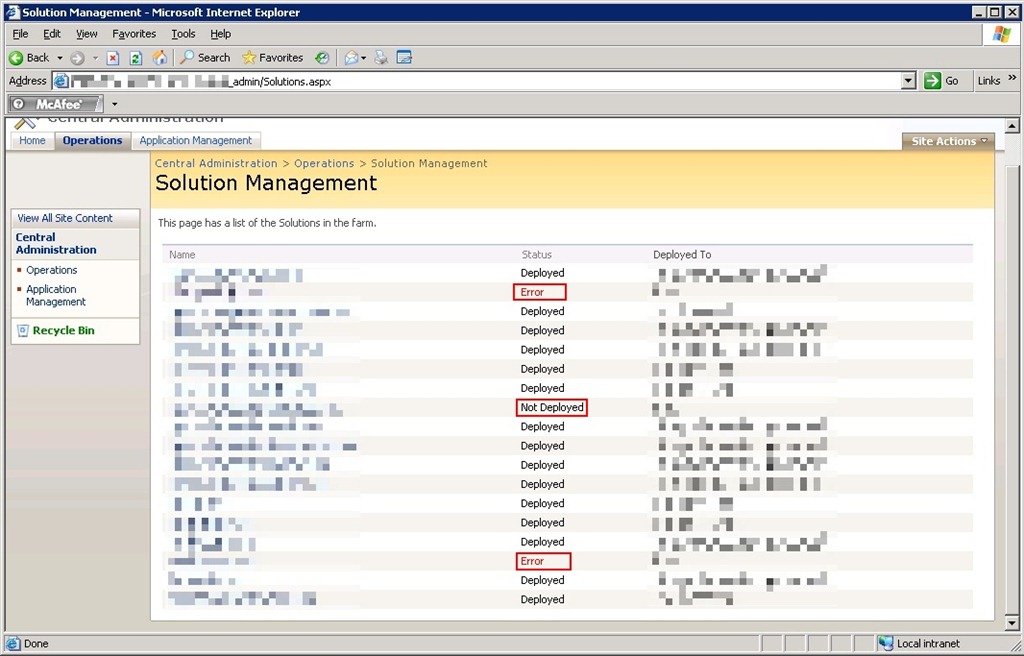
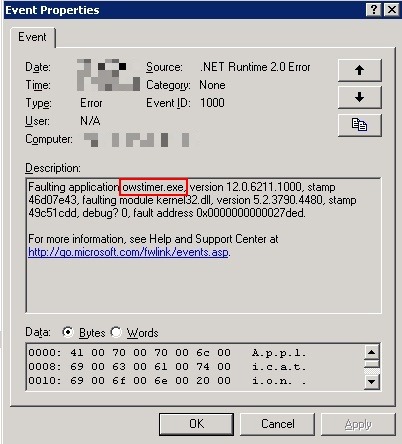
At this client we have close to 20 custom and 3rd party WSPs that are deployed to the primary farm.  During a routine rebuild one day we noticed that 3 jobs were consistently failing or listing as “not deployed” (see below.)  After quickly digging into the event viewer on the 3 web front end (WFE) servers we noticed that one them had the below error.


TimerJobFail3

WSP deployment jobs failing

TimerJobFail2

“Faulting application owstimer.exe” error

The error suggested that the owstimer.exe (SharePoint Timer Service responsible for running deployment jobs on each server) process was crashing on that server but with no clear explanation.  We restarted the Windows SharePoint Timer Service on that server and retried the deployment.  Thankfully the deployment succeeded on the trouble server.  Unfortunately the deployment failed on a different WFE.  The cause: owstimer.exe crashed on the other server now.  Hmm, one step forward then one step back, not a good sign.

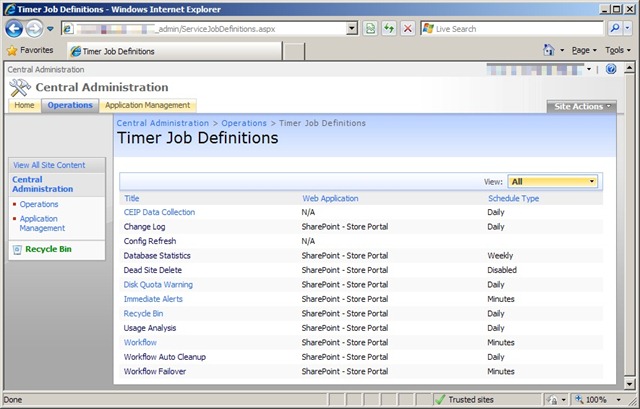
Fast forward a few more failed deployment attempts and owstimer.exe crashes on 1 or 2 of the servers each deployment attempt.  We then decided to fully remove the faulty deployment jobs that lingered on the failing servers.  This can be accomplished a few different ways.  First is running the “stsadm –o canceldeployment –id <guid>” command as seen here with the <guid> value coming from running “stsadm –o enumdeployments.”  Another (I feel slightly more risky) option is deleting the timer jobs through the Central Admin interface as seen below.  I say more risky because Central Admin usually presents a much easier interface for clicking the wrong button or choosing the wrong option (just my personal opinion.)  You can view deployment job status through “Operations –> Timer Job Status” and cancel them through “Operations –> Timer Job Definitions.”  Inside time job definitions click the specific job and then Delete from the following screen.

TimerJobFail4

Timer Job Definitions

Once we had completely cancelled, retracted, and removed all of the failing solutions then restarted the timer service on all WFEs we were able to successfully deploy all solutions on all WFEs.  There are times when you are working with SharePoint that you just need to back up your process and start back over from a clean slate to get successful results.  Knowing when to completely back up or when to forge ahead with your current direction is something I continually learn the more I work with SharePoint.  The biggest take-away from this experience is that when the timer job fails on one server there is a chance it is a farm wide issue and not just isolated to that server.  I can’t say that is always the case, but know the chance exists.  Until next time boys and girl happy SharePointing.


-Frog Out