Lessons Learned from Automating a SharePoint Deployment

Now this is a topic that really excites me.  It combines two things I love: automation and SharePoint.  At my current client we are in the process of moving our custom SharePoint applications to the production environment.  As we are moving to production, that means that we develops have less handle on the implementations be they databases, code migration, etc.  To ease the load on the infrastructure team who is implementing our custom application I took the liberty of automating as much of the process as possible.  The goal I set for myself was to take a base SharePoint farm (bits installed and Central Administration site running) all the way to a fully functioning production farm in less than 1 hour.  Here are a few numbers to give you an idea of the scope of this endeavor.

  • 5 distinct custom applications
  • 1 web application with additional extension for forms based authentication
  • 15+ custom and 3rd party WSPs
  • 1 root site collection
  • 4 subsites (all with unique security settings)

Additionally we have some custom databases, stored procedures, and database related pieces that are also deployed, but since that is technically outside of the standard SharePoint realm I won’t be touching on that.  Ok, now that you have any idea of the scope of this implementation let’s get down to what all this entails, why you would consider automating your deployment, and some of the lessons learned from my experience.

First, what can you use to automate your deployment?  There are a number of tools available each having their own pros and cons.  Here are a few options and brief analysis.

  1. STSADM.exe – this is an out of the box provided command line tool for performing certain administrative tasks.  STSADM can perform a number of operations that aren’t available through the SharePoint UI, but additionally since it is a command line tool can be put into batch scripts for running multiple commands consistently.  I typically script commands into either a .bat file or a PowerShell script (our next focus.)
  2. PowerShell – I’ll say this now and I’ll say it again as many times as needed: If you are a Windows/SharePoint admin/developer/power user and haven’t begun to learn to use PowerShell, make this a high priority.  In a previous post I talked about how important PowerShell is going to be going forward with any Microsoft technology.  Just look at the fact that it is built-in (re: can’t be uninstalled) from Windows 7 and Server 2008 R2.  That aside, PowerShell let’s you run STSADM commands, SharePoint API calls, or even SharePoint web service calls.  In v2 you’ll be able to run remote commands, debug scripts, and have access to a host of other new functionality bits.
  3. Team Foundation Server – I have not personally had much of a chance to look into this process aside from reading a few articles.  Essentially what you can do is have automated builds run from your Team Foundation Server and be able to track and analyze deployments in one integrated environment.  For very large or well disciplined organizations this seems like a good progression step.
  4. 3rd party product – this could range anywhere from a workflow product able to run command line calls to a task scheduler product able to schedule batch scripts.  Again these would most likely rely on STSADM or one of the SharePoint APIs.  The ability to schedule scripts or have them fire according to workflow logic may be something useful in your organization depending on size and needs.

Second, why automate deployments?  Won’t you spend as much time developing the deployment scripts as manually clicking the buttons or typing the commands?  This is a conversation best discussed with the team doing the development and the team doing the deployment.  If both happen to be the same team or your organization is very small perhaps the benefit of automation won’t be worthwhile (in the short term.)  For larger organizations (and in the long term) I would always recommend automated deployments.  There are a number of reasons including having a repeatable process, reducing “fat fingered” commands, reducing deployment time per environment, and reducing need for developer to be on hand during implementation among others.  On the flipside there is the added time for developing the scripts and added difficulty debugging scripts.  Taken together your organization should decide what works best for you.

Third, what’s the catch?  No one gets a free lunch (unless you somehow do get free lunches regularly, then give me a call and share your secret) so there must be something that manual has an advantage over automated.  Due to the very complex nature of our current deployment there are a few items that automation actually produces unintended results.  Here are a few to note.

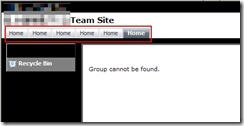
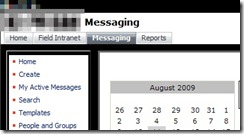
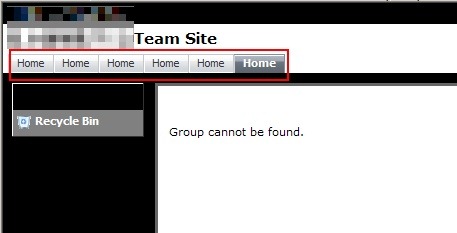
  • Deploying site definition as a subsite does not inherit top link bar properly.  See the pictures below.  Essentially we are seeing the top link bar fill with links to the subsite home page (first picture) instead of using the parent site’s top link bar (second picture.)  As a result we are forced to manually create our subsites.  Luckily using custom site definitions handles the heavy lifting of this process.2 3
  • In a farm that has multiple web front ends, activating features that have multiple updates to the web.config (read this article, excellent background) can cause issues.  The requests to update the web.config on each web front end will be sent out, but only one request can be fulfilled at a time.  As we have about 5+ features that fall into this category they back up and do not complete.  We have not found a good mechanism for delaying sending requests until the previous has completed.  In time with more practice we may find a way to fine tune this so that is no longer an issue.
  • When deploying sites/subsites from a site definition, any web part connections (one web part sending data to another web part) must be manually configured.  So far that I have seen web part connections cannot be contained in the onet.xml site definition (instantiation vs. declaration assuming) but I have a hunch that you could create a simple feature that’s sole purpose is to contact the web part manager and create web part connections.  I have not had the time to test this out, but it sounds plausible.  If anyone has thoughts or suggestions on this topic please leave feedback below.
  • Also when deploying sites/subsites from a site definition, some features cannot be properly activated during site creation time.  A good example is a custom feature that creates additional SharePoint groups on your site.  This is a tough one to describe, but visualize a chicken and an egg (yes, chosen for comedic sake.)  The chicken is your new site and the egg is a SharePoint group created by a feature activated on (born from) your site (your chicken).  When you create your new site (chicken) you are calling for features to also be activated (group created/egg born).  Since the egg comes from the chicken, it can’t possibly be called while the chicken itself is being born.  This leads to an error and the egg never gets born then.  Instead you must manually (or in a later script step) activate the feature that creates this group.  I hope this one didn’t thoroughly confuse you.  Just know that some features might not be able to be activated at site creation time.
If you were paying attention at the beginning you may be asking yourself “great overview on automating your install Brian, but how close did you get to your goal of a 1 hour deployment?”  We don’t have accurate measurements of the deployment time previously as our development environments grew organically at first and were slowly added to.  I would estimate that rebuilding from scratch by hand would take at least 3+ hours and constant babysitting by the implementer.  With the new process we are able to deploy the entire base farm as described above in roughly 30-45 mins.  On top of that, about 70% of that time is spent just waiting for the WSP files to be deployed to the farm.  As an added bonus, the number of clicks and lines typed is drastically reduced (I would rough estimate by 70% and 90% respectively.)

So there you have it, a quick intro/lessons learned for automating a SharePoint deployment.  For a much more example-based and in depth article please read this Automate Web App Deployment with SharePoint API.  I have referenced it many times when doing deployments and it covers just about everything from deploying lists to updating web.config to installing SharePoint.  If you have any questions, comments, or suggestions please feel free to leave them.  If there are any requests I can give a basic outline of what goes into my deployment scripts or how to architect them.  Thanks for reading.

-Frog Out
Exporting A SharePoint Site Into A Feature: Part 5 – Wrap Up

  • Part 1 – The Tools
  • Part 2  – Exporting the Site
  • Part 3 – Exporting the Lists
  • Part 4 – Exporting the Site Columns and Content Types
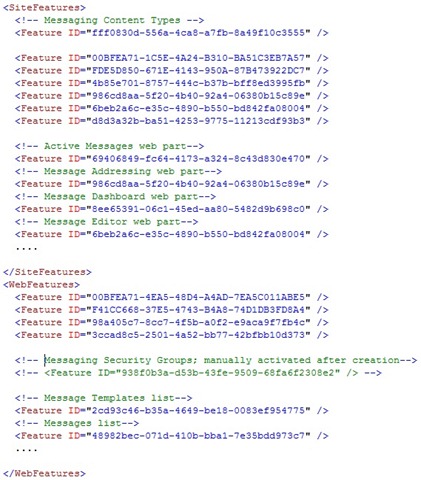
  • Part 5 – Wrap Up    Before I begin with the wrap up portion of this post, I want to make a correction to this series.  I was doing a bit of research today (quick comparisons, Joel Oleson’s take, deeper look at site definitions) on site templates, features, and site definitions and it struck me that the title of this series (Exporting a SharePoint Site into a Feature) isn’t quite accurate.  In reality, what I have been doing with my provided steps is creating a base site definition (simple few pages with web parts associated) and then stapled a number of features to the site definition.  There has been quite a bit of debate (see Joel Oleson’s post above) on which site provisioning method to use, each having it’s own pros and cons.  I’m not trying to tell you to choose one over the other, but do your research when deciding and find the method that best suits your (or your company’s) needs.  I hope this clears up some confusion I may have caused with the title.With that let’s continue on and walk through some of the steps for deployment and little quirks I’ve noticed.  For deployment, I use WSPBuilder to build and deploy my WSP files to the development farm.  What this ends up doing is copy my site definition files into a 12 Hive folder and deploy my features to the farm.  Site definitions stored in the 12 Hive (compared to stored in the database when customized through the UI or site templates) gives a performance gain.  On the downside site definitions are not (easily) updateable once deployed.  I say that because you technically can update your site definition, but it requires deleting and recreating your site if it has been provisioned anywhere.  With my current project we are only deploying one instance of each site definition to each environment and have backup software to facilitate easy migration of data from the old to new instance.  Hopefully your site definition remains fairly static and you only add functionality or modifications through new or updated features (which can be easily upgraded.)Once you have your WSP deployed, you can provision an instance of your site definition by creating a new site (or site collection) from your site settings page (or central admin for site collection.)  In your site definition onet.xml file, any features that you have placed in the <SiteFeatures> or <WebFeatures> elements will be “stapled” or automatically added and activated upon provisioning.  Below is a reduced list, but I have features to add web parts, lists, and content types among other things.

    ExportSharePointSite12

    One thing to note about my features.  The feature “Messaging Security Groups” is commented out.  The reason for that is that that feature creates a number of SharePoint groups (composers, approvers, etc) and assigns them permissions to the site being created.  However, the owner of these groups happens to be the Site Owners group.  Because I am not inheriting security from the parent site, new Site Owner, Member, and Reader groups are created.  This is an issue because those new groups are created after my features have been stapled.  This means that I must manually activate this feature after the site provisions process has occurred.  If anyone knows a good way around this please let me know.

    A few other things I’ve noticed during development.  When using the methods described in this series to export an instance of this site definition you will get some duplicate entries in the site definition files, particularly when it comes to web parts assigned to pages in the onet.xml.  I would recommend updating the original site definition (by hand or copying over only the changes from a new export) as a workaround.  Also, I have a few web parts that provide and consume connections to each other on various pages.  I haven’t found an easy way to configure those connections in code.  Some suggestions were found, but I was unable to get them working.  Instead I manually assign the connections once the page has been provisioned.  Again if any know of a way around that please let me know.

    And so I draw to a close this series.  Thanks for reading along.  Hopefully it gives you some pointers and insight into creating, exporting, and maintaining a site definition and associated features.  Drop me a comment if you have any questions, suggestions, or input.

    – Frog Out

Exporting A SharePoint Site Into A Feature: Part 4 – Exporting Site Columns and Content Types

If nothing else, this blog post will win the award for longest title that I’ve written yet.  Joking aside, It’s time to put one of the finishing stones in place for this series.  So far we’ve exported the site and lists, now it’s time for the site columns and content types.  The tool we’ll be using this go around is the Imtech Fields Explorer.  The process is fairly straight forward so let’s dive in.

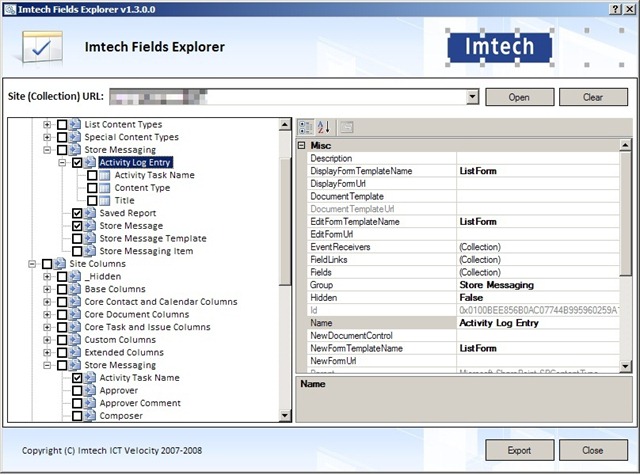
Launching the field explorer tool, you’ll first be prompted to specify your SharePoint site URL and click Open.  You’ll see entries for this site’s content types, site columns, and lists.  Strangely (at least in the v1.3.0.0 version I’m using) I am not able to export lists.  Not sure if this is intended functionality or just features yet to be implemented.  Either way, select the content types and site columns to be exported.  You can also view detailed information about the individual entries, similar to other products such as SharePoint Manager.

ExportSharePointSite2     Click Export once you’ve selected your items.  If you’ve selected both content types and site columns, the export will occur in two phases starting with content types.

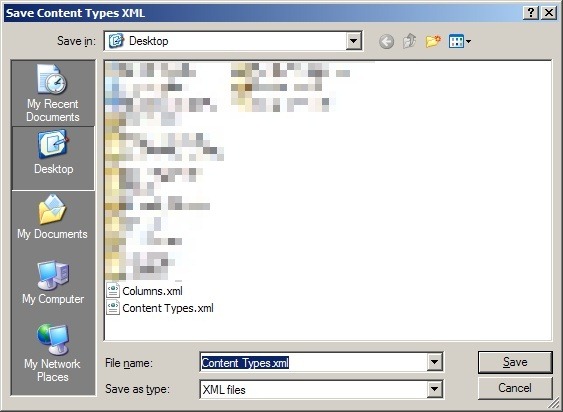
ExportSharePointSite2a     Select the destination file location for the “Content Types.xml” output.  I typically go with the desktop for convenience of loading into Visual Studio (or favorite text editor) when complete.

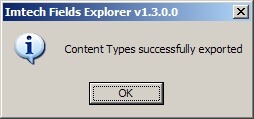
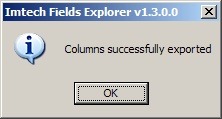
ExportSharePointSite2b     You’ll receive a success screen when that completes.

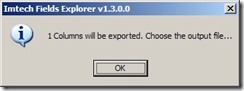
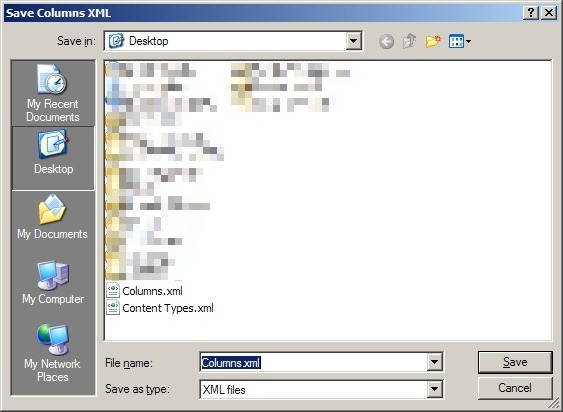
ExportSharePointSite2c     Follow the same procedure for site columns.

ExportSharePointSite2dExportSharePointSite2eExportSharePointSite2f     Now that you’ve got your output files, open them alongside your WSPBuilder solution.  The Columns.xml file is fairly simplistic.  It will detail all of the properties and metadata used to define a site column.  Copy all of the <Field> elements into the elements.xml file of a feature for deploying your content types (a blank feature in WSPBuilder will suffice.)  I’ve only chosen one column for the example below, but you’ll more than likely have many more.

ExportSharePointSite10a     Next open the Content Types.xml file.  For content types, so far I’ve found only the <Content Type> elements to be necessary while the <XmlDocuments> elements can be left out.  If anyone knows the <XmlDocuments> to be required for some reason let me know.  Copy the <Content Type> elements and their child elements into the same elements.xml file as above.  The <FieldRef> elements will link to the <Field> elements via the GUID.

ExportSharePointSite10b     Now if you remember from the end of part 3 of this series we talked about needing to add in the content type and site column definitions to our list definition’s schema.xml file as well.  So while we’re copying these definitions into the elements.xml file above, also add them to the appropriate schema.xml files for your lists.  Only the content types and site columns belonging to that list definition will need to be copied over.  In the end you’ll have something similar to the below example for the list schema.xml file.

ExportSharePointSite10c

And with that we’ve reached the final step of our exporting process.  I’ll be putting together a wrap up post on some caveats that I’ve run into thus far and other things to look out for along the way.  I’ll also do a quick bit on actually deploying the site template for use.  Thanks for reading along so far.  Post any comments or questions you have.  Until next time.

-Frog Out

Exporting A SharePoint Site Into A Feature: Part 3 – Exporting the Lists

So let’s recap where we’re at with this series.  Part 1 was about the tools I’ve been using to export a SharePoint site to a  feature, part 2 exported the base (pages, web part settings on pages, etc) of the site template, and now part 3 will be exporting SharePoint lists into our feature.  The tool we’ll be using time around is the MOSS Feature Generator (previously called CT Feature Creator among other names.)

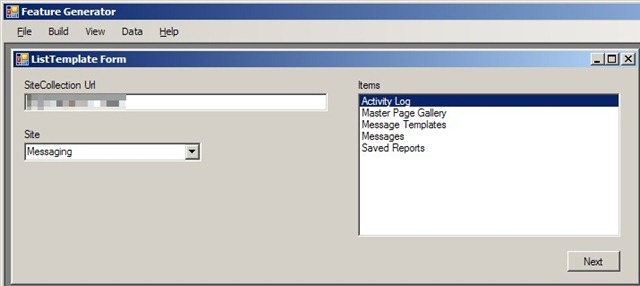
As I stated in part 2, I prefer the output from the MOSS Feature Generator to that of the SharePoint Solution Generator 2008 because it required less modifications to fit into my WSPBuilder solution.  When you launch the tool, click File > New > ListTemplate Feature.  Next specify your site collection Url, the individual site that contains the lists to be exported, and the list itself.

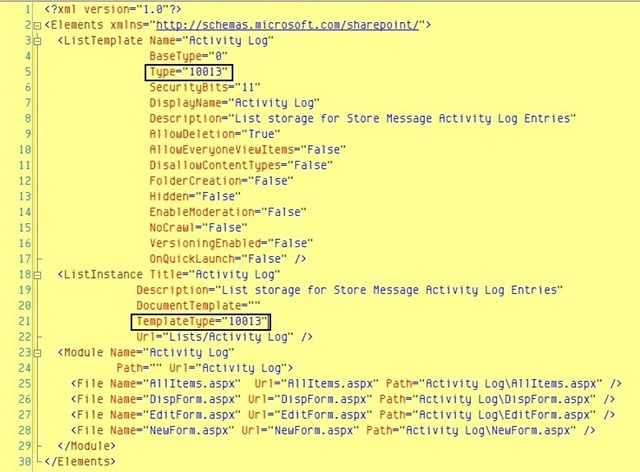
ExportSharePointSite11a     The next screen contains a whole host of boxes, but we’ll only touch on a few of the more important ones.  Obviously you’ll want to specify a Name and Description for starters.  Next take a look at the Type (first red box below) box.  The value will typically be the base list template id that your list is already inheriting from.  Read this post for a little explanation on each template id.  As you’ll see, 100 is the generic list template id.  Since we’re trying to create a new list template, you’ll want to create a unique id.  I typically choose values above 10000 since the out of the box list template id’s don’t currently go that high.  Feel free to come up with your own system.

The other box I’ll highlight is DisallowContentTypes.  If you’re using content types on your list (and I recommend doing so for organization and consistency sake,) then you’ll want to pay attention to this later on.  I haven’t found a way to set this during the export process, so we’ll take care of that after placing it into our feature later on. ExportSharePointSite11b

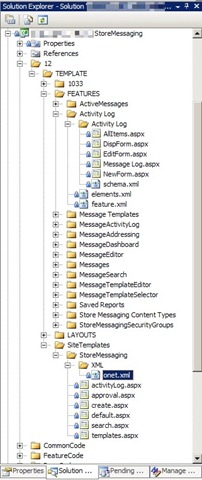
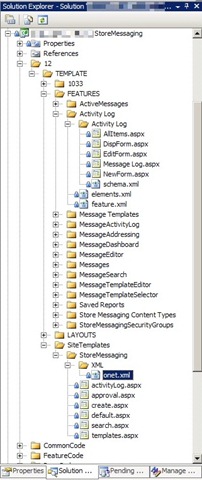
Referring to our picture from part 2 on the solution layout, you’ll want to take your output files and place them into your solution as seen below.

ExportSharePointSite8c    Next, open the elements.xml file.  First thing to notice is that I have added some additional markup that you won’t find in the output from our list template creator.  I’ve added <ListInstance> and <Module> nodes so that my list template is instantiated within my feature.  Feel free to model your file similarly, but not necessary.  Lastly, make sure the Type (and TemplateType if you add the list instance) value is a unique value.

ExportSharePointSite11c

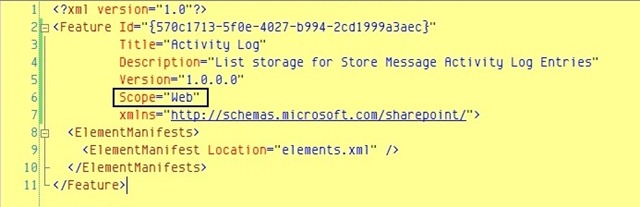
Next, open your feature.xml file.  The only modification I have done here is make the feature scoped to the web since a list lives on an individual site (web) instead of at the site collection (site) level.

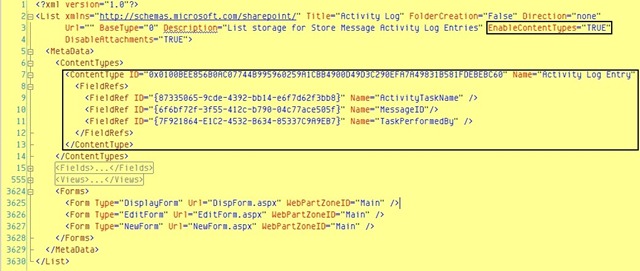
ExportSharePointSite11d     The last (and probably most important) file is the schema.xml one which defines the infrastructure of our list.  As you’ll see below, I’ve outlined the addition of two key pieces.  First is the EnableContentTypes attribute of the <List> element which has been set to True so that we can have custom content types.  The second highlighted piece is the definition code for our custom content type.  Don’t worry if you don’t have (or know how to get) that XML snippet.  I’ll be covering that in part 4 of this series.  For now though, you have a rough sketch of your list template.

ExportSharePointSite11e     As a quick aside, I’ve noticed one thing by working with the schema.xml (and onet.xml from the site template in part 1) file very frequently.  When I need to make a change to these files (add a fieldref, change view query, etc) I’ve become faster and more efficient at editing the raw file versus updating through the UI and exporting a new copy.  Reminds me of my time working with Unix and VI at a previous job.

So there we have it, second piece of our site template exported into our feature.  Part 4 will be focusing on exporting site columns and content types.  In the past that used to be a very complex and hard to manage portion of the process, but with new tools that is not the case anymore.  Stayed tuned for that installment and in the meantime post and comments or questions you may have.  Thanks for tuning in.

-Frog Out

Exporting A SharePoint Site Into A Feature: Part 2 – Exporting the Site

Took a little longer to get to part 2 than expected with being gone last week on vacation and client work this week.  Quick recap for everyone on what we’re trying to do here.  Scenario would be that you’ve already built and customized a SharePoint site using the web UI (edit page, add web part, create list, create site columns, etc.)  Now we want to be able to capture that site and put it into a SharePoint feature (and solution) so that we can easily re-deploy it say for disaster recovery, migrating between development environments, or any number of other needs.

For a reference on any of the tools to be used, please read part 1.  The first thing you’ll want to do is create a WSPBuilder solution, preferably placing it under source control.  My coworker Kelly Jones and I tossed around the idea of writing up a guide for how to create the infrastructure for setting up SharePoint development environment, perhaps someday you’ll see a post on that.  For now though, check out this introduction to WSPBuilder or drop me a line if you need help getting started with WSPBuilder.  Most of my experience with it has been hands on so I don’t have too many references for getting started with it.

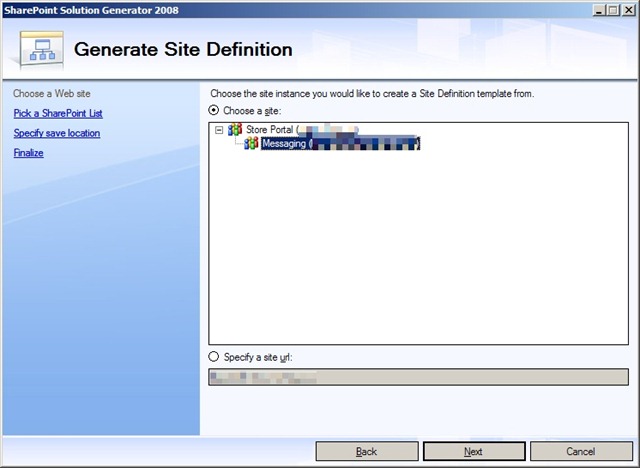
Once you have your WSPBuilder solution created, we’ll use the SharePoint Solution Generator 2008.  This tool will export our site into a Visual Studio solution to give us a starter base.  Run the tool (on a SharePoint server in the farm, very important) and select Site Definition.

ExportSharePointSite3

Next Select the site to be exported.  In my case I wish to export the Messaging Site which is a subsite of Store Portal.

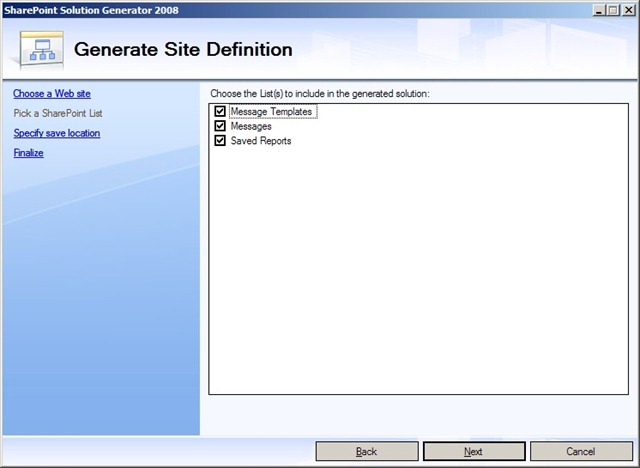
ExportSharePointSite4     Once you have selected the site, you may choose to export lists contained on that site.  I have chosen to export all of my lists but that is not necessary.

ExportSharePointSite5

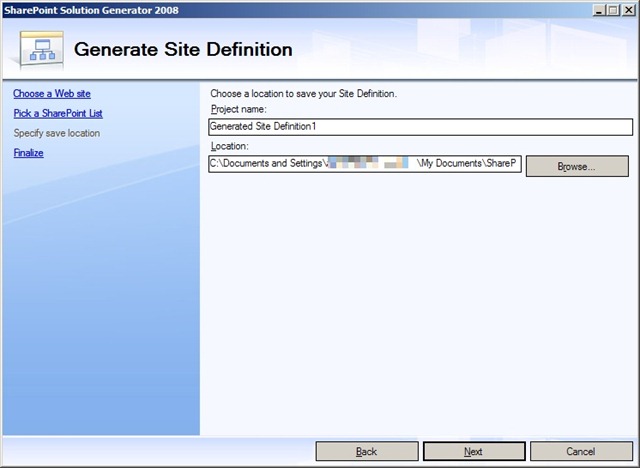
Last, select the location to output the generated solution file to and give it a name.  I leave the defaults.

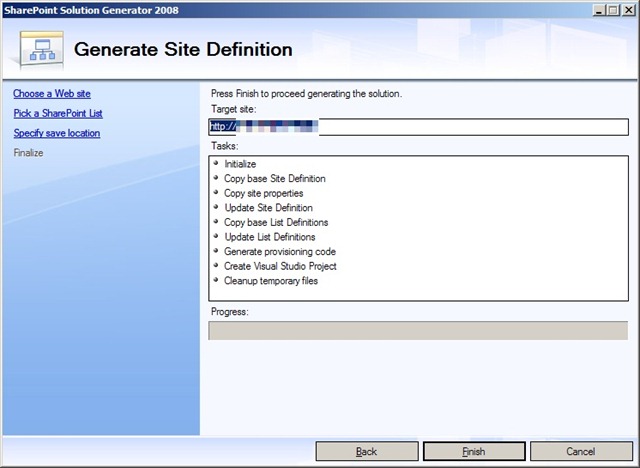
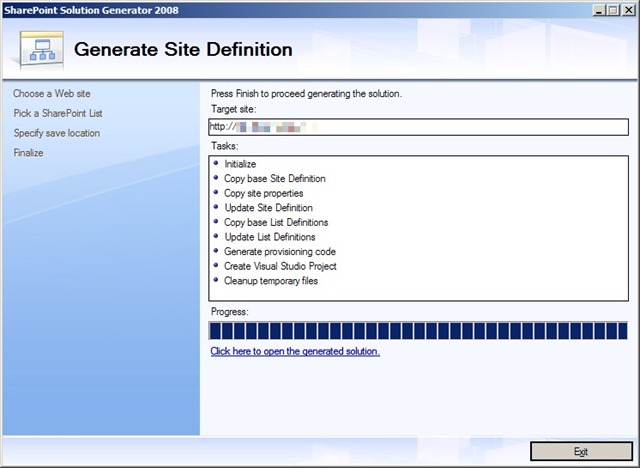
ExportSharePointSite6     The solution generator will show you a progress bar and indicate any errors that may come up during the export process.  I have yet to run into any errors in all my times using the tool.

ExportSharePointSite7     Once the export has completed click on the link to open the folder containing the solution that was generated.

ExportSharePointSite8

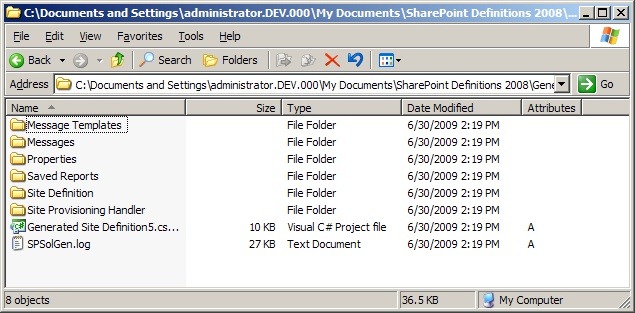
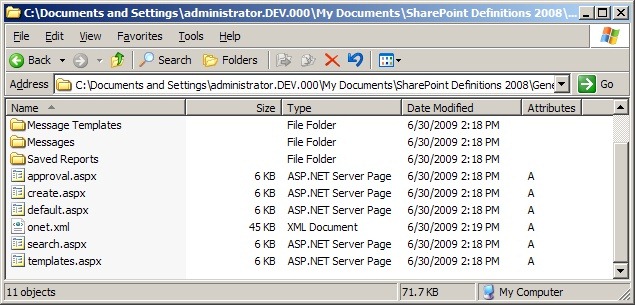
Taking a look at the solution file, we’ll see a couple of things.  First is the site template folder.  This contains all of the .aspx pages, the onet.xml (more on that in a later part of the series), and instances files for the lists exported.  Note: files below were from a previous export, so you won’t see some of the same folders for lists.

ExportSharePointSite8aExportSharePointSite8b      You’ll want to place these files into your solution file similar to how I’ve done below.  While you can copy in the list folders into your features folder, I’ve found that the MOSS Feature Generator does a better job encapsulating all of the required information in a much smoother fashion.  So for now hold off on copying those list folders unless you’d like to toy around with how they work.  You’ll want to rename some files (ListDefinition.xml becomes elements.xml, etc) and modify some values to be more in line with the defaults used by WSPBuilder.


ExportSharePointSite8c

There you have it, you’ve exported your site into a WSP Solution and with minimal effort.  In part 3 I’ll dive into the MOSS Feature Generator and show you how to export your lists directly into feature folders.  Part 4 will be the Imtech Fields Explorer and how to export site columns and content types.  I’ve not yet planned out if there will be any further parts to this series beyond the four, but I imagine there will be at least a post or two more about advanced items.  As always I appreciate any feedback, suggestions, questions, or comments from my readers.  Let me know if there’s anything I can help with.  Until next time.

-Frog Out

Exporting A SharePoint Site Into A Feature: Part 1 – The Tools

  • Part 1 – The Tools
  • Part 2  – Exporting the Site
  • Part 3 – Exporting the Lists
  • Part 4 – Exporting the Site Columns and Content Types
  • Part 5 – Wrap Up    <Update>Please read the intro paragraph of part 5 for a correction relating to the title of this series.  It should more appropriately be called something along the lines of “Exporting A SharePoint Site Definition and Features” but I’ll keep the original titling for now</Update>As I promised a blog post or two ago, I’ve been wanting to write up how to export a SharePoint site into a site template defined as a feature, so here is part 1 of the multi-part series.. Not only is exporting a SharePoint site into a feature good for repeatability (disaster recovery anyone), but I’ve actually used it in my last two clients when migrating a site (and subsequent upgrades) through various development environments.  First and foremost I have to thank my good friend and coworker Kelly Jones for his help in guiding me down a path of standards and best practices in this area of SharePoint.  He introduced me to a couple of tools and blog posts that really helped.

    As noted in a previous post I enjoy checking out new technologies that help me do my job (or hobbies) more easily and efficiently.  For this given topic I use a mix of tools that each have a set of advantages in certain areas.  So what better way to get started then introduce you to a few of the tools that I’ve been using to get going on exporting a SharePoint site into a feature.

    1. WSPBuilder – This tool is a great choice for creating a SharePoint solution in Visual Studio that contains projects for SharePoint features, site templates, web parts, and many other entities.  Note that the VB.net support was just recently added 2 builds ago and last I checked needed a little work still.  Aside from that this tool let’s you do 1-click each for builds of your WSPs, deploy WSPs to farm, deploy files to 12 Hive, recycle app pools, attach to W3WP.exe process, and many other commonly needed functions.  I also like the fact that the tool developer releases updated builds fairly regularly.
    2. SharePoint Solution Generator 2008 (included in the Visual Studio extensions for WSS 1.2 download) – Once you have a rough layout of how you would like your SharePoint site to look (pages, lists/libraries, web parts, etc) you’ll want to use this tool to create a starter site template.  The output solution will contain a site template as well as list templates for any lists you chose to export.  I will go into detail on how to integrate this output into your SharePoint solution in part 2.
    3. MOSS Feature Generator (previously called CT Feature Creator among other names) – A beauty in its own right, this tool let’s you export some of the pieces not captured by the site template such as site column and content type.  I typically use this to capture the basis for a content type then fill in the remaining pieces with the next tool below.
    4. Imtech Fields Explorer (part of the Imtech ICT Velocity CodePlex project) – Honestly I am surprised that I don’t hear more buzz about this tool more often.  Some initial suggestions for exporting site columns or content types come from Gary LaPointe’s blog post and another from Andrew Connell’s blog post.  This tool fits nicely into a process for me.  As such this is one of those diamond in the rough type of finds.  As noted above, I use this tool to fill in the gaps of the MOSS Feature Generator which only lets you export one site column or content type at a time.  The Imtech Fields Explorer on the other hand lets you export multiple site columns or content types at a time (but not both at the same time).  With this tool you can integrate your output into a SharePoint feature (using the MOSS Feature Generator above) to deploy all of your site columns and content types to a site collection.  When you are exporting half a dozen site content types with 40+ site columns this will save you lots of time.

    So now you have a list of some tools to check out (or become more familiar with if you’re already using them.)  The next part in the series will be focused on taking a site that you have already modified a bit and exporting it into a basis site template.  Depending on how much ground I cover this may turn into a 3 or 4 part series.  Until then, shoot me any feedback if you have problems getting these tools up and running or suggestions for other tools you’re using to export site templates into a feature.  Enjoy and have a safe and fun July 4th.

    – Frog Out