Goals for 2010 Retrospective

    As we approach the end of 2010 I’d like to take a  few minutes to reflect back on this past year and revisit the goals that I set for myself at the beginning of the year (click here to see those goals).  I feel it is important to track your goals not only to see if you accomplished them but also to see what new directions in life you pursued.  Once we enter into 2011 I’ll follow up with a new post on goals for the new year.

Professional

  • Blog – This year I intended to write at least 2 posts a month.  Looking back I far surpassed that goal by writing 47 posts (this one being my 48th).  As with many things in life, quantity does not mean quality.  A good example is a number of my posts announcing upcoming speaking engagements and providing links to presentation slides and scripts.  That aside, I like to at least keep content relatively fresh on this blog  which I was able to accomplish.  At the same time I’ve gotten much more comfortable in my blogging style and it has become much easier to write.
  • Speaking – I didn’t define a clear goal for speaking engagements, but had a rough idea of wanting to speak at 2-3 events.  Once again I far exceeded that number by speaking at 10 separate events and delivering 12+ presentations.  I’m very thankful for all of the opportunities that I was given and all of the wonderful people I have met as a result.
  • Volunteering – This year I intended to help out with the COSPUG (now Buckeye SPUG) steering committee and Stir Trek conference.  I fulfilled both goals and as well as taking on lead organizer duties for the first ever SharePoint Saturday Columbus.  Each of these events and groups turned out to be successful and I was glad to be a part of them all.  I look forward to continuing to volunteer with each next year in some capacity.
  • Android Development – My goal for getting into Android development was a late addition, but one I didn’t necessarily fulfill.  I spent a couple nights downloading the tools, configuring my environment, and going through some “simple” tutorials.  I say “simple” because in my opinion the tutorials were not laid out very well, took a long time to get running properly, and confused me more than helped.  After about a week I was frustrated with the process and didn’t think it was a good use of my time.  On a side note, I’ve dabbled in Windows Phone 7 development over the past few months and have been very excited by how easy and intuitive it was to get started and develop some proof of concepts.

Personal

  • Getting in Shape – I had intended to play on recreational sports leagues and work out on a semi-regular basis.  For the most part I fulfilled this goal by playing on various softball and volleyball leagues as well as using the gym.  At the same time I had some major setbacks.  In the spring I badly sprained my ankle and got hit in the knee with a softball which kept me inactive for almost 2 months.  More recently I broke my knuckle (click here to read about it) which I am still recovering from.
  • Volunteering – On the volunteering front I kept my commitments at my parish’s high school youth group.  As for other volunteering opportunities I got involved with a great organization called Columbus Gives Back (website).  I’ve volunteered with them a few times and really enjoy their goal to provide opportunities to people with busy schedules.  They  offer a variety of events typically after work hours and spread out around Columbus with no set commitments on time you need to put in.  If you have the time or motivation I highly recommend them.
  • House/Condo – I had been thinking of buying a house or condo this past summer, but decided to extend my apartment lease for another year instead.  I have begun the search for a place in the past few weeks and am excited begin the process of owning a home.

Conclusion

    This year I was able to set and achieve many of my goals.  For next year I’ll try to put more specific numbers to all of my goals.  If any of you readers set goals for 2011 feel free to send me a link as I’d love to see what you are aiming to accomplish.  Have a great end of 2010 and best wishes for the start of 2011!

      -Frog Out
Slides and Scripts from Metalogix Webcast Master Your SharePoint Migration With PowerShell

Thanks to everyone who attended the Metalogix webcast “Master Your SharePoint Migration with PowerShell” I guest presented on today.  We had great attendance and no technical hitches which is always a plus.  A number of attendees asked for my slide deck which you can find at the link below.  As a bonus I am including a set of demo scripts that I typically use with the longer version of this presentation.  If you have any questions or comments please feel free to reach out to me.  A big thanks once again to Metalogix for giving me the opportunity to work with them.

Scripts and Slidedeck

Click Here

-Frog Out

Guest Post: Instantiate SharePoint Workflow On Item Deleted

In this post, guest author Lucas Eduardo Silva will walk you through the steps of instantiating a workflow using an item event receiver from a custom list.  The ItemDeleting event will require approval via the workflow.

Foreword

As you may have read recently, I injured my right hand and have had it in a cast for the past 3 weeks.  Due to this I planned to reduce my blogging while my hand heals.  As luck would have it, I was actually approached by someone who asked if they could be a guest author on my blog.  I’ve never had a guest author, but considering my injury now seemed like as good a time as ever to try it out.

About the Guest Author

Lucas Eduardo Silva (email) works for CPM Braxis, a sibling company to my employer Sogeti in the CapGemini family.  Lucas and I exchanged emails a few times after one of my  recent posts and continued into various topics.  When I posted that I had injured my hand, Lucas mentioned that he had a post idea that he would like to publish and asked if it could be published on my blog.  The below content is the result of that collaboration.

The Problem

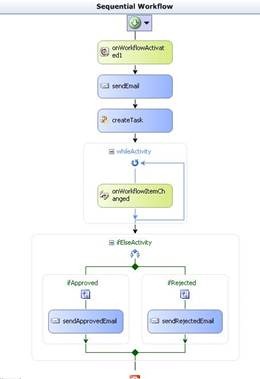
Lucas has a big problem.  He has a workflow that he wants to fire every time an item is deleted from a custom list. He has already created the association in the “item deleting event”, but needs to approve the deletion but the workflow is finishing first. Lucas put an onWorkflowItemChanged wait for the change of status approval, but it is not being hit.

The Solution

Note: This solution assumes you have the Visual Studio Extensions for Windows SharePoint Services (VSeWSS) installed to access the SharePoint project templates within VIsual Studio.

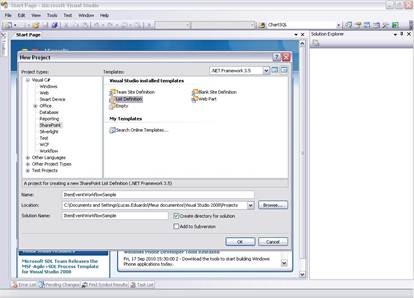
1 – Create a workflow that will be activated by ItemEventReceiver.

clip_image002

2 – Create the list by Visual Studio clicking in File -> New -> Project. Select SharePoint, then List Definition.

clip_image004

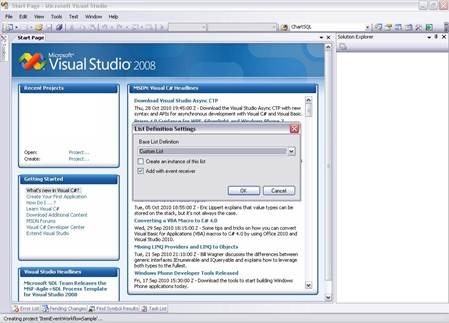
3 – Select the type of document to be created. List, Document Library, Wiki, Tasks, etc..

clip_image006

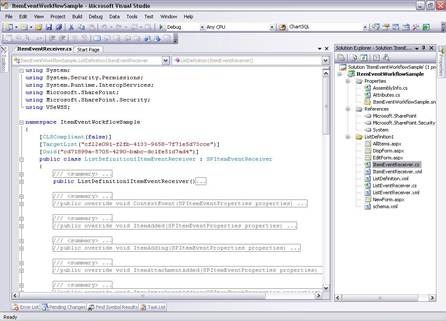
4 – Visual Studio creates the file ItemEventReceiver.cs with all possible events in a list.

clip_image008

5 – In the workflow project, open the workflow.xml and copy the ID.

6 – Uncomment the ItemDeleting and insert the following code by replacing the ID that you copied earlier.

//Cancel the Exclusion 

properties.Cancel = true;


//Activating Exclusion Workflow

SPWorkflowManager workflowManager = properties.ListItem.Web.Site.WorkflowManager;


SPWorkflowAssociation wfAssociation =

    properties.ListItem.ParentList.WorkflowAssociations.

    GetAssociationByBaseID(new Guid("37b5aea8-792a-4ded-be25-d283d9fe1f9d"));


workflowManager.StartWorkflow(properties.ListItem, wfAssociation, wfAssociation.AssociationData, true);


properties.Status = SPEventReceiverStatus.CancelNoError;

7 – properties.Cancel cancels the event being activated and executes the code that is inside the event. In the example, it cancels the deletion of the item to start the workflow that will be active as an association list with the workflow ID.

8 – Create and deploy the workflow and the list for SharePoint.
9 – Create a list through the model that was created.
10 – Enable the workflow in the list and Congratulations!

Every time you try to delete the item the workflow is activated.

TIP: If you really want to delete the item after the workflow is done you will have to delete the item by the workflow.

this.workflowProperties.Site.AllowUnsafeUpdates = true;

this.workflowProperties.Item.Delete();

this.workflowProperties.List.Update();

Conclusion

In this guest post Lucas took you through the steps of creating an item deletion approval workflow with an event receiver.  This was also the first time I’ve had a guest author on this blog.  Many thanks to Lucas for putting together this content and offering it.  I haven’t decided how I’d handle future guest authors, mostly because I don’t know if there are others who would want to submit content.  If you do have something that you would like to guest author on my blog feel free to drop me a line and we can discuss.  As a disclaimer, there are no guarantees that it will be published though.  For now enjoy Lucas’ post and look for my return to regular blogging soon.

-Frog Out

<Update 1> If you wish to contact Lucas you can reach him at luesilva1102@gmail.com </Update 1>

Guest Presenter with Metalogix for SharePoint 2010 Migration Webinar on PowerShell

    On Thursday Dec 9th, 2010 at 11:30am EDT I will be a guest presenter with Stephen Cawood (@cawood) from Metalogix as part of an ongoing webinar series titled Migrating to SharePoint 2010.  This specific webinar will be focused on Master your SharePoint 2010 Migration with PowerShell.  During the webinar I’ll be presenting a brief overview of how and why to use PowerShell to administrate your SharePoint 2010 farm.  I’ve known Stephen through various interactions at conferences, events, and Twitter so I’m very excited to be working with him on this.  Registration is going strong so be sure to sign up today (register here).  Look forward to you joining us.


Event title:
Master your SharePoint 2010 Migration with PowerShell
(click here for registration)

Date and time:
Thursday, December 9, 2010 11:30 am
Eastern Standard Time (New York, GMT-05:00)
Duration:
1 hour

Description:

The addition of PowerShell support, Microsoft’s highly customizable scripting language, for SharePoint 2010 was widely applauded by the global SharePoint community as it would provide administrators and system integrators with a valuable tool to enhance their ability to manage and deploy SharePoint environments . With SSMM PowerShell can be used to auto-generates scripts that can be easily customized to accommodate complex migration tasks and provide more fine grained control over all aspects of a SharePoint project. During this webinar Brian Jackett from Sogeti and Steve Cawood, SharePoint MVP and Metalogix Director of Support and Community will discuss and demonstrate how PowerShell combined with Metalogix Migration Manager products can be used to scale and customize various tasks in order to easily address complex migration scenarios.


      -Frog Out

Reduced Blogging For A Few Weeks

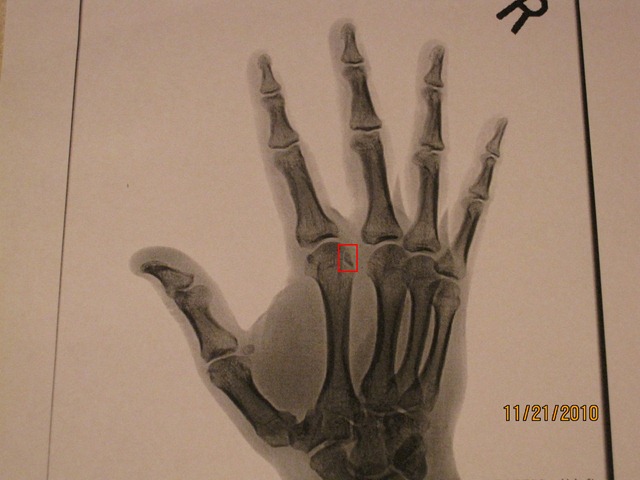
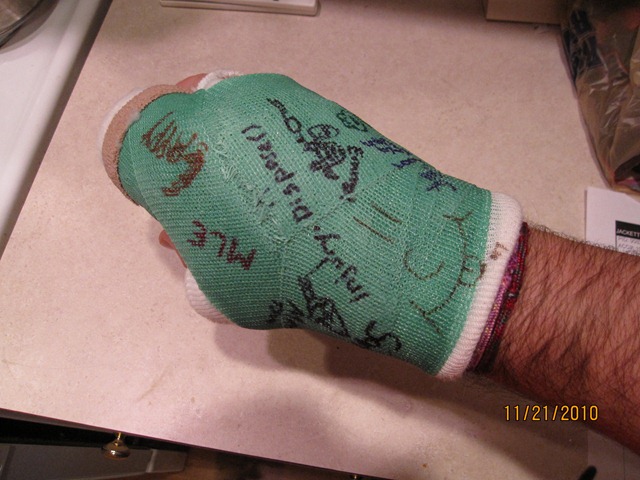
I typically post technical content on this blog, but I have a personal note this time around.  As some of you who follow me on Twitter or Facebook may know, last week I found out I fractured my right index knuckle and strained a ligament between my index and middle finger.  In order to heal this injury I’ll be wearing a cast for the next 3 1/2 weeks.  This is day 4 and I’m starting to get used to it, but my typing speed is still reduced and causes pain over long usage.  As such I am cutting back on a few side activities such as this blog, the SavePSToSP CodePlex project, and general research I do at nights.  I’ll still be responding to comments on this blog as they come up, but new content will be most likely be on hold until mid December when I get my fracture re-examined and hopefully can get rid of this cast for good.  Below is a copy of one x-ray showing the fracture and the other a shot of my cast today with some of the signatures I’ve collected.  I look forward to my hand healing and getting back to normal.  Have a fun and safe Thanksgiving holiday to all those that celebrate.

IMG_2174_adj IMG_2175


-Frog Out

PowerShell Script To Find All Closed Web Parts On SharePoint Site

Are your SharePoint pages loading slowly because you have numerous closed web parts eating up valuable resources?  Are you an admin tasked with tracking down those closed web parts?  Recently my friend Brian Gough asked me a fairly simple question: “Is it possible to use PowerShell to find all ‘closed’ webparts in a site collection?”  In this post I’ll show you a short PowerShell script that will identify all closed web parts on a site and it’s sub-sites.

Solution

The script below uses an advanced function (requires PowerShell V2) to search within a SharePoint and it’s sub-sites for all instances of closed web parts on all pages.  I use the SPLimitedWebPartManager associated with each page within the SPWeb object to get a reference to the web parts.  Since I am using the SharePoint API (loaded in the Begin block) directly you can run this against both SharePoint 2007 and 2010 (Note: only tested against SharePoint 2007 so far).  If you are running PowerShell V1 you can run just the code inside the function by itself and provide a site URL manually.

Click here to download the script.

function Search-SPClosedWebParts

{

<# 

 .Synopsis

  Finds instances of closed web parts on SharePoint site and sub-sites.

 .Description

  Finds instances of closed web parts on SharePoint site and sub-sites.

 .Parameter

  SiteUrl

  SiteUrl to search for closed web parts

 .Example

  Search-SPClosedWebParts

  Finds instances of closed web parts on SharePoint site and sub-sites.

#>

[CmdletBinding()]

param(

    [Parameter(Mandatory = $true, valueFromPipeline=$true)]

    [String]

    $SiteUrl

)#end param

    Begin

    {

        [void][System.Reflection.Assembly]::LoadWithPartialName("Microsoft.SharePoint")

    }

    Process

    {

        $site = new-Object Microsoft.SharePoint.SPSite($SiteUrl)


        $site.AllWebs | ForEach-Object {

            $currentWeb = $_

            $pages = $currentWeb.Files | Where-Object {$_.Name -match ".aspx"}


            $pages | ForEach-Object {

                $currentPage = $_

                $webPartManager = $currentWeb.GetLimitedWebPartManager($currentPage.ServerRelativeUrl, `

                    [System.Web.UI.WebControls.WebParts.PersonalizationScope]::Shared)


                $webPartManager.WebParts | ForEach-Object {

                    if($_.IsClosed)

                    {

                        Write-Host "'$($_.Title)' on $($currentPage.ServerRelativeUrl) is closed"

                    }

                }

            }


            $currentWeb.Dispose()

        }


        $site.Dispose()

    }

} #end Search-SPClosedWebParts


$siteUrlToSearch = Read-Host -Prompt "Enter site URL to check for closed web parts"


Search-SPClosedWebParts -SiteUrl $siteUrlToSearch

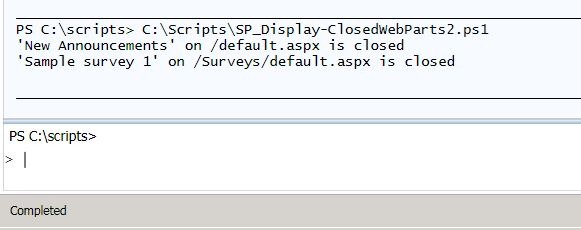
FindClosedWebPart1

Screenshot output from calling script

Conclusion

Using the SharePoint API and some basic looping structures I demonstrated a short script that can quickly and easily identify web parts that have been closed.  If desired you could modify the script to also automatically delete these closed web parts.  Since we are only concerned with finding instances of closed web parts I have left that functionality out for now.  Feel free to use and adapt this script as you like, but please attribute the original source if you re-publish or distribute a modified version.  Now go enjoy all that extra time you’ll have from not having to manually track down all those closed web parts.

-Frog Out

Links

Display closed web parts PowerShell Script

http://cid-9137d132751b949f.office.live.com/self.aspx/.Public/Blog%20files/SP%5E_Display-ClosedWebParts2.ps1