I Contributed to the Office App Model Samples Project


<Update 2014-08-18> The Office App Model Samples project has been transitioned over to the Office 365 Developer Patterns & Practices GitHub repo.  Please use that location going forward for any references.</Update 2014-08-18>


  During the SharePoint Conference 2014 I had the pleasure of meeting Vesa Juvonen (@vesajuvonen) and Steve Walker (Linked In) after their session “Real-world examples of FTC to CAM transformations” (video).  This was a very valuable session to attend discussing examples of full trust code (FTC) solutions that were re-implemented / re-imagined as app model apps.  They also mentioned a new CodePlex project gathering community app model samples called Office App Model Samples (Office AMS).


   Over the past few years I’ve been toying around with various PowerShell scripts to enumerate permissions in an on-premise SharePoint farm (Enumerate SharePoint 2010/2013 Permissions, Enumerate SharePoint 2007 Permissions).  I was curious to see if it was possible to enumerate permissions in a SharePoint Online tenant as well.  I had tried using the official SharePoint Online Management Shell commandlets, Gary LaPointe’s custom SharePoint Online commandlets, and my own client side object model (CSOM) PowerShell queries with no luck.  Looking through Gary’s source code though I found a way to get the permission information I needed via C# code and CSOM.  This felt like a great idea to submit to the OfficeAMS project.


   I’m happy to announce that my submission Core.PermissionListing is now published in the OfficeAMS project.  Keep in mind this is a rough proof of concept.  The sample iterates through all non-My Site site collections (something I borrowed from another OfficeAMS solution) in a SharePoint Online tenant and lists out the permissions assigned to groups or users and specifies the permission assigned.  The output could definitely be cleaned up but that will be an effort for a later date.  Hopefully you will find this and other app model samples useful.  If you’d like to contribute or improve upon a solution you find please contact Vesa, Steve, or myself.


      -Frog Out
Slides and Scripts from SharePoint Cincy 2014

   I was pleased to present at SharePoint Cincy again for the third year.  Geoff and all the organizers do a great job.  My presentation this year was “PowerShell for Your SharePoint Tool Belt”.  Below are my slides and demo scripts.  Thanks for all who attended, I hope you found something that will be useful for you in your work.


Demo PowerShell Scripts


Slidedeck


      -Frog Out

PowerShell Script To Determine If SharePoint List Uses InfoPath Forms

   Recently I had a request from a customer to find which SharePoint 2010 / 2013 lists are using InfoPath forms for their data entry (also known as enterprise forms for a SharePoint list).  In this post I will show you a PowerShell script to determine if a SharePoint list is using InfoPath forms.


Problem

  As you may have heard, InfoPath as a product will not be receiving any future releases (see InfoPath roadmap update blog post).  Being able to find SharePoint lists using InfoPath forms may be useful to you now.


Solution

   Special thanks goes out to Joe Rodgers (fellow PFE at Microsoft) who helped me narrow down the specific properties to look at.  The property that we want is not at the base of the SPList properties nor on the SPList.Forms properties like I had hoped.  Instead you will need to dig a few levels down.  I found the property at SPList.ContentTypes[0].ResourceFolder.Properties[“_ipfs_infopathenabled”].  If this setting is true then your list is using InfoPath forms for data entry.  If it is false then it is using out of the box SharePoint forms.


Add-PSSnapin microsoft.sharepoint.powershell 
$webURL = <Your Site URL> 
$documentLibraryName = <name of document library> 

$web = Get-SPWeb 
$list = $web.Lists[“$documentLibraryName”] 
$isUsingInfoPath = $list.ContentTypes[0].ResourceFolder.Properties[“_ipfs_infopathenabled”] 
Write-Output $isUsingInfoPath 


Conclusion

   This script will determine if a single SharePoint list is using InfoPath forms or not.  You could easily expand this to work with multiple lists or sites (similar to my PowerShell Script to Determine Number of Files in SharePoint 2010 or 2013 Document Libraries).  Feel free to adapt the above snippet in this post to your needs but please attribute rights if you republish.


      -Frog Out

PowerShell Script to Limit SharePoint Site Templates Available

   I had a customer request recently to limit the which site templates were available to end users to create subsites.  Below is a short PowerShell script to do just that.


Problem

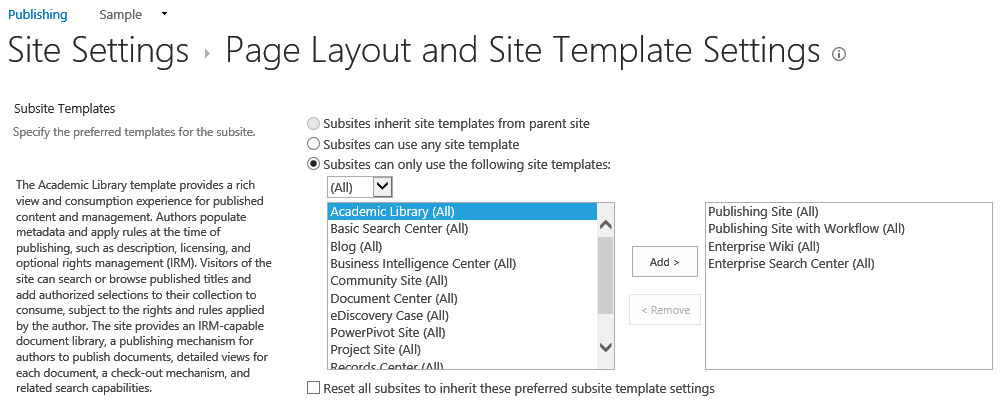
   If you are using a Publishing Site you can restrict the available site templates by going to Site Settings –> Look & Feel and clicking on Page Layouts and Site Templates (see following screenshot).  If you are not on a Publishing Site then there is not an easy (supported) way to accomplish this through out of the box means.

LimitSPSiteTemplates1


Solution

   The SPWeb class has methods GetAvailableWebTemplates and SetAvailableWebTemplates that can be used in conjunction with each other to get the current list of templates and then filter down to only the desired templates.  The filtered down results can then be set and updated on the SPWeb.  A version of this script can be downloaded from the TechNet Script Repository: Limit available web templates for a SharePoint site.

Note:  Be sure to modify the “<URL of site>” to your site’s URL and also change which templates to keep (line 2).


# array of template names (not titles) to keep 
$templateNamesToKeep = “STS#0”,“PROJECTSITE#0”,“BLOG#0” 

Start-SPAssignment -Global 
$web = Get-SPWeb <URL of site> 
# get the existing web templates from the site that will be filtered down 
# 1033 is the locale id for English US (en-us), be sure to change to your locale 
$existingWebTemplates = $web.GetAvailableWebTemplates(1033) 
$newWebTemplates = New-Object “System.Collections.ObjectModel.Collection[Microsoft.SharePoint.SPWebTemplate]” 
# filter existing web templates and only keep if in the list of template names to keep 
$newWebTemplates = $existingWebTemplates | Where-Object {$_.name -in $templateNamesToKeep} 
$web.SetAvailableWebTemplates($newWebTemplates, 1033) 
$web.Update() 
Stop-SPAssignment -Global 

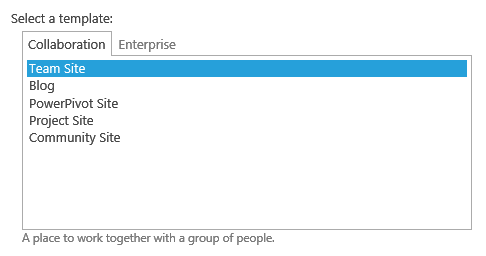
   Before you run the script you will see the original list of available web templates when creating a subsite.

LimitSPSiteTemplates2


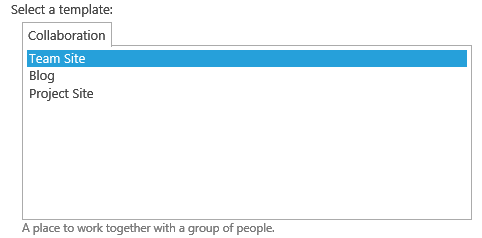
   After you run the script you will now see only the templates which you listed in the templates to keep.

LimitSPSiteTemplates3


   If you need to reset the list of available web templates you can execute the AllowAllWebTemplates method on the SPWeb object.


Conclusion

   I had run across a few other samples for limiting web templates that involved modifying out of the box SharePoint files (changes which may be overwritten by future updates or patches, and thus not recommended).  This process of using the SetAvailableWebTemplates() method appears to be a bit more safe and supported.


      -Frog Out

Guest Blog Post on Hey Scripting Guy Blog – STSADM Replacement

   Quick blog post here to let you know that I wrote a guest blog post for Ed Wilson (The Microsoft Scripting Guy) over on the Hey Scripting Guy blog.  The post is titled “Weekend Scripter: Using PowerShell to Replace STSADM” and covers some research I did into replacing the functionality of the “STSADM –o enumallwebs” command with PowerShell.  Feel free to give it a read and let me know if you have any feedback or comments.   Have a great end of this 2013 year.


      -Frog Out


Links

Weekend Scripter: Using PowerShell to Replace STSADM

http://blogs.technet.com/b/heyscriptingguy/archive/2013/12/29/weekend-scripter-using-powershell-to-replace-stsadm.aspx